Turn spoken audio into on-video subtitles, edit every line, adjust timing and style, then generate a captioned video for TikTok, YouTube, ads, tutorials, and more.
Step 1: Upload or open your video
Open the APOB AI video editor, choose Add subtitles from the left panel, and switch to Captions. Upload or select a video with clear spoken audio. The panel gives you two starting points: extract subtitles from the video or add a caption line manually.
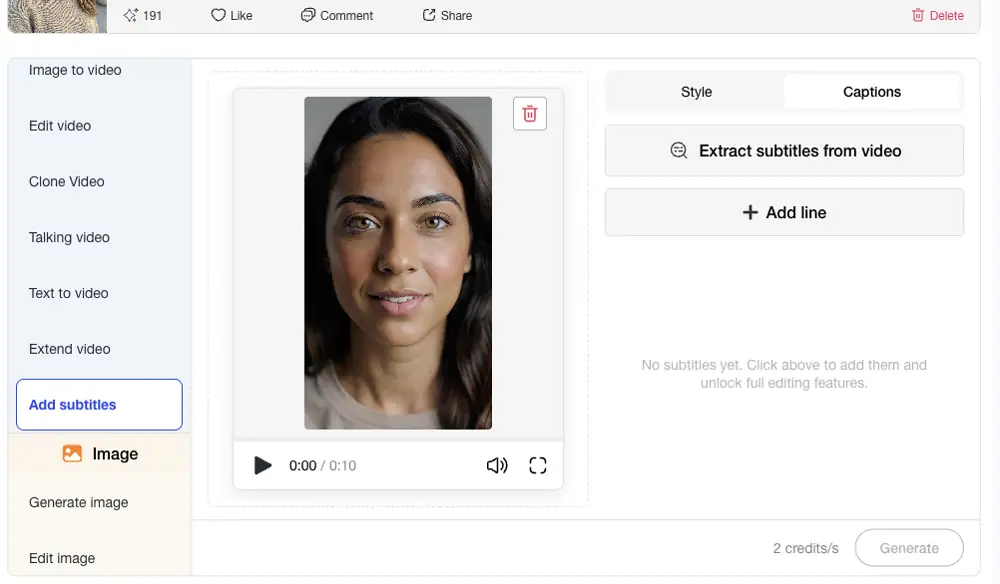
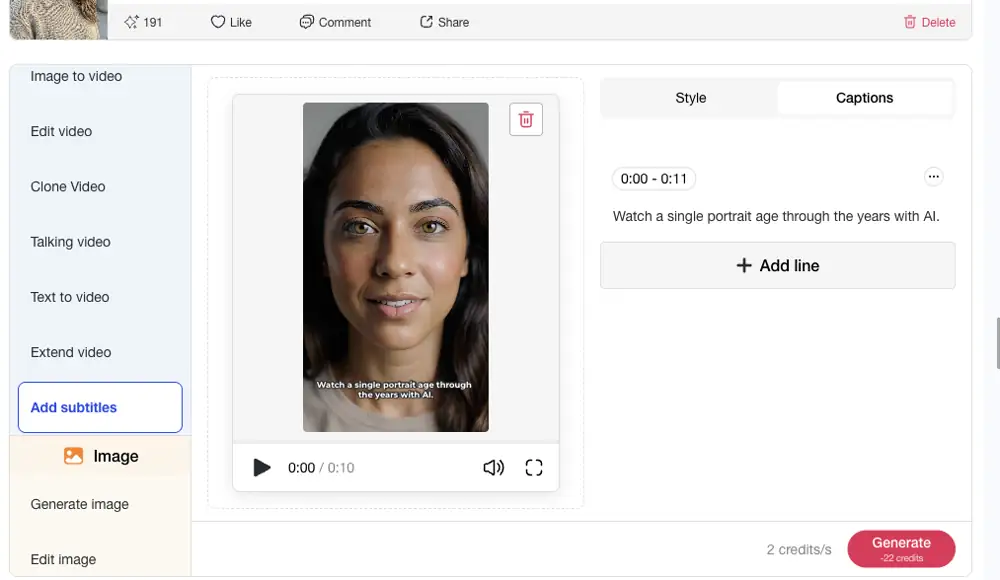
Step 2: Extract, review, and edit caption lines
Select Extract subtitles from video, then review the generated lines. Correct names, numbers, and technical terms; adjust the start and end time when a line appears too early or late; and use Add line for any missing phrase or on-screen note.
Step 3: Style, preview, and generate
Use the Style tab to make the subtitles readable against the footage. Preview the video, confirm that captions do not cover faces or important details, then click Generate. Review the result at the final aspect ratio before publishing.
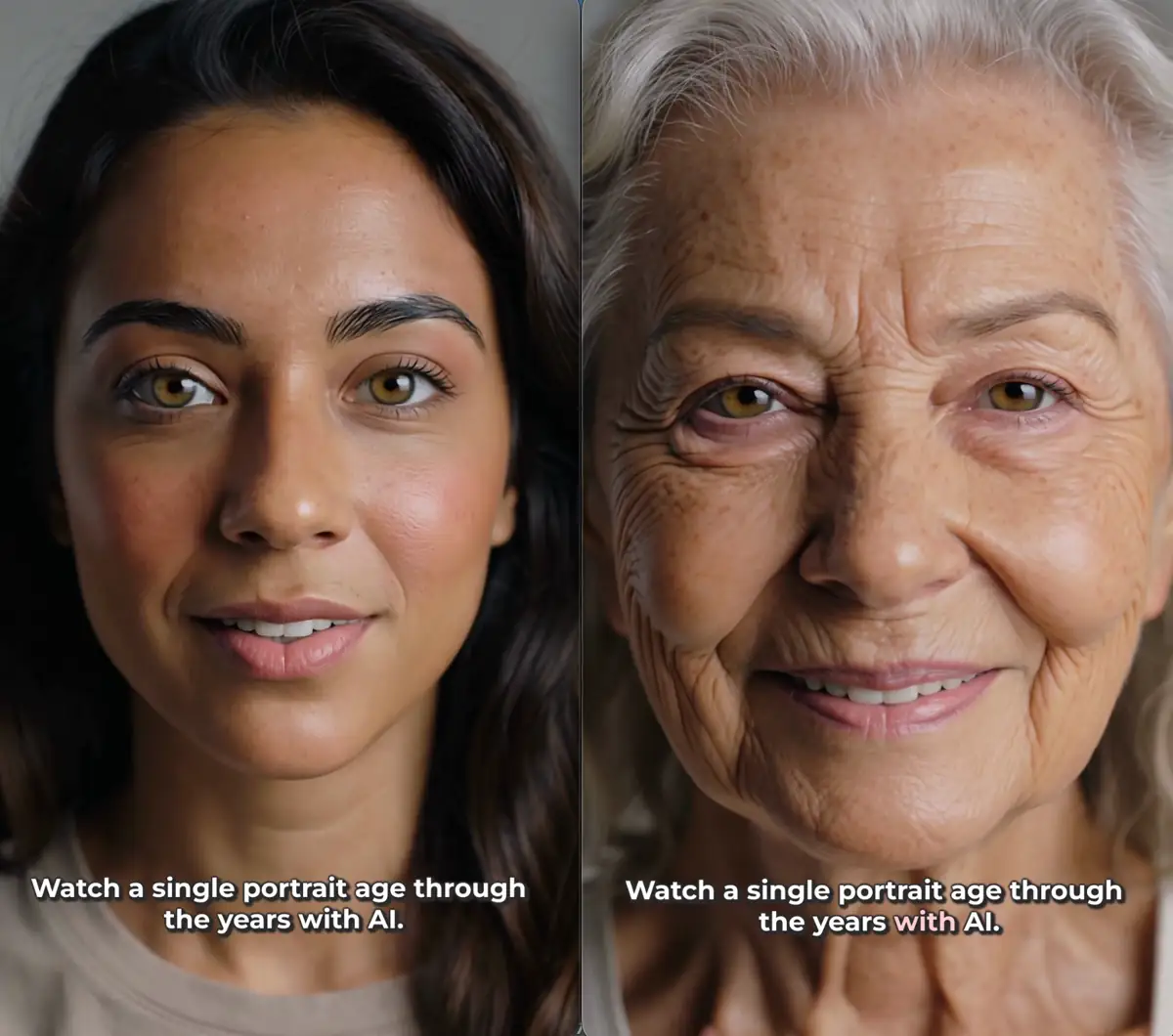
Generate subtitles inside the video editor
Move from the source clip to caption extraction, editing, styling, and final generation in one APOB AI workflow. You do not need to prepare a separate transcript before starting.
Edit every line before export
Automatic transcription is a first draft. Correct names, product terms, numbers, and punctuation, then adjust timing so each caption follows the spoken phrase.
Style captions for social video
Use visible, high-contrast text for vertical clips, ads, tutorials, product demos, and creator videos. Preview placement against faces, products, and platform interface areas.
Keep captions connected to the creative workflow
APOB AI combines subtitles with video creation and editing tools, making it easier to caption AI-generated clips, talking avatars, UGC videos, and existing footage without rebuilding the project elsewhere.
TikTok, Reels, and short-form social videos
Add concise captions to hooks, demonstrations, reactions, and talking-head clips so the message remains readable in fast-moving feeds. TikTok introduced auto captions to make videos easier to use for Deaf and hard-of-hearing audiences and lets creators edit generated text. Source: TikTok Newsroom.
YouTube Shorts, tutorials, and explainers
Caption steps, narration, and key terms before publishing. YouTube Create also supports generating, editing, and formatting captions, which reflects how central caption review is to creator workflows. Source: YouTube Help.
Product demos, UGC ads, and LinkedIn video
Use captions to clarify features, prices, calls to action, and technical language in branded video. LinkedIn supports automatically generated captions and gives publishers a review step before viewers see them. Source: LinkedIn Help.
Accessible training and communication
Provide an accurate text version of speech and meaningful audio information. W3C guidance explains that captions help Deaf and hard-of-hearing viewers access audio content. Source: W3C Web Accessibility Initiative.
Faster first drafts
Automatic extraction replaces the slowest part of manual captioning: typing every spoken word from scratch.
Editable text and timing
You can correct individual lines and align them with speech before generating the final video.
More readable social content
On-video captions keep the message visible when viewers cannot or choose not to listen to the audio.
One connected creator workflow
Subtitles sit beside APOB AI video generation and editing tools, which is useful for AI avatars, UGC clips, demos, ads, and short-form content.
Automatic transcripts still need human review
Names, accents, background noise, overlapping speech, and specialist terms can produce mistakes. Proofread every line before publishing.
Source audio quality matters
Echoes, music, clipping, and distant microphones can reduce transcript quality. Clean audio creates a stronger starting point.
Burned-in text cannot be switched off
On-video subtitles are useful for social content, but platforms or accessibility requirements may also call for a separate closed-caption file.
Generation uses credits and processing time
The current credit cost depends on the editor settings and clip duration shown in the product. Check the displayed cost before generating a long video.
No Credit Card Required





Answers about extraction, editing, timing, styling, accessibility, credits, and video publishing.
What is an AI subtitle generator?
An AI subtitle generator turns spoken audio in a video into timed text captions. You can review the transcript, correct words, adjust timing, style the captions, and generate a video with readable on-screen subtitles.
How does APOB AI generate subtitles from a video?
Open the video editor, choose Add subtitles, switch to Captions, and select Extract subtitles from video. APOB AI analyzes the speech, creates caption lines, and places them on a timeline for review.
Can I edit automatically generated subtitles?
Yes. Review each caption line before generating the final video. Correct names or technical terms, rewrite unclear phrases, and check that every line matches the spoken audio.
Can I change subtitle timing?
Yes. Caption lines include timing controls, so you can align text with the exact moment a phrase is spoken. Preview the video after edits to catch captions that appear too early or disappear too quickly.
Can I add a subtitle line manually?
Yes. Use Add line when the automatic transcript misses a phrase, when you want an opening hook, or when you need a short on-screen note that is not present in the audio.
Can I customize the subtitle style?
Yes. Use the Style tab to adjust how captions appear in the video. Keep strong contrast, readable sizing, and safe placement so subtitles remain clear on both mobile and desktop screens.
What is the difference between subtitles and captions?
Subtitles usually represent spoken dialogue, often for viewers who do not understand the audio language. Captions can also include useful non-speech information such as music or sound cues. In everyday creator workflows, the terms are often used interchangeably.
Are the generated subtitles burned into the video?
The workflow shown here creates visible on-video text in the generated result. Burned-in subtitles travel with the video and cannot be turned off. If a platform requires switchable closed captions, follow that platform's caption-file workflow as well.
Can I add subtitles to TikTok videos?
Yes. The workflow is suitable for vertical social videos. Check the text position in a vertical preview so app controls, usernames, and descriptions do not cover important subtitle lines.
Can I use it for YouTube Shorts?
Yes. Generate concise caption lines, keep them inside the central safe area, and review them on a phone-sized preview before publishing a Short.
Can I subtitle product demos and video ads?
Yes. Captions can clarify product benefits, steps, prices, and calls to action. Always review brand names, specifications, and commercial claims before export.
Do subtitles make videos more accessible?
Subtitles give viewers a text version of spoken content. Accurate captions are particularly important for Deaf and hard-of-hearing viewers, and they also help people watching in noisy or sound-sensitive environments.
What type of audio produces the best subtitle results?
Clear speech with limited background noise produces the most reliable transcript. Reduce loud music, echoes, overlapping dialogue, and clipped audio before extracting subtitles whenever possible.
How should I handle multiple speakers?
Review the transcript carefully and split or rewrite lines when the speaker changes. Add names manually when the audience needs to know who is speaking.
Can the AI subtitle generator translate captions?
This page focuses on extracting, editing, styling, and generating subtitles from spoken audio. Translation availability can vary by workflow, so check the current editor options before planning a multilingual project.
Is the AI subtitle generator free to try?
You can open the APOB AI editor and review the credits available on your account. Video generation uses credits, and the displayed cost can vary with clip length or current product settings.
Will my export have a watermark?
Watermark and export options can depend on the current account plan and project settings. Review the export screen before generating production-ready or client-facing content.
Which video formats can I upload?
Use a format accepted by the current APOB AI upload dialog. If a file is rejected, convert it to a common web video format and keep the audio track intact before uploading again.
How long does subtitle generation take?
Processing time depends on clip length, audio quality, and current service demand. Short, clear clips usually require less processing and are faster to review than long recordings.
What should I check before generating the final video?
Proofread every line, confirm timing, check names and numbers, preview on the target aspect ratio, verify contrast against the footage, and make sure subtitles do not cover faces, products, or platform controls.


