
AI Video Stabilizer Online
Stabilize shaky videos online and turn rough creator clips, product demos, AI influencer videos, talking avatars, and social media drafts into smoother assets.
How to Use AI Video Stabilizer Online
Step 1: Open your video workspace
Start by signing in so your uploaded clips, generated videos, edits, and drafts stay connected to your account. This is helpful if you are stabilizing several versions of the same TikTok ad, product demo, AI influencer clip, or talking avatar video.
The common problem is losing track of which version is the cleanest. By keeping the workflow inside one account, you can compare the original shaky video, the stabilized version, and later edits without mixing files across different tools.

Step 2: Generate and Select an AI Influencer Reference Image
In the AI influencer generator, choose or write the facial details for the model you want to create. Use a detailed prompt that describes the face shape, skin tone, eyes, eyebrows, nose, lips, hair color, hairstyle, makeup, expression, and overall influencer style. The more specific the description is, the easier it is to create a consistent AI influencer reference image.
Prompt: Ultra-realistic adult female AI influencer avatar, 24 years old, original fictional character, soft European fashion model look, warm golden fair skin tone, natural oval-heart shaped face, balanced facial proportions, softly defined jawline, high cheekbones, smooth realistic skin texture with visible pores, light natural freckles across the nose and cheeks, clear honey-brown almond-shaped eyes, realistic iris texture, soft under-eye detail, natural eyelid crease, long but realistic eyelashes, full softly arched eyebrows with individual hair strands, straight refined nose with a soft rounded tip, naturally full lips with defined cupid’s bow, glossy rose-nude lip color, gentle confident closed-mouth smile, subtle smile lines, clean forehead, sun-kissed glow, minimal natural makeup, soft peach blush, long straight blonde hair with darker roots and fine face-framing layers, slightly tousled natural strands, bright indoor daylight, shallow depth of field, realistic facial details, casual lifestyle influencer aesthetic, no celebrity likeness, no brand logo, no text, no watermark.

Step 3: Enhance and Stabilize the Final Video
Open Edit video and choose Edit everything. Upload the original video you want to improve, then enter a clear instruction in the video editing box.
Prompt: Enhance this video to look clearer, sharper, and more professional. Reduce blur, improve facial detail, sharpen the eyes, hair, skin texture, clothing edges, and background structure while keeping the original identity, pose, motion, lighting, colors, outfit, and scene composition unchanged. Remove compression artifacts, reduce noise, improve contrast naturally, and make the final video look like a clean high-quality social media clip. Keep motion smooth and realistic, no over-sharpening, no face distortion, no text, no watermark.

Step 4: Review Your Stabilized Video and Refine Motion
After using the AI video stabilizer online, preview the stabilized video from start to finish. Check whether camera shake, jitter, frame wobble, motion blur, and uneven movement have been reduced while the subject, face, product, background, and original video style stay natural. If the result still feels shaky, adjust your prompt or generate again with clearer motion instructions. You can also continue editing with APOB AI features: edit product to fix object or packaging details, edit character to keep the same person or avatar consistent, edit motion to smooth movement.

APOB AI Video Stabilizer vs Standard AI Video Stabilizer Tools
Practical workflows for creators, marketers, ecommerce sellers, influencers, and designers.
Feature | APOB AI AI Video Stabilizer | Standard AI Video Stabilizer Tools |
|---|---|---|
Core Workflow Count | 7+ video workflows | 1 main stabilization workflow |
Editing Tools After Stabilization | 8+ tools: edit product, edit character, edit motion, edit everything, face swap, edit style, edit shot, edit background | Usually 2-4 basic tools: crop, trim, sharpen, export |
Supported Video Sources | Uploaded video, AI-generated video, image-to-video, text-to-video, talking video, product video, AI influencer video | Mostly uploaded video only |
Output Resolution Options | 720P, FHD, QHD, 4K depending on workflow | Usually 720P or 1080P; 4K often limited or paid |
Social Format Support | 9:16, 1:1, 16:9, 4:3, keep original | Usually original ratio plus 1-2 crop options |
Product Editing After Stabilization | Yes, product shape, label area, background, motion can still be refined | Usually no product-specific editing |
Character Editing After Stabilization | Yes, supports AI influencer, avatar, face, outfit, and motion edits | Usually no character-level editing |
Motion Control | Stabilize video + edit motion for gestures, camera movement, and pacing | Mostly camera shake reduction only |
Subtitle Support | Built-in add subtitles workflow | Often requires a separate editor |
Background Editing | Built-in edit background / remove background workflow | Usually not included |
Best Use Cases | Product videos, UGC ads, AI influencer clips, talking avatars, TikTok/Reels/Shorts, ecommerce videos | Travel clips, phone footage, action clips, basic shaky video repair |
Workflow Continuity | Stabilize → edit → upscale → subtitle → export in one workspace | Stabilize → export → edit elsewhere |
Main Advantage | Turns shaky clips into finished marketing-ready videos | Mainly makes shaky clips smoother |
Trusted by Thousands of creators

Emir.
21k Followers

Subhan Qureshi
26k Followers

ELITE MINDSET
23k Followers

Ajay Sharma
30k Followers

Mr Shishir
5k Followers
edrian.exe
604k Followers

aprendeconvalerio
1.39M Followers

gabzer.mp4
591k Followers

Hasan Toor
413k Followers
Tulsi Soni
153k Followers

TuTecnoMundo
3.08M Subscribers

YORD
2.79M Subscribers
SinnerSam
325k Subscribers

malik.makhlouff
1.2M Followers

Riscaane
215k Followers
setups_ai
950k Followers



Jhonier Gomez
137k Subscribers

David Dato
70k Subscribers

Pro Secret
22k Subscribers

rulomart
2.4M Followers
xabatz
99K Followers
reels_drgn
55K Followers
cristinakerk.studio
156K Followers
websconia_ia
23k Followers
felippetek
216k Followers

cr_webq
15k Followers

moddy.a.m
385k Followers

mpminds
1.2M Followers

ainusantara
551k Followers
vin.ai93
209K Followers

pampisman
957k Followers

eloiljf
296k Followers


Why choose APOB AI as your AI video stabilizer?
Stabilization plus creative editing in one workflow
Many video stabilizer tools only smooth shaky footage and then ask you to move into another editor. APOB AI keeps stabilization close to the rest of the creation workflow, including image to video, text to video, talking video, subtitles, video enhancement, and AI influencer content.
Useful for handheld social clips, not only studio footage
Creators often film with phones, quick product setups, or casual UGC framing. APOB AI helps improve those practical clips while still letting you keep a natural handheld feel, which is important for TikTok ads, Reels, Shorts, and creator-style product videos.
More control after the first stabilized result
After smoothing the video, you can keep improving the asset with edit product, edit character, edit motion, edit everything, add subtitles, face swap, remove background, or upscale. This makes the page useful for users who need a finished marketing video, not just a technically stabilized file.
Use cases of AI video stabilizer
Practical workflows for creators, marketers, ecommerce sellers, influencers, and designers.
Real estate walkthrough videos with smoother camera movement
Real estate agents often record property tours, room walkthroughs, balcony views, and drone-style listing clips on phones or lightweight cameras. An AI video stabilizer can reduce handheld shake so doors, rooms, windows, and outdoor views feel easier to inspect. This use case is supported by the REALTOR® Technology Survey, where NAR reports that social media is used by 75% of REALTORS® and drone photography/video by 52%. Reference: REALTOR® Technology Survey, National Association of REALTORS®
Short educational videos and course previews
Teachers, coaches, and course creators can stabilize short lesson clips, whiteboard explanations, screen-recording intros, or quick tutorial videos before publishing them as microlearning content. Smoother motion helps learners focus on the speaker, object, or demonstration instead of camera shake. Reference: The Reel Deal: Designing and Evaluating LLM-Generated Short-Form Educational Videos
Research, expert, and thought-leadership clips
Researchers, founders, consultants, and expert creators can turn rough webcam clips, conference notes, or talking-head drafts into cleaner short videos for LinkedIn, YouTube Shorts, or website explainers. Stabilization is useful when the source video has small framing shifts, webcam softness, or handheld motion but the message is worth keeping. Reference: Exploring the Use of Generative AI for Creating Short-form Videos for Research Communication
Accessibility-friendly social videos
Creators and brands can stabilize fast-moving short videos before adding subtitles, descriptions, or visual summaries. A steadier clip makes faces, objects, text areas, and scene changes easier to follow, especially when the video is designed for TikTok, Instagram Reels, or YouTube Shorts. Reference: Making Short-Form Videos Accessible with Hierarchical Video Summaries
Reviews on APOB AI Video Stabilizer

I rescued a handheld product demo that had too much shake to use. The stabilized version keeps the subject clear without feeling overprocessed.
The tool made walking footage much smoother while preserving the natural movement. It saved a client shoot that I thought we would need to repeat.
I used it on phone footage from a fast-moving event and got a much cleaner sequence for the highlight reel.
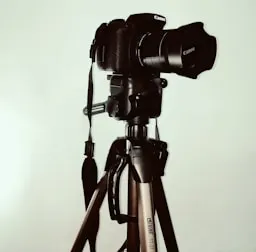
The stabilizer is a quick way to make casual behind-the-scenes clips feel more polished. I can publish the footage instead of discarding it.
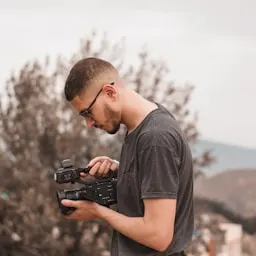
I had a shaky outdoor interview with no chance to reshoot. The correction gave the subject a steady frame and kept the story usable.
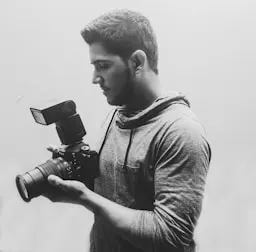
I find that it helped smooth a handheld travel sequence without removing the feeling that the camera was actually there. The result feels natural.
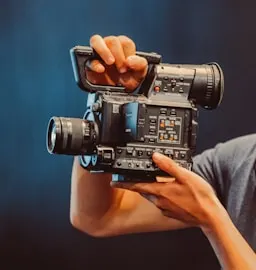
I can clean up action footage quickly and keep the main subject in view. That makes the edit much easier to shape.
I find that the tool is especially helpful for quick social clips recorded on a phone. A little stabilization makes the whole post feel more professional.
I used it on a moving product shot and the camera path became much easier to watch. The improvement was obvious in the first preview.
The stabilizer gave our walking tour footage a smoother flow without flattening every bit of movement. It feels polished but still authentic.
I can process a batch of handheld clips and quickly identify which ones are ready for the final cut. That saves time during a busy edit.
It turned a shaky creator-style recording into something we could confidently use in an ad. The message stayed front and center.
I like that the corrected footage still looks like real camera work. It removes distracting shake while keeping the energy of the original shot.
The tool helped me stabilize a small drone sequence and make the movement easier to follow. It gave the establishing shot a much cleaner finish.

I used it on sports footage with quick camera movement and got a steadier view of the action. It made the key moments much easier to edit.
I find that the stabilizer is a practical safety net for run-and-gun production. It makes imperfect footage far more useful without a complicated workflow.
I can smooth a phone clip before adding captions and effects, so the finished social video feels intentional from the start.

I find that it gave a family event video a calm, watchable feel while preserving the real moments. The result looks much more finished than the original recording.


Stabilize your videos with AI now
No Credit Card Required
More tools for smoother AI video workflows


FAQs about AI video stabilizer
Answers about stabilization quality, shaky footage, video enhancement, privacy, commercial use, and social media formats.
What is an AI video stabilizer, and can I use it online?
An AI video stabilizer is a tool that helps reduce shaky camera movement in a video so the final clip looks smoother and easier to watch. Yes. You can upload a shaky clip, choose a video workflow, and generate a smoother version online without installing traditional video stabilization software.
Can I try APOB AI as a free video stabilizer?
APOB AI offers online creation and editing workflows. Free or paid usage depends on current account credits, quality settings, and feature availability.
Can I stabilize social media and product videos?
Yes. Use 9:16 vertical framing and check that the subject, subtitles, and product details stay visible after stabilization and cropping. Yes. Stabilization is useful for product close-ups, handheld demos, ecommerce clips, packaging shots, and creator-style product ads.
Does AI stabilization crop every video, and can it fix any level of shake?
Many stabilization workflows may adjust the frame to reduce shake. Always preview the result to make sure important faces, products, and subtitles are not cut off. No. It works best when the original video still has clear subjects and manageable camera shake. Extremely blurred or chaotic footage may need a new source clip.
Which resolution and quality settings should I use?
Yes. After stabilization, you can use higher quality settings, upscale when available, refine motion, and adjust the clip for the final platform. Use FHD or higher quality settings for ads, product pages, and final social assets. Use lower settings only for quick drafts or tests.
What can I edit after stabilizing a video?
Edit everything is for broader scene changes when you want to adjust multiple parts of the video, such as subject, motion, background, style, and composition. Yes. Subtitles are useful for mobile viewers and social ads. Make sure they remain readable after any crop or motion adjustment.
Can I use stabilized videos commercially?
Yes, if you own or have permission to use all footage, products, people, likenesses, music, claims, and brand assets included in the video.
What input works best, and how does AI stabilization compare with manual editing?
A clear video with visible subject detail, moderate camera shake, good lighting, and limited motion blur usually produces the best result. AI stabilization is faster for common shaky clips. Manual editing may still be better for complex camera repair, detailed timeline control, or professional post-production.
What should I do if the video still looks shaky?
Try a clearer source file, reduce fast movement in the prompt, choose a higher quality setting, or use edit motion to refine the movement.
How are uploaded videos handled?
Review the platform's privacy policy and avoid uploading confidential footage unless you have permission and understand how the content will be processed.