1. Upload and Target: Start Your Scene
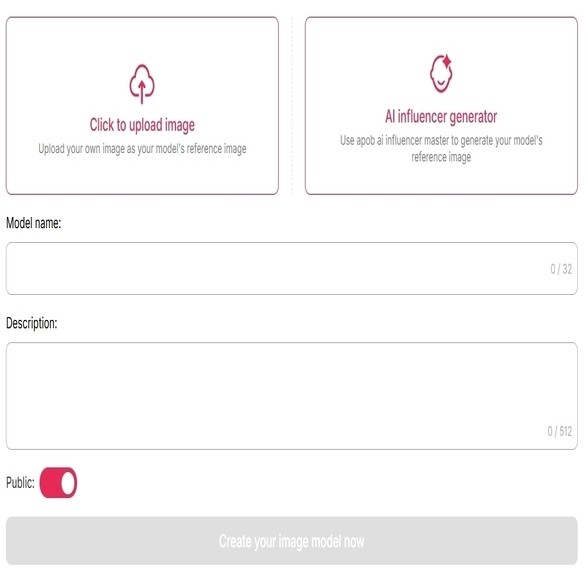
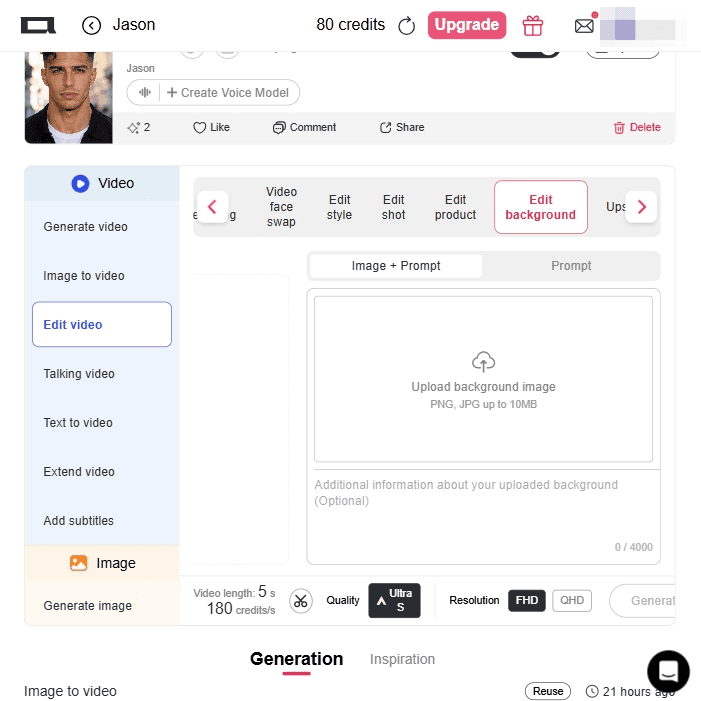
After sign up, click 'create ai portrait' to create your model first. Upload an image of the main character in the video to create an 'AI Influencer'. Begin by navigating to the Edit Video tab on the sidebar. Upload your original clip (ideal length: 3 to 10 seconds) into the "Upload Video" box. Once uploaded, select the Edit Background option from the top menu to tell the system you're ready to switch environments.
Example: Imagine you recorded a fitness tutorial in a messy living room. By simply uploading that 5-second clip, APOB AI prepares to isolate you as the subject, ready for a total environment overhaul.
2. Choose Your Creation Mode: Image or Prompt
On the right-hand panel, you have two powerful paths to change ai video background. You can either upload a specific "Background image" you already own or use the "Prompt" box to describe a dream location.
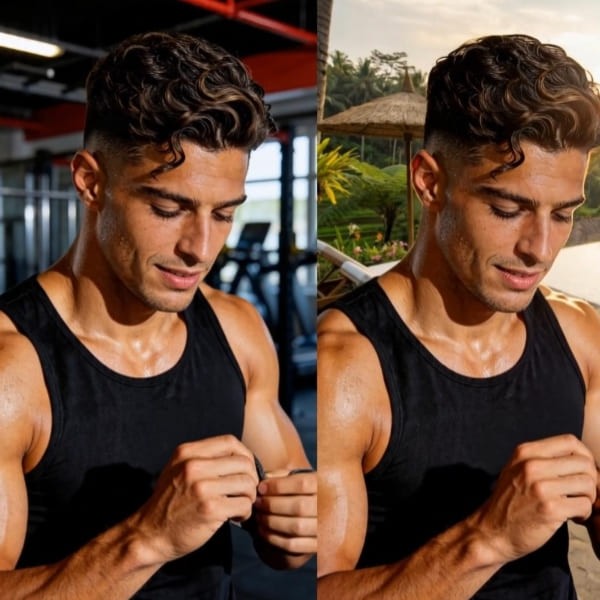
Example: For your fitness video, you could upload a photo of a luxury Bali retreat or simply type: "Sun-drenched yoga studio with wooden floors and floor-to-ceiling windows overlooking a tropical jungle, 4K, cinematic lighting."
3. Fine-Tune with Expert Instructions
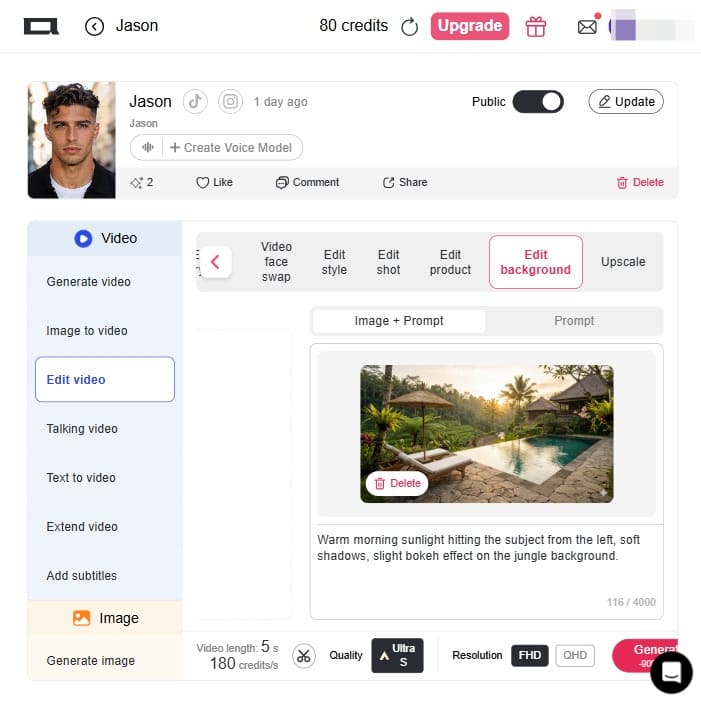
Utilize the "Additional information" box to provide the ai video background changer with specific details about lighting and atmosphere. This ensures the subject and the new background blend naturally rather than looking like a sticker.
Example: To make the Bali retreat look real, add: "Warm morning sunlight hitting the subject from the left, soft shadows, slight bokeh effect on the jungle background."
4. Select Quality and Generate your video background
Before clicking "Generate," select your desired resolution—choose Ultra S or Ultra 4K for the most professional results.The ai video background generator will process the frames, ensuring consistent character details while completely replacing the environment.
Example: Within minutes, your "messy room" video is now a high-end marketing asset ready for TikTok or Instagram Reels, significantly boosting your brand's professional look.
5. Video Showcase: Turn Any Space Into a Regal Studio
Tired of shooting in the same old studio or boring background? Check out this before and after!
We took a simple shot against a plain brown wall (left) and, in just one click, transported the model into this stunning, sun-drenched European palace (right). The AI even perfected the lighting and shadow fusion! Don't forget: This is a compressed video, to get better results, click the button and generate your 4k videos.
Traditional shoots require expensive setups. Our AI removes any background from standard footage with 97% accuracy.
Most tools look "fake" because lighting doesn't match. APOB AI automatically relights your subject to match the new scene's sun or neon glow
Say goodbye to blurry AI artifacts. Generate high-definition videos that maintain skin texture and sharp edges even after the swap.
E-commerce & PDP Growth:
Adding high-quality background-swapped videos to Product Detail Pages (PDPs) can increase conversion rates by 65% . Brands like Shopify have found that products with video convert 10%–30% higher across all categories .
Faceless Content Creation:
The "Faceless" niche on YouTube grew 340% faster in 2025 than traditional channels . Creators use APOB AI to generate consistent virtual influencers in global settings, earning between $500K and $5M annually .
Global Marketing Campaigns:
Use the ai video background generator to localize one ad for multiple regions. Swap a New York office for a Tokyo skyline in one click to improve culturally relevant engagement.10
Reducing E-commerce Returns:
High-quality videos showing products in realistic contexts help reduce return rates by an average of 12%–18%, as they bridge the gap between "expectation" and "reality" for the consumer.

Eva Lin
I replaced a cluttered apartment background with a clean studio look for a product video. It made the clip feel planned instead of improvised, and I did not have to reshoot.

Rina Kato
I used it to test different worlds behind the same character. A neon street background gave the clip a stronger story, while the subject still stayed readable.

Jordan Cole
The background generator is useful for internal videos when the speaker footage is fine but the room is distracting. A subtle office backdrop made the whole clip feel more professional.

Evan Hart
I needed a calmer background for a short explainer. APOB AI helped remove visual noise so viewers paid attention to the movement and narration.
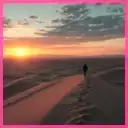
Nori
We had a cute dog clip with a messy kitchen behind it. Swapping to a brighter lifestyle background made the ad feel intentional and still kept the charm.
Sierra Vale
I tried a few scenic backgrounds to match a voiceover. The mountain version had the right feeling, and it saved me from forcing unrelated stock footage into the edit.

Leo Harris
For quick UGC tests, changing the background helps us compare angles fast: clean studio, outdoor, cozy room. It is a practical way to find the mood before spending on production.

Zion Hale
I used it for a moody performance clip and swapped a plain wall for a darker cinematic space. The result gave us a stronger visual hook for the opening seconds.
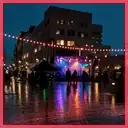
Olive
My tutorial footage looked busy. A simple background made the lesson feel cleaner, and captions were easier to read. That tiny change made the video look much more trustworthy.
No Credit Card Required
Massive Cost Savings:
Reduce production costs by up to 80%–95% compared to traditional on-location filming .
Creative Freedom:
Place yourself in environments that are physically impossible or too expensive to access. (Fortunebussinessinsight, 2026)
Efficiency:
What used to take days in After Effects now takes minutes, saving creators an average of 17 hours per week .
Short Duration Limits:
Current AI models work best for clips under 30 seconds to maintain high structural stability .
Credit Intensive:
High-quality 4K renders consume credits quickly, requiring a premium plan for high-volume creators.(Github, 2026)
How do I fix background "shimmering" or flickering?
Flickering usually happens when the AI is "guessing" the background for every frame . To solve this, use our First and Last Frame feature. By setting both manual frames, the model calculates a trajectory instead of guessing motion .
My subject looks like a "sticker" on the new background. What should I do?
This is a lighting mismatch. In the prompt box, describe the lighting source clearly (e.g., "Single soft key light 45 degrees to the left") to match the shadows of your original video . You can also apply a slight blur to the background to simulate a professional camera's depth of field. (dreamgrow, 2026)
Is AI-generated background content safe for commercial use?
Yes, APOB AI generates entirely new pixels based on your descriptions. However, always ensure your prompts don't include trademarked logos or specific copyrighted characters to maintain 100% commercial safety.
What else are creators looking for in an ai video background changer?
Modern creators prioritize character consistency and lip-sync accuracy. They want to ensure that while the background changes, their "AI Avatar" remains recognizable and speaks naturally to the audience .


