Upload a portrait, describe the shade you want, and use Chat to Edit to preview a hair color change. Refine roots, highlights, and lighting, then optionally animate the approved image with Image to Video.
Compare the result with the original at full size. Check the hairline, roots, brows, skin, earrings, clothing edges, and background. Hair edits can affect nearby details, especially in low light or when strands overlap the face.
Use this page when the haircut and length should stay stable while the shade changes. For bangs, curls, length, or a new cut, use the AI Hairstyle Changer instead. Separating the goals reduces prompt conflict and makes comparisons easier.
1. Create an AI image model to change hair colour (Upload image or Build new model)
Your journey begins with defining the "face" of the transformation.
To change an existing photo:
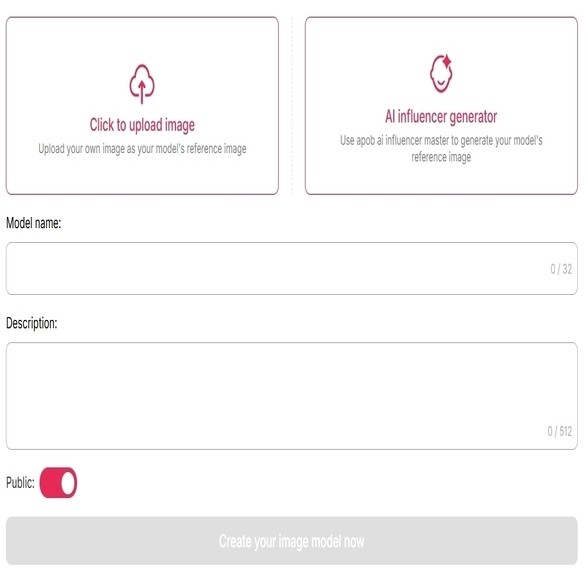
Navigate to "Create Portrait Model" and upload a clear, front-facing selfie. For example, if you want to see how a "Butter Blonde" looks on you before your next salon visit, this step ensures the AI anchors your exact facial bone structure.
To create a character from scratch:
Use the "AI Influencer Generator" to build a unique persona. You can customize the model's height, weight, nationality, and base hairstyle. For example, a digital marketer might build a "175cm tall French model with deep blue eyes" to serve as a consistent brand ambassador.
2. Change Hair colour with text prompt
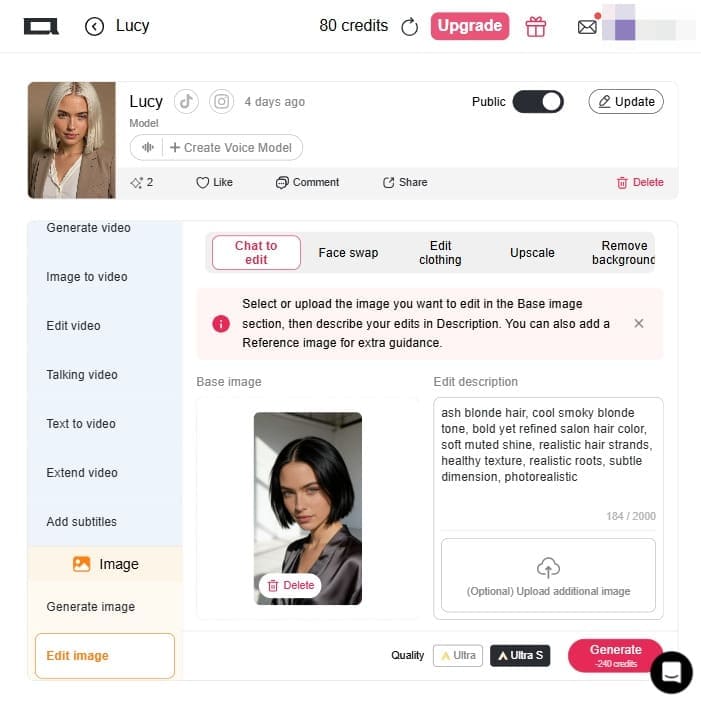
Once your image model is ready, click on the "Edit Image" tab. Use "Chat to edit" to custom your hair colour with detail (Recommend): Type your desired hair colour into the prompt box. For example, a user looking for a modern edge might enter: "Short textured crop, Ash Gray silver with dark roots, matte finish, realistic hair follicles." Our AI is trained on professional salon terminology like "balayage," "money piece," and "root shadow."
3. Refine with Texture and Skin-Tone Intelligence
APOB AI doesn't just "paint" your hair; it analyzes your skin's RGB values to ensure the color harmonizes. You can fine-tune the finish between Natural, High-Gloss (for a fresh-from-the-salon shine), or Matte (for a modern, editorial look).
4. Bring the new hair colour look to Life in 4K Video
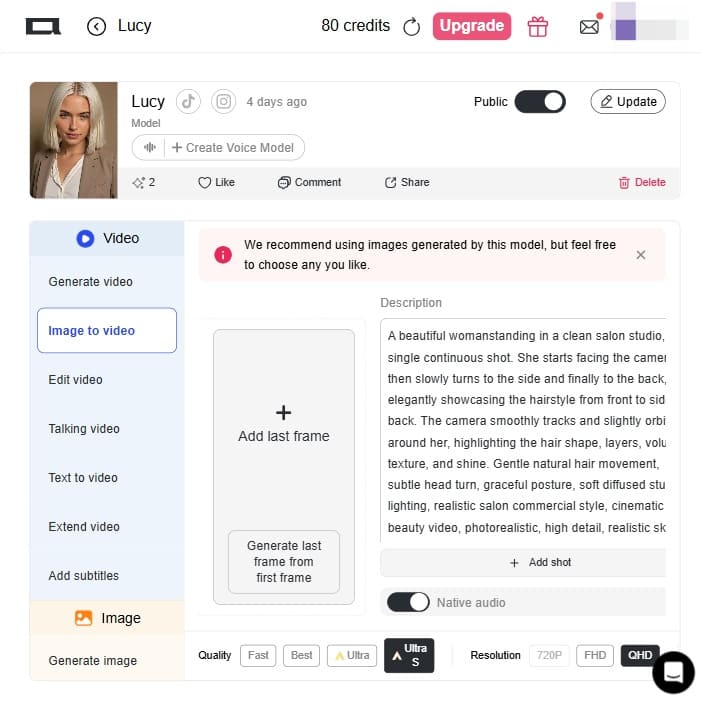
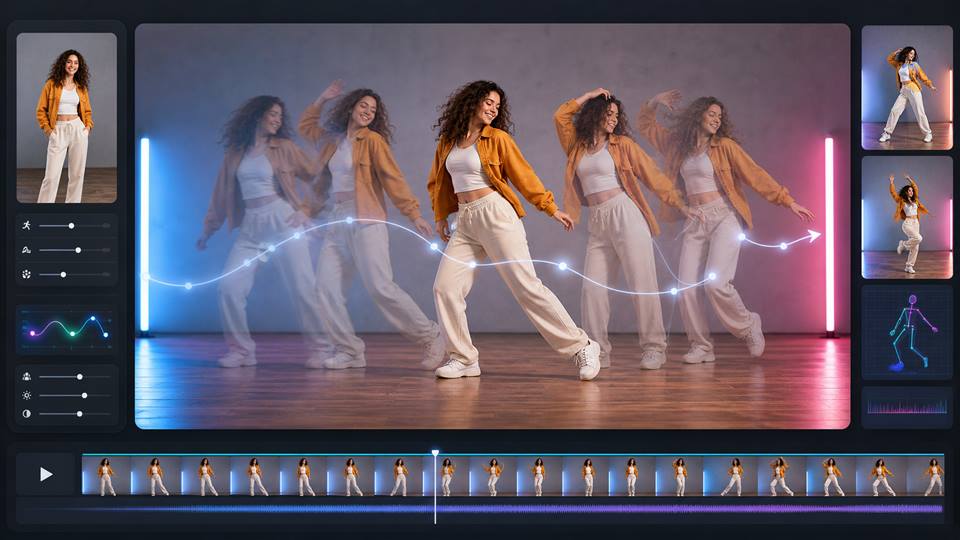
Once satisfied with the 2D result, use the Image-to-Video tool. This ensures the new hair color remains temporarily consistent as the model moves or speaks. For example, a content creator can generate a video of their "Cherry Cola Red" hair shimmering under sunlight, creating high-engagement Reels without ever touching a bottle of dye.
5. Video Showcase: See Your Dream Hair Before You Dye.
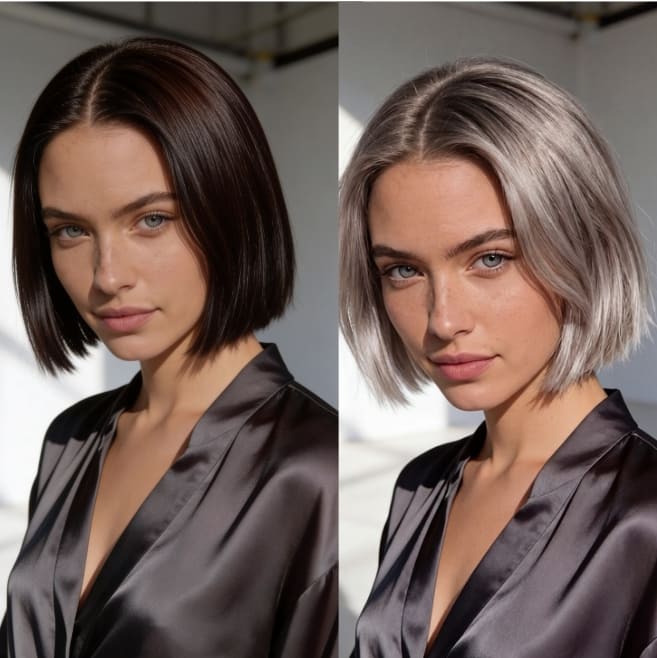
Here is a video demonstrating our AI hair color changer in action. Watch how effortlessly it transforms natural black hair into a stunning, realistic ash blonde. Try It on Your Hair Now
Personal color exploration
Compare a small set of shades on the same portrait before discussing a real dye plan.
Creator and character styling
Test a recognizable color direction for a digital character while reviewing every image for drift.
Salon conversations
Use the preview as a conversation aid, not as a promise of cost, chemistry, or final salon result.
Preview shades before a real-world change
Compare solid colors, highlights, balayage, and fantasy shades without treating the preview as an exact dye simulation.
Create a clearer visual brief
Save the strongest result as a reference for a stylist or creative team, then discuss feasibility, maintenance, and expected variation with a qualified professional.
Credit Intensive:
High-res 4K outputs and video generation consume credits faster than standard 2D edits.
Input Sensitivity:
Low-quality or blurry selfies may lead to less precise hair-edge detection.
Enjoy more features
No Credit Card Required

Practical answers about the workflow, expected results, limitations, and responsible use.
How do I change hair color with AI?
Upload a clear portrait, open Chat to Edit, describe the shade and finish you want, and state what should stay unchanged. Review the hairline, roots, skin, and clothing before exporting.
Can I preview highlights or balayage?
You can describe highlights, balayage, ombré, money pieces, or a solid color in the prompt. Results vary by image and are a visual preview, not a guarantee of an exact salon outcome.
Will the edit keep my face unchanged?
Keep the request focused on hair and use a clear front-facing photo. Generative edits can still alter nearby details, so compare the result with the original and regenerate when needed.
Can I animate the edited photo?
Yes. After approving the still image, you can use Image to Video. Check every frame for color drift, flicker, or changes around the hairline before publishing.


