Need a few more seconds to complete a movement or make a video feel less abrupt? Our AI Video Extender helps you extend video clips with AI by continuing the action from your original footage. Try For Free!
Expert Prompts for You to Make a Video Longer
1. Smooth Fashion Turn
Prompt: Continue this video naturally. Keep the same woman, same outfit, same hairstyle, same lighting, and same background. She slowly turns from a side angle toward the camera, the fabric moves gently, and the camera stays stable. Elegant fashion campaign style, realistic motion, no sudden cuts.
2. Product Reveal for E-commerce
Prompt: Continue the product video with a slow cinematic push-in. Keep the product shape, label, color, and lighting unchanged. Add subtle reflections on the surface and gentle background movement. Premium commercial style, clean studio lighting, smooth motion, realistic details.
3. Beauty Close-Up Extension
Prompt: Extend the close-up beauty video naturally. The subject blinks softly, breathes subtly, and slightly turns her head toward the light. Keep the same skin texture, makeup, hairstyle, and background. Soft studio lighting, realistic facial motion, no face distortion.
4. Loopable Social Media Ending
Prompt: Make this video longer and create a seamless loop. The motion should return naturally to a frame similar to the beginning. Keep the same subject, camera angle, lighting, and background. Smooth transition, no jump cut, no sudden change in pose.
5. Cinematic Travel Clip
Prompt: Continue the travel scene with a slow camera movement forward. Keep the same landscape, lighting, weather, and color tone. Add gentle wind, moving clouds, and subtle environmental motion. Cinematic documentary style, realistic atmosphere, smooth extension.
6. Restaurant or Food Video
Prompt: Extend this food video with natural motion. The sauce continues pouring slowly, steam rises gently, and the camera moves slightly closer to the dish. Keep the plate, table, lighting, and food texture consistent. Realistic commercial food photography style.
1. Upload the Video Clip You Want to extend
(Note: Please follow our app guide to create an ai portrait, could be the main character of your video. If there is no character in the video, create a random influencer to get started)
Start with a short video that already has a strong subject, mood, or action. It can be a beauty shot, product clip, AI influencer video, fashion reel, travel clip, or cinematic scene.
For example, imagine you created a 4-second clip of a model turning toward the camera, but the motion ends before she fully reveals the outfit. Instead of regenerating the whole video, navigate to the "Reference video" panel and click Upload video. Once your 3-second clip is loaded, go to the bottom right and look at the Extend duration options (4, 5, 10, or 15). Select 4. The AI analyzes the motion vectors of your original clip and prepares to generate the exact length you need to match your audio perfectly, solving your timeline anxiety instantly.
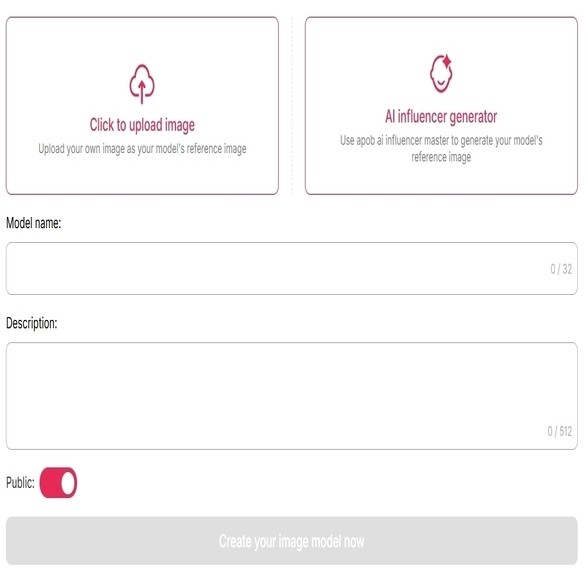
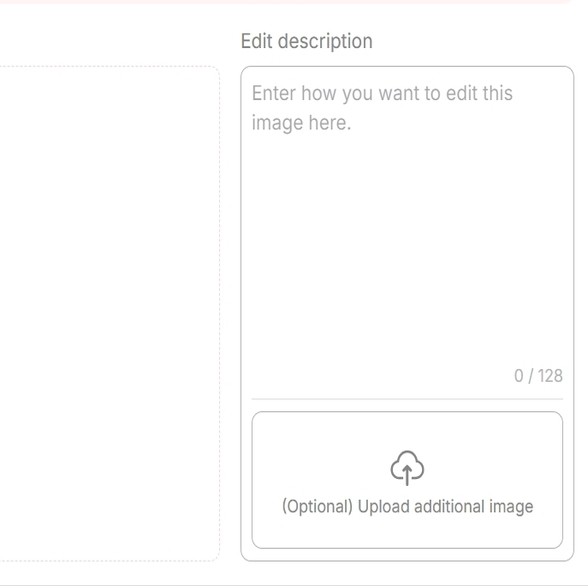
2. Add or Generate a Last Frame for Better Continuity
If the video ends too suddenly, the extended part may feel disconnected. A strong last frame helps the AI understand where the next motion should begin.
For example, if your original clip shows a woman walking into a luxury hotel lobby, you may want the extended video to continue as she pauses, looks around, and smiles. By using the last frame as a visual anchor, you give the AI a clearer direction for posture, lighting, clothing, and background consistency.
In APOB AI’s Extend Video interface, before hitting generate, use the crucial Generate last frame from source video button located on the right side of the interface. This extracts the final frame of your clip and places it into the Add last frame box.
Example instruction:
Prompt: Continue from the final frame. Keep the same woman, same outfit, same lighting, and same camera angle. She slowly turns her head toward the camera and gives a subtle confident smile.
3. Describe What Happens Next (How to describe to make videos longer)
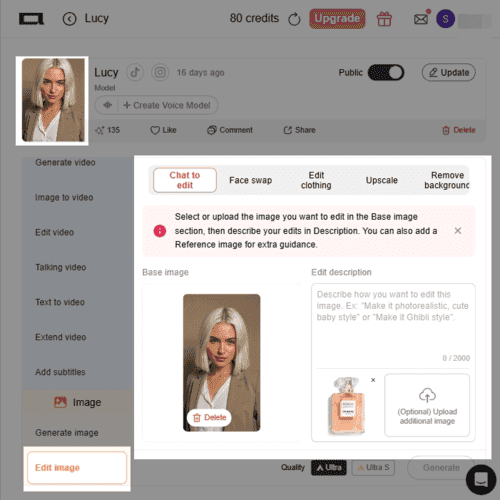
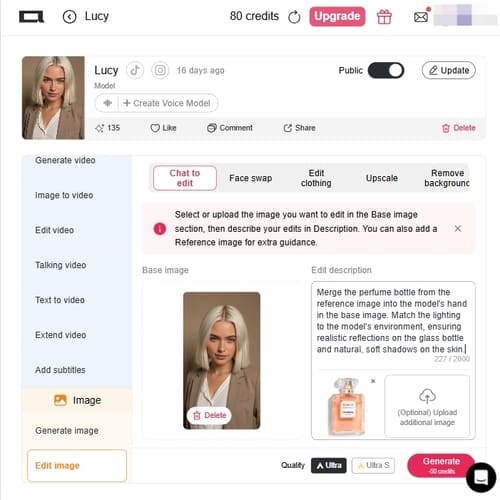
The description box (which allows up to 2000 characters) is where you direct the next part of the scene. Don’t just write “make it longer.” Tell the AI what motion, emotion, camera movement, and ending you want. For example, if you are making a perfume ad, your original clip may show the bottle on a table. The problem is that the video ends before the product feels premium. You can describe the next action like this:
Video Prompt Example:
The camera slowly pushes in toward the perfume bottle. Soft golden light reflects on the glass. A gentle mist moves in the background. The bottle remains sharp and elegant, with a luxury commercial feeling.
This gives the AI a clear visual path: camera movement, lighting, subject stability, background motion, and mood.
Video Prompt elements to include:
Main subject、Next action、Camera movement、Lighting、Mood、Ending shot、What must stay unchanged
4. Choose Duration, Quality, Resolution, and Audio
Use the duration setting based on your goal. A 4–5 second extension is usually best for small movements, social hooks, product reveals, and loopable endings. A 10–15 second extension works better when you need a longer moment, such as a walking shot, cinematic transition, outfit showcase, or story continuation.
For quality, start with Fast to Ultra S and if the clip has a human face, detailed clothing, product packaging, or cinematic lighting. FHD is a good choice when you want a clean final result for social media or commercial preview.
If your video needs atmosphere, such as street ambience, studio sound, wind, footsteps, or a soft room tone, use native audio when available. APOB AI’s image-to-video page also describes native audio as a way to create context-aware soundscapes and voiceovers alongside video rendering.
5. Generate, Review, and Extend Again if Needed
After generation, watch the transition point carefully. Check the hands, face, hair, product shape, camera motion, and background details. If the extension is almost right but not perfect, adjust the prompt instead of starting from scratch.
For example, if a fashion clip has too much motion blur, change the prompt from:
'She turns quickly and walks away.'
to:
'She turns slowly and gracefully, with minimal motion blur. Keep her face and outfit consistent. The camera remains stable.'
For AI video generation, small prompt changes often make a big difference.
Expert Prompts for You to Make a Video Longer
1. Smooth Fashion Turn
Prompt: Continue this video naturally. Keep the same woman, same outfit, same hairstyle, same lighting, and same background. She slowly turns from a side angle toward the camera, the fabric moves gently, and the camera stays stable. Elegant fashion campaign style, realistic motion, no sudden cuts.
2. Product Reveal for E-commerce
Prompt: Continue the product video with a slow cinematic push-in. Keep the product shape, label, color, and lighting unchanged. Add subtle reflections on the surface and gentle background movement. Premium commercial style, clean studio lighting, smooth motion, realistic details.
3. Beauty Close-Up Extension
Prompt: Extend the close-up beauty video naturally. The subject blinks softly, breathes subtly, and slightly turns her head toward the light. Keep the same skin texture, makeup, hairstyle, and background. Soft studio lighting, realistic facial motion, no face distortion.
4. Loopable Social Media Ending
Prompt: Make this video longer and create a seamless loop. The motion should return naturally to a frame similar to the beginning. Keep the same subject, camera angle, lighting, and background. Smooth transition, no jump cut, no sudden change in pose.
5. Cinematic Travel Clip
Prompt: Continue the travel scene with a slow camera movement forward. Keep the same landscape, lighting, weather, and color tone. Add gentle wind, moving clouds, and subtle environmental motion. Cinematic documentary style, realistic atmosphere, smooth extension.
6. Restaurant or Food Video
Prompt: Extend this food video with natural motion. The sauce continues pouring slowly, steam rises gently, and the camera moves slightly closer to the dish. Keep the plate, table, lighting, and food texture consistent. Realistic commercial food photography style.


























Professional video expansion powered by advanced neural architecture and seamless audio sync.
Defeat Temporal Drift
Most AI tools cause objects to melt over time. Our advanced neural architecture and noise reuse strategies drastically reduce temporal drift, keeping your scenes structurally sound.
Native Audio Synchronization
Unlike tools that return silent extended clips, APOB AI learns the rhythm and tone of your original video, ensuring ambient sounds and pacing flow naturally into the extended footage.
Cinematic Resolution & Quality
From 720P for quick social media drafts to Full HD (FHD) with "Ultra S" quality rendering, you control the final cinematic output and credit budget.
Generous Free Testing Tier
Stop paying before you test. We offer 80 daily credits for free, allowing you to experiment with our AI video extender risk-free.
Fast-Line Rendering Queue
Content trends move fast. Paid subscribers skip the wait with priority GPU rendering, turning ideas into publish-ready MP4s in minutes rather than hours.
Unmatched Character Consistency
Built for the faceless creator economy, our engine maintains your digital persona's facial features with 90-95% accuracy during video extensions.
Social Media Reels, Shorts, and TikTok Videos
Sometimes a short clip has a strong hook but ends before the story lands. An AI video extender can add a reaction, closing gesture, extra camera movement, or CTA moment.
This use case matters because video remains central to marketing: Wyzowl’s 2026 data says 91% of businesses use video as a marketing tool, and 93% of video marketers see video as an important part of their overall strategy. (Wyzowl) YouTube also allows square or vertical Shorts up to three minutes for eligible uploads, giving creators more room to tell longer short-form stories. (Google Help)
Product Demos and E-commerce Videos
Product videos often need a few extra seconds to show texture, packaging, scale, or how the item is used. An AI video expander can extend a product reveal without setting up another shoot.
Short-form vertical video also influences shopping behavior. In a Media.net survey reported by TV Technology, 34% of consumers said they want product or shopping content in vertical video, and 77% said product reviews are important in purchase decisions. (TV Tech)
Tutorials, How-To Videos, and Educational Clips
Tutorial videos often need just a little more time to show the final step. Instead of stretching footage or adding still frames, AI can extend the movement itself.
In the same Media.net survey, 44% of consumers said they wanted more lifestyle or how-to videos in short-form vertical formats. (TV Tech)
Landing Page and Ad Creative
On a landing page, a video often needs a smoother loop or a longer product moment. If the clip cuts abruptly, the page feels less polished. AI video extension can create a more natural loop, a cleaner ending, or a stronger brand moment.
The AI video generator market itself is growing quickly. Grand View Research estimated the global AI video generator market at USD 788.5 million in 2025 and projected it to reach USD 3.44 billion by 2033. (Grand View Research)
Cinematic Storytelling and Mini Scenes
For filmmakers, AI video extension can help bridge shots, create atmospheric pauses, or continue a character’s movement. It is especially useful for mood shots: a person walking into fog, a car driving down a neon street, a bride turning in a wedding dress, or a character entering a room.
Short-form vertical video is no longer limited to social platforms. A Media.net survey found that 90% of over 1,000 U.S. adults were open to seeing short-form video content on publisher sites, and 61% said short-form vertical video is more engaging than articles, podcasts, or long-form video. (TV Tech)

Mia Chen
I had a six-second product clip that ended way too abruptly. APOB AI extended it into a smoother loop, and the camera motion stayed close enough that my editor did not have to hide a weird jump cut.

Aiko Tanaka
The first version got too ambitious, so I simplified the prompt and asked for only a gentle continuation. That worked much better. The extra seconds gave my intro room to breathe without changing the whole scene.
Samuel Reed
What I liked most was the pacing. We needed a few more seconds before the logo card, and the extended footage kept the lighting and subject direction surprisingly steady.
Rowan Pierce
I used it on a sunset walking shot because the original ended right when the view opened up. The extension was not magic, but it felt natural enough for a Reel, and honestly that was all I needed.
Mochi
Our dog clip was cute but too short for the ad template. Extending it saved the take. I still trimmed the last second, but it kept the playful moment instead of forcing us to reshoot.

Ibrahim Noor
The tool helped me turn a quick mountain pan into something calmer. Clouds and camera movement continued smoothly, which made the final cut feel less rushed.

Caleb Foster
I tested three hooks and needed the same clip to hold attention a little longer. APOB AI gave me usable padding without making the creator's face drift all over the place.

Isaac Moreno
For a proof-of-concept, I extended a moody hallway shot and used it under narration. It made the scene feel intentional instead of like I ran out of footage.

Harper
I was skeptical because video extension can get strange fast. This handled a clean product shot well, and the extra duration made our caption timing much easier.
1. Save Time Without Reshooting
An AI video expander helps you continue a clip without setting up the same scene again. This is useful when the original shot is hard to reproduce, such as a sunset, a specific outfit, a product setup, or an AI-generated character scene.
2. Turn One Clip into Multiple Assets
A short clip can become a social hook, a longer ad, a loopable background video, or a landing page hero. For creators and marketers, this makes content iteration faster and more flexible.
3. Better Storytelling Control
A clip that ends too early can feel unfinished. AI extension lets you add the missing beat: a reaction, a smile, a product close-up, a camera push-in, or a final moment that makes the scene feel complete.
4. Useful for AI-Generated Videos
AI videos often come out short. An extender helps creators build longer scenes from strong short generations instead of regenerating everything from the beginning.
5. Lower Production Cost
For simple extensions, AI can reduce the need for actors, sets, cameras, reshoots, and manual VFX work. That makes it useful for small teams, solo creators, and fast-moving marketing workflows.
1. It Does Not Replace Editing Judgment
AI can generate new frames, but you still need a creative eye. For professional results, review pacing, continuity, color, sound, and the final cut before publishing.
2. Copyright and Consent Still Matter
If you extend a video containing real people, branded products, copyrighted characters, or third-party footage, make sure you have the right to use and modify it. AI does not remove the need for proper permissions.
Enjoy more features
No Credit Card Required
Answers about extending video length, output quality, formats, privacy, credits, and commercial use.
What is an AI video extender?
An AI video extender continues the action, camera movement, or atmosphere beyond the original ending instead of simply slowing or looping the clip. Describe what happens next and what must remain unchanged for a more coherent continuation.
I am noticing a "jump" or flicker exactly where the original video ends and the extended part begins. How do I fix this?
This is known as a boundary discontinuity. To fix this in APOB AI, make absolutely sure you are utilizing the "Generate last frame from source video" feature. This forces the diffusion model to use the exact pixel and lighting data of your final frame as the anchor for the new generation, smoothing out the transition.
Why do objects in my video start to melt or warp when I extend the video to 15 seconds?
This is called "temporal drift". Generative models sometimes struggle to remember the structural identity of an object over long periods. To combat this, use rigid, descriptive prompts (e.g., "static camera," "solid structural shape") and try extending the video in shorter, iterative bursts rather than generating a massive 15-second block all at once.
Will the AI extender match the frame rate (FPS) of my original 60fps cinematic footage?
Most current AI video generation models default to standard cinematic frame rates like 24fps or 30fps. If you upload 60fps footage, you might experience slight jittering in the extended portion. We recommend conforming your timeline to 30fps, or using post-production AI frame interpolation tools to smooth the final output.
Can I use this to extend scenes from famous movies for my YouTube video essays?
As a professional creator, you must be extremely careful. While the technology can technically extend any video, using copyrighted IP without permission to train or generate content can lead to strikes and severe legal issues. Always ensure you own the rights to the base footage you are extending.


