Experience the power of Veo 3.1, the next evolution in AI video generation — where imagination meets cinematic precision. Turn your ideas into stunning, lifelike videos effortlessly, anytime, anywhere.
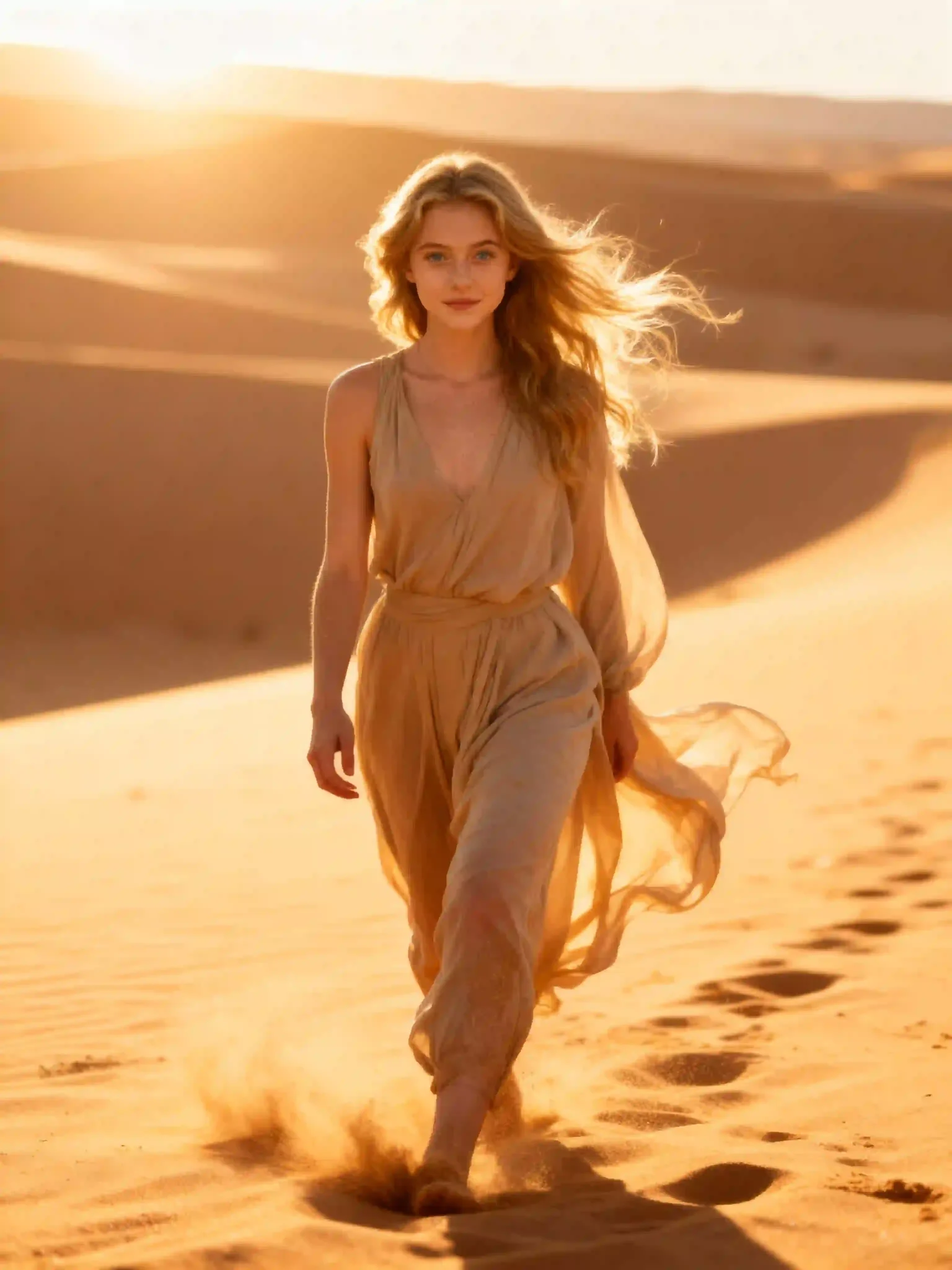
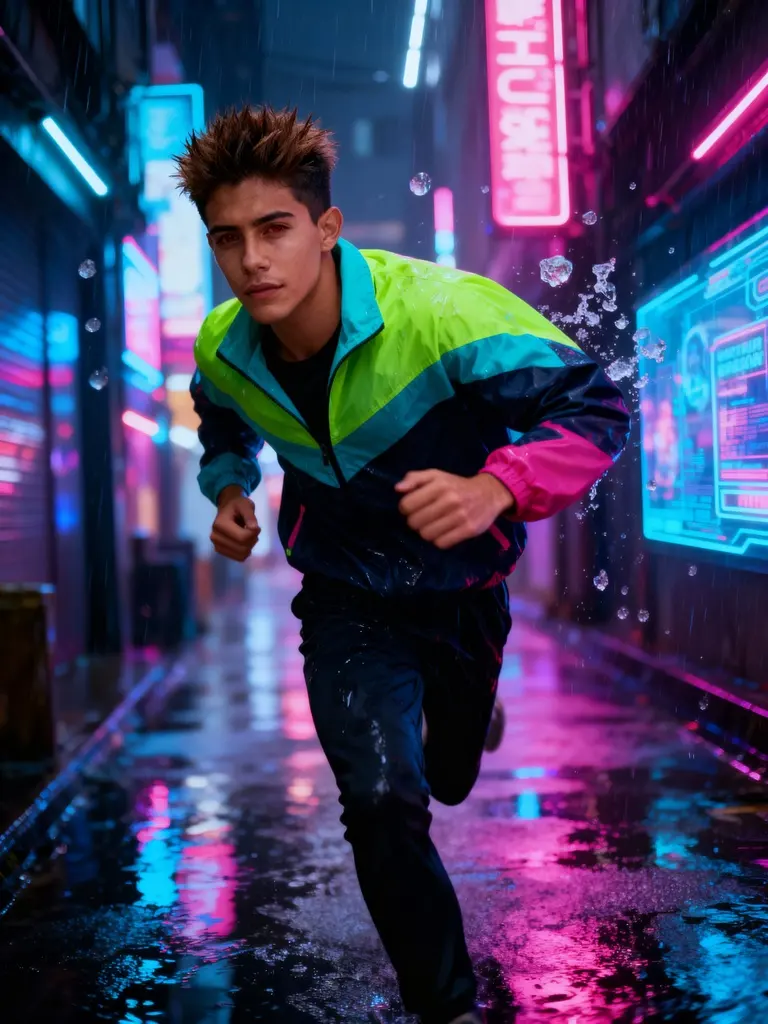
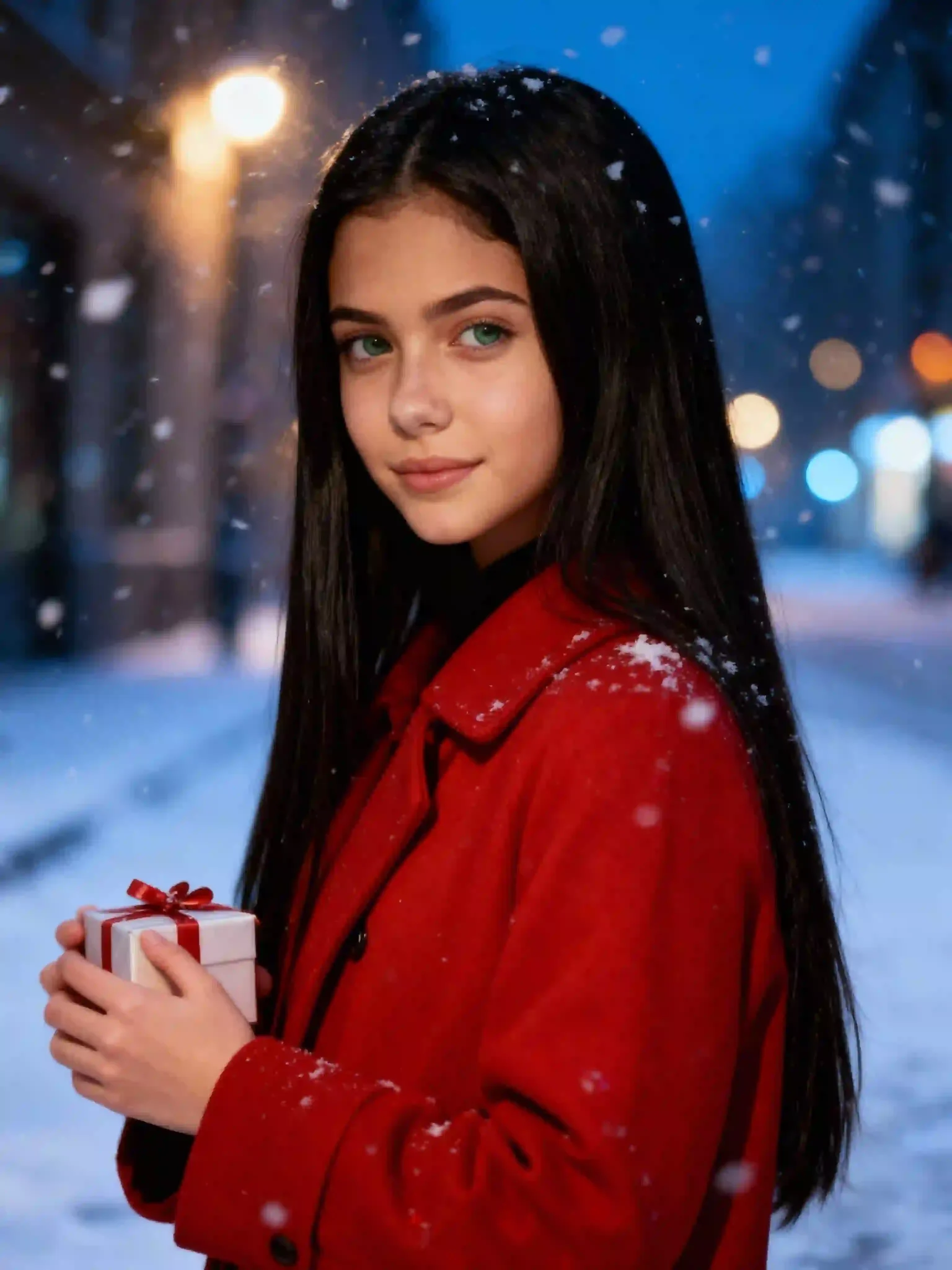
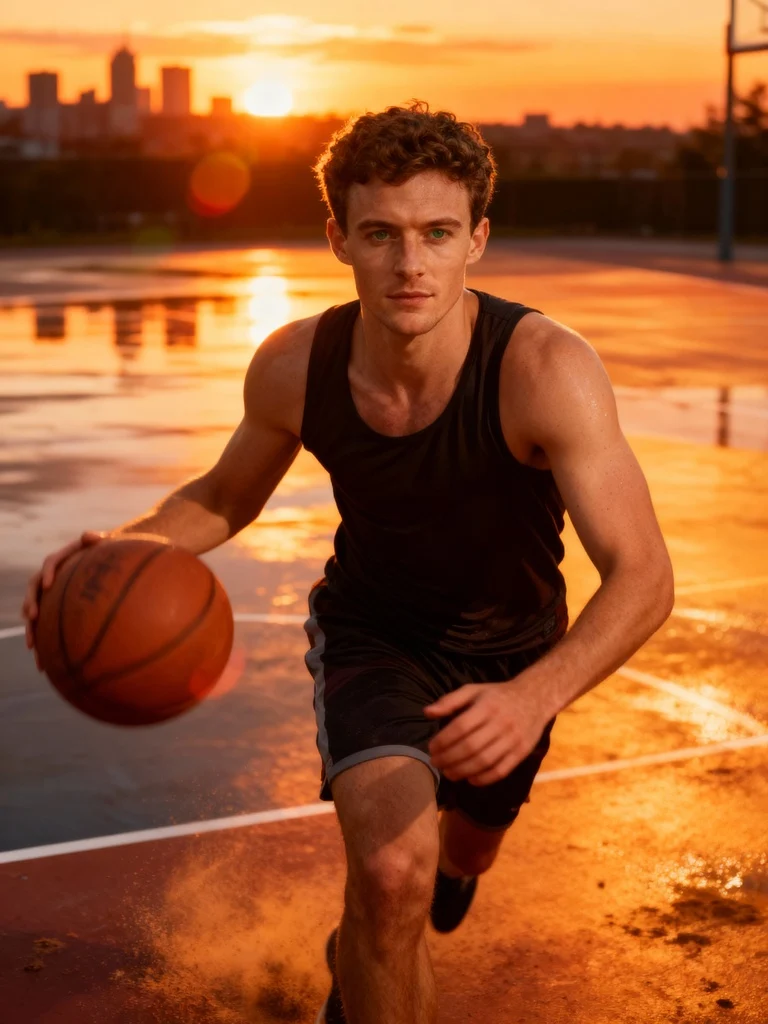
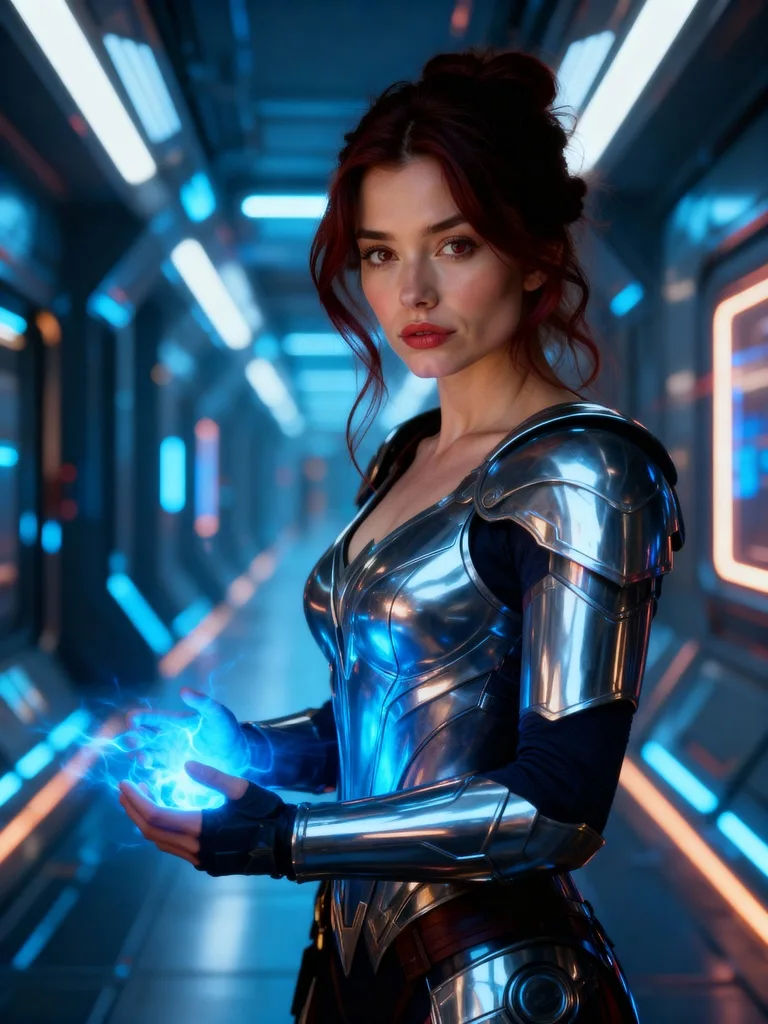
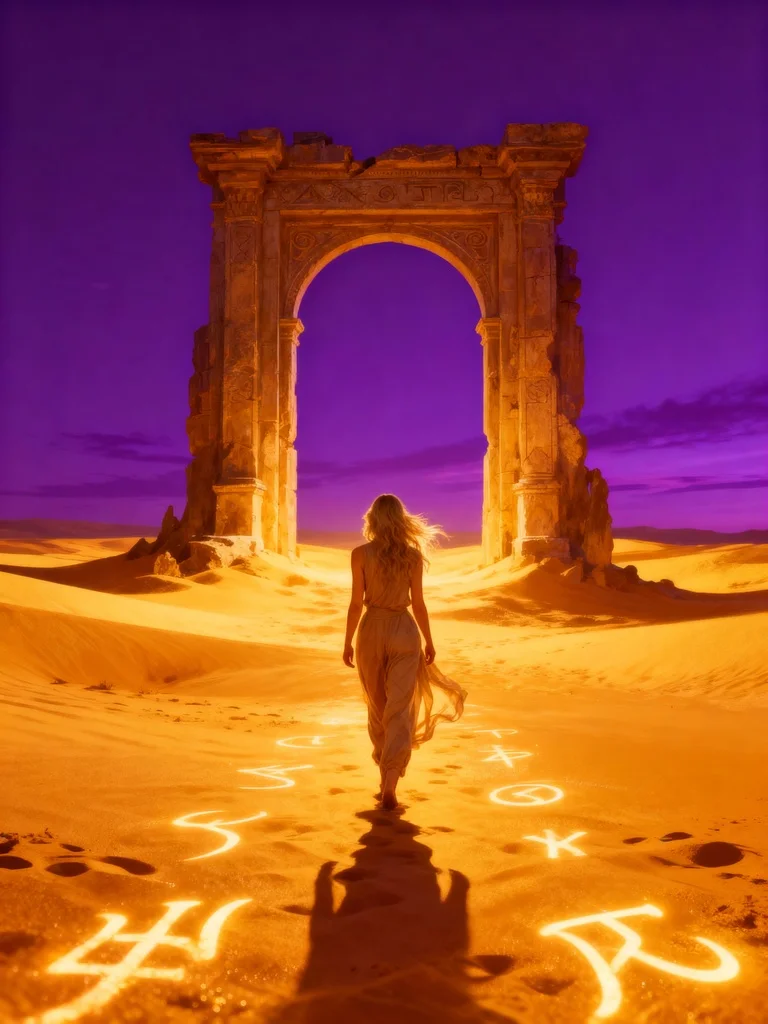
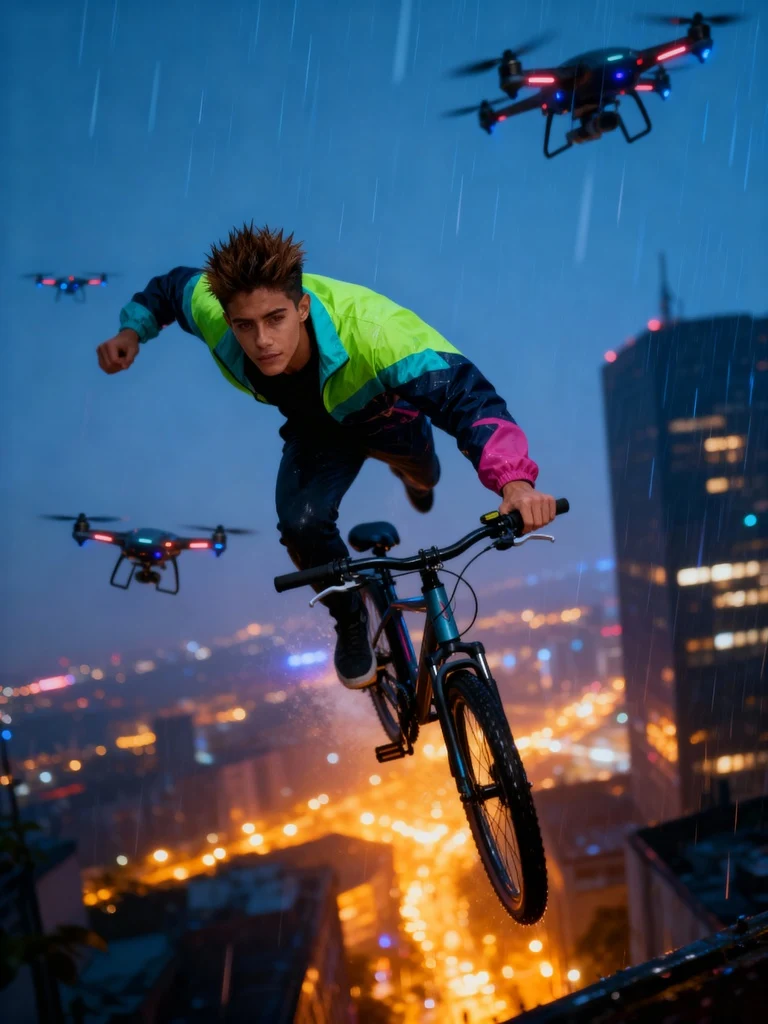
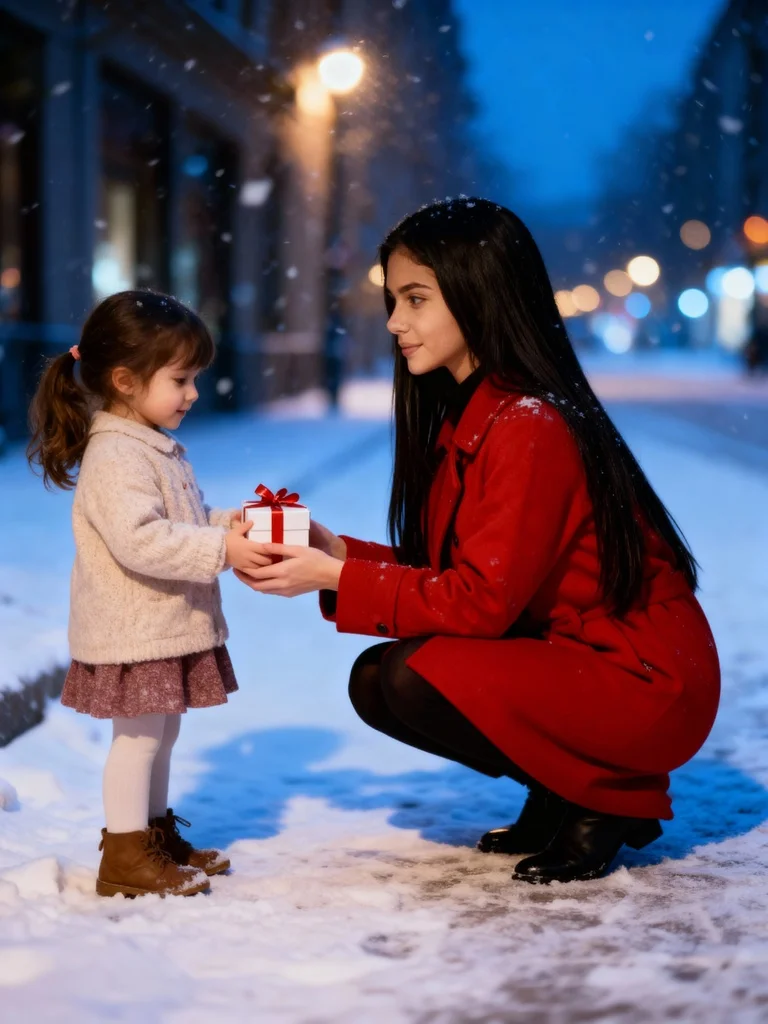
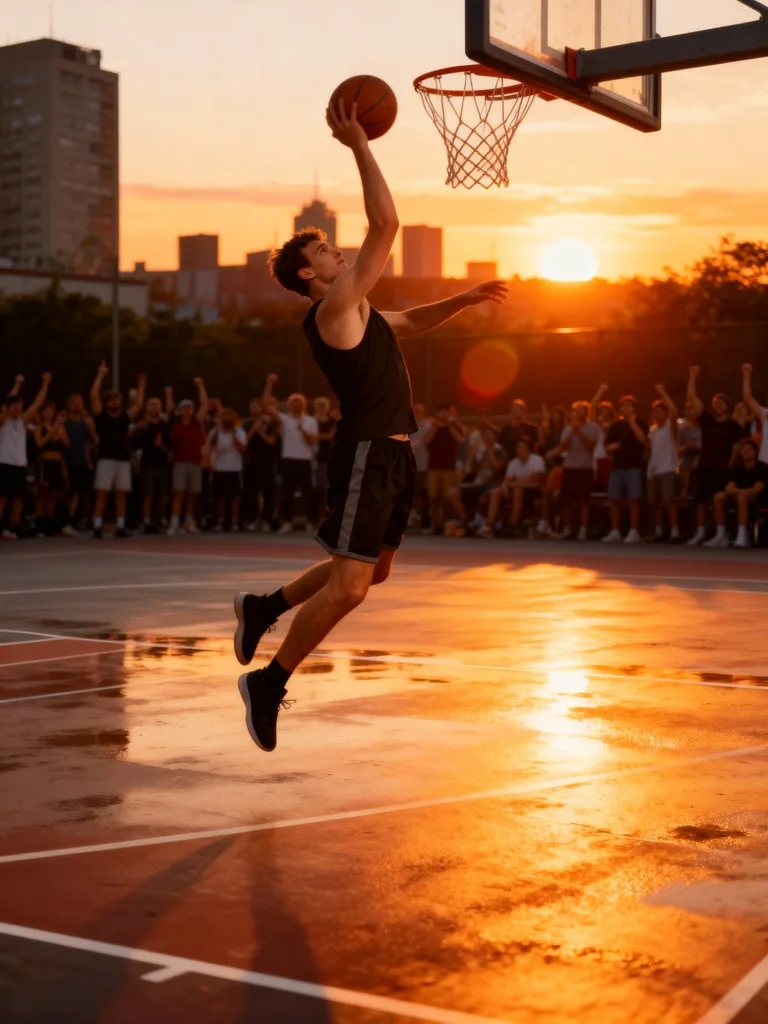
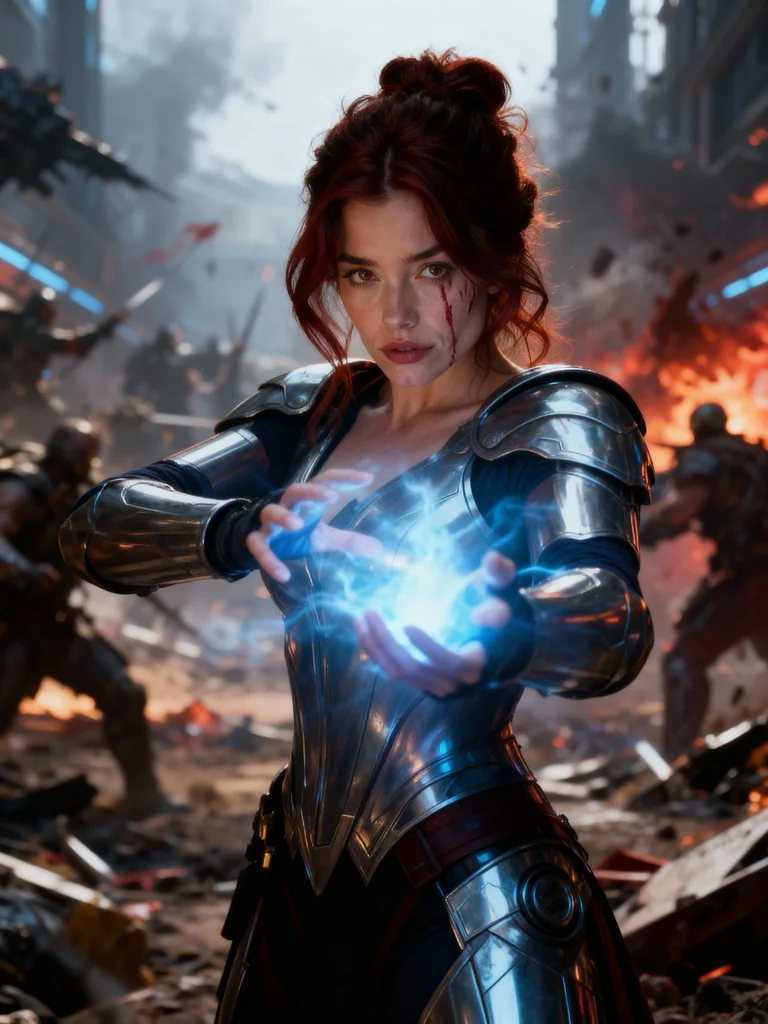
Build Your Perfect AI Human with Veo 3.1
Start by signing up on the APOB-AI site and claim your 80 free daily credits.
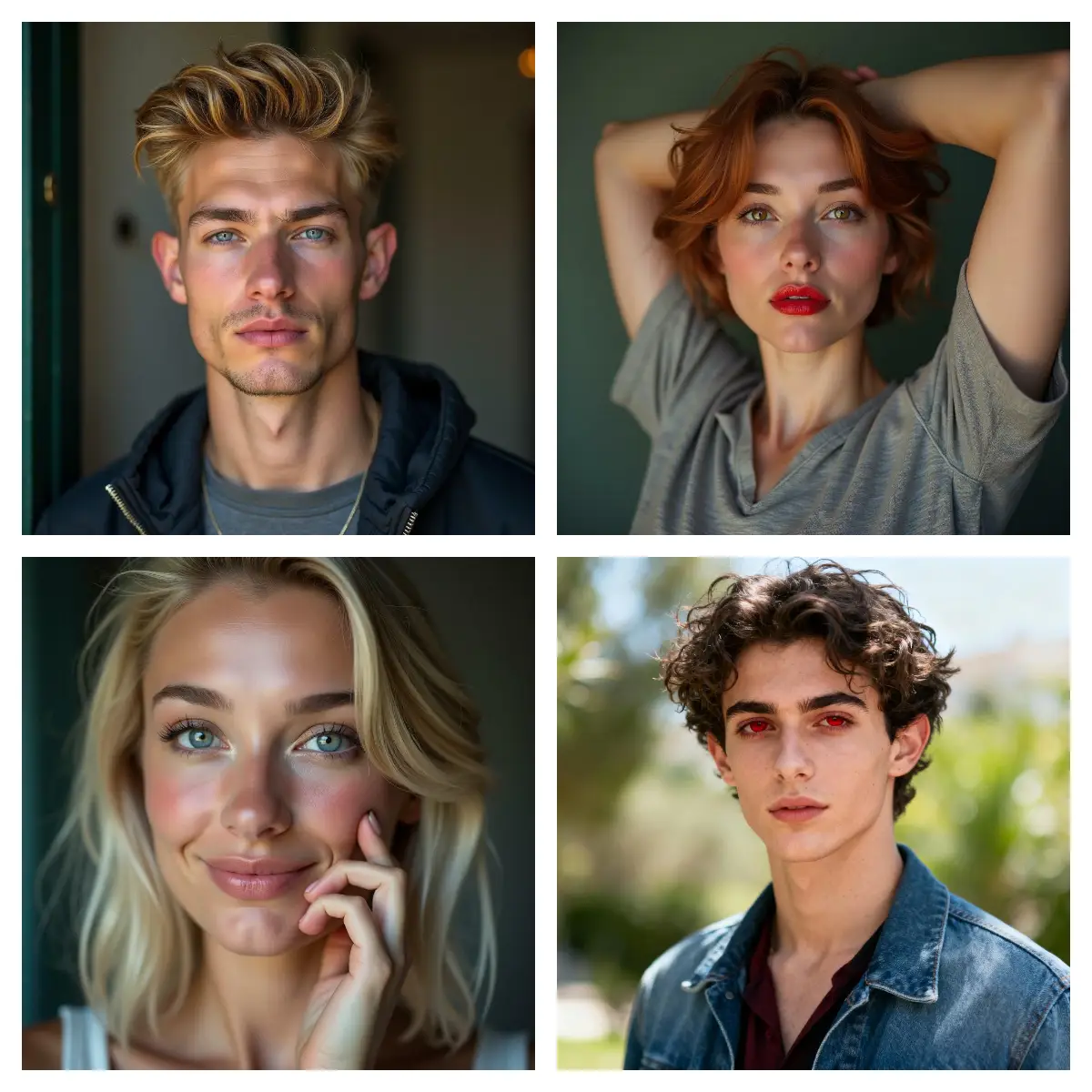
Next, choose “Create Portrait Model” and either upload your own photo or select “AI Influencer Generator.” With this tool,
you can customize gender, age, height, weight, country, hairstyle, hair color, eye color, face shape, skin tone, and more.
If you prefer a quick outcome, click “Generate” to receive a random AI human model.
Each creation uses 10 credits, and you can generate unlimited models until you find the perfect character.
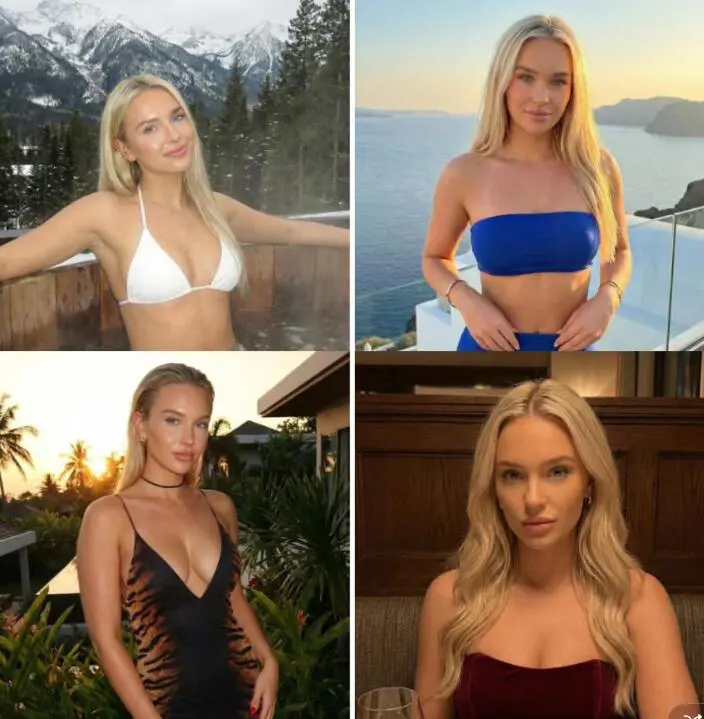
Transform Your Ideas into Images with Veo 3.1
Before generating a full video, lay the groundwork by creating a strong base image. In the “Expert” function you can input a prompt (up to 1024 characters) and optionally enter a negative prompt (up to 512 characters). Alternatively, choose the “Build Your Own” mode and customise Art Style, Clothing, Architecture, Landscape and Weather.
Select your desired image dimensions (9:16, 16:9, 3:4, 4:3, 1:1) and pick from four quality modes (Fast, Best, Ultra, Ultra 4K). Click “Generate” and get your bespoke image instantly.
Generate Your Last Frame Image with Veo 3.1
With your favourite image ready, prepare for video generation. Use the First and Last Frame approach from Veo 3.1 functionality: upload a first frame and then create or upload a matching last frame.
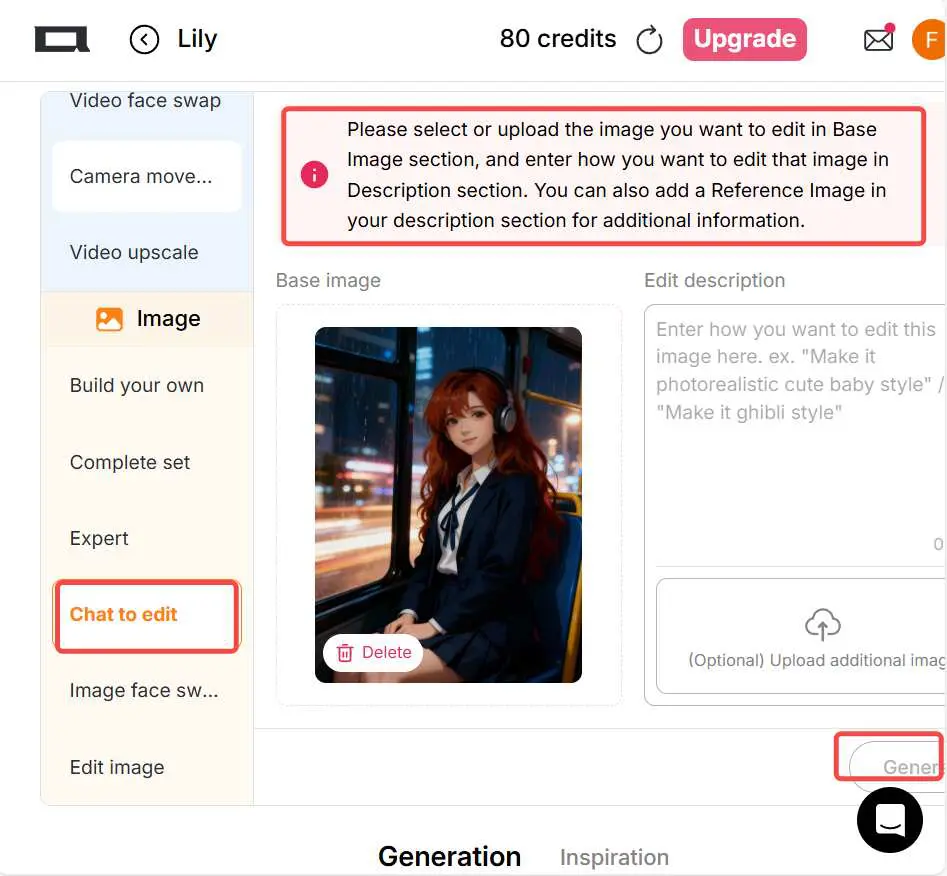
By using Chat to Edit, you can input a description to generate an ending frame image. This method helps optimize motion continuity, resulting in cinematic-quality transitions and smoother video scenes.
Alternatively, you can use Add Shot to enter a prompt and generate the next segment of the video, making it easy to create longer, continuous sequences.
Create Cinematic Videos with Veo 3.1
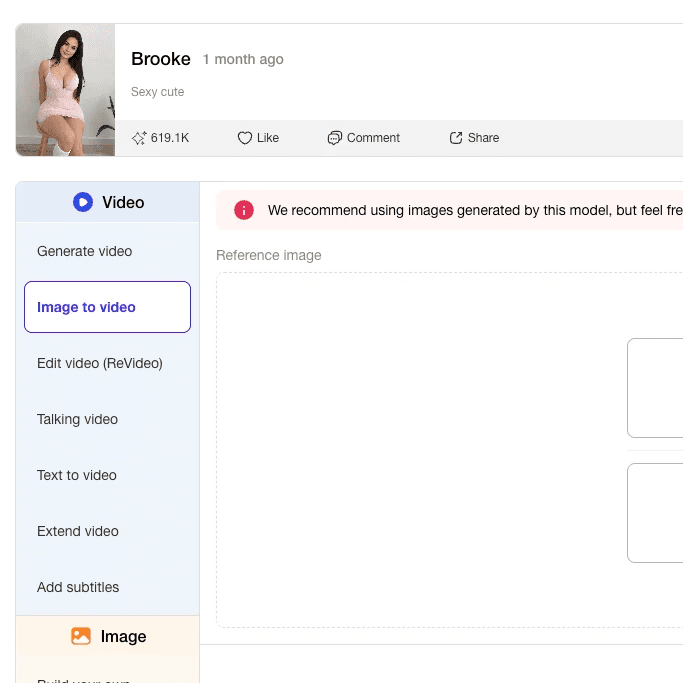
Once you have your first and last frames, you can use the “Image to Video” tool, set to Ultra S, describe the full scene in detail and generate an 8-second video with camera movement and background sound effects.
Enhance your video further using APOB’s “Talking Avatar” or Lip Sync feature—choose AI Voice, set gender (Male/Female), age (Young/Middle aged/Old), select from 13 languages, and input a script or “Type your idea here” to generate a voiceover.
Want subtitles? APOB supports that too. You’re now ready to create a dynamic, professional-looking AI video.
Transform Videos into Anime with Veo 3.1's ReStyle
If you want to create anime-style videos, one option is to first generate an anime character image and then animate it using Image to Video. You can also use Text to Video by directly describing an anime scene.
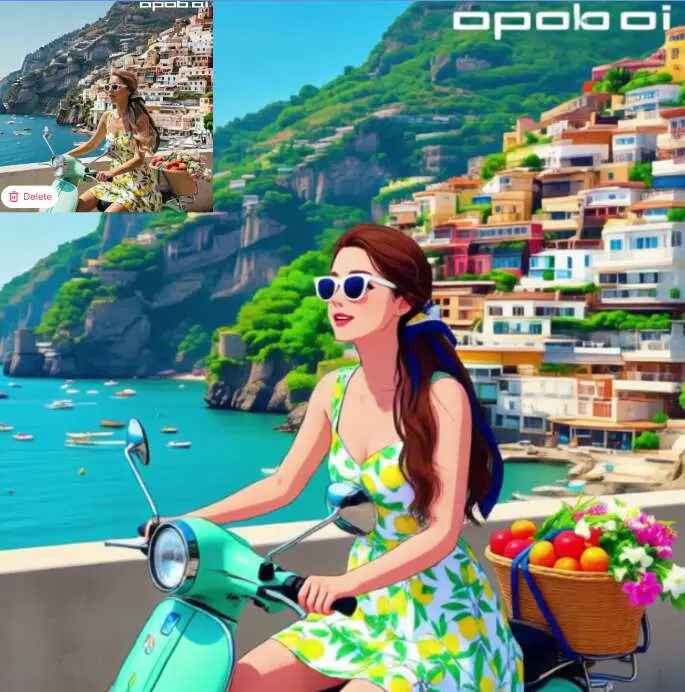
However, an even easier and more efficient method is to use the ReStyle feature in Revideo. Simply upload your video and choose from nearly 30 styles—such as Steampunk, Marble Sculpture, Japanese Anime, Pencil Sketch, Pixel Art, Watercolor Drawing, Comic Book, 3D Chibi, LEGO, and Van Gogh–inspired looks. If none of the preset styles fit your needs, you can also describe a custom style in your prompt.
With just one click, the video’s style is fully transformed. Not only does the character change, but the entire background is restyled as well, giving you a completely new visual experience.
Master Dynamic Camera Movements with Veo 3.1
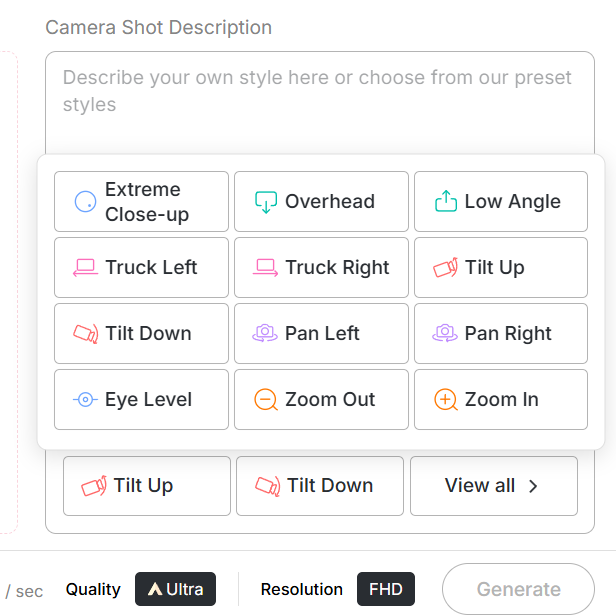
To achieve more dynamic camera movements, you can also use the ReShot feature in Revideo. Simply upload your video and enter your desired camera shot description, or choose from preset options such as Extreme Close-up, Overhead, Low Angle, Truck Left, Truck Right, and more—over 10 camera movements in total. ReShot will generate new footage based on the selected camera motion, making it ideal for storytelling, videography, and creative video editing. In addition, Revideo offers many other AI tools to explore, including ReCharacter, ReBackground, and more.
Fully-featured AI Video Creation
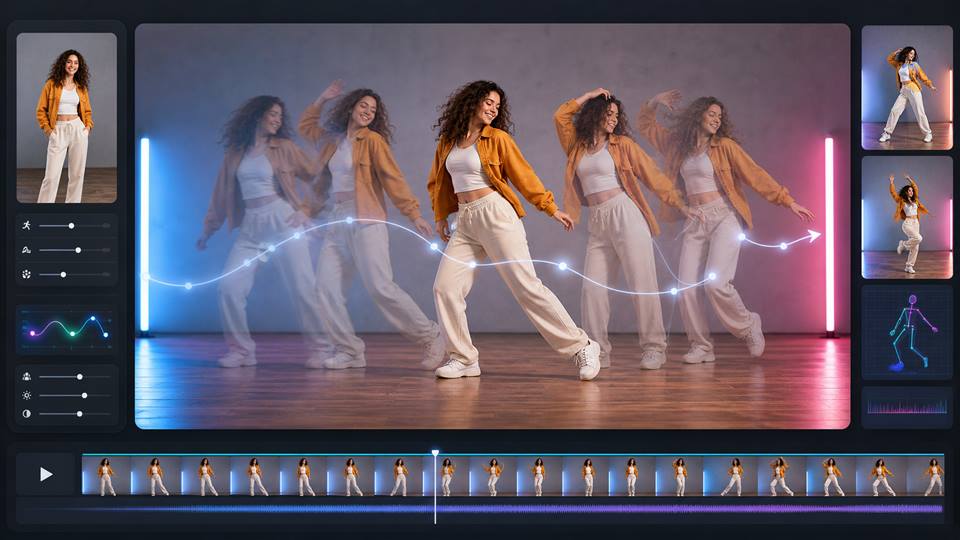
Veo 3.1 offers professional-grade tools, turning your scripts and images into high-quality videos with sound, motion and visual polish.
First & Last Frame Support for Cinematic Flow
With frame-based generation, you can ensure smooth transitions and consistent character performance, delivering film-like continuity with ease.
Endless Creative Possibilities
From brand videos to social content, Veo 3.1 handles text-to-video, image-to-video and reference-guided workflows, making it ideal for creators across experience levels.
Social Media Creators
Veo 3.1 helps creators make short videos for TikTok, Instagram, or YouTube Shorts easily. You can turn a simple idea into a moving 9:16 or 1:1 video with smooth camera motion and nice transitions. It’s perfect for sharing fun, creative, and eye-catching clips that grow your audience fast.
Marketing & Brands
With Veo 3.1, brands can turn still product images or ads into moving videos in minutes. The AI adds motion and cinematic effects, making your products look lively and professional without needing a big production team. It’s great for social media ads, product launches, or storytelling campaigns.
Filmmakers & Artists
Veo 3.1 helps filmmakers and artists bring ideas to life quickly. You can use two images — a first and last frame — to create smooth, dynamic shots for previews or concept videos. It saves time and cost while letting you explore new visual styles and story ideas.
1. Advanced Multi-mode Generation
Offers Start & End Frame, Multi-Image Reference, and Text-to-Video control for varied workflows. This flexibility allows creators to dictate the exact flow of a scene, ensuring the AI transitions smoothly between key visual milestones.
2. Cinematic Output, Enhanced Audio
Generates 1080p visuals with realistic motion, cinematic lighting, and native audio. Unlike many other generators, Veo 3.1 focuses on the harmony between high-fidelity imagery and synchronized sound to create a truly immersive experience.
3. Creative Consistency
Reference image input ensures character identity stays intact across shots. By using sophisticated visual conditioning, Veo 3.1 can maintain specific facial features, outfits, and art styles throughout the entire video sequence, perfect for serialized storytelling.
1. Resource-Intensive / Cost
Top quality modes require higher credits or subscription access, potentially limiting casual users. Because Veo 3.1 utilizes Google's most advanced video generation architecture to produce cinematic 1080p results with native audio, each generation consumes a significant amount of computing power and credits.
Enjoy more features
Sora 2 AI Video GeneratorKling 3.0Runway AI Video GeneratorLuma AI Dream MachineGrok AI Video GeneratorHailuo 2.3 AI Video Generator AlternativeSeedance 2.5 AI VideoImage to Video AIGen-3 Alpha AI VideoHappyHorse 1.0 AI Video GeneratorHappyHorse 1.1LTX-2 for AI Video GenerationLTX 2.3 AI Video GeneratorSeedance 2.0 MiniRunway Gen-4.5 AlternativeSora 2 Pro Alternative
No Credit Card Required

Answers about text-to-video prompts, clip length, quality, pricing, credits, and commercial use.
What is Google Veo 3.1?
Veo 3.1 is Google’s state-of-the-art AI video generation model, released in October 2025. It represents a significant leap forward in high-fidelity video creation, featuring stunning realism, improved physics, and natively generated audio. Unlike previous versions, Veo 3.1 provides granular creative controls, such as character consistency through reference images and the ability to generate seamless transitions.
What is the maximum video length I can generate using Veo 3.1?
By default, Veo 3.1 generates clips of 4, 6, or 8 seconds. However, it also includes a powerful Scene Extension feature that allows you to extend clips incrementally, enabling the creation of continuous sequences that can last 60 seconds or longer while maintaining visual and audio continuity.
Does Veo 3.1 support dialogues?
Yes! One of the standout features of Veo 3.1 is its ability to generate rich native audio, including natural conversations and synchronized sound effects. When paired with its advanced lip-sync accuracy, it can bring characters to life with realistic speech and facial expressions directly aligned with your text prompt.
Can I generate videos for free?
Google Veo 3.1 is primarily available through paid preview tiers in the Gemini API, Google AI Studio, and Vertex AI. However, you can access it via APOB AI, where users receive 80 free credits daily. This allows you to experiment with high-quality Veo 3.1 video generation at no cost every day.
Can I use the videos I create for commercial purposes?
Yes, commercial usage is generally permitted as long as you comply with the specific licensing terms of the platform you are using. For professional filmmakers and marketers, Veo 3.1 is designed to support production-quality workflows, from social media ads to cinematic storyboarding. Always check the APOB AI Terms of Service for the most up-to-date commercial rights information.


