
Recolour Image with AI
Recolour old photos and black and white pictures online with AI. Add natural color to faded family photos, portraits, historical images, and vintage memories in seconds.
How to use AI to recolour image?
Step 1: Sign Up or Log In
Sign up or log in before you start using the recolour photo workflow. After entering the workspace, you can upload a black and white photo, old family photo, or faded image and prepare it for AI photo recolour. This step is useful if you want to recolour photos online and save your edited results later.

Step 2: Open Edit Image and Upload a Black and White Photo
Go to Edit image and choose Chat to edit. Upload the black and white photo you want to recolour in the Base image section. For the best result, choose a clear old photo with visible faces, clothing, background details, and natural lighting. A clean base image helps the AI recolour black and white photos with more realistic skin tones, clothing colors, and background color.
Prompt: Recolour this black and white photo into a natural realistic color photo. Keep the original face, identity, pose, clothing, background, lighting direction, and photo composition unchanged. Add historically believable and natural colors to the skin tone, hair, eyes, clothes, and background. Preserve the original photo texture, film grain, shadows, facial details, and vintage atmosphere. Make the result look like a real color photograph, not a modern filter or over-saturated edit. Use soft natural colors, realistic skin tones, subtle fabric colors, and balanced background tones. Do not change the person’s facial features, age, expression, hairstyle, body shape, or scene details. No text, no watermark, no extra objects, no cartoon effect.
Step 3: Enter a Natural Recolour Prompt
In the Edit description box, write a clear prompt for changing the black and white photo into a natural color photo. Describe that the original face, identity, pose, clothing, background, lighting direction, photo texture, film grain, and vintage atmosphere should stay unchanged. This helps the AI recolour image result look like a real color photograph instead of an over-saturated filter.
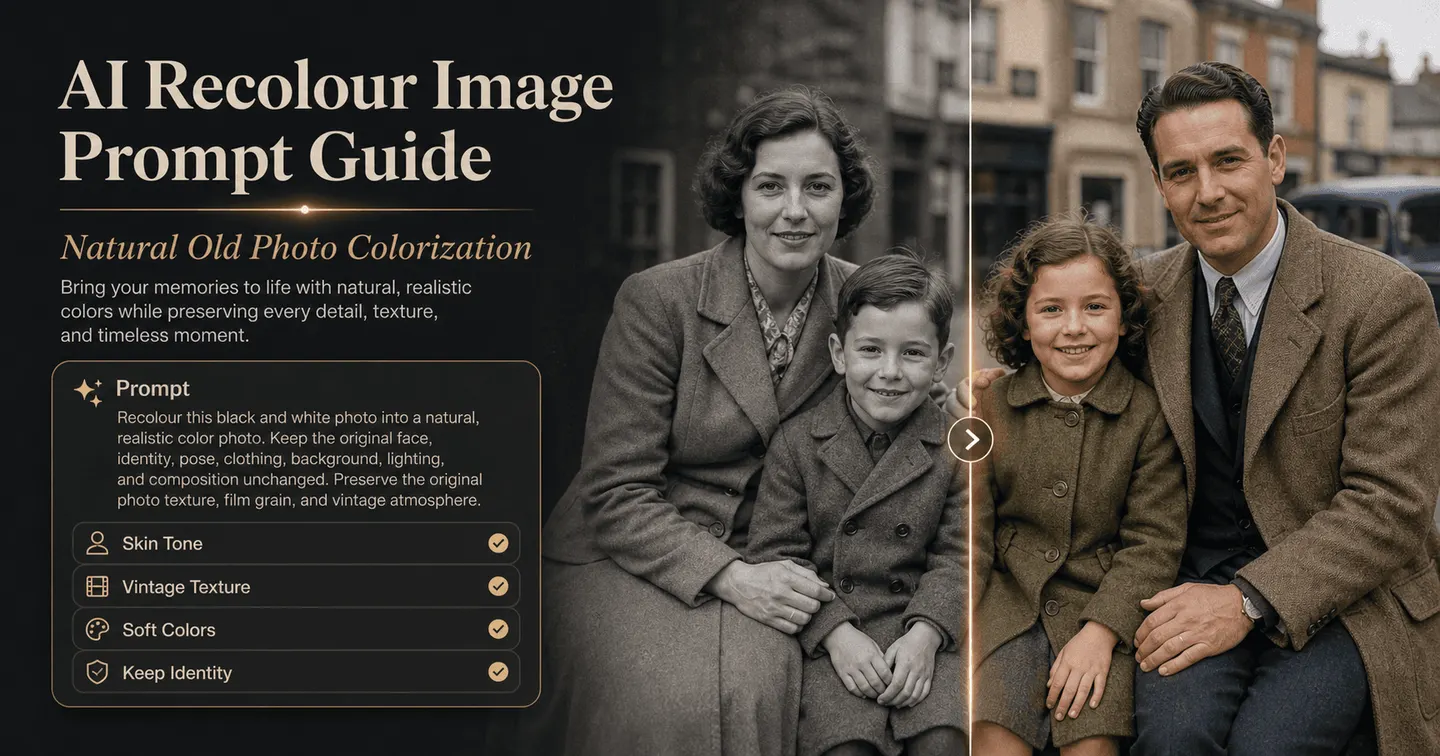
Prompt: Recolour this black and white photo into a natural realistic color photo. Keep the original face, identity, pose, clothing, background, lighting direction, and photo composition unchanged. Add historically believable and natural colors to the skin tone, hair, eyes, clothes, and background. Preserve the original photo texture, film grain, shadows, facial details, and vintage atmosphere. Make the result look like a real color photograph, not a modern filter or over-saturated edit. Use soft natural colors, realistic skin tones, subtle fabric colors, and balanced background tones. Do not change the person’s facial features, age, expression, hairstyle, body shape, or scene details. No text, no watermark, no extra objects, no cartoon effect.

Step 4: Choose Aspect Ratio, Quality, and Generate
Choose Keep original if you want the recoloured old photo to keep the same composition and framing. You can also select 1:1, 4:3, 16:9, 3:4, or 9:16 if you need a new format for sharing or publishing. Then choose Ultra 4K quality and click Generate to create the recoloured photo.
If the result is not exactly what you want, you can edit it again by changing the prompt, adjusting the color direction, or asking for more natural skin tones, softer background colors, or stronger vintage detail. You can also continue using APOB AI features such as Generate image, Edit image, Image to video, Edit video, Talking video, Text to video, Extend video, Add subtitles, and Storyboard to video.

APOB AI vs. Standard AI Image Recolour Tools
Feature | APOB AI Recolour | Standard AI Recolour Image Tools |
|---|---|---|
Main Workflow | AI recolour black and white photos + full image editing workflow | Usually only recolour / colorize one image |
Prompt Control | Up to 20,000 characters for detailed edit prompts | Often 0-1 short prompt or preset-based colorization |
Recolour Direction | Users can describe natural skin tones, clothing, background, film grain, and vintage style | Usually automatic colorization with limited control |
Output Quality | Ultra 4K option available | Often HD or limited high-resolution export depending on plan |
Aspect Ratio Options | 6 options: Keep original, 9:16, 3:4, 16:9, 4:3, 1:1 | Usually keep original only, or crop handled separately |
Cost Per Recolour Generation | 50 credits per generation shown in workflow | Usually varies by platform; often credit-based or subscription-based |
Follow-up Editing | Users can refine the same image with new prompts if the color is not natural enough | Many tools require regenerating or starting over |
Built-in Image Editing Modes | 5 visible modes: Chat to edit, Face swap, Edit clothing, Upscale, Remove background | Usually 1-2 focused tools, such as colorize or enhance |
Old Photo Use Case | Recolour old photos, black and white portraits, faded family photos, vintage travel images | Often focused only on basic black and white photo colorization |
Texture Preservation | Prompt can request original film grain, shadows, facial details, and vintage atmosphere | Usually automatic, less user control over texture preservation |
Skin Tone Control | Users can ask for softer, warmer, muted, or historically believable skin tones | Often automatic skin tone selection |
Background Control | Can refine sky, buildings, nature, clothing, and background color with text prompts | Usually recolours the whole image automatically |
Extra Creative Tools | Generate image, Edit image, Image to video, Edit video, Talking video, Text to video, Extend video, Add subtitles, Storyboard to video | Usually no connected video creation workflow |
Best For | Users who want to recolour photos online and continue improving or repurposing the result | Users who only need one quick colorized image |
Main Advantage | Recolour + edit + upscale + video workflow in one place | Simple one-step colorization |
Trusted by Thousands of Pro Influencers to Dominate Social Media.
Emir.
21k Followers
Subhan Qureshi
26k Followers
ELITE MINDSET
23k Followers

Ajay Sharma
30k Followers
Mr Shishir
5k Followers
edrian.exe
604k Followers

aprendeconvalerio
1.39M Followers
gabzer.mp4
591k Followers
Hasan Toor
413k Followers
Tulsi Soni
153k Followers

TuTecnoMundo
3.08M Subscribers

YORD
2.79M Subscribers
SinnerSam
325k Subscribers
malik.makhlouff
1.2M Followers
Riscaane
215k Followers
setups_ai
950k Followers



Jhonier Gomez
137k Subscribers

David Dato
70k Subscribers
Pro Secret
22k Subscribers
rulomart
2.4M Followers
xabatz
99K Followers
reels_drgn
55K Followers
cristinakerk.studio
156K Followers
websconia_ia
23k Followers
felippetek
216k Followers
cr_webq
15k Followers
moddy.a.m
385k Followers
mpminds
1.2M Followers
ainusantara
551k Followers
vin.ai93
209K Followers

pampisman
957k Followers
eloiljf
296k Followers


Why Choose APOB AI for Image Recolouring?
Recolour Black and White Photos Online
Recolour black and white photos online with AI and turn old memories into natural color images. Upload a black and white photo, family portrait, travel picture, or vintage image, then let AI add realistic skin tones, clothing colors, background details, and soft natural lighting while keeping the original composition unchanged.
Natural AI Photo Recolour Without Photoshop
AI photo recolour helps users avoid complex manual editing in Photoshop or Illustrator. Instead of painting colors by hand, you can recolour photos online with a simple prompt. The tool keeps original facial details, film grain, shadows, and vintage texture, so the final image looks like a real color photograph rather than a flat color filter.
Restore Old Photos with Realistic Color Detail
Use AI to recolour old photos that look faded, dull, or lifeless. The workflow can restore color to faces, hair, clothes, skies, buildings, nature, and background objects. This is useful for family archives, historical photos, wedding pictures, childhood memories, and before-and-after recolour picture online content.
Use case of recolour Image with AI
Family Photo Restoration for Personal Memories
APOB AI is useful for users who want to recolour black and white photos of parents, grandparents, childhood moments, weddings, or old travel memories. Instead of only generating a basic colorized result, users can recolour photos online, then continue editing the image if the skin tone, clothing color, sky, or background does not look natural enough. This makes APOB AI strong for family albums, memorial posts, genealogy projects, and before-and-after old photo content. (How to colorize black and white photos, 2026)
Genealogy and Family Story Content
APOB AI can help users turn old family history images into more emotional visual stories. Users can recolour old photos, restore faded details, and prepare the image for family tree pages, ancestor stories, social media posts, or short tribute videos. This is especially valuable because interest in AI-powered family history tools is growing, and users increasingly want old records and photos to feel easier to understand and share. (Ancestry has spent decades digitizing family records. AI is helping speed it up.)
Old Photo to New Creative Content
APOB AI is useful when users want to go beyond one recoloured picture online. After using AI photo recolour, they can keep editing the image, upscale it, adjust the background, or turn the restored photo into video content with image-to-video, talking video, subtitles, or storyboard-to-video. This makes old photos more useful for creators, educators, documentary-style posts, history pages, and emotional short-form content. (AI Magic Makes Century-Old Films Look New)
Reviews on APOB AI Recolour Image
Recolour Image restored the warmth in my grandmother’s faded photos while keeping her skin tone believable.
I love how Clover’s old rescue portrait gained gentle color without losing the soft texture of her fur.
I can test several palettes on a product photo in seconds and still keep the original details intact.
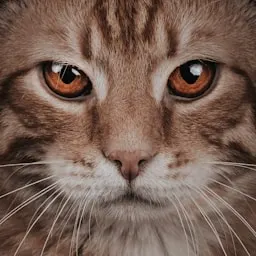
I love how Miso’s black-and-white shelter photo now feels full of personality, with natural eyes and coat color.
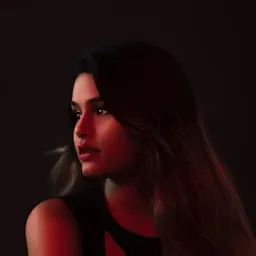
The color suggestions are subtle and accurate, so I spend far less time correcting strange skin tones.
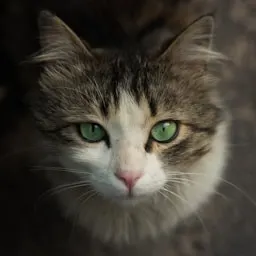
I love how Olive’s vintage photo came back with soft greens and cream tones that look wonderfully authentic.
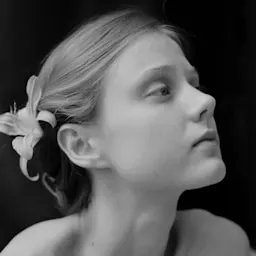
I find that it made a whole family archive feel consistent instead of giving every image a different artificial tint.
Pepper’s fur colors stayed rich and realistic, even after I tried a brighter editorial palette.
I used it for old travel prints and was surprised by how well it separated faded reds from the background.
I love how Cosmo’s photo looks like it was taken in color originally; the eyes and little nose are still so natural.
I find that the tool is great for quickly exploring mood boards without rebuilding every color by hand.
I love how Maple’s warm autumn portrait came out beautifully balanced, with no muddy shadows or neon highlights.
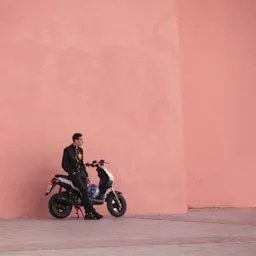
It brought new life to scanned family albums and preserved the paper texture I wanted to keep.
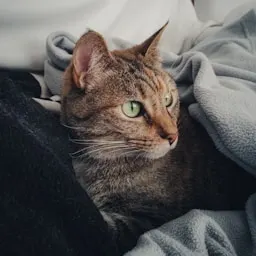
I love how Ziggy’s coat needed careful color control, and the result kept the markings clear and believable.
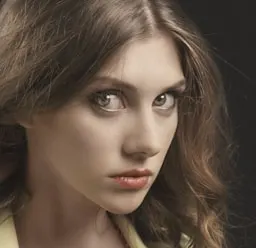
Product recolouring is much faster now, especially when I need multiple campaign-ready variations.
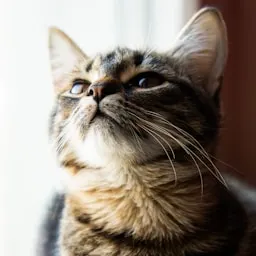
I love how Toast’s old snapshot feels brighter and happier, but it still looks like the same real moment.
I find that the palette control is simple enough for a quick edit and precise enough for professional retouching.
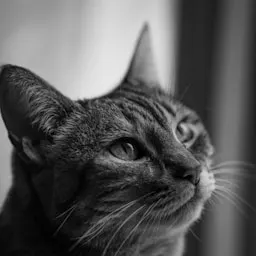
I love how Sunny’s faded beach photo now has clean blue water and natural golden light without looking overdone.


Pros and Cons of Recolouring Images with AI
Pros
1. Recolour Black and White Photos Online Quickly
APOB AI makes it easy to recolour black and white photos online without manual Photoshop work. Users can upload an old family photo, vintage portrait, travel image, or faded picture, then use AI photo recolour to add natural skin tones, clothing colors, and background details in a simple online workflow.
2. Keep Old Photo Texture and Realistic Details
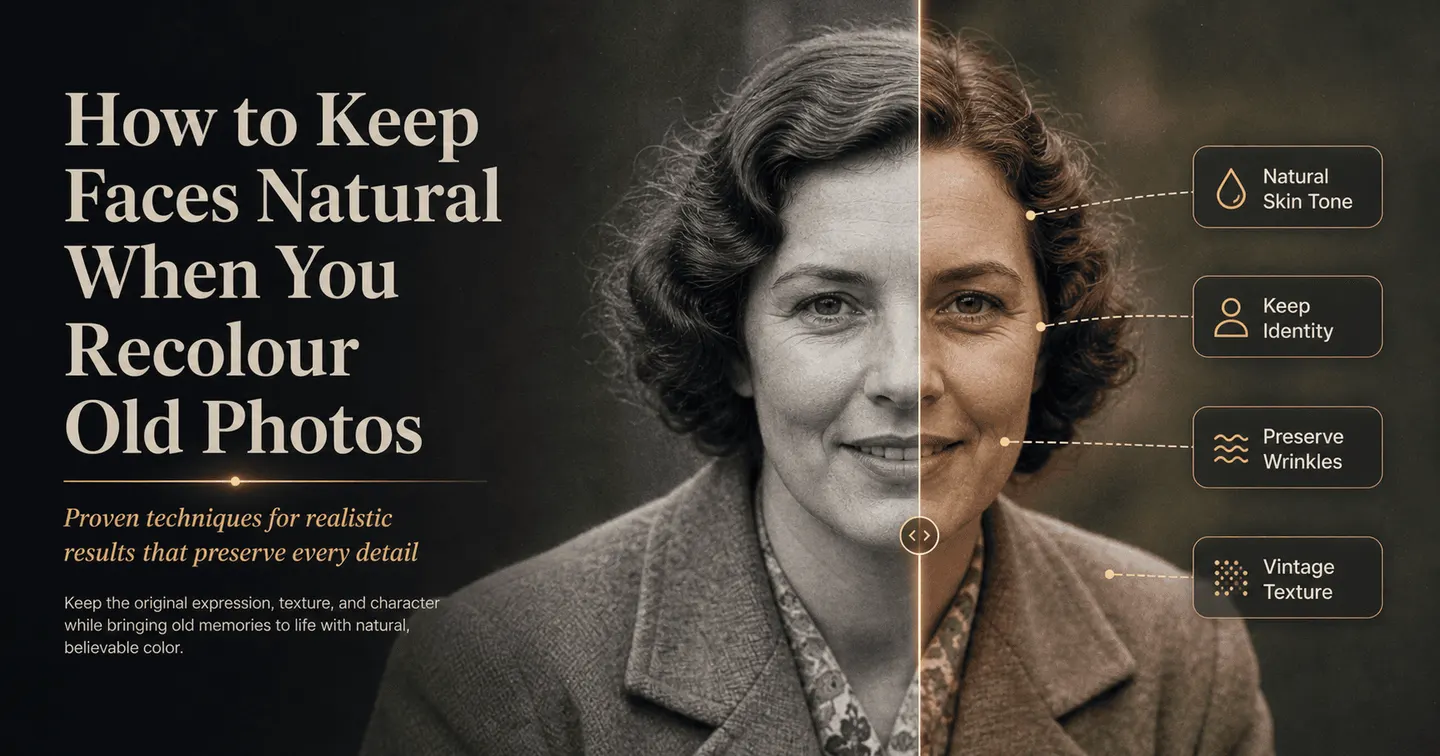
A good recolour image result should not look like a flat color filter. APOB AI helps preserve the original photo texture, film grain, shadows, face details, clothing folds, and vintage atmosphere while adding realistic color. This is useful when users want old photos recoloured in a way that still feels authentic.
3. Continue Editing After Recolouring
After users recolour photos online, they can keep improving the image instead of stopping at the first result. If the skin tone, sky, clothing, or background color looks wrong, users can adjust the prompt and regenerate. They can also use other editing tools to upscale, remove backgrounds, edit image details, or turn the recoloured picture into video content.
Cons
AI Color May Need Small Adjustments
AI can recolour old photos quickly, but it may not always know the true historical color of clothing, objects, buildings, or landscapes. Some recolour picture online results may need a second prompt to make skin tones softer, reduce over-saturation, or make the final image look more natural.
Recolour your image with APOB AI
No Credit Card Required
Discover more blogs about Recolour Image with AI


FAQs About Recolouring Images with AI
Answers about changing colors, palettes, supported formats, quality, privacy, and credits.
What does recolour black and white photos mean?
Recolour black and white photos means adding realistic color to a grayscale or old photo. The goal is to bring back natural skin tones, hair color, clothing color, background details, and atmosphere while keeping the original photo structure unchanged.
Can I recolour photos online with AI?
Yes. You can recolour photos online by uploading a black and white photo or faded old picture, then using an AI photo recolour prompt to add natural color. This is faster than manually editing every area in Photoshop.
What types of photos can I recolour?
You can recolour old photos, family portraits, wedding pictures, childhood photos, travel images, historical photos, black and white landscapes, and faded vintage pictures. Clear photos with visible faces and backgrounds usually work best.
Can AI recolour old photos naturally?
Yes, AI can recolour old photos with natural-looking color, especially when the prompt asks for realistic skin tones, soft fabric colors, balanced backgrounds, and preserved film grain. Some results may need small prompt adjustments for the most natural look.
Is recolour image online better than Photoshop for beginners?
For beginners, recolour image online tools are usually easier than Photoshop because they do not require manual masking, color layers, or brush work. You can describe the result you want and let AI generate a colorized version.
Will AI change the face in my old photo?
A good recolour prompt should tell AI to keep the original face, identity, age, expression, pose, and facial details unchanged. This helps the recolour picture online result preserve the person’s original appearance.
Can I recolour a black and white portrait?
Yes. Black and white portraits are one of the best use cases for AI photo recolour. AI can add realistic skin tones, hair color, eye color, clothing color, and background warmth while keeping the portrait composition intact.
Can I recolour a faded photo?
Yes. You can recolour a faded photo if the image still has enough visible detail. AI can help restore more natural color to the face, clothing, sky, buildings, trees, water, and background elements.
Can I recolour old family photos?
Yes. Old family photos are a common reason people use recolour photos online. AI can help make grandparents’ photos, wedding photos, childhood images, and family portraits feel more vivid and easier to share.
Does recolour image AI restore photo quality too?
Recolour image AI mainly adds color, but some tools can also help improve clarity, texture, or detail. If the original photo is blurry, damaged, or low-resolution, you may need to upscale or enhance the image after recolouring.
What prompt should I use to recolour black and white photos?
Use a prompt like: “Recolour this black and white photo into a natural realistic color photo. Keep the original face, identity, pose, clothing, background, lighting, photo texture, film grain, and vintage atmosphere unchanged.”
Can I control the colors in the recoloured photo?
Yes. You can guide the AI by asking for specific color styles, such as warm vintage tones, natural skin tones, soft blue sky, muted clothing colors, or historically believable colors. If the first result is too bright, you can ask for softer colors.
Why does my recoloured photo look too saturated?
AI sometimes adds colors that are too strong. If that happens, adjust the prompt and ask for muted colors, realistic vintage tones, softer skin tones, less saturation, and a more natural old-photo look.
Can I recolour black and white photos online for free?
Some tools may offer limited free credits or trial access, but full-quality recolour photos online features may require credits or a paid plan. Always check the platform’s usage limits before processing many images.
Is recolour picture online safe for personal family photos?
Before uploading personal old photos, check the platform’s privacy policy and data handling rules. For sensitive family images, use trusted tools and avoid uploading private documents or images you do not want stored online.
Can I recolour old photos for printing?
Yes. After using AI photo recolour, you can download the image and print it if the resolution is high enough. For best print results, use a clear original photo and choose higher-quality output settings when available.
Can I recolour historical photos?
Yes. AI can recolour historical black and white photos, but the result is an interpretation, not guaranteed historical truth. For educational or documentary use, it is best to mention that the image has been AI colorized.
What is the difference between recolour and restore?
Recolour adds color to a black and white or faded image. Restore usually means improving damage, scratches, blur, contrast, and resolution. For old photos, the best workflow is often restore first, then recolour.
Can I edit the photo after recolouring?
Yes. After you recolour image online, you can continue editing if the skin tone, clothing color, background, or lighting needs improvement. You can also upscale the image, remove background, adjust details, or create new versions.
What makes a good AI recolour old photo result?
A good AI recolour old photo result should keep the original person, pose, lighting, grain, and vintage feeling while adding believable color. It should not look like a modern filter, cartoon effect, or over-edited image.