What Is Kling AI?
Kling AI is an AI video generation platform developed by Kuaishou. It allows users to create videos from text prompts, images, and creative references, making it useful for short-form videos, product demos, social media ads, cinematic clips, and experimental AI content.
Unlike simple prompt-to-video tools, Kling is known for strong motion performance, realistic visual details, and flexible image-to-video generation. It is especially useful when creators want to turn a static image, product photo, character reference, or written idea into a moving video quickly.
For users who want to create Kling-style AI videos for free, the free workflow is a good starting point for testing prompts, generating short clips, and exploring different visual directions before upgrading to higher-quality or faster paid modes.

Kling AI: Create AI Videos for Free with Text and Images

Kling AI is a practical choice for creators who want to generate AI videos without starting from complex editing software. Users can begin with a simple text prompt, upload an image, or use reference material to guide the video style, subject, and motion.
Compared with tools like Runway, Pika, Sora, and Seedance, Kling often stands out for image-to-video generation, motion realism, and creative control. Runway is strong for professional editing and filmmaking workflows, Pika is beginner-friendly for fast social clips, Sora is known for high-end cinematic generation, and Seedance focuses on multimodal video creation. Kling sits between these tools as a flexible option for creators who want realistic movement, visual detail, and easy prompt-based generation.
The free version is best for testing ideas, creating short clips, trying image animation, and experimenting with different prompts. For higher resolution, longer videos, faster generation, or advanced controls, users may need paid credits or upgraded Kling models.
Kling AI vs Sora vs Runway Feature Comparison
Feature | Kling AI | Sora | Runway |
|---|---|---|---|
Best For | Image-to-video, realistic motion, social clips, product demos | High-end cinematic video generation and long-form visual storytelling | Professional AI video editing, filmmaking workflows, and creative production |
Free Access | Offers free or credit-based testing depending on region and plan | Limited access; usually tied to OpenAI availability and plan access | Free plan or trial credits may be available, with paid upgrades for more usage |
Text-to-Video | Supported | Supported | Supported |
Image-to-Video | Strong image animation and motion generation | Supported depending on available mode | Supported with Gen models and editing tools |
Video Length | Usually short clips, often around 5-10 seconds depending on model and mode | Can generate longer cinematic clips depending on access and model version | Usually short clips, often extended through editing or generation workflows |
Motion Quality | Strong realistic movement, camera motion, and subject animation | Very strong cinematic motion and scene understanding | Strong controllable motion, especially for creative editing and production |
Editing Tools | More focused on generation and image-to-video workflows | More focused on generation quality and prompt-based creation | Strongest editing toolkit, including video-to-video, inpainting, background removal, and timeline workflows |
Ease of Use | Beginner-friendly for prompt and image-based video creation | Simple prompt-based workflow, but access may be limited | More professional interface with more controls and a higher learning curve |
Best Use Cases | Product videos, social content, AI character clips, quick ad tests | Cinematic scenes, concept films, storytelling, premium video generation | Ads, music videos, brand content, editing-heavy projects, production workflows |
Main Advantage | Balance of free testing, realistic motion, and strong image-to-video output | Highest cinematic quality and scene realism | Best for creators who need editing control and post-production features |
Limitation | Advanced quality, speed, or longer output may require paid credits | Access and usage may be more limited | Free usage is limited, and advanced tools require paid plans |
When Should You Use Kling AI?
Use Kling AI when you want to create short AI videos from text or images quickly. It is especially useful for animating product photos, turning character images into video clips, creating social media content, testing ad concepts, and generating cinematic shots without filming.
Choose Kling when motion quality and image-to-video performance matter. If you need a quick creative test, the free version is a good starting point. If you need cleaner visuals, better consistency, faster generation, or more professional output, newer Kling versions or paid modes may be more suitable.
For creators comparing AI video tools, Kling is a strong option for realistic movement and image animation. Runway may be better for editing-heavy workflows, Pika for simple social content, Sora for high-end cinematic generation, and Seedance for multimodal production. Kling is best when you want a balance of easy creation, strong motion, and flexible AI video generation.




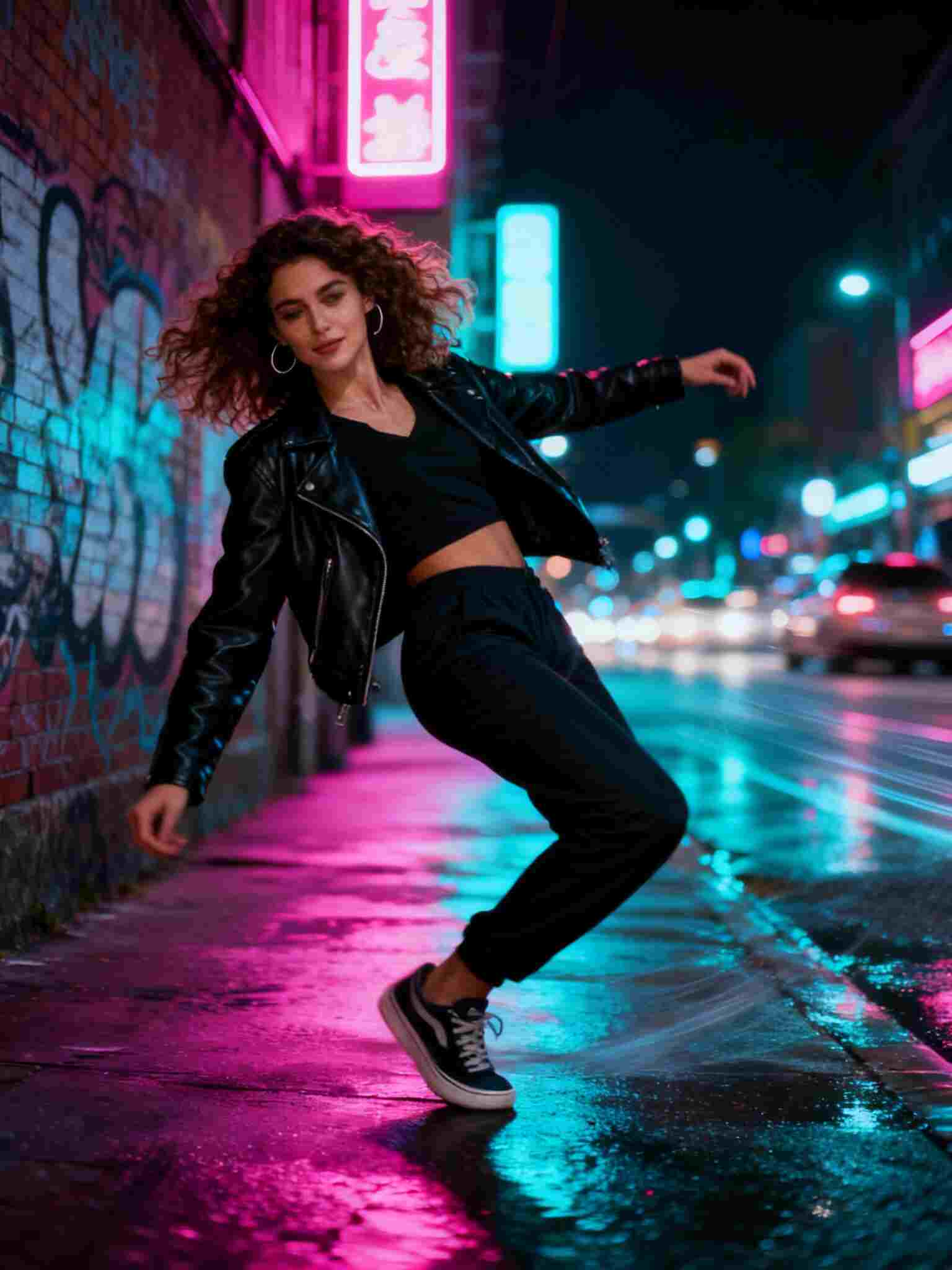



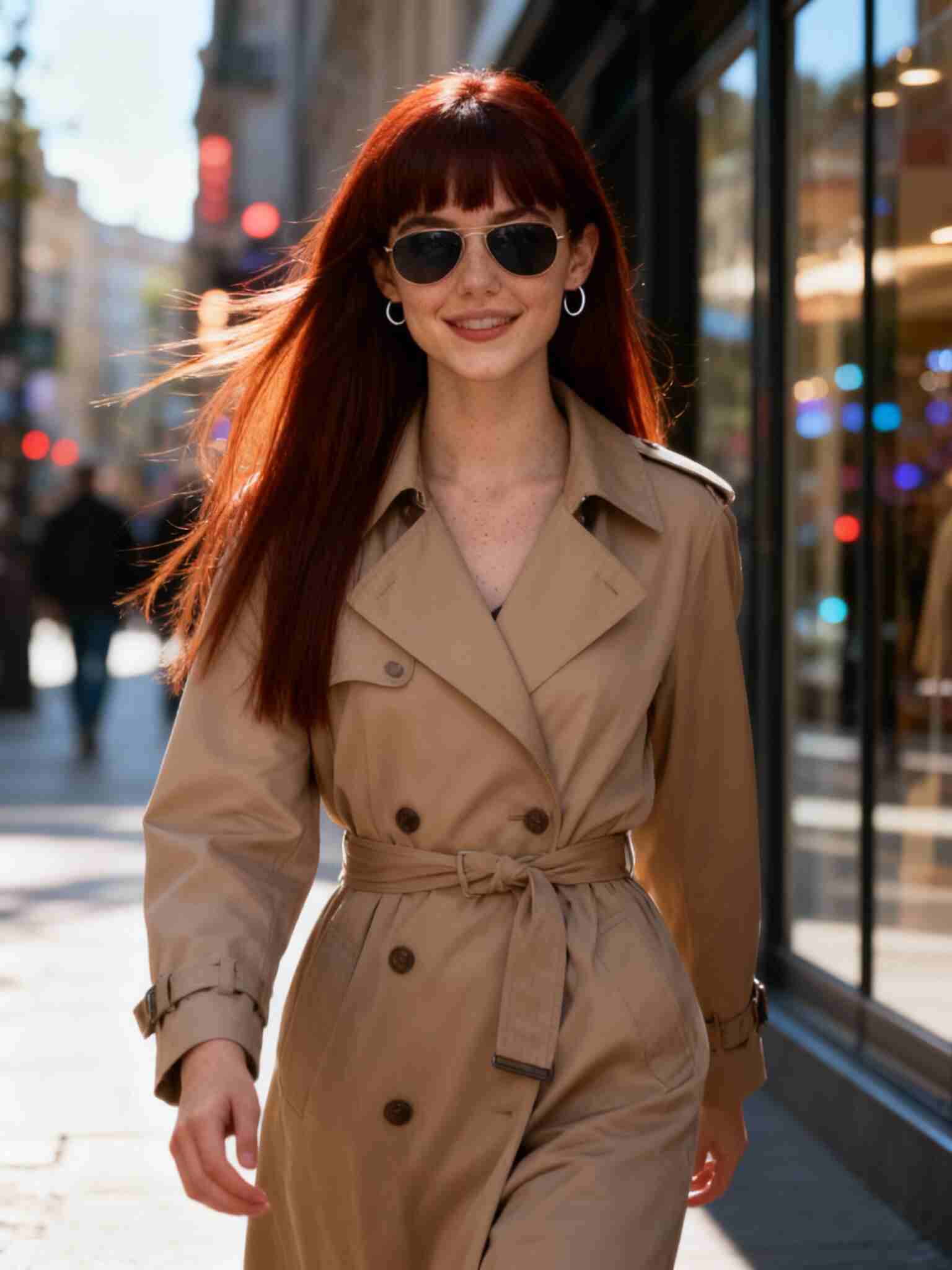
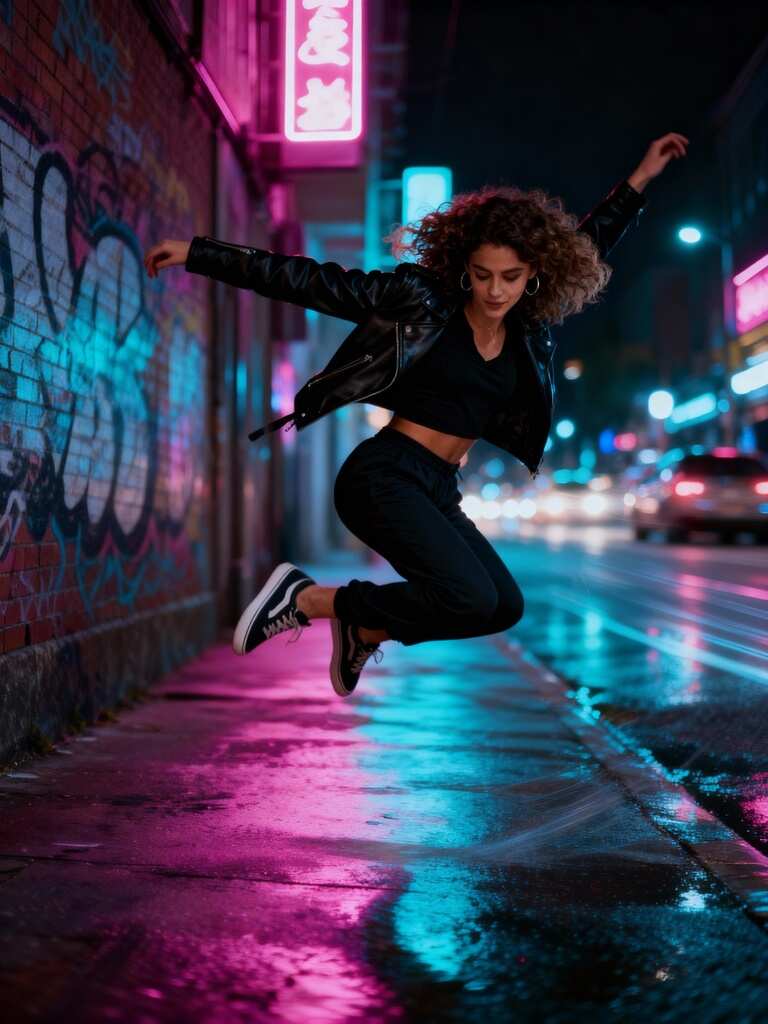

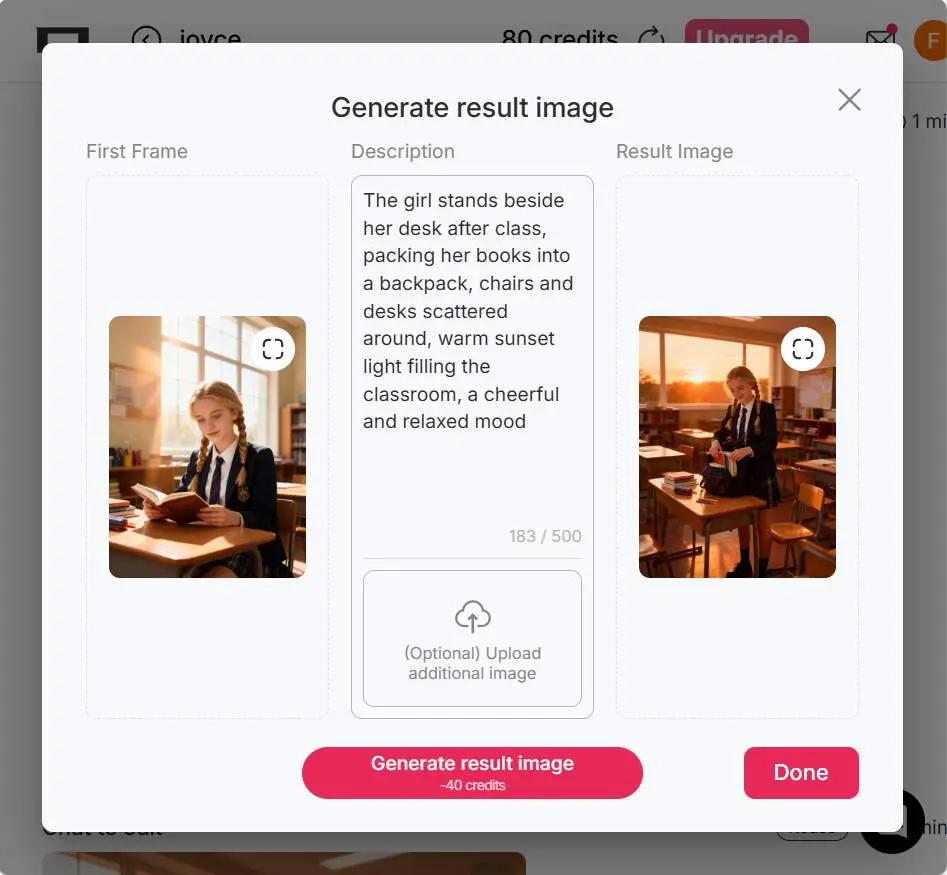
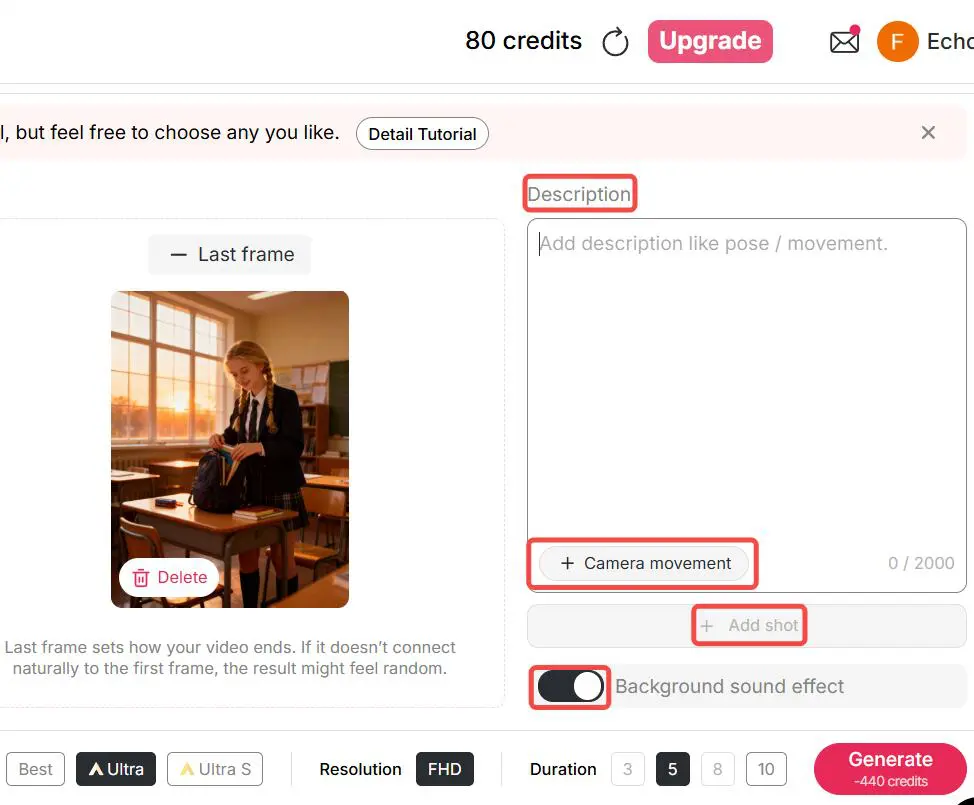
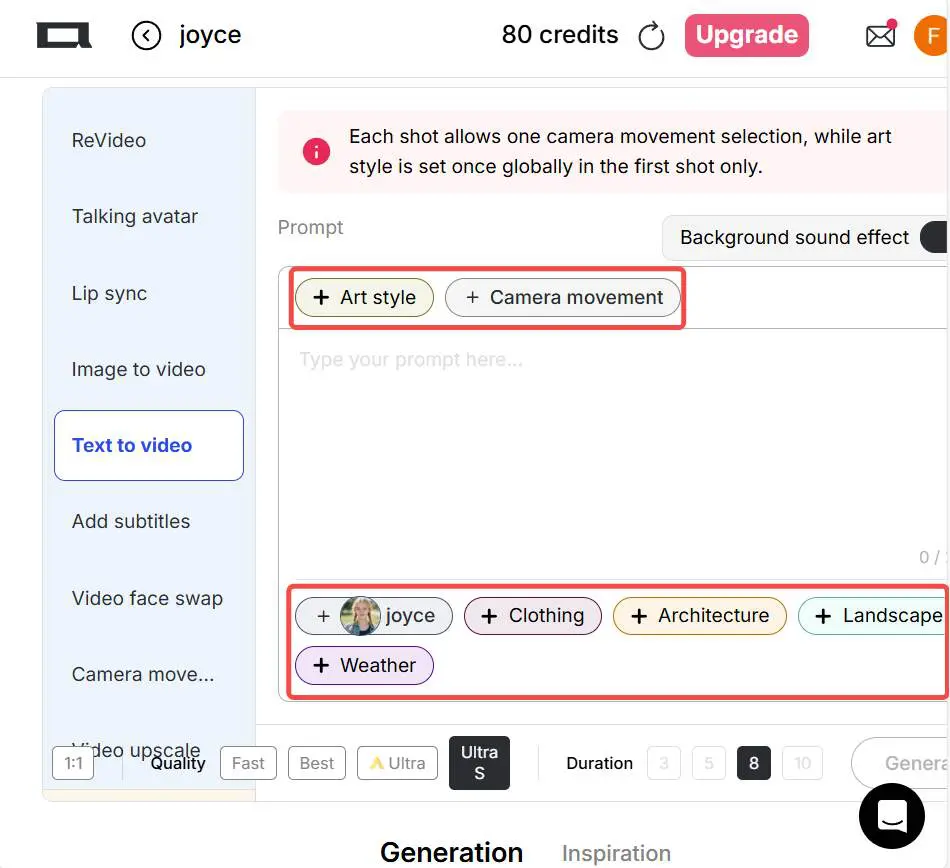
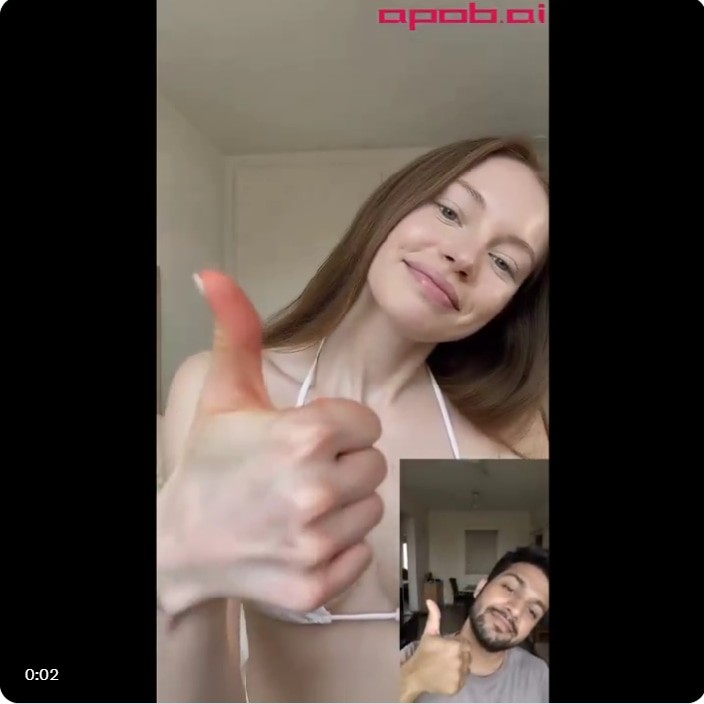
Effortless creation
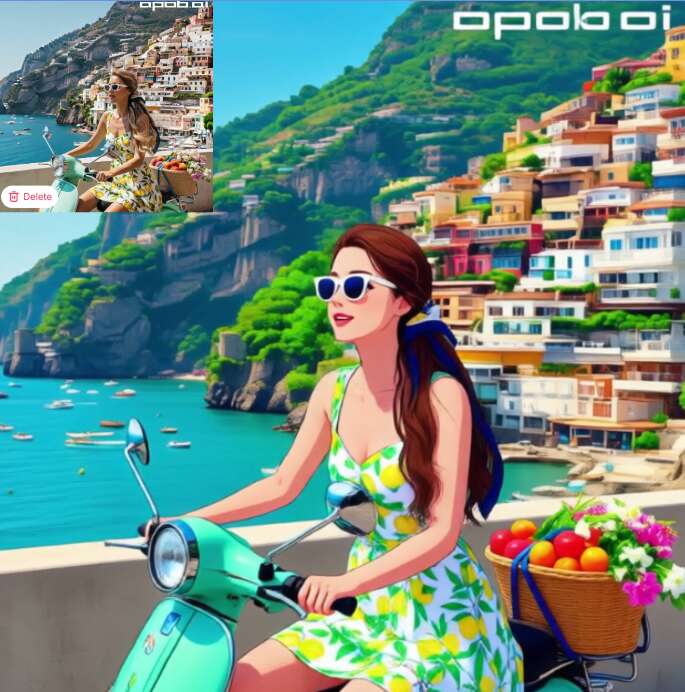
With Kling AI free you don’t need cameras or editing suites. Upload an image or write a prompt and get a finished video quickly. It’s designed for both beginners and pros alike.
Cost-effective creativity
Because you’re using the free option, you can test ideas and generate content without spending money. This makes it perfect for social posts, experiments or low-cost marketing.
15-Second Narrative Clips
Produce continuous 15-second sequences with a clear storyline — maintain consistent characters, use cinematic camera angles, and create smooth multi-shot transitions. Ideal for social media content, short films, or immersive storytelling.
Professional-level output
Even on the free version, Kling AI delivers high-quality visuals with smooth motion and realistic effects. Your videos can look like they were made in a studio — just with a few clicks.
Social media content
Create short, eye-catching clips for Instagram Reels or TikTok: upload a photo with motion, set vertical 9:16, add camera movement — instant engagement.
Marketing & product demos
Use image-to-video or text-to-video workflows to showcase products: show a still image of a gadget, animate it with zoom/follow features, add voice or text overlay — perfect for ads.
Educational or storytelling
Turn static images or simple prompts into motion visuals: illustrate a concept, animate a diagram or craft a mini-story video. Kling AI lets educators and storytellers move beyond slides.
No Credit Card Required
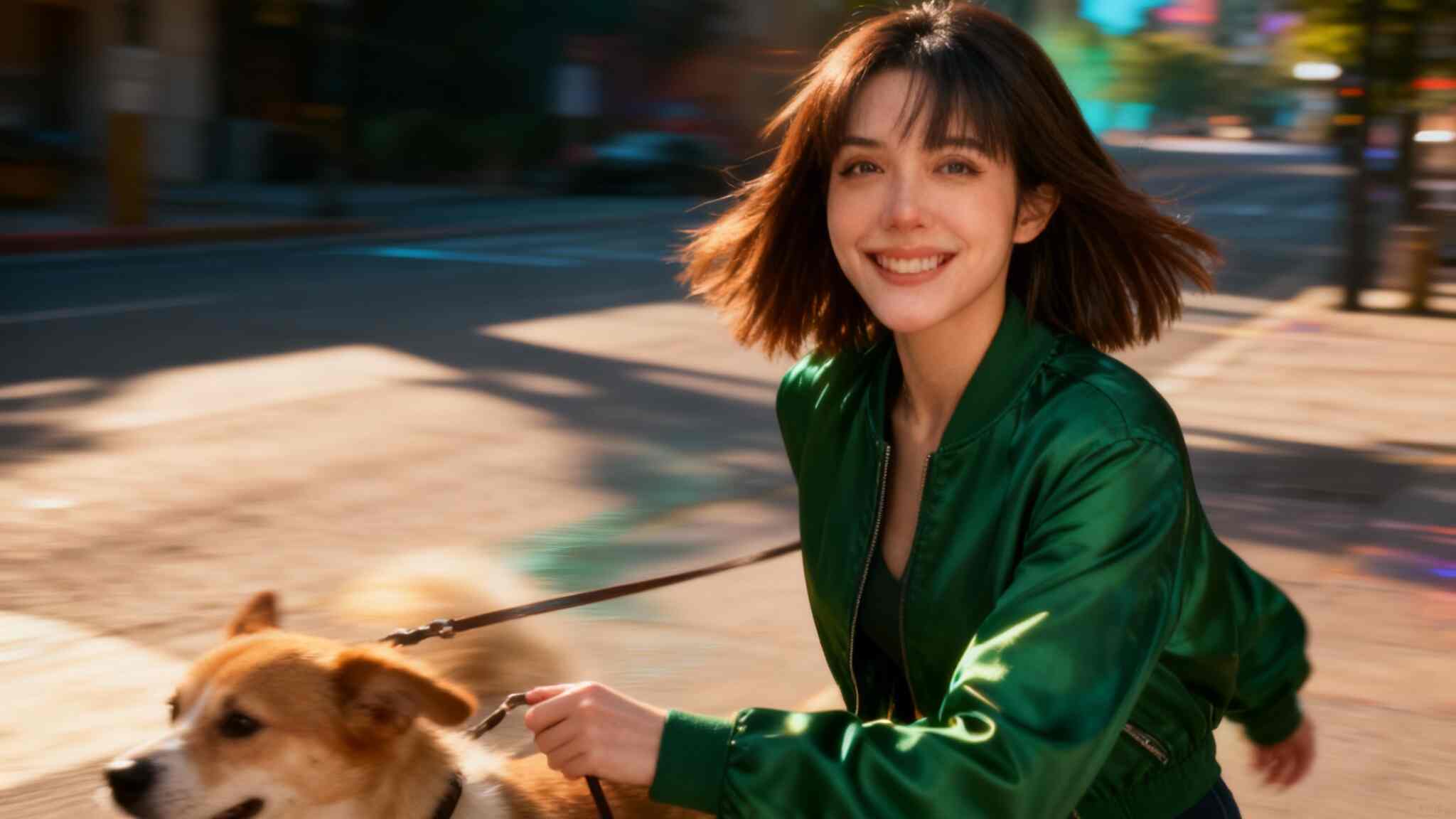
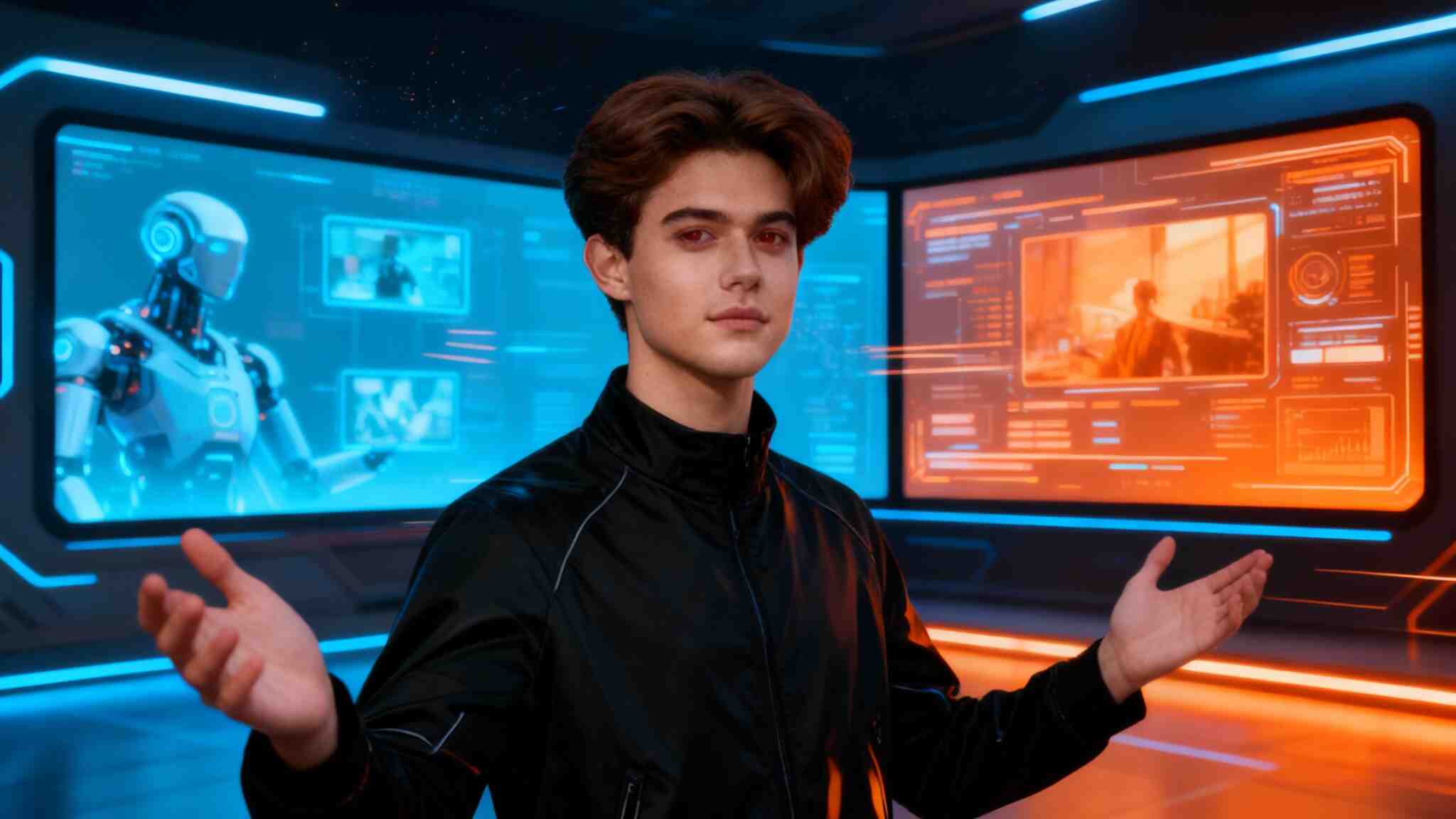
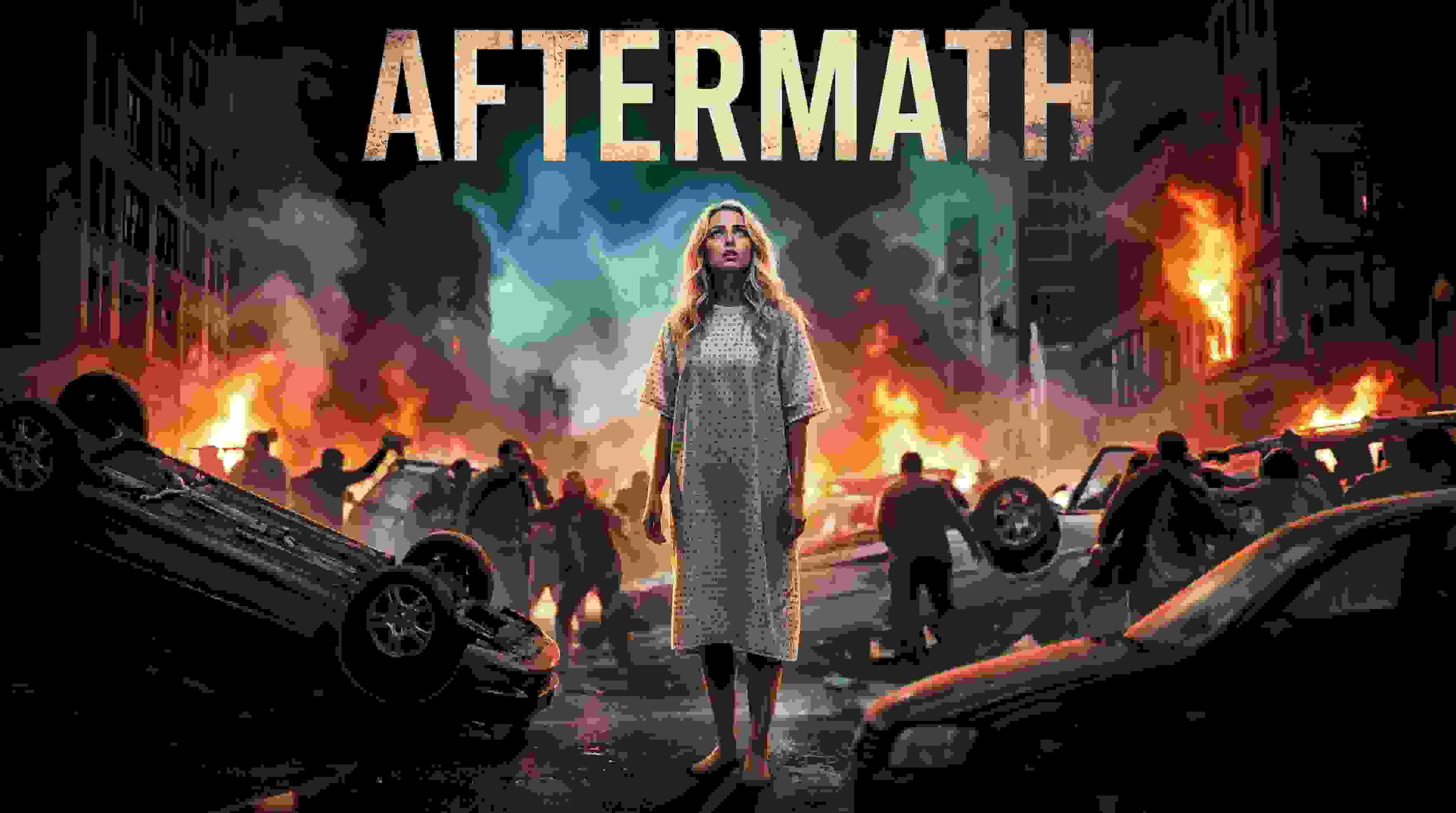
1. Fast results
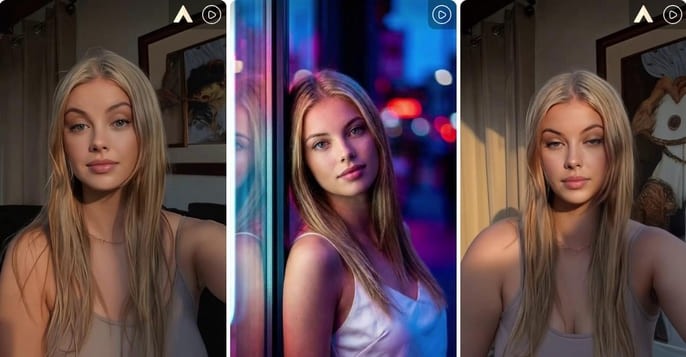
No long editing timeline — generate a clip in minutes: choose image or prompt, set settings, create. The speed helps you iterate ideas quickly.
2. High flexibility
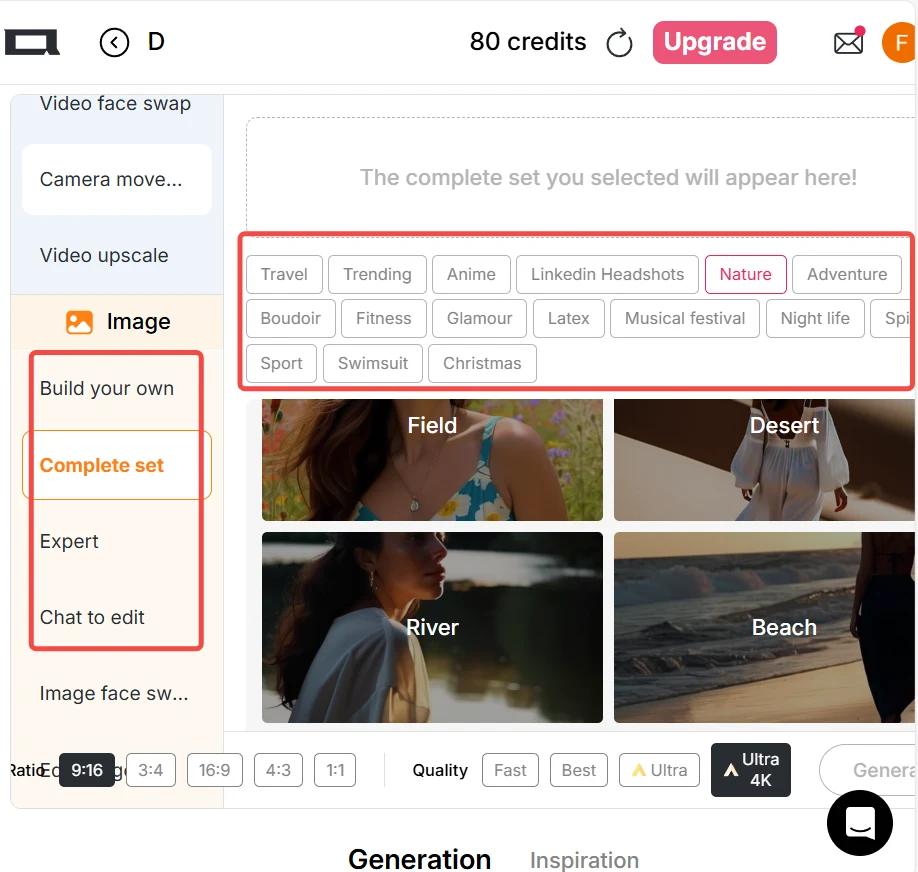
Use images or text, pick dimension (9:16, 16:9 etc), add camera movement, sound effects, shot layers. Many creative levers ready for you.
3. Free access
Start with Kling AI free — test the system, try prompts and see what works without immediate cost. Great for experimentation or small projects.
1. Some limitations
The free version may include watermarks, limited duration or lower resolution modes; premium output may still require paid upgrade.
Can I generate AI video for free?
Yes. After you log into the site you receive daily free credits. For example, using “best” mode your daily free credits can generate a 3-second video. If you want longer duration or higher quality mode, you can accumulate free credits or upgrade.
How fast is the generation process?
Well, the time for the video creation depends on the parameters you choose and the complexity of your videos. Usually, the longer the time duration, the clearer the video quality, or the more complex the description you input, the longer it will take.
How can I get the best results?
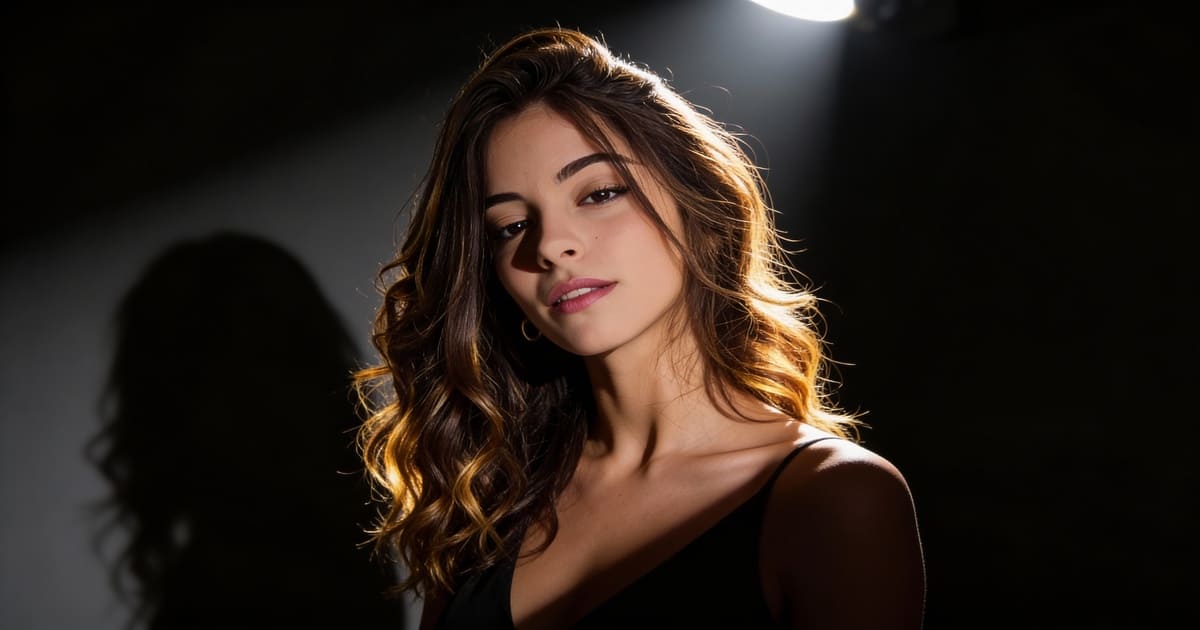
The key to great results is in your prompts. Be specific about what you want to see – include details about style, mood, lighting, and composition. Experiment with different descriptions to find what works best for your vision.
What types of video can I create with Kling AI video generator?
Kling AI video generator supports generating a wide range of realistic videos. Whether you are looking for a cinematic game-style content or informative product demonstrations that highlight key features, educational or training videos that enhance understanding, our Kling video generator is equipped to deliver. Also, it excels in producing marketing materials that engage and attract the audience.
Can I use the videos commercially?
Yes. You can use the videos commercially, subject to the platform’s licensing terms.
Do I need to download an app to use it?
No. You don’t need to install any software — whether you’re on a computer, tablet or mobile device, just click the “Create Now” button and start generating videos directly.
Gen-3 Alpha AI Video
Sora 2 AI Video Generator
Veo 3.1 AI Video Generator
Runway AI Video Generator
Seedream 4.0
Kling 2.6 Motion Control
Luma AI Dream Machine
Seedream 5.0
Seedream 4.5 Is Now Live
Kling 3.0
Kling O1 AI Video Editor
Kling 3.0 Omni
Seedance 2.0 Mini
HappyHorse 1.1
LTX 2.3 AI Video Generator
Nano Banana 2 AI Image Generator
Seedream 5.0 Pro AI Image Generator


