
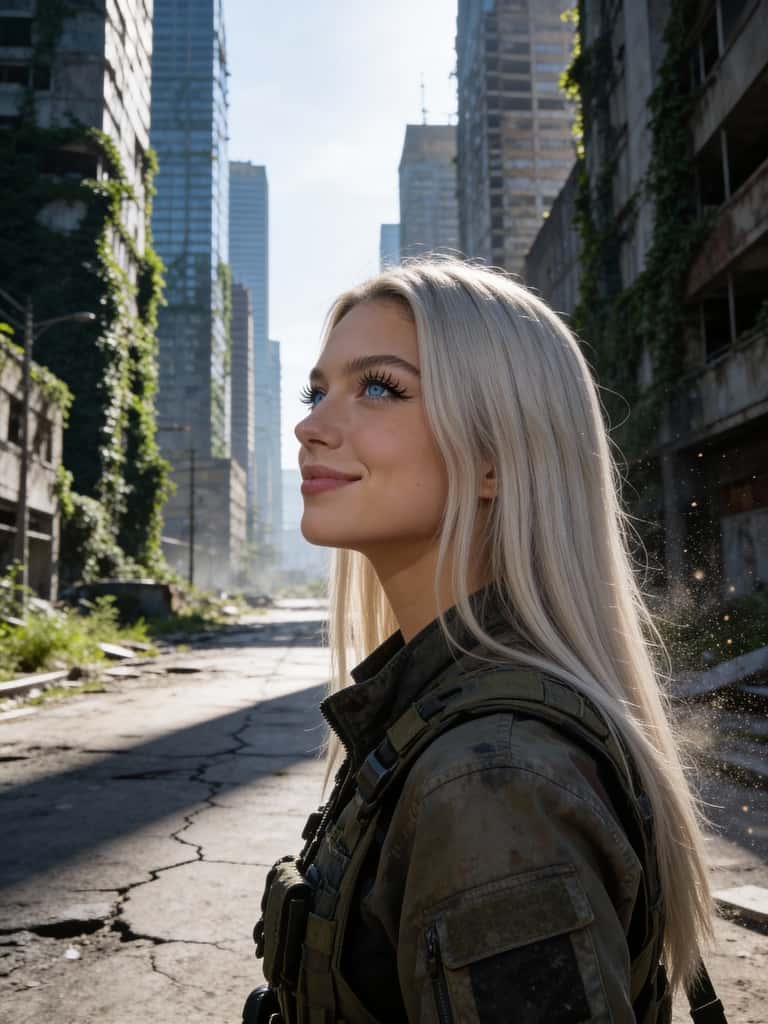
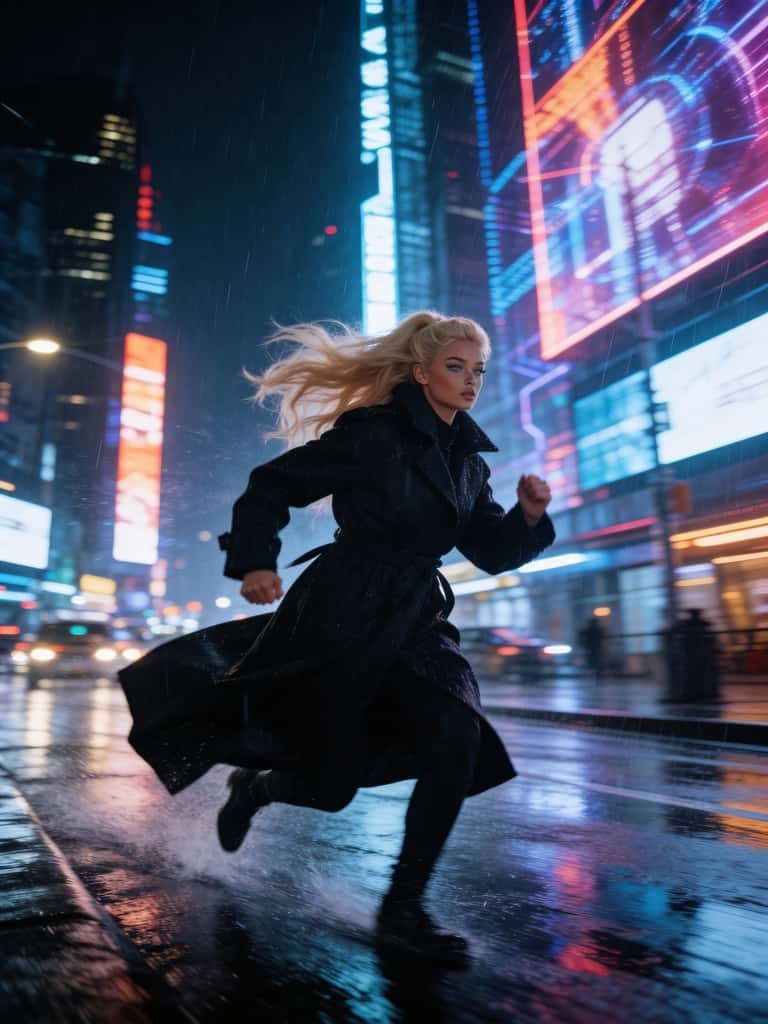
Free to Use with Daily Credits
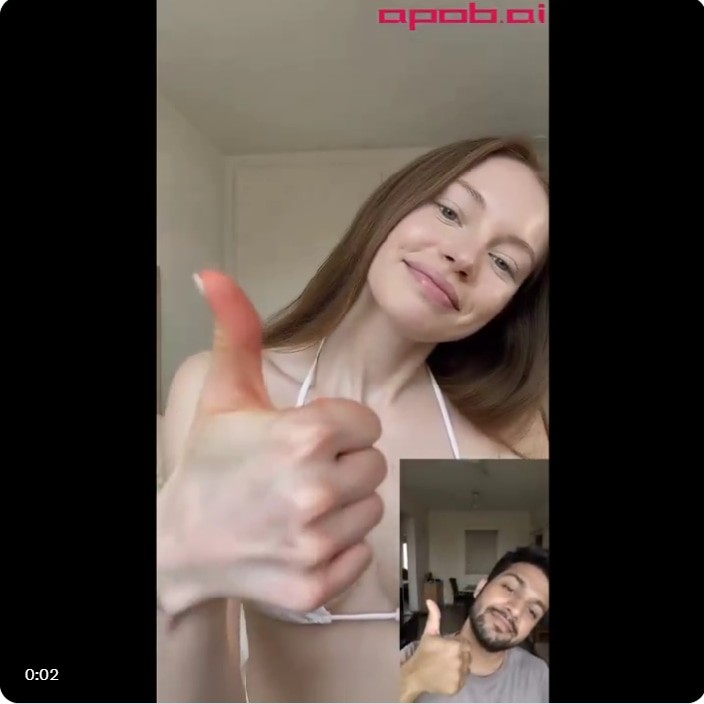
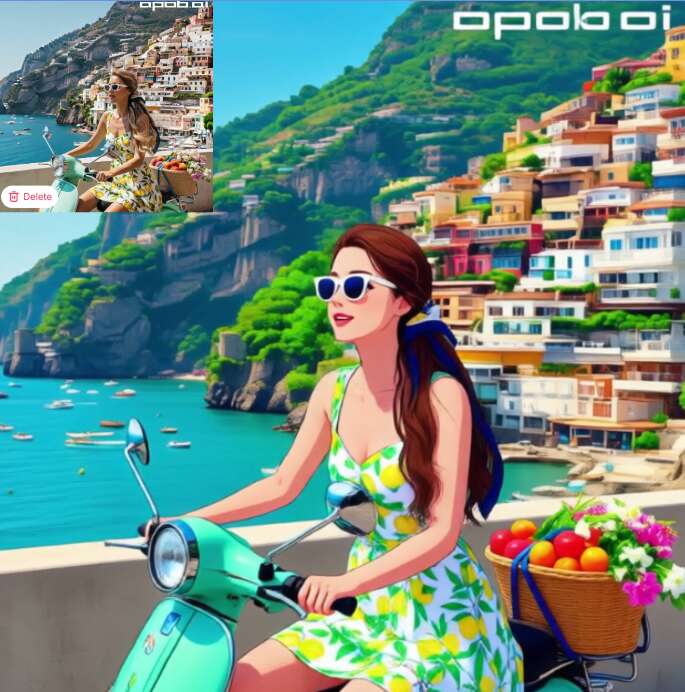
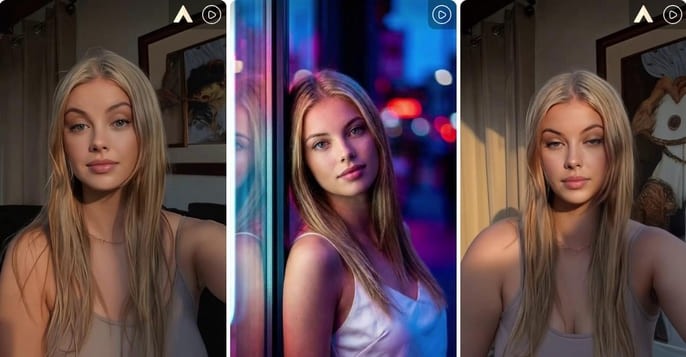
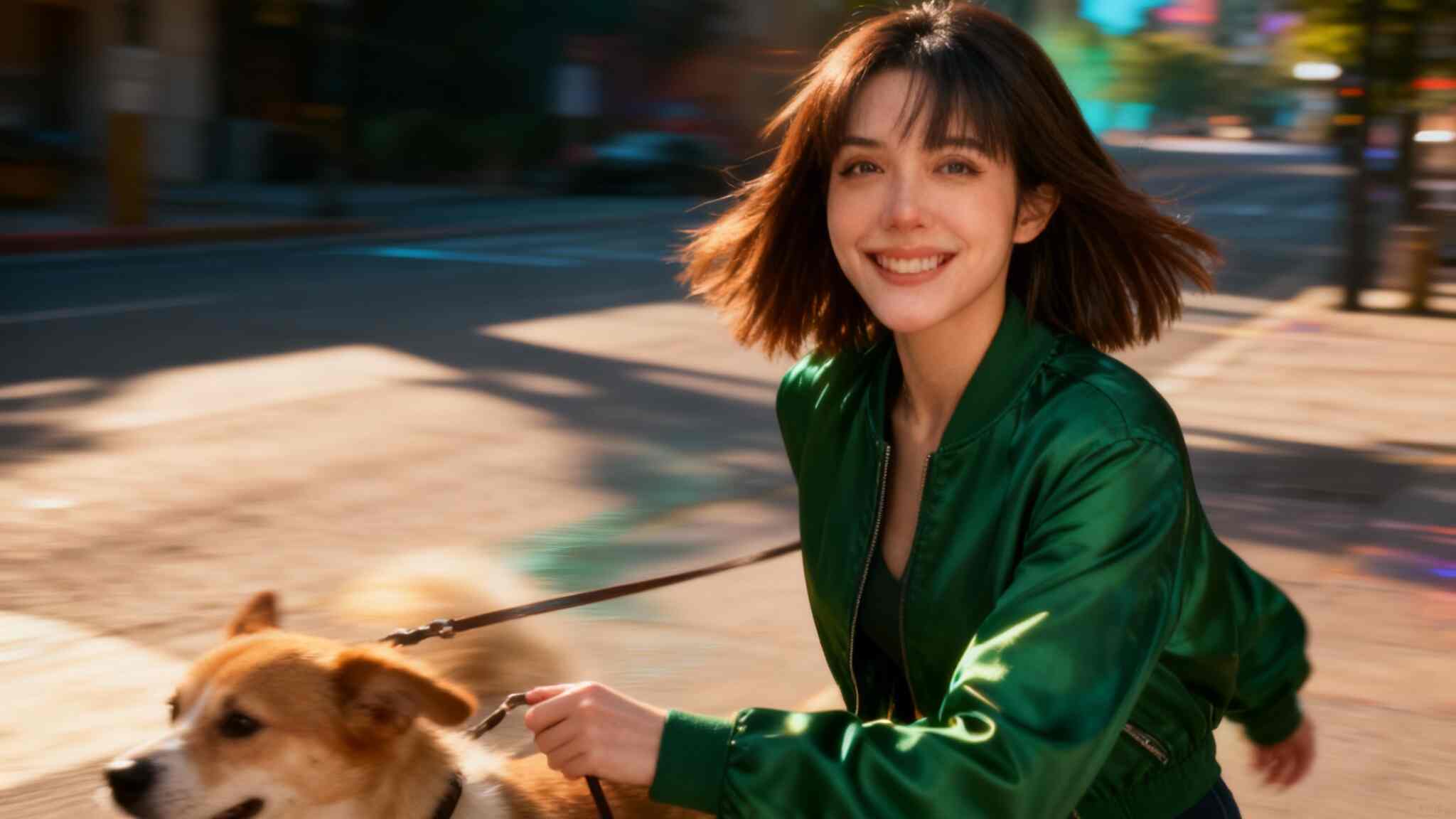
Kling O1 supports free usage. In Fast mode, generating one second of video costs only 8 credits. Users receive 80 free credits daily, enough to create up to 10 seconds of AI video. Credits can also be accumulated to produce longer content without immediate payment.
All-in-One AI Creation Platform
From AI image generation to video creation, editing, music, and subtitles—everything happens on one platform. Kling O1 eliminates the need for multiple tools and complicated workflows.
Cinematic, Realistic Output
Videos generated with Kling O1 feature smooth motion, strong visual coherence, and cinematic-level realism that stands out across social platforms and professional use cases.
Marketing & Advertising Content
Brands can quickly produce high-quality promotional videos without expensive shoots. Product demos, AI spokesperson videos, and seasonal campaigns can all be generated with consistent branding and minimal effort.
Content Creators & Influencers
Creators who want to grow on social media don’t need to appear on camera or do complex editing — AI Influencers make it easy to gain followers and build a personal brand.
Education & Training Videos
Educators and businesses can create explainer videos, tutorials, and onboarding content using AI avatars, saving time while maintaining clarity and professionalism.
No Credit Card Required
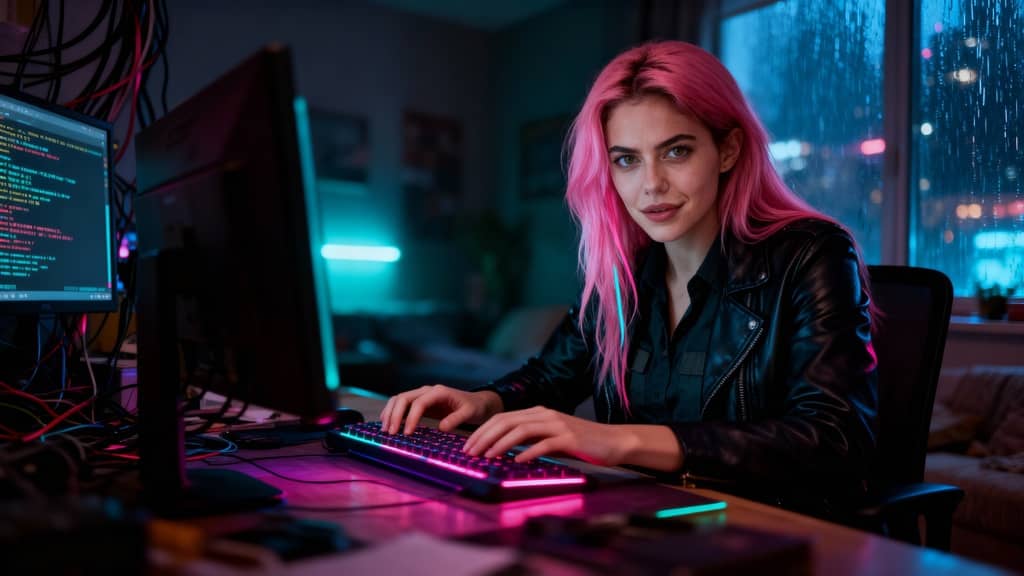
What Is Scail?
Scail is an AI-powered character animation and replacement tool designed to create studio-grade videos through in-context learning. In simple terms, scail allows users to replace or animate characters inside existing videos while preserving motion, expressions, and overall realism.
One of the most talked-about features of scail is scail remotion, which focuses on re-mapping motion from an original video onto a new character. By learning facial movements, body gestures, and timing, scail remotion makes it possible to “swap” characters in viral or trending videos with impressive accuracy.
Because of this, scail has become popular among creators who want to:
Recreate trending videos quickly
Replace characters without re-shooting footage
Produce AI-driven content that looks realistic and engaging
However, while scail and scail remotion are powerful, they mainly focus on character animation and replacement. This is where APOB AI goes further.
Scail vs APOB: What’s the Real Difference?
Scail is excellent at what it does: character animation and remotion. But APOB Edit Video is built as a more comprehensive AI video creation platform, not just a single-purpose tool.
Here’s a clear comparison:
Scail / Scail Remotion
Strong focus on character replacement
Motion learning and realistic animation
Limited control over background, camera angle, and overall video style
APOB Edit Video
Full AI character replacement (similar to scail remotion)
Ability to change video backgrounds
Ability to adjust camera angles
One-click video style transformation
Works even if you don’t already have a video
Free daily credits to try AI video generation
In other words, APOB includes the core value of scail remotion, but expands it into a full AI video workflow.
How to Use APOB to Generate AI Video (Step-by-Step)
APOB is designed to be beginner-friendly while still powerful enough for creators and marketers.
Step 1: Log in to APOB
Click the Try for free link or search apob.ai to enter the official website. After logging in, you can claim 80 free credits every day, which is enough to start generating AI images and videos.
Try for free
Step 2: Create an AI Model
In the Community Model section, you’ll see a wide range of AI models created by other users. If you find one you like, simply click and use it.
If you want something unique, click Create Portrait Model:
Upload your own photos, or use the AI Influencer Generator to customize an AI girl or AI boy
You can choose: Age, Gender, Nationality, Height & weight, Hairstyle, Eye color, Face shape, Skin tone
This makes APOB perfect for building a long-term AI influencer identity.

Step 3: Generate AI Images (Optional)
If you already have a reference image you like, you can skip this step.
Otherwise, APOB offers:
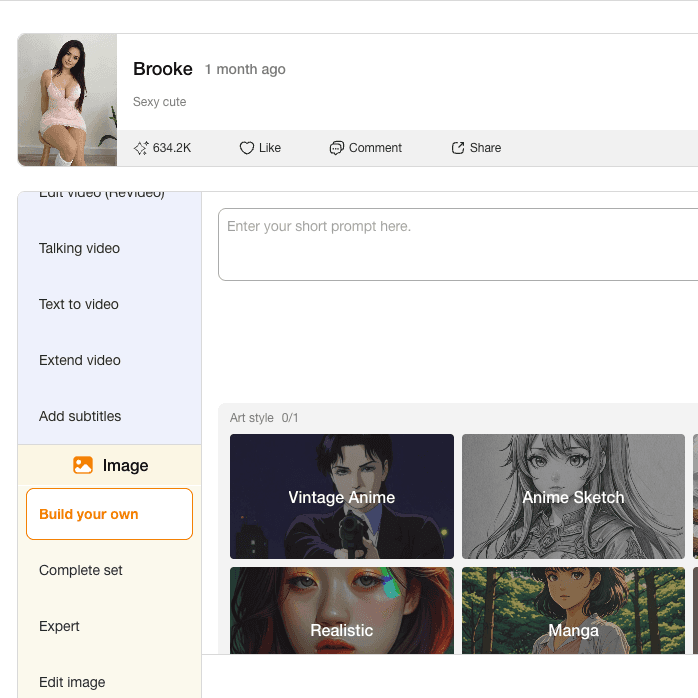
Build Your Own
Complete Set
Expert Mode
You can select presets or input prompts to generate high-quality AI images that will later be used for video replacement.

Step 4: Generate AI Video with Edit Video
If you already have a video:
Go to the Edit Video tab
Choose Edit Character
Upload:
Original Video (under 30 seconds)
Reference Image (AI model image)
Click generate — no prompt needed
The reference image will automatically replace the person in the original video, similar to scail remotion, but faster and easier.
In Best Mode, APOB only uses 26 credits per second, making it extremely cost-efficient.
If you don’t have a video:
Use Image to Video
Enter a prompt to generate a realistic video
Then apply Edit Video again for character replacemen

Tips for Producing High-Quality AI Videos
To get the best results (especially if you’re used to scail remotion), follow these tips:
Use videos with clear faces and stable lighting
Keep original videos under 30 seconds
Choose reference images with front-facing angles
Avoid heavy motion blur in the original clip
Use Best or Ultra mode for commercial content
These steps dramatically improve realism and consistency.
Why Are Tools Like Scail So Popular?
The core reason is simple: the internet rewards imitation.
Once a video trend goes viral, thousands of creators try to: Recreate it, Remix it, Parody it, Localize it.
Platforms like TikTok, Instagram Reels, and YouTube Shorts favor familiar formats, especially in a short time window. Tools like scail and scail remotion allow creators to imitate viral videos instantly by replacing the character instead of re-shooting content. Some creators also use character replacement for humor or contrast, creating unexpected and funny results that audiences love.
APOB takes this viral logic further by letting users:
Swap characters
Change styles
Modify camera angles
Reinvent the same video into multiple formats
How to Make Money with APOB AI
Yes — AI videos generated by APOB can absolutely be monetized.
Popular monetization paths include:
Creating AI influencers for TikTok or Instagram
Running affiliate promotions with AI characters
Selling UGC-style AI videos to brands
Growing theme pages powered by AI personas
Repurposing viral formats across multiple niches
Because APOB supports consistent AI characters, you can build recognizable digital personalities that attract long-term followers — something scail alone does not fully support.
FAQs
Q1: Can APOB generate AI videos for free?
A1: Yes. APOB offers Fast, Best, Ultra, and Ultra S modes. In Best mode, you can generate 3 seconds of AI video per day for free. With daily 80 credits, you can save credits for higher-quality modes or upgrade anytime.
Q2: Can I edit AI-generated images after creation?
A2: Absolutely. If you’re not satisfied, use Chat to Edit. You can change clothing colors, body poses, facial expressions, and more simply by entering a prompt.
Q3: If I want to transform my video into a different style, what styles can I choose from?
A3: In the Edit Video → Edit Style feature, you can apply nearly 30 styles, including: Steampunk, Marble Sculpture, Japanese Anime, Pencil Sketch, Pixel Art, Watercolor Drawing, Comic Book, 3D Chibi, LEGO, Van Gogh, and more.
Q4: Can AI videos generated by APOB be used to make money?
A4: Yes, 100%. APOB content can be used for social media growth, brand collaborations, affiliate marketing, and AI influencer monetization — with no platform restrictions.
Abstract
The release of Kling 2.6 has set a new benchmark in generative AI, introducing unprecedented control over character movement and cinematic quality. While the demand for professional-grade AI video grows, many creators face barriers related to cost and accessibility. This article explores the breakthrough features of Kling 2.6 motion control, its technical superiority in character consistency, and how creators can access this cutting-edge technology for free through the APOB AI platform. By integrating the Kling engine into a professional editing suite, APOB AI offers a seamless workflow for those looking to master high-fidelity AI cinematography without a massive upfront investment.
Try Kling 2.6 Motion Control Free
Don't forget to read the guide below before using!
The Next Frontier: Exploring Kling 2.6 and Its Creative Potential
The AI video landscape is evolving at a breakneck pace, and the jump to Kling 2.6 represents a significant leap for digital storytellers. Unlike previous iterations that often struggled with "jello-like" movements or lost character details during action sequences, Kling 2.6 motion control introduces a level of stability previously reserved for high-end VFX studios.
In order to understand why the industry is buzzing, we must look at how this version handles physics. Whether it is the subtle sway of a silk dress or the complex skeletal movements of a dance routine, Kling 2.6 ensures that every frame feels intentional. However, for many independent creators, accessing these features directly can be a challenge. That is where innovative platforms like APOB AI come into play, serving as a bridge to this high-end technology.
Understanding Kling AI 2.6 Motion Control Technology
The core appeal of Kling AI 2.6 motion control lies in its "Video-to-Video" or "Reference-to-Motion" capabilities. This technology allows users to upload a source image and a reference video; the AI then extracts the skeletal motion from the video and applies it to the image.
Consequently, the output isn't just a random animation but a precise mimicry of the reference motion. This makes Kling video 2.6 motion control ideal for:
Virtual Fashion: Realistically showing how fabrics move on a specific character.
Social Media Challenges: Replicating trending dance moves with 100% accuracy.
Cinematic Pre-visualization: Allowing directors to test camera angles and character movements before a physical shoot.
How to Access Kling 2.6 Motion Control Free via APOB AI
While professional tools often come with a professional price tag, there is a way to test these features without breaking the bank. APOB AI has integrated the Kling engine into its ecosystem, providing an optimized environment for creators to experiment.
If you are looking for Kling 2.6 motion control free options, APOB AI offers a compelling solution. Imagine this scenario: you have a great video, but you aren’t quite happy with the character’s performance, their appearance, or perhaps you simply want to replace the protagonist entirely. Traditionally, editing a video at this level of complexity—swapping characters or altering specific actions—is an absolute nightmare.
Does this mean you have to re-shoot the entire scene? Do you need to hire a new model and start from scratch? Absolutely not. AI has introduced a more streamlined and portable way to handle video production. By following this simple guide from APOB AI, you can achieve professional results in minutes.
Try Kling 2.6 Motion Control with APOB AI
Step 1: Claim Your Creative Freedom (For Free!)
Forget the high costs of hiring talent or renting studio space. Your journey starts by simply registering on APOB AI.
Bonus: Upon signing up, you will receive a free membership including 80 daily credits to jumpstart your projects.
Action: Once logged in, click on “Create Portrait Model” to begin your transformation.

Step 2: Define Your Leading Star
Whether you want to keep the same person or introduce someone entirely new, this step is where the magic happens:
Option A (Consistent Character): If you want to change the actions but keep the person’s original look, upload a clear, high-quality headshot of that person as your model reference.

Option B (New Character): If you have a specific person in mind to replace the original actor, upload their reference photo here.
Option C (The AI Influencer): Want to create a character from scratch? Click on the “AI Influencer Generator.” You can customize their gender, facial features, weight, physique, and nationality. The process is incredibly fast and intuitive.

Step 3: Effortless Video Editing
Now that your model is ready, it’s time for the heavy lifting—without the heavy workload. Navigate to the “Edit Video” section. APOB AI has categorized its tools to match your specific needs:

Edit Character: For total character replacement.
Edit Face: For precise facial adjustments or face-swapping.
Edit Style: To transform the overall aesthetic or "vibe" of the footage.
Note: If you ever feel stuck, our dedicated Support Team is always available to guide you through the process.
Feature Spotlight: How to Use "Edit Character"
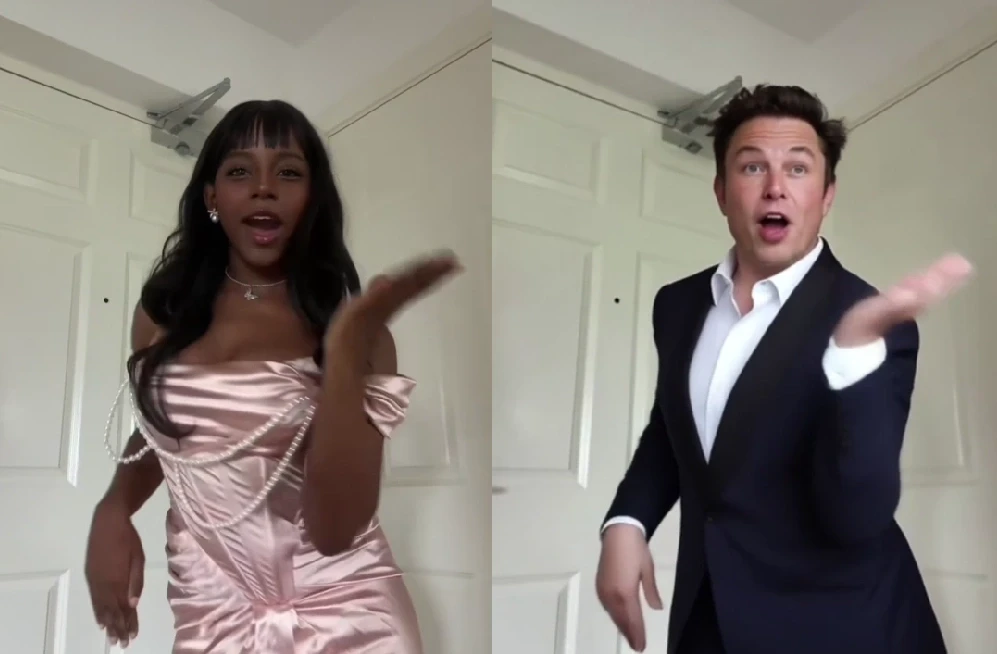
This feature is a game-changer for those who want to replace the protagonist in an existing video. For example, imagine you want to see someone who can’t dance perform a viral TikTok routine.
Upload: Click “Edit Character” and upload your original video.
Select Reference: On the right panel, upload the image of the person you want to appear in the video.

Customization (Optional): If you want the character to look slightly different—for instance, wearing a yellow coat—click “Generate Reference Image.” Simply type “wear a yellow coat” in the description box.

Define: If you like the generated preview, click Done. If not, tweak your description and try again.
Generate: Once your reference image is set, click “Generate.” The Result: You will receive a high-quality video of your chosen character (in that yellow coat!) performing the exact same dance moves as the original video. It’s that simple!

Generate Now
Explore More
Beyond Edit Character, APOB AI offers a full suite of tools like Edit Face and Edit Style, designed to make professional video manipulation accessible to everyone.
Ready to revolutionize your content? Visit APOB AI and start creating today!
Why this version works better:
Emotive Language: Uses hooks like "Absolute nightmare" and "Game-changer" to connect with the user's pain points.
Structured Clarity: Uses bullet points and bold text to make the steps "scannable."
Professional Tone: Replaces "heaven" or "oh my god" with more professional yet friendly alternatives.
Clear Call-to-Action: Ends with an invitation to try the product immediately.
Optimizing Your Workflow: Why Use APOB AI?
Using Kling video 2.6 motion control within APOB AI offers more than just accessibility; it provides a "Storyteller Mode" that enhances the raw output. While the standard Kling output is impressive, APOB AI adds a layer of "Identity-Lock" technology. This ensures that your character’s facial features and clothing remain consistent across multiple shots, which is the "holy grail" of AI filmmaking.
Furthermore, the "Edit Video" feature in APOB AI allows for real-time adjustments. If the motion is perfect but the lighting feels off, you can use the chat-to-edit function to refine the atmosphere without losing the underlying Kling-generated movement.
Frequently Asked Questions (FAQs)
Q1: What makes Kling 2.6 better than version 2.5?
A1: Kling 2.6 offers significantly improved motion smoothness and "Skeletal Extraction" accuracy. It also introduces native audio synchronization, making the videos feel more immersive compared to the silent outputs of previous versions.
Q2: Is Kling 2.6 motion control truly free to use?
A2: Direct access via the official site usually requires a paid subscription. However, you can experience Kling 2.6 motion control free by using APOB AI, which grants 80 free credits daily to all registered users.
Q3: Do I need professional editing skills to use Kling AI 2.6 motion control?
A3: No. Thanks to the user-friendly interface of APOB AI, you only need a source image and a reference video. The AI handles the complex motion mapping and rendering for you.
Q4: Can I maintain character consistency with Kling 2.6?
A4: Yes, especially when used through APOB AI. The combination of Kling’s motion engine and APOB’s Identity-Lock technology minimizes character "drifting," ensuring the person in the video looks the same from start to finish.
Artificial intelligence is revolutionizing the way we create visual content. One of the latest tools capturing everyone’s attention is Kling AI Video Generator, developed by Kuaishou, the company behind one of China’s most popular video platforms. This powerful AI-driven tool enables anyone—from creators to marketers—to turn text or images into high-quality animated videos in minutes.
In this guide, we’ll explain what Kling AI is, explore its features, and provide a detailed, step-by-step tutorial on how to use Kling AI Video Generator efficiently for your next creative project.
Kling AI What Is Kling AI?
Kling AI is an innovative AI-powered video generation tool created by Kuaishou, a tech giant known for its short-video platform. The Kling AI Video Generator Kuaishou system specializes in producing dynamic, high-resolution videos from text descriptions or static images.
Unlike traditional video editing tools that require manual footage, timelines, and transitions, Kling AI uses generative AI models to animate visuals based on user prompts. It supports both text-to-video and image-to-video creation, making it ideal for digital artists, advertisers, and social media creators.
With support for up to 1080p resolution, smooth frame rates, and customizable aspect ratios (16:9, 9:16, 1:1), Kling AI brings cinematic creativity within reach—no filming or editing skills needed.
How to Use Kling AI Video Generator
Whether you’re creating a realistic cinematic sequence or an eye-catching TikTok clip, Kling AI Video Generator makes the process simple and intuitive. Here’s a full breakdown of how to get started:
Step 1: Choose the Input Mode
You can select between two main input methods:
Text Prompt → Generate Video
Upload a Static Image → Image to Video
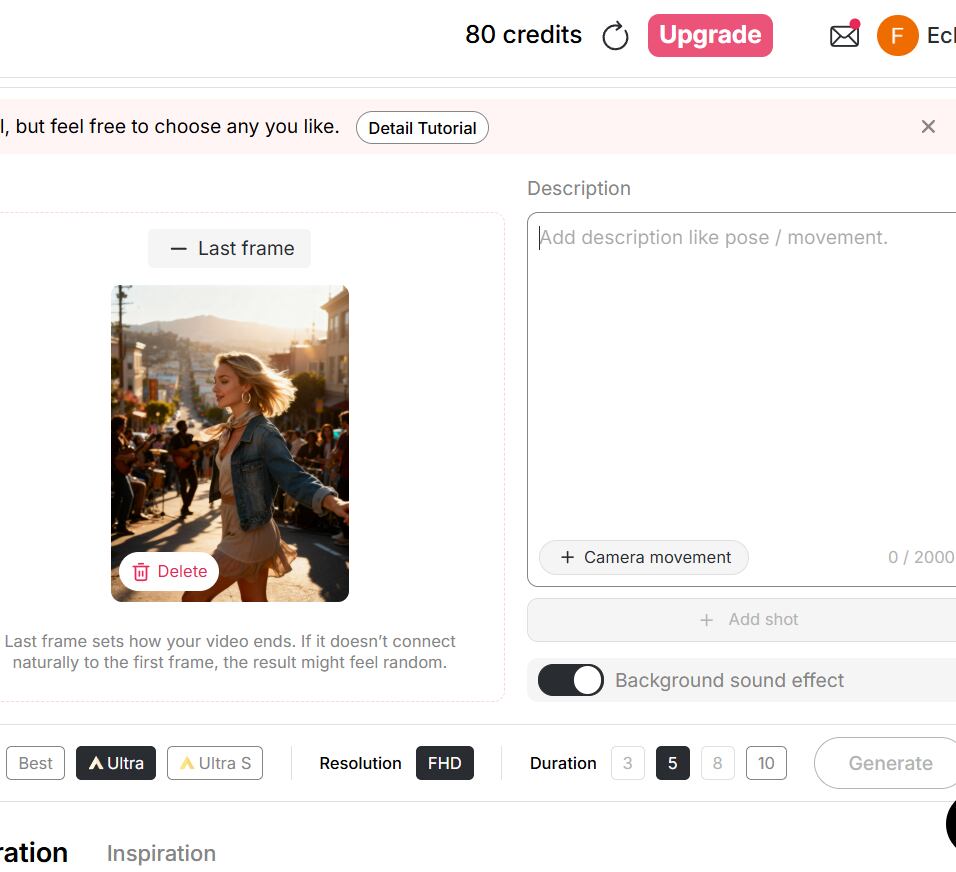
If you want to bring a still image to life, upload it as your starting frame (or even an ending frame). Kling AI will then animate transitions, movements, and effects between them automatically.


Step 2: Write a Prompt or Upload Images
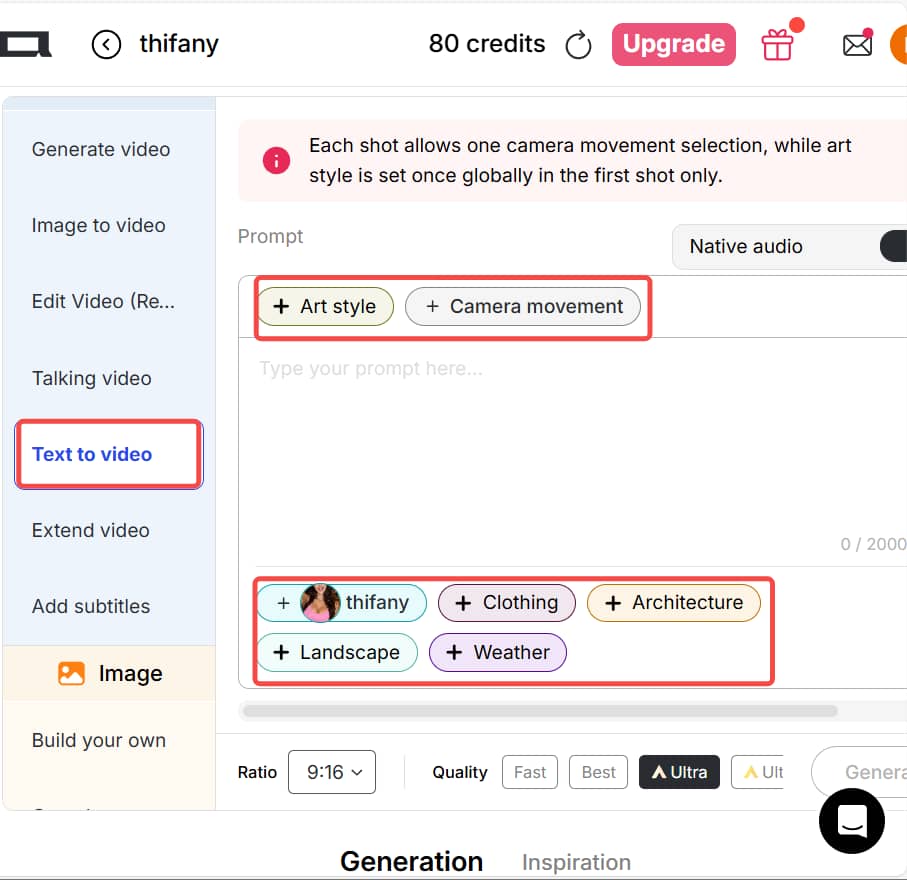
If you choose the Text-to-Video option, write a clear and specific description of your desired scene, action, camera movement, and style. For example:
“A slow camera pan from left to right, a traveler walking into an ancient Roman arena at sunset, realistic style.”
You can also use built-in preset options for style, lighting, weather, clothing, or background—saving you time typing long prompts.
If you’re using the Image-to-Video mode, prepare two images:
The first image as your starting frame.
The second image as your ending frame. This helps Kling AI generate smooth motion between them.
💡 Tip: For the final frame, you can use a “chat-to-edit” feature or another AI image editor to generate a matching image for a seamless transition.
Step 3: Select Output Settings
Before generating your video, configure the output details:
Aspect Ratio: Choose from 16:9, 9:16, or 1:1 depending on your platform. (Vertical 9:16 is ideal for TikTok and Instagram Reels.)
Generation Mode: Options include fast, best, ultra, and ultra 4K—depending on your account tier.
Duration: Video length varies by subscription level or version.
Optional Settings: Control camera motion, add background music, or adjust dynamic effects.
💡 Tip: For social media clips, shorter videos (under 30 seconds) often perform better and generate more engagement.
Step 4: Generate & Download
Once you’ve written your prompt and chosen your settings, click Generate to start the AI rendering process. After the system finishes generating, preview your video. If you’re satisfied, you can download it directly.
Do note that free or trial versions may include watermarks, shorter duration limits, or lower resolution output. Still, they’re perfect for learning the workflow before upgrading.
Try For Free
Practical Tips for Better Kling AI Video Generation
To make the most out of your Kling AI Video Generator experience, keep these pro tips in mind:
Use Vertical Videos for Social Media: Choose a 9:16 aspect ratio for TikTok, Instagram Reels, or YouTube Shorts.
Ensure Consistency in Image-to-Video Mode: When using start and end images, keep both consistent in composition and color tone to avoid awkward transitions.
Be Specific with Prompts: The more detailed your text prompt, the better the video result. Mention objects, movements, lighting, and style (e.g., “cinematic lighting,” “realistic texture,” “slow motion”).
Use Revideo for Character Replacement: If you already have a video clip, try tools like Revideo. You can upload a short 30-second clip (and later up to 5 minutes), plus a single photo—allowing the photo’s person to replace the character in the video while keeping the same movements and background. It’s a great way to make personalized AI videos.
Why Creators Love Kling AI Video Generator
Easy to Use: No video editing experience needed.
High-Quality Results: Smooth motion and realistic rendering.
Creative Freedom: Combine imagination, text, and art effortlessly.
Cross-Platform Ready: Supports multiple aspect ratios and formats.
Powered by Kuaishou: Reliable AI technology from a trusted global brand.
Final Thoughts
The Kling AI Video Generator by Kuaishou opens endless creative possibilities. Whether you’re a beginner looking to make eye-catching clips or a seasoned creator exploring cinematic AI visuals, Kling AI offers an intuitive, efficient, and high-quality video generation experience.
So if you’ve ever imagined turning your words or images into motion—now’s the time to try Kling AI Video Generator and bring your vision to life.
FAQs About Kling AI Video Generator
Q1: Can I use Kling AI Video Generator for free?
Yes. Kling AI offers a free or trial version with limited resolution and duration. Premium tiers unlock higher quality and faster rendering.
Q2: Can the generated images and videos be used for commercial purposes?
Yes, you can use Kling AI videos for commercial purposes—such as social media promotions, marketing content, or creative ads—depending on the platform’s terms.
Q3: What’s the best aspect ratio for social media videos?
For social platforms like TikTok and Instagram Reels, the 9:16 vertical ratio works best. For YouTube or desktop use, 16:9 is preferred.
Q4: Is Kling AI safe to use?
Yes. Kling AI Video Generator is developed by Kuaishou, a reputable tech company with strong data protection and moderation policies. Always use the official site or verified app links.
Have you ever wondered what it’s like to create a Hollywood movie scene sitting at your very own desk? Thanks to the rise of video solutions using AI technology, it’s now a reality sooner than you ever dreamed. Particularly, the Kling video AI generator has proven to be a game-changer, making developers question whether this could finally be what they need.
Chances are, if you're a tech trends follower, you're no stranger to the hype surrounding Kling AI. A giant in the industry, this is revolutionizing the way we look at video creation. But, at times, using its advanced features, such as Kling 2.6, can be a challenge. Here’s a look at how Apob AI incorporates this technology to make the creation of visuals a breeze for you.

What is the Kling AI Video Generator?
Kling AI is a highly advanced video generation model developed by Kuaishou Technology that quickly made it a rival to OpenAI’s Sora. It is designed to create high-definition videos in a realistic manner out of just a text description or an image. This model also does not possess the same limitations which the earlier models had. It can create a video of a maximum of 2 minutes at a resolution of 1080p at the speed of 30 frames every second.
In addition, with the launch of its next version, “Kling 2.6,” it has greatly improved its capabilities for replicating real-world physics. This means that it is setting a precedent for artificial intelligence in terms of video consistency.
Try Kling2.6 In APOB AI
How Does Apob AI Bring Kling 2.6 to You?
Although Kling AI has impressive power, sometimes obtaining the best models can be a bit challenging or limited. That’s where Apob AI comes in. At Apob AI, we have integrated the best features of the Kling 2.6 version’s power directly into our platform. That way, you can take advantage of its power without needing technical knowhow or wasting time in long queues.
Using Apob AI, you have the benefit of both worlds. You can leverage our intuitive interface to tap into the world’s best video generation models. Particularly, our ReVideo uses the sophisticated motion algorithms in Kling 2.6 to assure smooth, natural, and highly engaging video edits.
Guide: mastering the Kling AI Video Generator on Apob AI
Ready to start creating? Our process couldn’t be simpler. The ReVideo dashboard is where all of your content transformations take place. Read on to learn how to unleash the full power of the Kling AI video generator.
Step 1: Getting Started and Choosing Inputs
To start off, you will want to register for a free account on the Apob AI website. We want you to see the magic of Apob risk-free, and that means you get 80 free credits as soon as you sign up.
Get Your 80 Free Credits
Once you have logged in, you need to open the page by clicking on the "ReVideo" tab. On the ReVideo page, you are given two options for where to find the content:
Click to upload video: Use this if you already have video footage, for example if you are recording a product video or a video of yourself.
Select a content: This is great for content creators who wish to maintain anonymity. You can choose a virtual model from our collection or one you may have created before. Apob AI will produce a video with your virtual model, which basically gives you the opportunity to create quality content without needing to switch on your camera.
Step 2: Choosing Your "Re" Mode with Kling AI 2.6

Apob AI’s true strength is the flexibility that the ReVideo toolbar brings. Depending on what you really need, you select either the following tabs:
ReCharacter: Do you want to change the actor appearing in your video? Upload a reference image, and the AI will replace the person while preserving all movements.


ReMotion: With support for Kling 2.6 software, you can control the camera direction. Now you can add complex zooms, pans, or tilts to your static videos.

ReStyle: Change the whole artistic ambience. For example, we have a variety of styles from classic movies and TV series, bringing you right into the movie. Let's choose "Pixar style"and "Rick and Morty style" here and see what happens.


Now we have obtained two exquisite videos in the same style that perfectly match the original film or television series, and the videos also preserve your original movements and backgrounds.
ReProduct: It's a completely new experience for e-commerce. All you have to do is use ReProduct to change the product in a video (for example, from a soda bottle to a cup of coffee) instead of setting up a new video crew. Upload your original video and the new product's photo, you can also enter a prompt to describe and modify the details of your new product, then click generate. A new video will be generated shortly, where the new product replaces the old one while everything else remains unchanged.
Here, we load a video of an unboxing of a Christmas present by a man who is wearing a grey watch. Now, we load this video along with an image of the new product: it is a deep blue watch. You can also enter your own descriptions of the new watch by making use of some prompts. Then, we have a new video of an unboxing by the man who is wearing the deep blue watch—everything remains the same, only the product has changed.


ReBackground: With this function, you are free to transport your subject anywhere, or swap a dull bedroom background for a posh beach resort without needing a green screen.
First upload your original video, then upload your desired background image; here, you can also enter some descriptions to further approach the effect you want.

Then click generate, within seconds your new video will be produced.

Reeverything: If you want to change the background or the style, the camera movement all at once, you can use reeverything so you can process them all with your prompts.
Step 3: Finalizing Quality and Resolution
Ensure that you have the right settings in place before you generate. There is also the choice to switch between quality settings, whether it is Best or Ultra. Additionally, you are given the choice of Resolution, whether it’s 720P for posting on social media or when creating videos to upload to YouTube in Full HD. Lastly, click on the 'generate' button, and the Kling AI Video Generator delivers your creation.
TRY APOB AI FOR FREE
Methods for Monetizing AI-Generated Content through APOB AI
Creating video using a Kling AI video generator is not just a fun hobby but a potent business application. The capability to create high-quality video effortlessly gives rise to many money-making opportunities. Here’s how various individuals are profiting from it.
Influencer & Creator Marketing Opportunities
Social media influencers can greatly increase their engagement using these tools.
Traffic Generation: With ReStyle, you can ride on viral trends on TikTok and Instagram Reels. High-quality visuals make you pause and scroll no more; therefore, this results in increased views and earnings for Creator Fund.
Faceless Channels: Moreover, you may use the "Select a content" feature and operate YouTube channels without the presence of your face. Develop storytelling content or motivation niches with virtual avatars.
Solutions For e-commerce and Marketers
Among entrepreneurs, there is a unique benefit of the video generator by Kling AI offered on the platform Apob AI.
Cost-Effective Ads: Instead of sending products to influencers, use ReProduct. Record one video of a generic model holding a product, then replace the product with what’s in stock.
Service Offerings: Market your “AI Video Restyling” service on Fiverr/Upwork. You will be charging your consumers for enhancing their video footage to Hollywood-style ads using the ReMotion.
And if you have no clue, our rich and creative community content will provide you with infinite creative inspiration.

Comparison of Apob AI to other AI-powered video generation tools
Runway Gen-3: Although it is powerful at handling text-to-video prompts, many beginners find its interface difficult to navigate and the learning curve quite steep.
Luma Dream Machine: Known for its speed, Luma unfortunately lacks the essential "ReProduct" and specialized character consistency tools required for a professional production environment.
APOB AI (The Winner): Powered by the latest Kling 2.6 engine, APOB AI specializes in high-fidelity human portraits and cinematic video generation. Unlike competitors, we offer 80 free credits every single day and a dedicated suite for fashion and product placement.
Overall, the Apob AI combines the most effective models, such as the Kling AI model, but also incorporates them in a workflow.
Frequently Asked Questions(FAQ)
In what way is the video generator by the Kling AI company distinctive?
It relies on physics simulation to produce videos that strictly follow instructions, including realistic motion that goes above and beyond older models.
How do I utilize the ReProduct feature?
You simply upload your video, go to ReProduct, and add your reference image or description of what you want your new product to look like in the video.
Is there a free trial for Kling 2.6?
Yes, APOB AI offers you 80 free credits everyday, allowing you to test functionality enabled by our advanced integrations, such as Kling 2.6 everyday for free.
Can I make an anonymous faceless channel for YouTube with Apob AI?
Yes. Using "Select a content" functionality and virtual models, you can produce unique video content without having to record yourself.
What is the maximum resolution for exports?
The Apob AI system also offers high-definition export capabilities, such as FHD (1080p), to make sure that your videos remain crisp on any device.
Does ReMotion work on static images?
Yes, ReMotion’s Kling AI can make a static image and add effects of camera movements such as pans and zooms to make a video clip.
Can I use these videos for commercial advertisements?
Yes, the users with the paid plan have the commercial rights to the videos they make, so they are ideal for use on ads on platforms like Facebook or TikTok.
Is the interface difficult for beginners?
No. The Apob AI is created in a "click-and-create" model. There is no need to learn programming or be familiar with intricate video editing software.
How frequently new features are added?
Our platform is updated continuously. As soon as new updates for such models as Kling AI (version 2.6) appear, we start adding them to tools such as ReVideo.
References
Apob AI. (2025). AI Video Editing and Generation Tools. Retrieved from https://www.apob.ai.
Forbes. (2025). The Business of AI: How Creators Are Monetizing Video Gen. Retrieved from https://www.forbes.com/ai-video-monetization.
Kling AI. (2024). Kling 2.6 Technical Report and Features. Retrieved from https://klingai.com/research.
In the past, creating an AI dance video was a real headache. Users had to type long, detailed prompts, wait for the model to process them, and then hope the output would look natural. More often than not, the final result was disappointing: awkward character motions, jerky transitions, and a lack of consistency across frames. But those days are gone. With APOB’s ReVideo feature powered by Wan2.2 Animate, you can skip the prompt-writing struggle. All you need is a short dance video and a single image, and the person in your image will move exactly like the dancer in the video — smooth, coordinated, and completely natural. Curious about the magic behind Wan2.2 Animate? Let’s dive in.
How to Generate an AI Dance Video with Wan2.2 Animate
Thanks to APOB’s seamless integration of Wan2.2 Animate, you don’t need to wrestle with prompts or complex animation tools. Here’s a step-by-step guide to creating your first AI dance video:
Step 1: Get Started Log in to APOB’s platform and claim your 80 free daily credits. Head to the dashboard and click Create Portrait Model to build your AI model.
Step 2: Choose ReVideo On the left-hand side of the interface, open the Video tab and select ReVideo. This is the feature that enables Wan2.2 Animate.
Step 3: Upload Your Media Upload a short Original dance video (less than 5 seconds) along with a Reference image. If you don’t upload a reference image, the system will use your AI model image by default.

Step 4: Generate Your Video Click Generate, and in moments, you’ll receive a brand-new AI dance video where your chosen character flawlessly performs the dance.

Tips: The feature costs 26 credits per second. With your free credits, you can create a 3-second dance video daily at no cost. During the early rollout phase, APOB is offering special promotions: if you agree to share your generated content in their Discord community, you may qualify for 1,000 bonus credits. Don’t miss out!
Try APOB AI For Free
What Can Wan2.2 Animate Do?
Wan2.2 Animate is a high-end model that can animate characters in a realistic manner. Two of its most astounding capabilities are:
1.Character Animation (Motion Transfer)
With Wan2.2 Animate, you have the ability to put a static character image in motion and emote like a real person. By placing a reference video with a static image, the model "drives" the character, causing it to mirror the actor's gestures, expression, and dance steps in the video. Picture a digital avatar moving as smoothly as a live artist — that's the magic of motion transfer.
2.Character Replacement (Role-Swap)
Another extremely helpful application of Wan2.2 Animate is role-swapping. You can swap out the actor in a video with another character or avatar and keep the original background, lighting, and camera pan of the source footage. It's similar to replacing the main actor of a scene without interrupting the flow of the video. You can essentially swap out the character as well as the background by compositing over a reference video with a new image.
Pros and Cons of Wan2.2 Animate
Pros
No need for prompts: Avoid the frustration of typing lengthy, elaborate prompts.
Seamless motion transfer: Captures not only body movement but also subtle facial expressions.
Convenience: Rigging, keyframing, and technical animation expertise are not needed.
Freedom to innovate: Replace characters, experiment with various avatars, and develop entertaining, interactive content in minutes.
Cons
Input quality matters: If your reference clip and character image differ greatly in pose, composition, or view, results may be less accurate.
Relighting limitations: Although Wan2.2 Animate accommodates relighting, it is not always best. Shadows and reflections can sometimes look a little synthetic.
Short video constraint: Up until this point, optimal results from short videos (under 5 seconds) can sometimes be limiting for productions longer than those.
Final Thoughts
With APOB’s ReVideo powered by Wan2.2 Animate, creating AI dance videos has never been easier. Forget about complicated prompts and technical barriers — now, anyone can make characters dance with just a few clicks.
FAQs
Q1: Do I need to write a prompt to use Wan2.2 Animate?
A1:No! Unlike traditional AI video tools, Wan2.2 Animate in APOB’s ReVideo feature lets you create dance videos simply by uploading an image and a short video clip.
Q2: How many free videos can I generate daily?
A2:With 80 free credits each day, you can create a 3-second AI dance video daily. Longer videos require more credits, but bonus credits are sometimes available.
Q3: Can I use my own photo as the reference image?
A3:Yes! You can upload your personal photo, an AI-generated portrait, or any character image to bring it to life with dance moves.
Q4: Is Wan2.2 Animate good for professional use?
A4:Absolutely. While it’s great for casual creators, influencers, and social media content, professionals can also use Wan2.2 Animate for prototyping, advertising, and storytelling.
Beginner-Friendly Operation
Kling O1 is easy to use, with both AI-powered customer support and human assistance. It’s ideal for users new to AIGC who want fast results without a learning curve.
Fast Generation Speed
Images and videos are generated quickly, eliminating long wait times and enabling rapid content iteration.
Rich Artistic Styles
From anime and Barbie-style visuals to oil painting and cinematic realism, Kling O1 offers diverse creative styles.
Excellent Value for Money
Affordable plans, strong cost-performance ratio, and bonus credits during major holidays make Kling O1 highly economical.
Advanced Features Require Upgrades
Some premium modes and longer video durations are available only through paid plans.
High-Quality Videos Need Detailed Prompts
To achieve top-tier results, carefully written prompts are still important.
Is Kling O1 free to use?
Yes. Kling O1 is a free AI video generator. After logging in, users receive 80 free credits daily, allowing multiple image generations and up to 10 seconds of video.
Can I edit images after generation?
Absolutely. Use Chat to Edit to modify images by simply describing your changes.
How long can a single video be?
It depends on the mode. Fast mode costs 8 credits/sec; Best mode costs 30 credits/sec. For 60s videos, Ultra or Ultra S modes are required.
Can I create videos starring myself?
Yes. Upload your photos when creating a portrait model and generate AI talking or explainer videos featuring you.
Will you keep my photos private?
Yes. Enable Private Mode to ensure your images are not visible to others.
How many languages are supported?
Currently 13 languages, including English, Chinese, Spanish, French, German, Japanese, Korean, Russian, Italian, Portuguese, Arabic, Hindi, and Turkish.
Can I use the videos commercially?
Yes. Videos generated with Kling O1 can be used for commercial purposes, including marketing, social media, advertising, and branded content, as long as you comply with the platform’s terms of service and your selected subscription plan.