Resize, extend, and reframe images for social posts, ads, product pages, thumbnails, and widescreen layouts. APOB AI's Chat to Edit expands the canvas with prompt-guided content instead of simply stretching the original.
Step 1: Sign Up or Log In to APOB AI
Open APOB AI and sign up or log in with Google, Discord, or email. Enter the workspace, then prepare the image you want to adapt for a new aspect ratio or layout.
For the cleanest result, start with a sharp image and decide which subject, position, lighting, and background details must stay unchanged.


Step 2: Resize and Extend the Image
Choose Image > Edit image, open Chat to edit, and upload or select the base image. Set the target aspect ratio to 16:9, explain what the AI should preserve and extend, then select Generate.
Prompt:
Resize and extend this image to a wide 16:9 landscape format. Preserve the solitary leafless tree slightly right of center, the warm orange and golden sunset sky, the smooth sky gradient, the distant mountains on the left, and the gently sloping green grass hill. Keep the tree’s original shape, position, silhouette, lighting, shadows, and realistic photographic style unchanged.
Naturally extend the sunset sky and grassy landscape into the new canvas. Match the original colors, horizon, light direction, grass texture, atmospheric depth, and sunset glow seamlessly. Do not crop, stretch, distort, duplicate, or reposition the tree. Keep the composition calm, minimal, cinematic, and high resolution. Remove the small white number or screenshot artifact in the bottom-right corner.
Step 3: Review the Resized Result
The image shown is the final result from this User Guide. Compare the expanded composition with the source and check the tree silhouette, horizon, light direction, grass texture, repeated details, and unwanted artifacts.

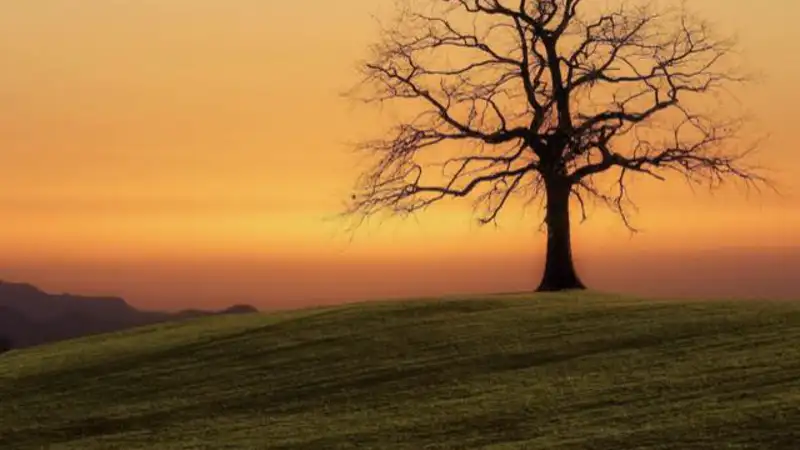
Check edges, repeated details, hands, faces, text, and perspective, then revise the prompt and generate again if needed.
Step 4: Refine the Prompt and Continue Editing
If the first version is not satisfactory, revise the prompt with one specific correction and generate again. For example, ask APOB AI to preserve the tree more strictly, extend only the sky and grass, match the original horizon, or remove a remaining corner artifact.
After resizing, you can continue with APOB AI’s Face Swap, Edit Clothing, Remove Background, AI Image Upscale, and other image-editing tools when the asset needs another change.
Change the frame without flattening the scene
Convert an image to a new aspect ratio while asking the AI to preserve the focal subject and build plausible content around it.
Give the expansion visual context
Describe the horizon, light direction, colors, textures, atmosphere, and perspective so newly generated areas connect naturally with the original.
Create destination-specific versions
Prepare wide website heroes, square product cards, vertical Pins, thumbnails, and campaign variations from one source image.
Keep the workflow editable
Review the generated edges and important details, then revise the prompt, regenerate, or continue with another APOB AI image-editing feature.
The subject moved or changed shape
Name the subject, its exact position, silhouette, proportions, lighting, and pose, then add a direct instruction not to crop, stretch, duplicate, or reposition it.
The extended background looks disconnected
Describe the horizon, perspective, color gradient, light direction, depth, texture, and any distant structures that should continue.
Objects repeat near the new edge
Ask for a simpler extension, remove unnecessary scene details, and explicitly prohibit duplicated trees, people, products, windows, or patterns.
Text or logos become distorted
Keep text and logos away from the generated boundary when possible. Add final copy as an editable design layer after the image composition is approved.
A small artifact remains
Describe the exact location and appearance of the artifact, ask for only that area to be corrected, and generate another version before export.
From one source image to every layout
Website heroes and Shopify storefronts
Turn a portrait or square source into a wide banner, keep the focal subject in view, and leave clean negative space for interface text. Shopify notes that the correct aspect ratio matters and that wide images can crop differently on tall screens. Read Shopify’s official guidance for storefront images.
E-commerce product images
Reframe product photography so the item remains clearly visible while the surrounding background fits a marketplace or campaign layout. Always verify the destination’s current image rules before upload. Review Google Merchant Center’s official product-image specifications.
YouTube thumbnails and widescreen graphics
Extend a portrait image to 16:9, protect the face or product, and create room for thumbnail text without cropping away the central story. YouTube recommends 16:9 for custom thumbnails because it is widely used in players and previews.
Pinterest Pins and vertical campaigns
Convert a horizontal source into a vertical composition while preserving the focal subject and extending the background above and below. Pinterest’s official ad specifications recommend a 2:3 image ratio for standard image ads.
Social and paid-media variations
Build square, portrait, and landscape variants from one campaign asset so the creative can fit more placements without a new photo shoot.
Blogs, presentations, and editorial layouts
Add natural breathing room around a subject, adapt imagery to a slide or article header, and align the composition with surrounding text.
Context-aware canvas expansion
New space can follow the original scene’s colors, perspective, lighting, atmosphere, and textures.
More flexible composition
Create portrait, square, or landscape alternatives without accepting the same hard crop for every destination.
Prompt-based preservation
Tell the model which visual details must remain unchanged and which areas it may extend.
Connected editing tools
Continue with Face Swap, Edit Clothing, Remove Background, recoloring, or upscaling after the new frame is approved.
Generated details still need inspection
Complex patterns, hands, text, logos, product geometry, reflections, and repeated objects may require another prompt or generation.
A vague prompt can shift the composition
If subject placement, lighting, horizon, or scale matters, describe those constraints explicitly.
Output is not guaranteed to be pixel-identical
AI can reinterpret details near the expanded boundary, so compare the result with the source before publishing or selling.
Platform requirements can change
Check current dimensions, file size, rights, and content rules on the destination platform before export.
Enjoy more features
No Credit Card Required
![Cover image for What’s the Best Discord PFP Size? [Image Specs You Need to Know]](https://framerusercontent.com/images/sKPC3ftLKPmKpB7WLEpohEFxw0.jpeg)

Answers about aspect ratios, AI outpainting, prompts, subject preservation, artifacts, formats, and follow-up editing.
What is AI image resizing?
AI image resizing changes an image's composition or aspect ratio by generating context around the original content. It can extend a background instead of only stretching pixels or cutting content away. Changing pixel dimensions scales the existing image, while AI resizing can add plausible scene content to create a wider, taller, or differently framed canvas.
Can APOB AI change an image's aspect ratio or extend its sides?
In Image > Edit image > Chat to edit, choose a target aspect ratio and describe what should stay unchanged and what should be extended. For a wider image, ask APOB AI to extend the left and right sides while preserving the subject's position, identity, background, lighting, and perspective.
Can AI resize an image without stretching the subject or losing quality?
That is the intended workflow, but generated results still need review. Tell the model not to stretch, crop, distort, duplicate, or reposition the focal subject. A clear source image and specific preservation instructions help maintain identity, shape, placement, lighting, and proportions.
Which source images work best for AI resizing?
Use a sharp image with a clearly visible focal subject, coherent lighting, and enough surrounding context for the AI to understand the scene.
How should I write an AI image resize prompt?
Include the target aspect ratio, the subject and details to preserve, the areas to extend, matching colors and lighting, perspective and texture, and anything the AI must not change.
Can I remove artifacts and regenerate the result?
Describe the artifact and its location, then generate another version. If it remains, narrow the correction to one specific issue at a time rather than changing several parts of the image at once.
Can I resize product photos and create social media formats?
AI resizing can add breathing room and adapt a product image to square, portrait, vertical, or landscape placements. Verify the product's shape, color, labels, edges, and reflections, then check each platform's current dimensions and safe areas before publishing.
Can I resize an image with a transparent background or extend only the background?
Resize the composition first, then use Remove Background to create or restore a transparent cutout. To extend only the background, state that the subject must remain unchanged and specify whether the AI should continue the sky, wall, floor, landscape, or studio surface. Inspect soft edges such as hair, fur, and fabric.
Does AI resizing guarantee a perfect result?
No. Complex edges, text, logos, anatomy, reflections, repeated structures, and fine product details may require another prompt or generation.
Can I resize any image I find online?
Only upload and transform images you created, licensed, or are authorized to use. Check copyright, trademark, privacy, and likeness permissions before publishing a result.


