Go beyond the original frame with APOB AI. Uncrop photos, extend backgrounds, add composition space, and adapt one image for banners, thumbnails, social posts, and product layouts—without stretching the source.
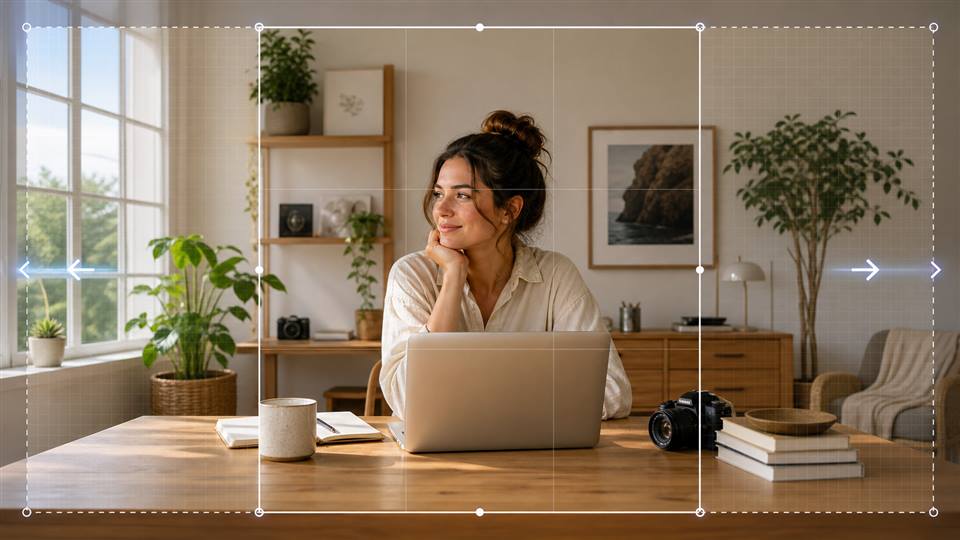
Select the aspect ratio and expansion direction before generating, from a wider banner to extra space above a portrait.
Step 1: Sign in and choose a clear source image
Open APOB AI and sign up or log in with Google, Discord, or email. Enter the workspace and prepare the image you want to uncrop or extend beyond its current borders.
Start with the sharpest source available. Before editing, decide which subject, pose, product shape, position, lighting, shadows, and background details must remain unchanged.


Tell the model which person, product, object, silhouette, position, colors, and lighting must remain unchanged.
Step 2: Open Chat to Edit and describe the expanded frame
Choose Image > Edit image, open Chat to Edit, and upload or select the base image. Pick the new aspect ratio, explain which details must stay fixed, and describe how the scene should continue into the added canvas.
Prompt:
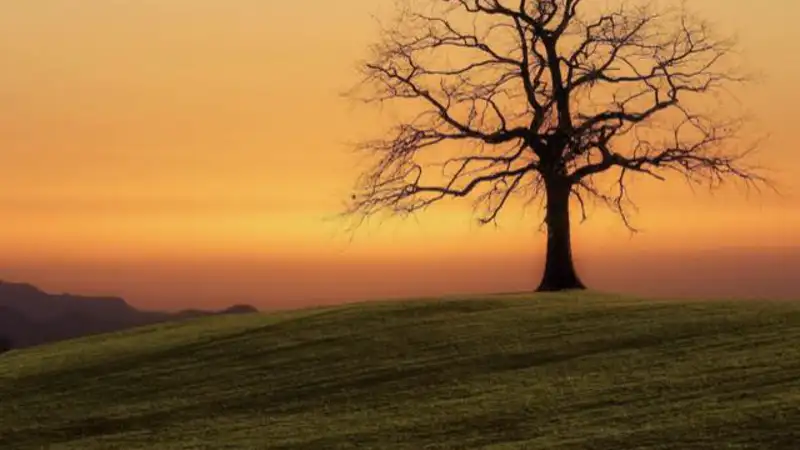
Expand this image to a wide 16:9 landscape format. Preserve the solitary leafless tree slightly right of center, the warm orange and golden sunset sky, the smooth sky gradient, the distant mountains on the left, and the gently sloping green grass hill. Keep the tree’s original shape, position, silhouette, lighting, shadows, and realistic photographic style unchanged.
Naturally extend the sunset sky and grassy landscape into the new canvas. Match the original colors, horizon, light direction, grass texture, atmospheric depth, and sunset glow. Do not crop, stretch, distort, duplicate, or reposition the tree. Keep the composition calm, minimal, cinematic, and high resolution. Remove the small white screenshot artifact in the bottom-right corner.
Prompt the AI to continue the sky, room, landscape, studio, product surface, or other context beyond the original edge.
Step 3: Review the expanded result and refine it
Compare the generated image with the source. Check the tree silhouette, horizon, light direction, grass texture, repeated details, edge transitions, and unwanted artifacts at full size.
If the first version is not right, revise one instruction and generate again—for example, preserve the tree more strictly, extend only the sky and grass, match the original horizon, or remove a remaining corner artifact.
After the frame is approved, continue with APOB AI’s AI Image Upscale, Face Swap, Edit Clothing, or Remove Background tools when the asset needs another focused edit.

Review seams, repeated details, hands, faces, products, text, and perspective, then correct one issue at a time.
Create space without stretching the subject
Add newly generated canvas around the source instead of widening faces, products, or scenery with simple pixel stretching.
Match the source scene
Prompt the missing area with cues for light direction, perspective, depth, palette, material, texture, and atmosphere.
Turn portrait images into landscape layouts
Build wider compositions for website heroes, ad banners, presentations, and thumbnails while keeping the focal subject readable.
Create intentional negative space
Ask for a cleaner left, right, top, or bottom area where editable headlines, prices, or design elements can be placed later.
Uncrop awkward framing
Generate plausible context around a close crop so shoulders, scenery, or surrounding space feel less cramped. Treat the result as a reconstruction, not recovered source data.
Keep the workflow connected
Once the expanded composition is approved, continue refining the asset with APOB AI image-editing tools from the same workspace.
Website hero banners and campaign ads
Turn a vertical portrait or square creative into a wider hero, and generate calm space for a headline or call to action. Adobe’s Generative Expand guide highlights the same practical shift from a tight source to banners and other placements.
YouTube thumbnails
Extend a portrait or square source to 16:9 without shrinking the focal subject into a tiny center crop. YouTube currently recommends a 16:9 custom thumbnail, so preview the final composition at small size before upload. See the official YouTube thumbnail guidance.
Product catalog and storefront scenes
Add surrounding surface or lifestyle context while protecting the real product’s shape, color, material, and scale. Google Merchant Center requires product images to represent the listed item accurately, so review every generated detail and follow the official image-link requirements.
Social posts, stories, covers, and carousels
Create separate square, portrait, and landscape versions from the same source instead of repeatedly cropping the focal subject. Canva’s AI Image Expander overview also describes adapting images for social and marketing layouts.
Posters, decks, invitations, and editorial layouts
Generate more breathing room around an image before adding editable typography. Keep words and logos outside the generated photo layer so spelling, brand assets, and alignment remain under your control.
Landscape, travel, and environmental photography
Extend sky, water, architecture, or terrain to test a broader composition. Preserve the original horizon and light direction, and inspect repeated clouds, plants, windows, reflections, and people before export.
Adds composition space without basic stretching
Useful when a source is strong but its crop is too tight for the target layout.
Supports many aspect ratios from one source
Helps creators prepare banners, covers, posts, stories, thumbnails, and presentations from a consistent visual.
Prompt control over the new area
You can specify direction, context, lighting, texture, negative space, and protected details.
Works with a broader APOB AI editing workflow
The expanded frame can be refined further with upscaling, background removal, face swap, or clothing tools when appropriate.
Generated details may be inaccurate
Faces, hands, products, architecture, text, patterns, and reflections can change or repeat and always need review.
It cannot recover the real off-camera scene
Uncropping creates a plausible reconstruction rather than revealing pixels that were never present in the source file.
Complex scenes may require several versions
Crowds, transparent edges, tiny text, repeating geometry, and low-resolution sources can produce visible seams or inconsistent context.
Generations may consume credits
Access, quality settings, and credit costs can vary, so check the current indicator in the APOB AI workspace before generating.
No Credit Card Required


Practical answers about uncropping, outpainting, prompts, aspect ratios, quality, and safe review.
What is an AI image expander?
An AI image expander generates new visual content beyond the original borders of a photo. It can uncrop a tight composition, extend a background, or create extra canvas space while attempting to match the source image’s lighting, perspective, texture, and style.
How is an AI image expander different from a normal image resizer?
A normal resizer changes pixel dimensions and may stretch, shrink, or crop the existing image. An AI image expander adds newly generated pixels outside the current frame, so you can change the composition without pulling the original subject sideways.
Which APOB AI feature should I use to expand an image?
Open Image, choose Edit image, and use Chat to Edit. Upload or select a base image, choose the target aspect ratio, describe what should stay fixed and how the missing area should continue, then generate the revision.
Can APOB AI turn a portrait photo into a landscape image?
Yes. Set a wider target ratio such as 16:9 and ask the editor to extend the scene on the left and right. Review the generated edges carefully because faces, hands, products, text, and repeating patterns may need another pass.
Can I expand an image in only one direction?
Yes. State the direction explicitly in the prompt, such as “extend the canvas to the left only” or “add more sky above the subject.” Also describe which objects and positions must remain unchanged.
Do I need to write a prompt to expand a photo?
A short prompt is strongly recommended when composition matters. Name the focal subject, the details that must stay unchanged, the direction of expansion, and the visual context the AI should continue.
What should a good AI image expansion prompt include?
Include the target aspect ratio, expansion direction, protected subject, desired background, lighting, perspective, color palette, texture, and negative constraints such as no stretching, duplication, distortion, text, logos, or new objects.
Can the AI image expander preserve a person’s face?
It can attempt to preserve the original person, especially when the source is sharp and the face is not near the expansion boundary. Always inspect identity, eyes, hands, hair, and clothing before using the result.
Can I use the tool to extend a product photo?
Yes. Describe the product’s shape, color, material, position, shadows, and scale as protected details, then ask the AI to extend only the surrounding surface or background. Verify that the generated image still represents the real product accurately.
What image types work best for AI expansion?
Sharp images with a clear focal subject, readable edges, consistent lighting, and enough surrounding context usually work best. Very low-resolution files, transparent edges, crowded scenes, tiny text, or complex repeating patterns can be harder to extend cleanly.
Can I uncrop a photo with APOB AI?
You can use Chat to Edit to generate plausible content beyond a cropped edge. The result is a creative reconstruction, not a recovery of pixels that were actually outside the original camera frame.
Which aspect ratios can I create?
Available ratios can vary by the current APOB AI workspace, but common layouts include square, portrait, landscape, and vertical social formats. Choose the ratio shown in the editor that matches your final placement.
Can I make room for headlines or design elements?
Yes. Ask the AI to extend a quieter part of the scene and leave clean negative space on a specific side. Add text, logos, and calls to action afterward in a design tool so typography stays editable and accurate.
Can I use an expanded image for YouTube thumbnails?
Yes. A 16:9 expansion can help adapt a portrait or square source for a YouTube thumbnail while keeping room for a title. Check the final subject scale and preview the thumbnail at small size before publishing.
Can I expand images for social media posts and stories?
Yes. Create separate versions for the placements you need, such as a square feed post, a vertical story, or a landscape cover. Generate each ratio from the same clean source instead of repeatedly stretching an already edited export.
Will AI image expansion reduce image quality?
The original center of the image should remain intact, but the generated area may contain softer details or artifacts. Start with the highest-quality source available, inspect at full size, and use image upscaling only after the composition is approved.
Why do repeated objects or seams appear in the expanded area?
AI models may repeat textures, duplicate objects, or create visible transitions when the prompt is vague or the scene is complex. Regenerate with a narrower instruction and describe the horizon, pattern, perspective, and objects that must not repeat.
What should I do if the first result is not right?
Revise one issue at a time. Ask for a stricter subject lock, a cleaner horizon, fewer objects, a more consistent light direction, or expansion on only one side, then generate another version and compare it with the source.
Can I continue editing after expanding the image?
Yes. After the frame is approved, you can continue in APOB AI with tools such as AI Image Upscale, Remove Background, Face Swap, or Edit Clothing when those changes fit your project.
Is the APOB AI image expander free to use?
APOB AI may provide free credits or account-based access, while generations can consume credits depending on the current tool and quality settings. Check the credit indicator in your workspace before generating.


