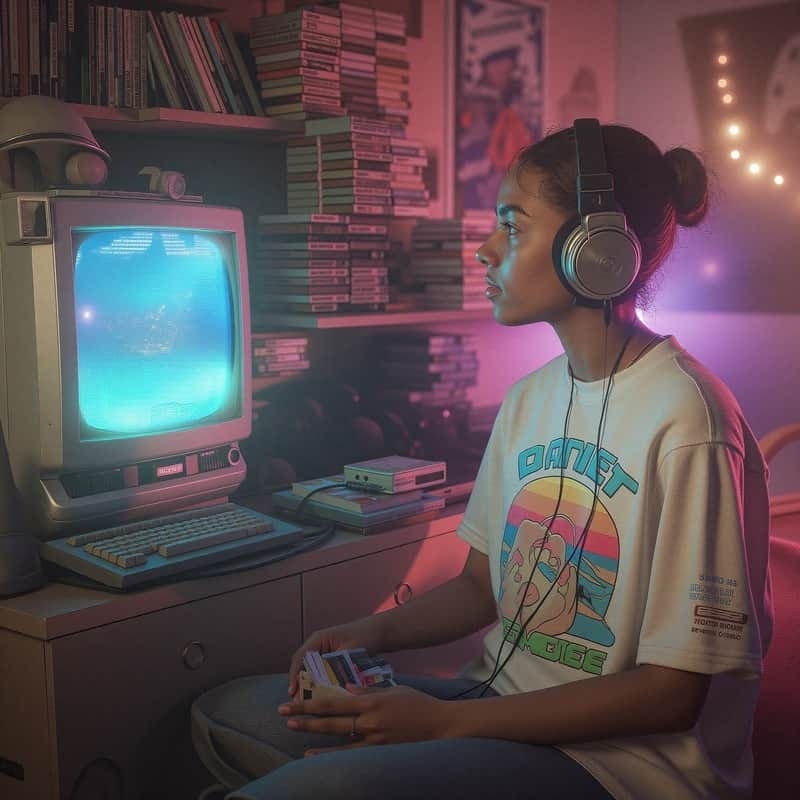
Your Discord profile picture is more than just a visual identifier—it's a digital first impression. This guide will show you how to change your Discord profile picture without running into common errors, plus offer tips on the best Discord profile picture size and how to make your avatar truly stand out. Whether you're a gamer, a community manager, or just hanging with friends online, this guide helps you avoid quality issues and create a flawless Discord PFP.
Why Your Profile Picture Matters
A Discord profile picture is a key component of your online identity. It shows up in messages, server member lists, and friend requests. A sharp, appealing image can help you express your personality and stand out from the crowd.
Moreover, since Discord is a platform used by gamers, influencers, and professionals alike, your PFP can say a lot about you. Whether you're representing a brand or simply vibing with friends, your avatar should look polished.
Recommended Discord Profile Picture Size
One of the most common issues users face is uploading an image that ends up blurry or cropped. That’s because they haven’t used the correct Discord profile picture size.
Ideal dimensions: 128 x 128 pixels
Recommended upload size: 256 x 256 pixels for better clarity
Supported file types: JPG, PNG, and GIF (for animated avatars)
Maximum file size: 8MB
For the best result, always upload a square image. Discord automatically compresses profile pictures, so starting with a high-quality file is essential.
How to Change Discord Profile Picture on Desktop
Changing your Discord profile picture on desktop is simple when you follow these steps:
Open Discord and click the gear icon (User Settings) next to your username.
Go to the "My Account" section.
Click the "Edit" (pencil icon) next to your current avatar.
Click "Change Avatar" and select your new image.
Adjust the crop and click "Apply", then hit "Save Changes".
How to Change Your Discord Profile Picture on Mobile
If you're using Discord on iOS or Android, here’s how to update your avatar:
Open the Discord app and tap your profile icon (bottom right).
Tap "Edit User Profile" or directly tap your current picture.
Tap "Change Avatar".
Choose an image from your gallery or take a new one.
Adjust and crop as needed, then tap "Save" (checkmark icon).
Common Errors When Changing a Discord PFP (and How to Fix Them)
Sometimes, even after uploading your image, it doesn’t look right. Here's why:
Blurry images: Caused by uploading a low-res or improperly sized file.
Upload errors: Your image may exceed the 8MB size limit. Compress it with tools like TinyPNG.
Changes not appearing: Try refreshing the app or clearing your cache.
By ensuring your image matches the recommended Discord profile picture size, you can avoid most of these issues.
Pro Tips for Creating the Perfect Discord PFP
Now that you know how to change your avatar, here are a few creative tips:
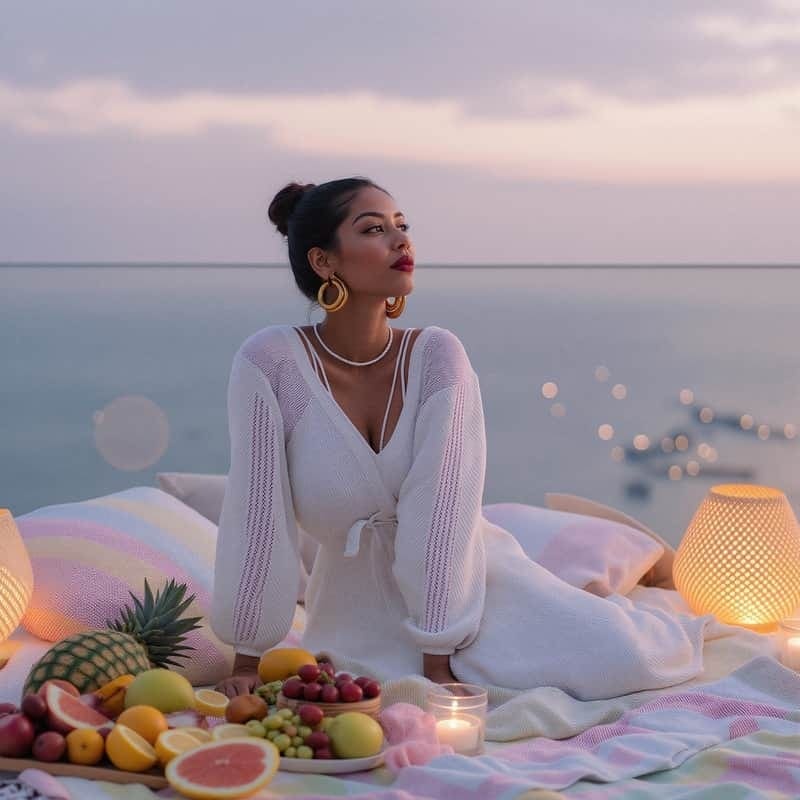
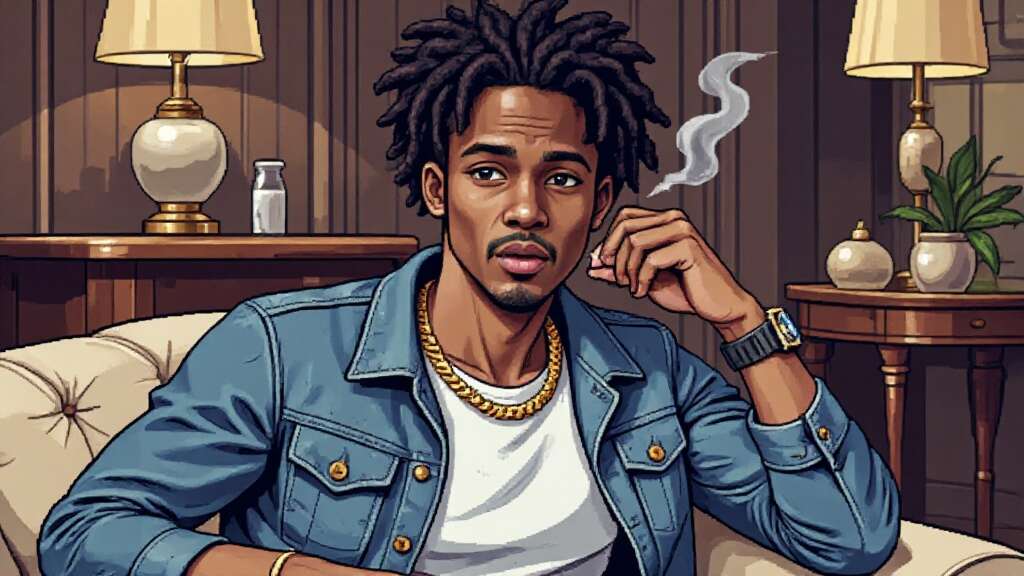
Use AI tools like APOB AI: Easily create professional, anime-style, or themed avatars.
Match your community's aesthetic: From gamer icons to minimalist looks, style consistency helps.
Choose good lighting and clarity: Even AI-generated avatars need a clean source image.
If you're going for a custom look, APOB AI's "Chat to Edit" feature lets you fine-tune expressions, outfits, and more.
Frequently Asked Questions (FAQs)
Q1: What is the best Discord profile picture size?
A1: 128 x 128 pixels is standard, but uploading at 256 x 256 ensures better clarity on all devices.
Q2: Why does my Discord PFP look pixelated or blurry?
A2: This usually happens when the image isn't square, is too small, or is overly compressed.
Q3: Can I use animated GIFs as a Discord profile picture?
A3: Yes, but only if you have Discord Nitro.
Q4: How often can I change my profile picture on Discord?
A4: There's no strict limit, but changing too frequently in a short period may trigger rate limits.
Q5: What tools can help me design a cool Discord PFP?
A5: AI generators like APOB AI offer free daily credits to create stylish, high-resolution profile pictures.
Final Thoughts
Your profile picture should represent who you are online. By following the correct steps and using the recommended Discord profile picture size, you can ensure your image is sharp, professional, and error-free. Whether you're using Discord for fun or business, don’t overlook the power of a well-crafted PFP.
And if you want to take things to the next level? Try APOB AI—you get 80 free daily credits to generate your perfect Discord look with ease.

Be the first to like this.




No credit card needed


