Create banner artwork for YouTube, Twitch, LinkedIn, websites, ecommerce campaigns, and ads. Control the subject, composition, colors, and copy space in APOB AI, then refine the image before adding final text and logos.
Step 1: Open APOB AI and Select a Model
Before opening the generator, note the destination's required dimensions and interface overlays. Decide which side holds the subject and which area must remain quiet for the headline. APOB controls the generated aspect ratio, but you should still crop and test the artwork in its final placement.
Sign in to APOB AI and open the Create workspace for an existing model, or create a model first. A reusable model is helpful when a creator, spokesperson, or campaign character needs to remain recognizable across a channel banner and later social assets.
Example: a technology reviewer selects the same presenter used in recent thumbnails. Problem: the wrong model creates a disconnected channel identity. Check: confirm the model name and reference portrait at the top of the workspace before continuing.


Step 2: Choose Generate Image and Chat to Generate
In the left navigation, choose Image > Generate image, then open Chat to generate. The selected model appears automatically as a mention in the Description field. Use this mode for a new banner scene. If you already have campaign artwork that only needs a targeted change, use Image > Edit image > Chat to edit instead.
Example: a webinar marketer opens Chat to generate to place a recurring presenter beside an empty title area. Problem: Generate stays inactive when the model is still loading or the description is empty. Check: verify that the model mention and your own prompt text are both present.
Step 3: Select a Wide Aspect Ratio
Open Aspect ratio in the bottom action bar and choose the closest shape for the destination. APOB currently offers 9:16, 3:4, 16:9, 4:3, and 1:1. Start with 16:9 for a wide master image, then crop it to an exact YouTube, Twitch, LinkedIn, website, or ad canvas. Choose the ratio before generating; changing it later requires a new generation.
Example: a YouTube creator chooses 16:9 and keeps the presenter away from the outer edges. Problem: a portrait ratio forces an aggressive crop and removes headline space. Check: leave extra background around every detail that must survive responsive cropping.


Step 4: Write a Banner Composition Prompt
Describe placement before style. A reliable order is: destination, subject position, setting, camera distance, lighting, palette, negative space, details to preserve, and exclusions. Treat headline and CTA placement as spatial instructions rather than asking the image model to render final words, prices, dates, or logos.
Example prompt: "Wide 16:9 LinkedIn cover, female cybersecurity consultant in the right third, modern conference stage, soft blue-white light, clear low-detail space on the center-left for a webinar title, preserve natural hands and navy blazer, no words, logos, audience, or watermark."
Problem: style-heavy prompts often fill the copy area with props or decorative effects. Check: remove any instruction that does not improve hierarchy, recognition, or crop tolerance.

Step 5: Choose References, Quality, and Generate
Add an Element when a person, product, object, or visual reference must guide the result. Element capacity depends on the selected quality. Higher image tiers also let desktop users choose a quantity of one or two results. Review the current credit estimate beside Generate, submit the prompt, and compare the new image in the Generation feed.
Example: an ecommerce seller adds a clear serum-bottle reference, requests one first-pass image, and places the product on the right of a pale bathroom scene. Problem: a lower quality setting may support fewer Elements, while multiple outputs increase the displayed credit estimate. Check: verify the selected references, quantity, aspect ratio, quality, and live estimate before generating.
Step 6: Refine, Download, and Test the Placement
Open the result from the Generation feed. The preview provides Chat to edit and Download actions. Chat to edit loads the result as the Base image; enter one focused instruction, optionally add a reference, and keep Aspect ratio set to Keep original when the wide composition should stay unchanged. Download the approved image, crop it to the exact canvas, add verified text and logos, and test it in the destination preview.
Example edit: "Remove the small red sculpture from the left side and keep that half of the wall clean and low detail for a headline. Keep the presenter, face, hands, desk, mug, and laptop unchanged."
Problem: approving only the desktop crop can hide an offer or face on mobile. Check: inspect the final design at 100%, thumbnail size, and every supported breakpoint; review faces, hands, product details, edges, contrast, and spelling.
Workflow references: Chat to generate, aspect ratio and quantity, Chat to edit, and credits and billing.

Expert Prompts for Banner-Ready Artwork
User and purpose | Ready-to-use prompt | Expected output |
|---|---|---|
YouTube technology creator | "Wide 16:9 technology-review banner, adult presenter in the left third beside one silver laptop, modern home studio, soft cyan lights and neutral gray walls, medium-wide framing, low-detail space across the center and right, preserve face, hands, glasses, and laptop shape, no words, logos, extra people, floating devices, or watermark." | A presenter-led channel scene with a calm title area |
Twitch fantasy streamer | "Very wide fantasy streaming banner, original adult woman mage in silver armor in the left third, moonlit observatory and distant mountains, teal-violet light, shallow fog, quiet dark upper-right for a username, preserve face, armor, and crescent staff, no existing game characters, logos, text, or particles in the copy area." | An original fantasy identity with readable focal separation |
LinkedIn webinar marketer | "Wide professional cover, adult female cybersecurity consultant in a navy blazer in the right third, contemporary conference stage, subtle network lines, soft white-blue light, realistic editorial photography, clean center-left for webinar title and date, preserve face, hands, and blazer, no words, company logos, code text, audience, or watermark." | Credible speaker artwork with controlled event-title space |
Ecommerce beauty seller | "Wide beauty campaign, one referenced amber serum bottle in the right third on pale stone, green leaves, soft morning bathroom light, ivory, sage, and amber palette, crisp product photography, uncluttered left side, preserve bottle shape, cap, label placement, and glass, no duplicate bottles, invented words, hands, excessive flowers, or watermark." | A restrained product hero with room for an offer |
SaaS website designer | "Wide 16:9 hero for a team scheduling platform, operations manager at a bright desk in the right third, abstract calendar blocks in the far background, daylight, white, charcoal, coral, and soft green palette, calm left-side headline and CTA area, preserve face, hands, desk, and laptop, no readable interface text, logos, floating icons, or watermark." | A human-centered website hero with usable copy space |
Paid-social marketer | "Horizontal ad artwork for a reusable steel bottle, product slightly right inside the central 80 percent, sunlit hiking overlook, simple sky and distant mountains, green, cobalt, and silver palette, clean left-side headline area, preserve bottle silhouette, lid, finish, and supplied colors, no people, duplicates, text, logo alteration, or watermark." | A central-safe product master suitable for additional crops |
Direct the scene around the message. Define the subject side, camera distance, background complexity, lighting, and copy area before adding typography.
Guide recognizable people and products. Model mentions, Elements, and reference images help maintain a campaign subject, although faces, labels, logos, and fine geometry still require review.
Compare deliberate variations. Quantity and quality controls support early tests of studio, lifestyle, fantasy, and editorial directions.
Repair a specific weakness. Chat to edit can remove a distracting object or simplify a crowded copy area without restarting the entire brief.
Continue the campaign in motion. Reuse the approved subject with the AI Influencer Generator or turn the scene into motion with Image to Video AI.
Consent and likeness: use a real person's face only with explicit, verifiable permission, especially in advertising.
Copyright and trademarks: clear the rights to uploaded product photos, logos, characters, fonts, and reference images. Generation does not cancel third-party ownership.
Commercial use: review APOB's current Terms and any license attached to your inputs before commercial publication.
Endorsement and claims: do not imply a false endorsement, and substantiate prices, performance statements, comparisons, and health or environmental claims.
Disclosure: label AI-generated or materially altered media when applicable law, advertising standards, or platform rules require it.
Privacy: do not upload confidential or personal client assets without authorization; review APOB's Privacy Policy.
This is practical publishing guidance, not legal advice.
YouTube Channel Art for a Technical Reviewer
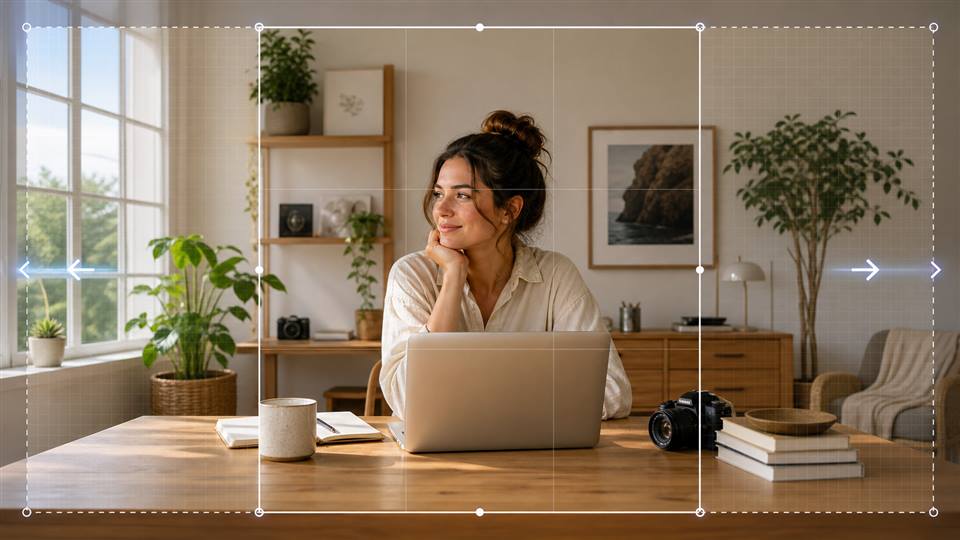
An AI YouTube banner generator should communicate the channel category before visitors read its name. Place a recurring presenter and one recognizable device inside the protected central area, with restrained studio detail around the future title. After adding verified typography, continue the same identity in YouTube Shorts.
Twitch Profile Banner for a Fantasy Streamer
An AI Twitch banner generator can establish an original channel world without copying game artwork. Use an original mage, moonlit ruins, and a controlled teal-violet palette. Keep the character in a stable focal region and simplify particles behind the username.
LinkedIn Cover for a B2B Webinar
An AI LinkedIn banner generator can replace a generic stock-office image with a campaign-specific scene. Place the speaker on the right, use subtle industry cues, and reserve the left for the event title and date. Test the image behind the profile-photo overlap before publishing.
Ecommerce Banner for a Seasonal Promotion
Place one referenced product on the right, add seasonal context, and reserve the left for the offer. If the source image has a distracting background, first make the product image transparent. Inspect packaging, labels, duplicate objects, and invented details at full size.
Website Hero or Display Campaign
An AI banner ad generator can produce original visual assets while the website or ad platform handles separate headlines, descriptions, logos, and CTAs. Keep one focal subject inside the central-safe region and prepare additional crops for square or narrow placements. For a campaign that also needs motion, continue with the AI Advertising Generator.
Banner Sizes, Safe Areas, and Cropping Checks
Banner dimensions define the uploaded canvas, not the portion every visitor will see. Responsive layouts crop the edges, while profile photos, buttons, navigation, and automated ad copy can cover the artwork. Keep the primary subject and irreplaceable details inside a conservative central zone, then validate the finished banner in the destination's own preview.
YouTube channel art
Use a 2560 x 1440 canvas at 16:9, with 2048 x 1152 as the minimum. TV, desktop, and mobile expose different portions, so keep names and logos inside YouTube's central safe area.
Twitch profile banner
Use a 1200 x 480 canvas at 5:2. Because the banner scales with browser width, keep important graphics toward the left and test both narrow and wide windows.
LinkedIn personal cover
Use a 1584 x 396 canvas at 4:1. The profile photo and responsive crop can obscure the image, so keep the key idea near the center and preview it behind the profile interface.
LinkedIn Page cover
Use a 4200 x 700 canvas. Admin trimming and interface elements affect the edges, so keep important details away from the edges and lower-right area.
Website or ecommerce hero
Follow the site's container and breakpoints. Desktop artwork may crop aggressively on tablets and phones, so prepare breakpoint-specific crops around one protected focal zone.
Google responsive display ad
Provide a 1200 x 628 landscape asset and a 1200 x 1200 square asset. Google combines and resizes assets across inventory, so keep essential visual content inside the central 80% and supply ad copy separately.
Sources: YouTube channel branding specifications, Twitch channel page setup, LinkedIn personal cover photo, LinkedIn Page cover image, Google responsive display ad requirements, and Google image asset best practices.
Faster concept exploration: compare visual directions before final typography and responsive variants.
Original compositions: direct a scene around a specific product, character, or campaign instead of relying on generic stock imagery.
Reusable campaign subjects: connect a banner character or product to later posts and videos.
Targeted visual editing: repair a distracting object, color imbalance, or crowded headline area.
Typography remains unreliable: add critical wording in a layout tool and proofread it there.
One crop rarely fits every placement: prepare separate desktop, mobile, and ad variants when necessary.
Brand details can drift: compare colors, faces, clothing, labels, and product geometry with approved references.
Generation uses credits: quantity, quality, and editing choices affect the live estimate shown before submission.
No Credit Card Required

Find practical answers about banner formats, references, editing, credits, commercial use, and publishing checks.
What is an AI banner generator?
It turns a written brief, model, or reference image into artwork composed for a channel header, website hero, profile cover, promotion, or ad.
How is an AI banner generator different from a generic AI image generator?
Banner creation starts with placement: subject position, negative space, message hierarchy, interface overlays, and crop tolerance.
Can I use APOB AI as an AI banner generator?
Yes. Use Chat to generate for new artwork or Chat to edit for an existing image, then add verified typography and exact crops in your layout workflow.
Can I try banner generation before choosing a paid plan?
APOB offers a free account option, but available credits, plan benefits, and generation costs can change. Sign in and review the current balance and live estimate before submitting.
Do I need an APOB model before generating a banner?
Chat to generate needs a loaded model and a non-empty prompt. Open the Create page for an existing model or create one first; the selected model is inserted into the composer automatically.
Can APOB AI create YouTube banners?
Yes. Generate wide artwork, crop it to 2560 x 1440, and keep critical text and logos inside YouTube's central safe area.
Can it create Twitch profile banners?
Yes. Plan for a 1200 x 480 canvas, keep important graphics toward the left, and test different browser widths.
Can it create LinkedIn covers?
Yes. Crop to 1584 x 396 for a personal cover or follow LinkedIn's current Page cover specifications.
Can it generate banner ads?
Yes. Generate the image asset in APOB AI, then supply verified headlines, logos, descriptions, and CTAs separately through the ad platform.
Can I upload a product or reference image?
Yes. Add a recurring person, product, or object as an Element, or use Chat to edit with a base image and one optional reference. Inspect labels and fine geometry afterward.
Which aspect ratios can I use for banner artwork?
APOB currently offers 16:9, 4:3, 1:1, 3:4, and 9:16. Start with 16:9 for a wide composition, then crop to the destination's exact dimensions.
How many banner variations can I generate at once?
Higher image-quality tiers currently offer a quantity selector on desktop. The available count and live credit estimate update in the action bar, so check them before generating.
Why is the Generate button disabled?
In Chat to generate, wait for the model to load and add content to the prompt. In Chat to edit, provide both a base image and a non-empty edit description.
Can AI generate readable banner text?
Not reliably. Reserve visual space, then add headlines, prices, dates, disclaimers, URLs, and logos with controllable typography.
How do I leave space for a headline?
Request a low-detail area on one side, exclude props and particles from that region, and place the subject in the opposite third.
How do I prevent important details from being cropped?
Keep essential content inside a conservative central region, preview the design on desktop and mobile, and create separate crops when necessary.
Can I use generated banners commercially?
APOB's Terms address rights between the user and APOB, but third-party rights and applicable law still apply. Clear every input and claim before commercial use.
Does APOB AI add a watermark?
Watermark behavior depends on the account and plan used when the content is generated. Review the current content download guidance before publishing.
Which image quality levels are available?
Current image choices may include Fast and several Ultra tiers. Availability can vary, so verify the selected option and downloaded pixel dimensions in your account.
Can I reuse banner artwork in social videos?
Yes. Reuse the approved subject or scene in image-to-video, then reframe the motion asset for vertical, square, or widescreen distribution.


