Create a static wallpaper from a written idea or authorized image, choose a phone or desktop ratio, protect clock and icon space, and refine the composition before downloading.
Step 1: Create or Select a Person You Are Allowed to Use
The following workflow was tested in APOB AI on August 10, 2026 with a private synthetic person, a 9:16 phone layout, Ultra 4K generation, and Chat to Edit. Credit amounts shown in the interface can change, so check the current total beside the Generate button before submitting.
From the home screen, choose Create Portrait Model. Upload an image you own and have permission to use, or generate a synthetic reference with the AI influencer generator. Select the reference, give the model a clear name, and decide whether the Public switch should remain off.
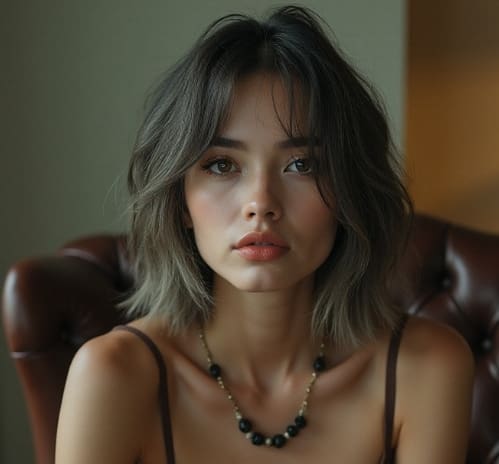
Example: For this guide, we generated a synthetic adult woman, selected her as the reference, named the private model Mira Wallpaper, and described its purpose as phone and desktop wallpaper examples.
Common problem: Generating a different person for every wallpaper makes a coordinated phone and desktop set feel inconsistent. Uploading somebody else's portrait also creates consent and likeness risks.
How APOB helps: A saved portrait model keeps the same authorized or synthetic subject available when you generate multiple image concepts. The Public control lets you avoid intentionally publishing the model from this setup screen, although sensitive or confidential source images should still not be uploaded by default.


Step 2: Open the Image Workspace and Lock the Character Reference
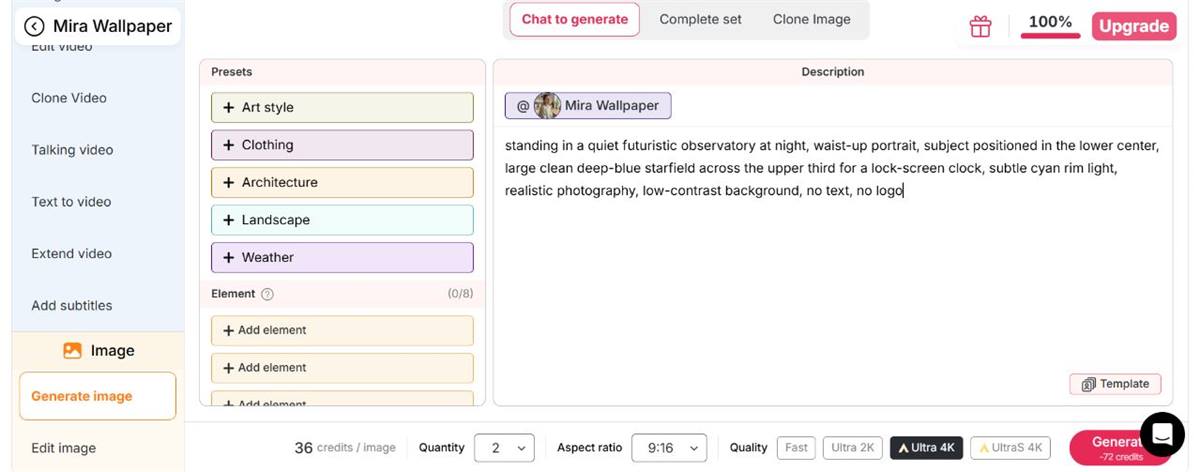
Open the model, find Image in the left navigation, choose Generate image, and stay on Chat to generate. APOB places the selected character as an @ reference in the description field, so the prompt can focus on the new setting and composition.
Example: The tested workspace displayed @Mira Wallpaper above the prompt area before any scene instructions were added.
Common problem: A text-only prompt such as “woman under the stars” may produce a plausible person whose face, clothing, or age changes between generations.
How APOB helps: Keeping the model reference attached gives the generation a specific identity anchor. For a scenery-only wallpaper, use the same Image workspace without relying on a person reference.
Step 3: Write a Screen-Aware Prompt and Set the Ratio
A wallpaper prompt needs the subject, setting, style, focal-point position, quiet area, and exclusions. Then set the output count, aspect ratio, and quality before generating. Use 9:16 for a tall phone starting point or 16:9 for a standard desktop starting point.
Example: We entered: “Standing in a quiet futuristic observatory at night, waist-up portrait, subject positioned in the lower center, large clean deep-blue starfield across the upper third for a lock-screen clock, subtle cyan rim light, realistic photography, low-contrast background, no text, no logo.” We selected 9:16 and Ultra 4K. The interface displayed 36 credits per image during this test; current costs may differ.
Common problem: Prompts that describe only the person often place the face in the center, exactly where a phone clock or widgets may cover it.
How APOB helps: The prompt field accepts explicit placement instructions, while the ratio and quality controls stay visible beside the Generate button. Check the total credit cost there, especially when Quantity is greater than one.

Step 4: Move the Person Below the Clock Area With Chat to Edit
After the first image finishes, inspect the amount of open space above the face. If the person is too high or too large, click the edit control on the generated image, open Image > Edit image > Chat to edit, and use the result as the base image.
Example: We entered: “Reframe the woman lower in the image and slightly smaller. Preserve her face, clothing, observatory setting, and blue lighting. Extend the clean dark starfield across the top 40% for a lock-screen clock. Keep the 9:16 composition. No text or logos.” We kept the original ratio and selected Ultra 4K.
Common problem: Regenerating from the original prompt may change the subject or lighting when only the safe area needs adjustment.
How APOB helps: Chat to Edit supports a targeted composition request from a selected base image. During this test, the edit screen displayed 50 credits for Ultra 4K; verify the live amount before generating because settings and pricing can change.
Step 5: Review the Final Image on the Target Device
Open the refined result and inspect it at full size. Check the face, hands, hard architectural edges, repeated stars, and the amount of calm space around the phone clock. Use the image controls to download only after the composition works as a background.
Example: The final test image places the woman in the lower portion while extending the starfield across the upper part of the frame. A lock-screen preview can now confirm whether the clock remains clear on the exact phone.
Common problem: A result can look balanced in the generator but still crop differently when the phone applies zoom, parallax, or a device-specific preview.
How APOB helps: Keep the editable result in the generation history and make another targeted edit if the real device covers the face or crops the edges. For a desktop version, generate a separate 16:9 composition rather than stretching the phone image.

Expert Prompts for AI Wallpapers
Phone Lock-Screen Character Prompt
Purpose: Keep a character visible beneath the clock.
Target device: Phone lock screen, portrait.
Prompt: “Original silver-haired sci-fi navigator standing on a quiet observation deck, three-quarter portrait, subject positioned in the lower-center, large area of dark blue starfield in the upper third for the lock-screen clock, subtle cyan rim light, cinematic realism, balanced low-contrast background, no text, no logos, 9:16.”
Expected output: A vertical character wallpaper with an uncluttered clock zone.
Customize: Hair, clothing, environment, color palette, and subject position.
Minimal iPhone Wallpaper Prompt
Purpose: Create an unobtrusive home-screen background.
Target device: iPhone or another tall phone display.
Prompt: “Minimal layered paper landscape, deep charcoal foreground fading into muted sage and pale gray, soft diffused light, no central object, low visual contrast behind app icons, subtle detail near the bottom, generous clean space throughout, no words, vertical 9:16.”
Expected output: A quiet AI phone wallpaper that supports icon readability.
Customize: Palette, material, contrast level, and detail placement.
Desktop Focus Wallpaper Prompt
Purpose: Reserve a usable icon area.
Target device: 16:9 desktop monitor.
Prompt: “Misty alpine lake before sunrise, small illuminated cabin on the far right, restrained slate-blue and cool-green palette, wide cinematic composition, left 35% smooth fog and low-detail water for desktop icons, realistic reflections, no people, no text, 16:9.”
Expected output: A landscape wallpaper with a deliberate low-detail area on the left.
Customize: Landscape, icon side, season, time of day, and color temperature.
Branded Campaign Background Prompt
Purpose: Produce an editable backdrop for a product mockup.
Target device: Desktop or presentation screen.
Prompt: “Premium winter skincare campaign background, frosted glass platform on the right with empty space for a product to be added later, soft snow texture, approved palette of pearl white, cool gray, and muted burgundy, gentle studio lighting, clean left side for brand copy, no product, no logo, no text, 16:9.”
Expected output: A brand-controlled background that leaves space for separately added assets.
Customize: Product category, approved colors, surface material, season, and empty-object zone.
Original Fantasy Character Wallpaper Prompt
Purpose: Create character art without imitating a named living artist.
Target device: Phone lock screen.
Prompt: “Original desert archivist with layered indigo robes and brass instruments, standing below a vast moonlit observatory, intricate storybook illustration with hand-painted texture, character in lower half, moon offset from the clock area, quiet gradient sky above, no recognizable franchise symbols, no text, 9:16.”
Expected output: Distinct fantasy artwork with screen-aware placement.
Customize: Character role, clothing, setting, medium, and focal-point height.
Abstract Ultrawide Concept Prompt
Purpose: Generate a wide scene that can tolerate side cropping.
Target device: Ultrawide desktop display.
Prompt: “Panoramic abstract mineral layers, graphite, emerald, and silver, long horizontal flow, primary texture concentrated around the center-right, generous extendable pattern on both edges, low contrast behind left-side icons, seamless visual rhythm, no text, no logos, widest available landscape ratio.”
Expected output: A horizontally resilient composition with crop-friendly edges.
Customize: Materials, palette, icon side, focal region, and texture density.
Image-to-Wallpaper Editing Prompt
Purpose: Adapt an owned image without stretching it.
Target device: Phone lock screen.
Prompt: “Recompose this authorized artwork as a vertical phone wallpaper. Preserve the original subject, facial features, watercolor texture, and color palette. Extend the sky naturally above the subject, place the subject in the lower-middle area, simplify the upper third for the clock, keep all important details away from the bottom controls, add no text or new logos.”
Expected output: A vertical reinterpretation that preserves the source identity and gains usable safe space.
Customize: Protected elements, expansion direction, ratio, negative-space location, and background detail.
Build a Recognizable Original Character Across Multiple Screens
A general wallpaper tool may produce a different face every time the orientation changes. APOB's character-led workflow lets creators reuse an established digital persona, then place that character in separate phone and desktop compositions. This is useful for original characters, virtual creators, game concepts, or a coordinated device theme.
Move Between Generation and Focused Editing
Wallpaper design is iterative. Text to Image provides the first composition, while Chat to Edit can simplify a busy corner, extend a background, change the palette, or guide the result with an authorized reference image. This reduces the need to accept a nearly correct result or restart the entire prompt.
Create Portrait and Landscape Variants Deliberately
APOB supports common portrait and landscape formats, including 9:16 and 16:9. Instead of forcing one crop onto every screen, creators can make two related versions with different focal-point placement and negative space.
Choose Quality According to the Display
APOB's Text to Image page describes an Ultra 4K image-quality option. A higher setting can help on detailed desktop artwork, but users should still check the downloaded dimensions, generated details, and device preview. Resolution does not correct an unsuitable crop or cluttered layout.
Continue the Visual Concept Beyond a Static Background
The finished wallpaper remains a static image. When a creator also needs motion content, the same visual concept can be taken into APOB's separate Image to Video workflow. A generated video is not automatically a device-compatible live wallpaper, so conversion and platform requirements must be checked separately.
Use Only Images You Own or Have Permission to Upload
Uploading an image does not remove its copyright, privacy, or licensing restrictions. Use your own photographs and illustrations, public-domain material, or assets whose license permits this type of transformation. APOB's Terms of Service require users to have the necessary rights and permissions for submitted content.
Obtain Consent for a Real Person's Likeness
Do not turn another person's face into a wallpaper without clear permission, especially when the result is public, promotional, sexualized, defamatory, or misleading. APOB's terms prohibit using a person's name, likeness, voice, or persona without explicit, verifiable consent.
Avoid Unlicensed Characters and Trademark Confusion
A personal wallpaper does not automatically authorize commercial use of a copyrighted character, logo, product design, or franchise setting. For brand work, use original subjects and approved assets. Do not imply sponsorship by Apple or another device manufacturer simply because the wallpaper is designed for that screen.
Describe Visual Qualities Instead of Copying a Living Artist
Prompts such as “flat geometric forms, limited ink palette, and textured paper” communicate an aesthetic without asking for a direct imitation of a living artist. This also gives the output a clearer original direction.
Review Commercial Rights Before Distribution
APOB's terms state that, as between the user and APOB and to the fullest extent permitted by law, the user owns generated content, subject to third-party rights and the licenses granted in those terms. That does not clear copyrighted inputs, trademarks, publicity rights, or other external restrictions. Review the latest terms before selling, licensing, or distributing a wallpaper commercially.
Do Not Treat Uploads as Confidential by Default
Avoid uploading sensitive personal photographs, confidential client material, or unreleased campaign assets unless the applicable data terms meet your needs. APOB's Privacy Policy describes the collection and use of user content, including service operation and improvement. Check the current policy and relevant account controls before submitting sensitive material.
Create an AI Character Lock Screen Without Covering the Face
An AI character creator wants a personalized phone background featuring the same original persona used in social posts. Generate a 9:16 portrait with the character placed in the lower-middle area, a simple sky above, and no important detail near the bottom controls. The result feels personal without sacrificing clock readability.
Make a Calm Desktop Background With a Clear Icon Area
A remote worker wants a soft nature scene that does not compete with folders on the left side of the desktop. Concentrate the forest cabin and warm window light on the right, then request mist, low contrast, and fewer branches on the left. This turns “aesthetic” into a functional composition choice.
Prepare a Seasonal Ecommerce Background for Screen Mockups
An ecommerce seller is building winter campaign mockups. Rather than placing a logo or slogan directly in the generated image, create a restrained snowy backdrop with the hero product area on the right and open space for approved brand assets on the left. Add final logos and legal copy in a design tool so spelling, sizing, and trademark use remain controlled.
Adapt Original Artwork for Phone and Desktop
An illustrator owns a square fantasy portrait and wants matching backgrounds across devices. Use the artwork as an authorized reference, create a vertical version with more sky for the lock screen, and a landscape interpretation with the castle shifted away from desktop icons. Both versions can share the same palette and character while using different layouts.
Build a Branded Background for Recorded Tutorials
A software educator records screen-based tutorials and needs a desktop background visible around open windows. Generate a dark, low-detail abstract scene using approved brand colors, with no text and no bright focal point behind the recording area. This supports visual consistency without distracting from the demonstration.
Choose the Right Wallpaper Size for Phone and Desktop
There is no single universal wallpaper size. Two phones may both use a tall screen while having different resolutions, notches, clock positions, or crop behavior. Check the display specifications and wallpaper preview on the device before final use.
Intended use | Starting ratio | Composition guidance |
|---|---|---|
Phone lock screen |
| Keep faces and key objects away from the top clock area and extreme bottom controls. Use a calm upper third. |
Phone home screen |
| Avoid high contrast behind app labels. Put important details away from common widget and dock areas. |
Standard desktop monitor |
| Decide whether icons sit on the left or right, then reserve a lower-detail zone there. Keep the focal subject off-center. |
Laptop display |
| Verify the laptop's actual display ratio; leave enough margin for minor crop or scaling differences. |
Tablet |
| Test both orientations if the device rotates. Keep the main subject inside a generous central safe area. |
Ultrawide monitor | Match the exact display ratio when available | If the required ratio is unavailable, create a wide composition with extra side space and crop carefully. Do not place essential objects near either edge. |
Pixel dimensions matter, but composition usually fails before resolution does. First preserve the subject and interface-safe space; then choose the highest suitable quality setting and verify the downloaded image against the target screen.
Device-led customization: Portrait and landscape generation lets users plan separately for phone and desktop screens instead of relying on one destructive crop.
Prompt-based composition control: Users can describe where the subject, empty space, and low-detail zones should appear.
Reference-guided refinement: An owned image or authorized reference can guide the palette, subject, or visual direction through Chat to Edit.
Connected character workflow: Original digital personas can remain recognizable across coordinated background concepts.
Multiple quality choices: APOB provides different image quality modes, allowing users to match output effort and credit use to the target display.
The first result may not fit the interface: A good standalone image can still clash with clocks, widgets, icons, or taskbars. On-device preview remains necessary.
High resolution does not repair composition: A 4K-quality setting can improve detail, but it cannot restore a face cropped by the wrong ratio or make icons readable over a busy background.
Generated text needs close review: Logos, slogans, dates, and small lettering may be misspelled or distorted. Add important text with a conventional design tool after generation.
Reference quality affects the edit: Blurry, compressed, or heavily cropped source images give the model less reliable visual information.
Static output is not a live wallpaper: A still image can be set as a standard background. Animated or interactive wallpaper formats require a separate workflow and device-compatible software.
No Credit Card Required

Answers about phone and desktop sizing, people-focused prompts, 4K output, image uploads, usage rights, privacy, and cropping.
Is APOB a Free AI Wallpaper Generator?
APOB AI offers free access through a credit-based workflow, so users can try image generation before deciding whether they need a paid plan. Available credits, generation costs, and quality modes can change, so check the current app or pricing information before planning a large batch. An account is required to use the creation workspace.
Can I Use APOB as an AI iPhone Wallpaper Generator?
Yes. Used as an AI phone wallpaper generator, APOB can create a vertical background from a prompt or authorized image. Start with a ratio such as 9:16, then keep essential details away from the top clock area, bottom controls, camera cutout, and common widget positions. The exact crop varies by phone model, so preview the result on the target device. APOB is not affiliated with Apple.
Can APOB Work as an AI Desktop Wallpaper Generator?
Yes. Use a landscape ratio such as 16:9 for many desktop and laptop displays. Put the focal subject opposite the side where desktop icons are stored, and verify the image against the monitor's actual resolution and scaling behavior.
Can the AI Wallpaper Generator Make 4K Wallpapers?
APOB's current Text to Image workflow includes an Ultra 4K image-quality option. Select it when the additional detail suits the project and your account supports the required credit use. After downloading, confirm the actual pixel dimensions and inspect fine detail at full size. “4K” does not guarantee that the composition will fit every 4K display without cropping.
Can I Use an AI Wallpaper Generator From an Image?
Yes, when you own the image or have permission to use it. APOB's Chat to Edit workflow supports a base image and an optional reference image. Ask it to preserve named elements while rebuilding the composition for the target orientation and safe area.
What aspect ratio should I use for a wallpaper?
Use the ratio closest to the target screen. 9:16 is a practical starting point for many phone backgrounds, while 16:9 fits many monitors. Tablets, laptops, and ultrawide displays may require different ratios. Check the device specifications rather than assuming one format is universal.
How do I leave room for the lock-screen clock?
Ask for “clean negative space in the upper third,” place the main face or object in the lower-middle area, and avoid bright micro-detail behind the clock. Preview the image with the real clock and widgets before final use.
Can I generate anime, fantasy, or art wallpapers?
Yes. Describe the medium, palette, lighting, subject, and composition. To keep the direction original, specify visual properties such as cel-shaded lighting, inked outlines, watercolor texture, or cinematic fantasy detail instead of requesting a direct copy of a living artist's style.
Why does text look incorrect in an AI-generated wallpaper?
Image models can distort letters, spacing, and small logos. For a quote, brand name, calendar, or slogan that must be accurate, generate a clean background first and add the final text in a standard design editor.
Can I use an AI-generated wallpaper commercially?
Potentially, but commercial use depends on the inputs, the generated result, applicable law, and the current service terms. Use only authorized source material, avoid protected logos and characters, obtain consent for real likenesses, and review APOB's Terms of Service before selling or distributing the image.
Are uploaded images private?
Do not assume an upload is confidential merely because it is used in an editing workflow. Review APOB's current Privacy Policy and account visibility controls before uploading personal, client, or unreleased material. Avoid sensitive content when the applicable handling terms do not meet the project's requirements.
Which image formats can I download?
Use the formats currently shown in APOB's download interface. Product options may change, so this page should not promise a particular file type unless it is confirmed in the live workflow. For wallpaper use, prioritize the option that preserves enough quality for the target screen.
Can APOB create live wallpapers?
This workflow creates static wallpaper images. APOB can animate images through its separate Image to Video feature, but a generated video is not automatically a device-native live wallpaper. Additional conversion software and device-specific setup may be required.
Do I need an account to generate a wallpaper?
Yes. APOB's current creation workflow requires users to sign in or create an account to access generation tools and credits.
How can I avoid awkward wallpaper cropping?
Choose the target orientation before generation, keep the main subject inside a generous central safe area, and leave extendable background detail near the edges. Generate separate portrait and landscape versions when possible. Always test the result through the device's wallpaper preview before accepting the final crop.
What prompt works best for a wallpaper with a person?
Describe the person, framing, screen position, background, lighting, and interface-safe space. For example: “Original fashion photographer in a red coat, waist-up portrait in the lower-center, softly lit city at night, clean dark sky across the upper third for the clock, no text, 9:16.” Avoid placing the face at the extreme top or edge of the frame.
How can I keep the same person consistent across wallpaper variations?
Start with an original APOB character or an authorized reference image, then keep the identity description and reference consistent while changing only the orientation or environment. Generate the phone and desktop versions as separate compositions. Review facial shape, hair, clothing details, and distinguishing features before downloading both images.
Can I make matching phone and desktop wallpapers?
Yes. Reuse the same character, palette, lighting, and environment, but write separate layout instructions. In the phone version, place the person below the clock area. In the desktop version, move the person opposite the icon area and extend the scenery horizontally. This produces a coordinated pair without forcing one image through two incompatible crops.
How do I reduce distorted faces or hands in a people-focused wallpaper?
Use a clear reference when permitted, avoid extremely small full-body subjects, and request a natural pose with visible but uncomplicated hands. Review the result at full size. If the face or hands are weak, refine that area with Chat to Edit or regenerate with simpler framing rather than trying to hide obvious artifacts with sharpening.
Can I use one generated wallpaper across multiple monitors?
You can, but the composition must account for the combined display arrangement and total aspect ratio. Keep the person away from monitor bezels and place less important background detail near the outer edges. When an exact multi-monitor ratio is unavailable, generate the widest practical composition and crop it in a conventional image editor after checking the combined pixel dimensions.


