Create realistic young-to-old transformation videos with AI age progression. Generate an old filter video from a clear AI avatar portrait, then refine character details, motion, and style.
Step 1: Create a Realistic Portrait for AI Age Progression
Start with a clear front-facing avatar portrait before using AI age progression. A sharp face, visible eyes, natural skin texture, and clean lighting help the age filter keep the person recognizable when turning a young portrait into an older version.
Prompt: A realistic adult female AI avatar portrait focused on detailed facial features, front-facing close-up composition. She has a warm olive skin tone, smooth but realistic skin texture, subtle natural pores, softly glowing complexion, oval face shape, defined cheekbones, slim jawline, gentle chin, straight delicate nose bridge, full natural smile with visible white teeth, soft smile lines, expressive almond-shaped hazel green eyes, natural eyelashes, dark arched eyebrows, symmetrical facial proportions, long dark brown wavy hair framing the face, slightly side-parted hair, friendly confident expression, natural beauty makeup, soft beige shirt collar visible, clean neutral background, soft studio lighting, shallow depth of field, ultra-realistic beauty portrait, high-resolution, 4K detail, no face distortion, no exaggerated features, no heavy makeup, no text, no watermark.


Step 2: Generate the Age Progression Video
Open text to video and describe the full aging sequence. For the most natural age progression AI result, keep identity details consistent, then specify how the face, hair, wrinkles, and expression should change across each shot.
Prompt: Create a realistic 10-second age transformation video of the same adult female AI avatar changing from a young woman into a visibly elderly woman with deep wrinkles and white hair.
Keep her core identity recognizable throughout the video: same oval face shape, hazel green eyes, arched eyebrows, slim nose bridge, warm smile, cheekbone structure, and facial proportions. The transformation should be dramatic and clear, but still natural and realistic.
Shot 1, 2 seconds: Close-up front-facing portrait of the young adult female avatar, smooth olive skin, dark brown wavy hair, bright eyes, natural smile, soft studio lighting, clean neutral background.
Shot 2, 3 seconds: Her face visibly ages. Add clear forehead lines, crow's feet around the eyes, deeper smile lines, slight under-eye hollows, thinner cheeks, and the first gray-white strands spreading through her dark hair.
Shot 3, 3 seconds: The transformation becomes much stronger. Her skin becomes thinner and more textured, with deep wrinkles around the eyes, mouth, forehead, and neck. Her jawline softens, cheeks lose volume, and her hair turns mostly white with a few dark strands remaining.
Shot 4, 2 seconds: Final close-up of her as a clearly elderly woman in her late 70s or 80s, fully white wavy hair, deep natural wrinkles, visible crow's feet, forehead creases, neck lines, textured mature skin, slightly softer facial structure, same hazel green eyes and recognizable smile.
Style: ultra-realistic, clear dramatic aging effect, natural elderly facial anatomy, consistent identity, smooth morphing transition, soft cinematic lighting, close-up portrait, no beauty filter, no overly smooth skin, no face distortion, no horror style, no cartoon effect, no text, no watermark.
Step 3: Review and Edit the Final Age Progression Result
The final AI age progression video should show a clear young-to-old transformation while keeping the same eyes, smile, face shape, and expression recognizable. If the old filter result looks too soft, too dramatic, or not close enough to the original identity, adjust the prompt and regenerate.
You can also continue editing with more tools. Use edit product to refine objects or props in the scene, edit character to adjust age details, wrinkles, hair color, outfit, and identity consistency, edit motion to improve morph speed and facial movement, or edit everything to change lighting, background, style, and overall video quality.

Recognizable Identity Across the Age Change
AI age progression works best when the final elderly version still feels like the same person. A strong workflow should preserve the original face shape, eye color, smile, brows, and cheekbone structure while adding realistic mature skin, white hair, and wrinkles.
More Useful Than a Static Old Filter
A static old filter can be fun, but a video age progression shows the transformation over time. This makes it more useful for social posts, storytelling, avatar timelines, reaction videos, and what-will-I-look-like-when-I'm-older content.
Editable After Generation
Age progression AI results often need small corrections. Being able to refine character details, motion, background, and overall style helps users avoid a one-shot result that looks too artificial or exaggerated.
Static Age Filter Results
Turn a single old filter portrait into a more engaging young-to-old transformation video with a clear sequence and recognizable identity.
Inconsistent Identity Across Ages
Use identity-preserving instructions for face shape, eyes, brows, smile, cheekbones, and expression when the result changes too much between the young and elderly stages.
Artificial Wrinkles, Hair, or Motion
Refine mature skin texture, white hair, wrinkle depth, lighting, and morphing speed when the first AI age progression result looks exaggerated or unnatural.
What-Will-I-Look-Like-When-I'm-Older Social Videos
Create a short AI age progression clip that turns a current portrait into an older version. This fits the search intent behind aging app, old filter, and age filter content, where users want a shareable result rather than a technical editing workflow. Reference: Allure on TikTok aging filter trends.
Character Aging for Stories and Concept Videos
Use age progression AI to show how the same fictional character changes across decades. This is useful for short films, AI avatar stories, family-style narrative concepts, and before-and-after scene ideas. Reference: Vanity Fair on digital likeness and character identity workflows.
AI Influencer Timeline Content
Create timeline posts for a virtual creator, including younger, current, and older versions of the same face. This can help AI influencer pages publish character-based story arcs while keeping the avatar recognizable. Reference: The Verge on AI-generated avatars for social and advertising content.
Before-and-After Campaign Concepts
Use age transformation videos in wellness, skincare, lifestyle, or entertainment concepts where the visual hook is a clear before-and-after change. A short video can communicate the idea faster than a static image. Reference: Wyzowl video marketing statistics on video use in brand communication.

Harper Blake
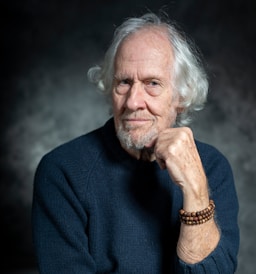
I turned a childhood portrait into a believable older version while keeping the same eyes and smile. It made our family video feel incredibly personal.
Miguel Santos
The age progression preview helped us plan a young-to-old story before editing the full video. The character stayed recognizable through each stage.

Yara Haddad
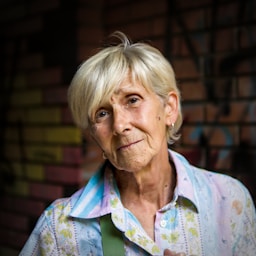
I tested several ages on one portrait and found a natural transition for a short film. The controls made iteration much faster.
Caleb Morgan
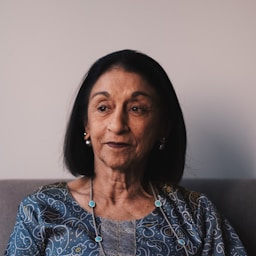
The old filter looks realistic instead of exaggerated. Skin, hair, and facial structure change gradually while the identity remains clear.
Amelie Patel
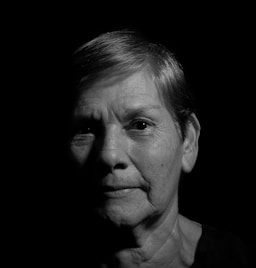
It gave our history presentation a visual way to show a life journey from childhood to adulthood. The result was easy to explain and share.
Owen Fletcher
I can compare different age stages before choosing the final look. That saves time when a video needs a specific future version of the character.
Leila Novak
The transformation kept the original pose and expression, so the before-and-after sequence feels connected rather than like two unrelated faces.
Rhea Ellis
It helped us build a realistic aging montage for a creative project without manually painting every detail.
Zuri Ndlovu
The young-to-old effect is subtle enough for storytelling and still clear enough for a social post. It gives our concept a strong hook.

Mateo Cruz
I used the tool to visualize how a character might look at different ages. The outputs made the casting conversation much easier.
Claire Huang
The progression feels consistent across multiple frames, which is exactly what we needed for a short transformation clip.
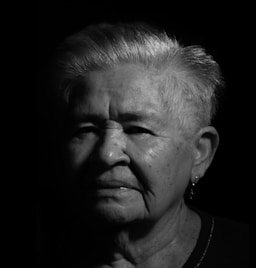
Jonah Reed
I can start with a simple portrait and explore several age directions without losing the person’s core features.
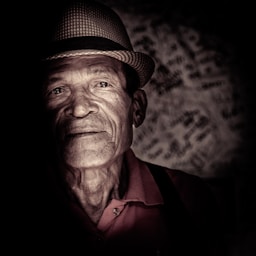
Amara Lewis
The facial changes look more natural when I adjust the age step by step. It gives me control over the story’s pacing.
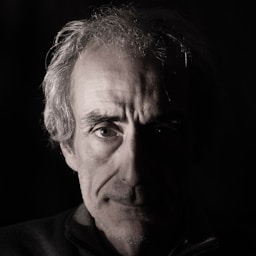
Viktor Petrov
Our old filter experiments now look polished enough for a prototype. The process is quick and easy to repeat.
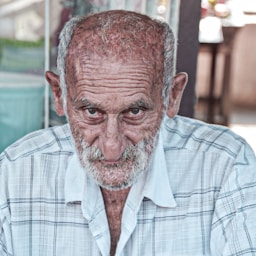
Nora Okafor
It preserved the character’s distinctive face while adding believable age detail. That consistency makes the final sequence much more convincing.
Felix Bennett
I created a future-self concept for a campaign and could review several versions before deciding on the visual direction.
Ingrid Rossi
The effect works well for both realistic portraits and playful old filter content. I can choose the tone without rebuilding the image.
Samir Das
The preview lets me test age changes quickly, so I spend more time refining the narrative and less time on manual retouching.
Strong Visual Hook
AI age progression creates an immediate before-and-after effect that is easy to understand in a short clip.
Useful for Both Fun and Storytelling
The same workflow can support casual old filter content, fictional character aging, AI influencer timelines, and campaign concepts.
More Control Than Simple Age Filter Apps
Users can describe the exact aging style, hair color, wrinkles, motion, camera framing, and final visual tone.
Results Still Need Review
Age progression AI can sometimes over-smooth mature skin, change identity, or exaggerate wrinkles. Review face realism, consent, likeness rights, and commercial use before publishing.
Enjoy more features
No Credit Card Required
Answers for old filter videos, age progression AI prompts, realistic aging effects, privacy, and editing.
What is AI age progression?
AI age progression uses artificial intelligence to estimate how a face may look older or younger. It can create an old filter photo, an age progression video, or a young-to-old avatar transformation.
How does an AI age progression generator work?
It analyzes facial structure, skin texture, hair, and identity details, then applies aging changes such as wrinkles, gray or white hair, softer facial volume, and mature skin texture.
Can I make an age progression video instead of a photo?
Yes. A video workflow can show the face gradually changing over time, which is more dynamic than a static aging app or old person filter image.
What image works best for age progression AI?
Use a clear front-facing portrait with visible eyes, natural lighting, and minimal occlusion. Blurry images, sunglasses, extreme angles, or heavy filters can reduce realism.
Can AI show what I will look like when I'm older?
AI can create a realistic visual prediction, but it is not a medical or scientific forecast. Genetics, lifestyle, health, and environment can all affect real aging.
Is an old filter the same as AI age progression?
An old filter usually applies a fast aging effect to one image. AI age progression can be more detailed, especially when the prompt controls wrinkles, hair color, skin texture, and identity consistency.
Can I keep the same face identity during aging?
Yes, but the prompt should mention the details that must stay consistent, such as face shape, eyes, eyebrows, nose bridge, smile, cheekbones, and overall expression.
Can I create a younger version of an older person?
Yes. Age progression workflows can also work in reverse, turning an older portrait into a younger-looking version while keeping recognizable facial traits.
Can I use AI age progression for AI influencer content?
Yes. AI influencers can use age progression videos for timeline posts, character backstories, trend content, and storytelling clips.
Can I use AI age progression for commercial content?
You may be able to use it commercially if you own the image, have permission from the person shown, and follow platform rules. Always review likeness, consent, and disclosure requirements.
Does AI age progression work for group photos?
It works best on one clear face at a time. Group photos may produce inconsistent aging effects unless each subject is edited separately.
How can I make the aging effect look realistic?
Ask for natural elderly anatomy, mature skin texture, crow's feet, forehead lines, smile lines, neck lines, gray or white hair, and identity consistency. Avoid cartoon, horror, or beauty-filter wording.
Why does my age progression result look fake?
Common reasons include a blurry input, weak prompt, over-smoothing, exaggerated wrinkles, changed eye shape, or a face angle that is difficult to track.
Can I edit the result after generation?
Yes. You can adjust character details, motion, background, lighting, and the overall style if the first result does not look natural enough.
Can I make a dramatic old person filter result?
Yes. If you want a stronger effect, specify deeper wrinkles, white hair, thinner cheeks, neck lines, and an elderly age range such as late 70s or 80s.
Can I make a subtle aging filter?
Yes. Use words like subtle, natural, early signs of aging, soft smile lines, slight gray hair, and realistic skin texture.
Is AI age progression safe for real people's photos?
Only use photos you own or have permission to edit. Avoid misleading viewers, impersonating someone, or using another person's likeness without consent.
Can I post age progression videos on TikTok or Instagram?
Yes, if the content follows platform rules and you have the rights to the image or avatar. For AI-generated content, disclosure may be required depending on context.
Can I use AI age progression for family history projects?
It can be used for creative family-style storytelling, but results are speculative. Treat them as artistic interpretations, not accurate historical or medical predictions.
What should my AI age progression prompt include?
Include the current age, target age, face identity details, skin texture, hair changes, wrinkle areas, camera framing, lighting, motion style, and what should not change.


