Transform an authorized base clip with your APOB Portrait Model while deciding whether its motion, outfit, background, visual style, and product should remain consistent. Review the source, preservation settings, and live credit estimate before generating.
Step 1: Open the Authorized Portrait Model
Problem: The active model supplies the identity context. Starting in the wrong model can make the result unusable even when the source video is correct.
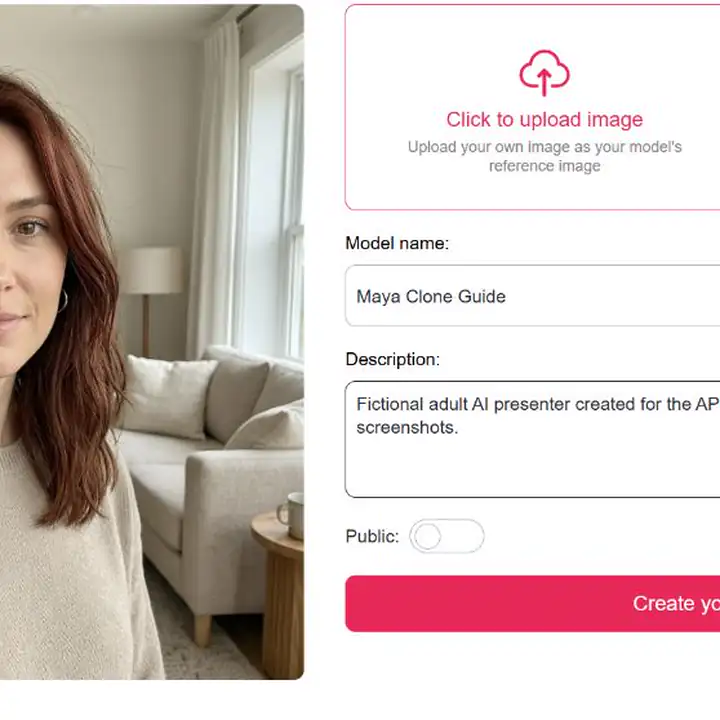
From Personal models, open a model based on your own likeness, licensed talent, or a clearly fictional AI identity. Confirm the model name, reference portrait, permission record, and sharing status. Then locate Video in the left sidebar.
Example: The test team generated a clearly fictional adult portrait, named the private model Maya Clone Guide, and opened that model before reusing a short office reaction format.
Step 2: Add an Authorized Base Video
Problem: An unsuitable source may introduce blur, occlusion, unstable hand-object contact, or unlicensed content.
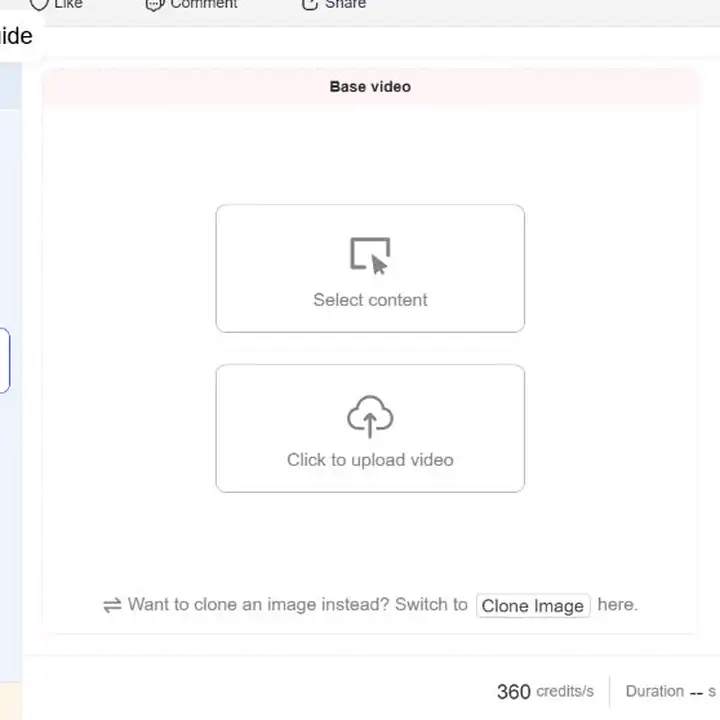
Choose Clone Video. Under Base video, use Select content for a clip already in the APOB Generation library, or Click to upload video for an external file you are permitted to use. The workspace links to Clone Image when the source is a still image.
Example: The product test used an account-owned 12-second vertical clip showing one presenter holding a white mug and making small gestures in an office.
Watch the entire source before continuing. Check face visibility, camera cuts, captions, logos, products, background motion, and audio rights.
Step 3: Choose What to Preserve
Problem: Selecting every option can over-constrain a generation, while selecting too little may change details needed for the story or brand.
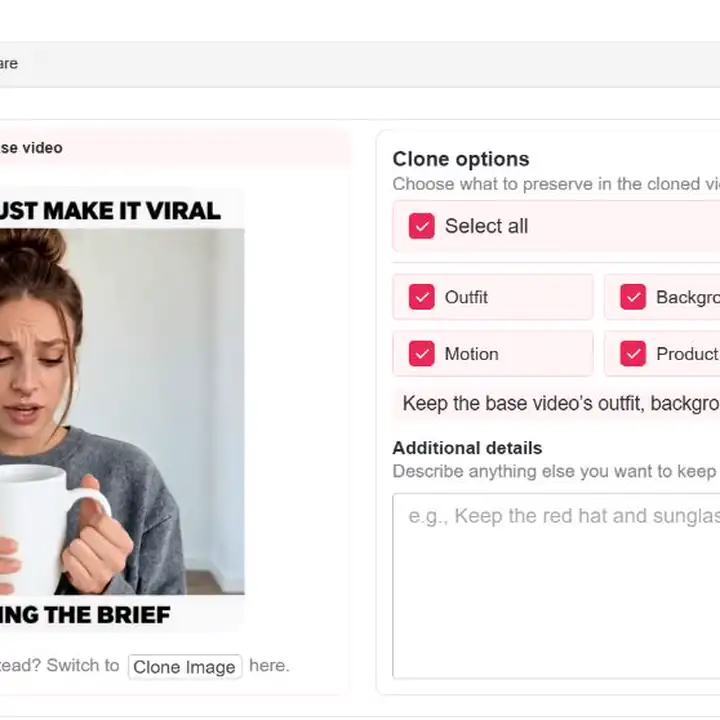
Under Clone options, use Select all or choose individual controls:
Outfit keeps source clothing.
Background retains the environment.
Style preserves the visual treatment.
Motion carries over body movement and performance timing.
Product protects the main prop or product interaction.
Example: The test selected all five because the gray top, office, realistic style, gestures, and white mug were all relevant. A fashion campaign changing locations could preserve Outfit, Motion, and Product while leaving Background unselected.
Step 4: Add Specific Continuity Details
Problem: A broad instruction such as "keep everything the same" does not identify the details most likely to fail.
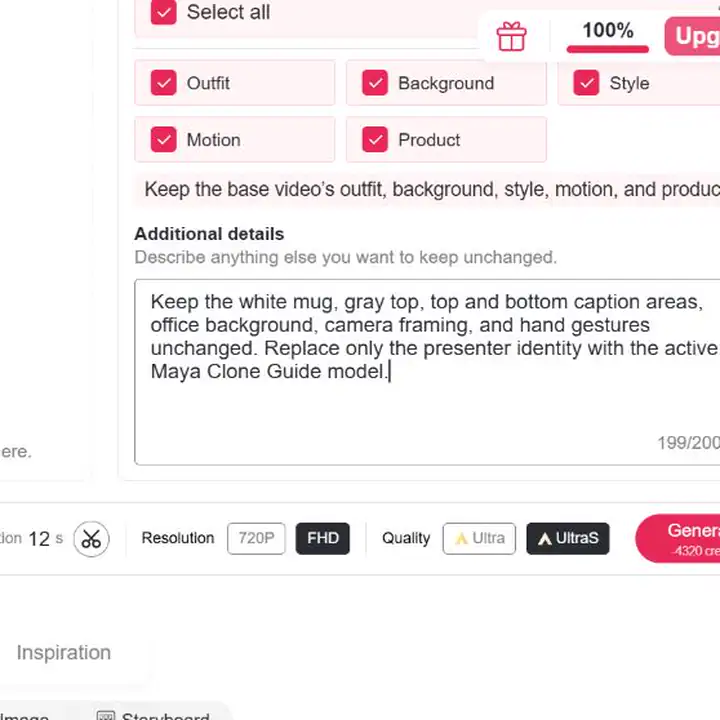
Use Additional details to name visible objects, colors, text areas, framing, accessories, or actions that must remain recognizable.
Tested instruction:
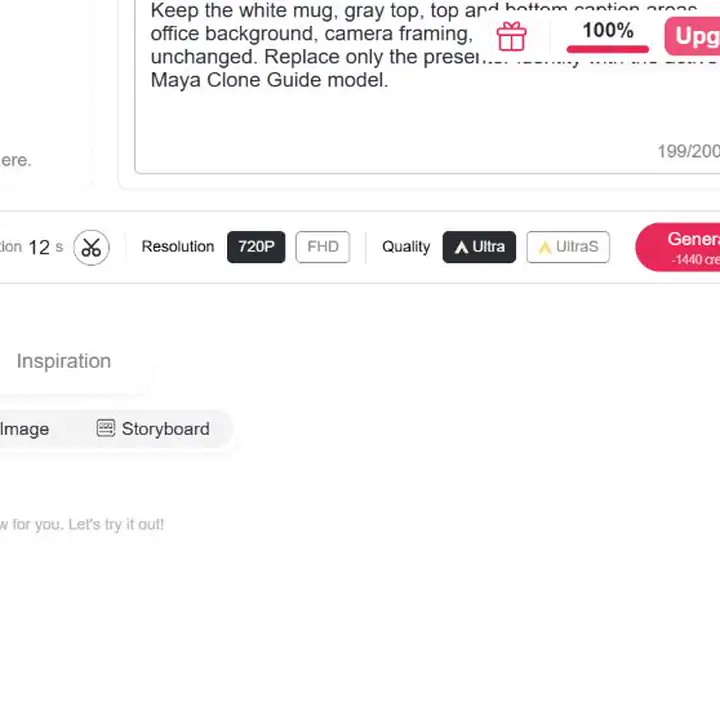
Keep the white mug, gray top, top and bottom caption areas, office background, camera framing, and hand gestures unchanged. Replace only the presenter identity with the active Maya Clone Guide model.
Example: For a bottle demonstration: "Keep the amber dropper bottle in the right hand, preserve the cream label colors, maintain the close-up framing, and keep the three-step application motion."
Prioritize observable facts. Do not add endorsements, product claims, logos, or branded packaging that are absent from the licensed source.
Step 5: Check Resolution, Quality, and Credits
Problem: Duration and quality settings affect credit use, so a high-cost render is a poor way to discover a source or instruction problem.
Review Duration, Resolution, Quality, credits per second, and the total deduction before generating. The tested interface offered 720P and FHD, plus Ultra and UltraS.
720P + Ultra
Displayed rate: 120 credits/s
Displayed total for 12 seconds: 1,440 credits
FHD + UltraS
Displayed rate: 360 credits/s
Displayed total for 12 seconds: 4,320 credits
These are dated observations, not permanent pricing. The first test used 720P + Ultra; a higher setting should follow only after the source and preservation choices are approved.
Step 6: Generate, Review, and Prepare the Output
Problem: A convincing first frame can hide identity drift, broken hand-object contact, altered captions, or motion errors later in the clip.
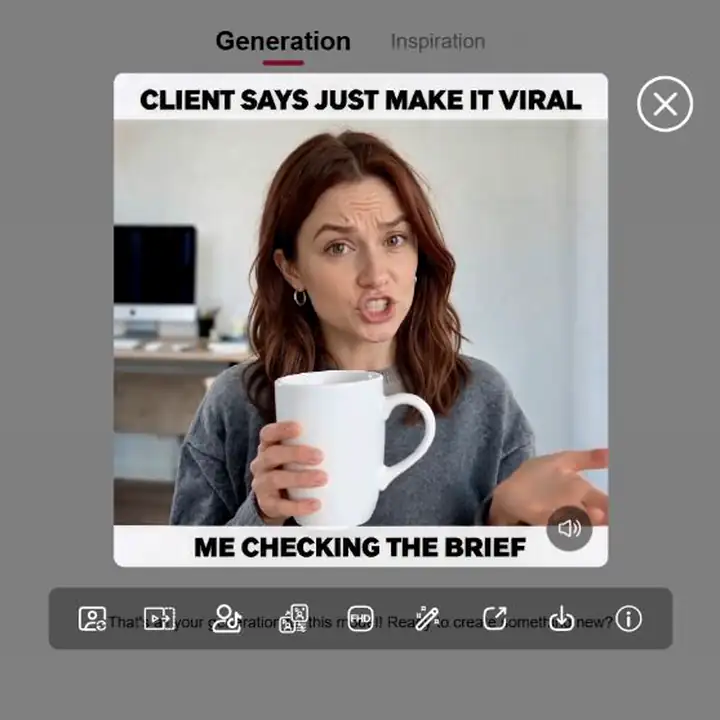
Select Generate. A Clone Video card appears in Generation with percentage progress. When it finishes, compare the complete source and result for facial stability, motion timing, hands, prop shape, clothing edges, background geometry, readable text, and audio continuity.
In the tested output, the brunette source presenter changed to the active Maya identity. Her red-brown hair and facial appearance remained recognizable across the reviewed frames, while the gray top, office scene, white mug, caption layout, vertical framing, and primary gesture sequence remained consistent. Review at multiple timestamps because one convincing frame does not prove full-video continuity.
Use Reuse to revise the setup. Add exact captions, UI captures, or legal text in a controlled editing stage when generative processing changes small text. Before publishing, verify claims, source licenses, disclosure, caption safe areas, and the current platform rules.
The tested Portrait Model toggle was off and the completed Generation card displayed Private. Check the model and output sharing state before every sensitive or client-owned job rather than assuming the current test setting applies to all future generations.
Expert Preservation Prompts
Select the recommended Clone options, then paste the matching instruction into Additional details.
Ecommerce Bottle Demonstration
Select: Motion, Product, Outfit, Background Prompt:
Keep the amber dropper bottle in the presenter's right hand, preserve its black cap and cream label colors, maintain the close-up camera framing, and keep the three-step hand motion unchanged.
Expected result: The product and application sequence remain understandable throughout the presenter variant.
Fashion Lookbook Turn
Select: Outfit, Motion, Style Prompt:
Preserve the black blazer, white crew-neck shirt, silver belt buckle, full-body framing, slow left turn, and neutral studio lighting throughout the clip.
Expected result: The same lookbook movement retains its styling priorities.
Vertical Reaction Format
Select: Background, Style, Motion, Product Prompt:
Keep the top and bottom caption areas, bright office background, centered 9:16 framing, eye roll, pause, and final sip from the white mug unchanged.
Expected result: The reaction timing and composition remain recognizable in the new generation.
Desk Tutorial Transition
Select: Motion, Background, Product Prompt:
Preserve the open laptop on the right side of the desk, the hand movement from keyboard to camera, the fixed eye-level angle, and the soft daylight from the left.
Expected result: The transition continues to match the surrounding tutorial footage.
A clone video in APOB AI begins with a complete Base video, not only a portrait or script. The source provides the performance and scene; the active Portrait Model provides the identity context for the new generation. This makes the workflow useful when the camera framing, gesture timing, or product interaction already works but the video needs to fit a recurring AI character or approved campaign presenter.
People may call the result an AI digital twin, personal AI avatar, or custom avatar video. The important distinction is the input. Clone Video uses an existing performance. Talking Avatar starts from a still portrait and script, while Lip Sync starts from a video and replacement audio.
Use only models, footage, people, products, audio, and creative assets that you own or are authorized to process.
An approved video has the right motion and scene, but you want a new version in the active Portrait Model
Best APOB route: Video > Clone Video
Key difference: Starts from a Base video and provides five preservation controls
One portrait needs to speak a script
Best APOB route: Talking video > Talking Avatar
Key difference: Starts from a still image and script or selected audio
An approved presenter video needs to follow different authorized audio
Best APOB route: Talking video > Lip sync
Key difference: Changes mouth timing around an existing video
A still image needs environmental or camera movement
Best APOB route: Image to video
Key difference: Animates one frame rather than cloning a full performance
Several copies of one person should appear in the same shot
Best APOB route: A compositing or split-screen editor
Key difference: This is the classic multiple-self effect, not APOB Clone Video
Choose Clone Video when the source contains motion, props, framing, styling, or product handling worth preserving. If you only have a portrait and spoken copy, use Talking Avatar instead.
Reuse an approved performance. When the gesture timing, framing, and product interaction already work, a creator can begin from that performance instead of rebuilding it from a prompt.
Control continuity by category. Outfit, Background, Style, Motion, and Product are separate decisions, so operators can distinguish fixed requirements from details allowed to change.
Use existing generations or uploads. Select content keeps an account-owned APOB video in the same workspace, while the upload route supports a licensed external source.
See cost before committing. Duration, credits per second, and total deduction are visible before generation, making a lower-cost test practical.
Keep review connected to the model. Source selection, preservation settings, progress, completed output, and Reuse remain in the Portrait Model workspace.
This section provides general information, not legal advice. Requirements vary by jurisdiction, industry, platform, and use case.
Consent and Likeness
Use your own likeness or obtain written permission covering the model, source performance, edits, channels, territories, duration, and commercial use. APOB's current Terms of Service prohibit use of a person's name, likeness, voice, or persona without explicit, verifiable consent.
Copyright and Commercial Inputs
Permission from the person shown does not automatically license the footage, music, captions, logos, product designs, fonts, or background art. The U.S. Copyright Office's Digital Replicas report explains why realistic replicas raise rights questions beyond file ownership. Review APOB's current Terms and clear every third-party input before commercial publication.
Disclosure and Endorsements
YouTube requires disclosure for specified realistic altered or synthetic content, while TikTok requires labels for specified realistic AI media. Meta also provides AI labeling and advertising transparency measures. A cloned presenter must not pose as a customer, employee, doctor, investor, or independent reviewer unless that role and statement are genuine and approved.
Privacy and Sharing
APOB's Privacy Policy describes collection of user content such as images, video, music, and shared models. Review the current policy and Terms, restrict source-file access, and check the live sharing state before using sensitive likeness material. Do not assume a retention or deletion practice that is not stated in the current documents.
IAB projected U.S. creator ad spend at $37 billion for 2025, reinforcing the need for repeatable creator-style production. That demand does not remove the need for source rights, truthful claims, and human approval.
Ecommerce marketer: Reuse a strong product-handling performance
Recommended setup: Keep Motion, Product, Outfit, and key framing details
Expected result: A presenter variant following the same bottle or packaging demonstration
Main concern: Check labels, hands, and product geometry frame by frame
AI influencer operator: Maintain one fictional host across a proven reaction format
Recommended setup: Keep Background, Style, and Motion
Expected result: A recurring virtual character using the same pacing and composition
Main concern: Identify the host as virtual and avoid invented personal experience
Creative strategist: Test approved presenter variants against one motion template
Recommended setup: Reuse the same source and preservation settings in authorized models
Expected result: More comparable creative variants
Main concern: Obtain releases and avoid misleading endorsements
Training producer: Adapt an approved demonstration to a consistent internal presenter
Recommended setup: Keep Motion, Product, and Background
Expected result: A repeatable course or onboarding demonstration
Main concern: Require subject-matter approval for procedural and safety claims
The best use cases start with a production asset worth preserving. A one-time film requiring nuanced emotional performance may still be better recorded by the real presenter.
Selective preservation: Five controls define which production elements should carry into the new version.
Flexible source choice: A base video can come from the user's APOB library or an authorized upload.
Visible cost calculation: Duration, rate, and total credits appear before generation.
Specific continuity control: Additional details can protect a prop, caption area, camera position, color, or gesture.
Video generation can be credit intensive: The observed 12-second test ranged from 1,440 to 4,320 displayed credits.
Fine details can still drift: Hands, labels, text, logos, jewelry, and fabric patterns require close review.
Source problems carry forward: Blur, occlusion, unstable framing, or unlicensed elements make the result harder to use.
Human approval remains necessary: The tool cannot verify consent, factual claims, commercial rights, or disclosure requirements.
No Credit Card Required
Answers about source videos, preservation controls, credits, quality, rights, and publishing.
What does clone video mean in APOB AI?
It means generating a new version from a Base video in the active Portrait Model workspace. You can ask the tool to preserve the source outfit, background, style, motion, and product.
How to clone yourself in a video with AI?
Open an authorized Portrait Model, choose Video > Clone Video, select or upload a base clip you own, choose what to preserve, add continuity details, review the live cost, generate, and inspect the complete result.
Is Clone Video the same as Talking Avatar?
No. Clone Video starts from a complete source performance. Talking Avatar begins with a still portrait and makes it speak a script or selected audio.
Can I use an existing APOB generation?
Yes. Select content opens eligible videos from the Generation library. Click to upload video supports an authorized external source.
What can APOB preserve from the base video?
The tested Clone options were Outfit, Background, Style, Motion, and Product. They could be selected individually or with Select all.
What belongs in Additional details?
Name concrete continuity requirements, such as a product's color and position, caption area, camera angle, garment detail, accessory, or gesture.
Can I clone an image instead of a video?
The workspace links to Clone Image for still-image cloning. If the goal is to animate one frame, Image to Video may be more appropriate.
Can APOB create an AI clone from one photo?
A photo can support a Portrait Model or Talking Avatar, but Clone Video itself requires a base video. Choose the feature that matches your source.
Can I put multiple versions of myself in one scene?
That classic twin effect usually requires locked-camera footage, masks, or split-screen compositing. It is different from APOB's base-video transformation.
Does Clone Video replace the audio or clone my voice?
The tested Clone Video panel focused on visual preservation and did not provide script or voice-cloning controls. Use Talking Avatar or Lip Sync for the appropriate authorized audio workflow.
How much does a clone video cost?
Cost depends on duration and settings. In the August 3, 2026 test, a 12-second clip displayed 1,440 credits at 720P + Ultra and 4,320 credits at FHD + UltraS. Check the current estimate before generating.
Which resolution and quality settings are available?
The tested interface showed 720P and FHD with Ultra and UltraS quality modes. Availability and rates can change.
How long does generation take?
The 12-second 720P + Ultra test entered the Generation feed with percentage progress and completed in about six minutes. Treat that as one dated observation: processing varies with duration, quality, demand, and account access.
Why did the output change my product or caption?
Hands, labels, and readable text are difficult generative details. Select Product, name the item and framing in Additional details, test a shorter segment, and add exact text during controlled editing when necessary.
Can I use a clone video commercially?
Commercial use depends on APOB's current Terms, applicable law, likeness consent, source licenses, trademarks, music, product assets, and platform rules. Generation does not clear third-party rights automatically.
Can I clone a celebrity, employee, or customer?
Only with explicit, verifiable authorization covering the planned use. A public photo, employment relationship, purchase, or social post does not by itself provide permission to create a digital replica.
Do I need to disclose that the video uses AI?
Often, yes, especially when realistic media makes a person appear to perform an action they did not record. Check current platform and local-law requirements when publishing.
How does APOB handle uploaded video and identity data?
Uploaded content is governed by APOB's current Privacy Policy and Terms. Review both documents, limit access to source files, and verify whether the model and generation are public or private.


