Upload one clear portrait, describe the cut, length, texture, bangs, and color you want, and generate a realistic hairstyle preview while keeping the rest of the photo consistent.
Use the hairstyle workflow to change the cut, length, bangs, or texture. Use the hair color workflow when the shape should stay the same and only the shade changes. Describe one major change at a time, then review the hairline, ears, and background before exporting.
Step 1: Upload a clear portrait
Open the APOB AI Photo Editor, choose Chat to edit, and upload a sharp portrait with the face and current hair clearly visible. Use the uploaded image as the base image.


Step 2: Describe the hairstyle
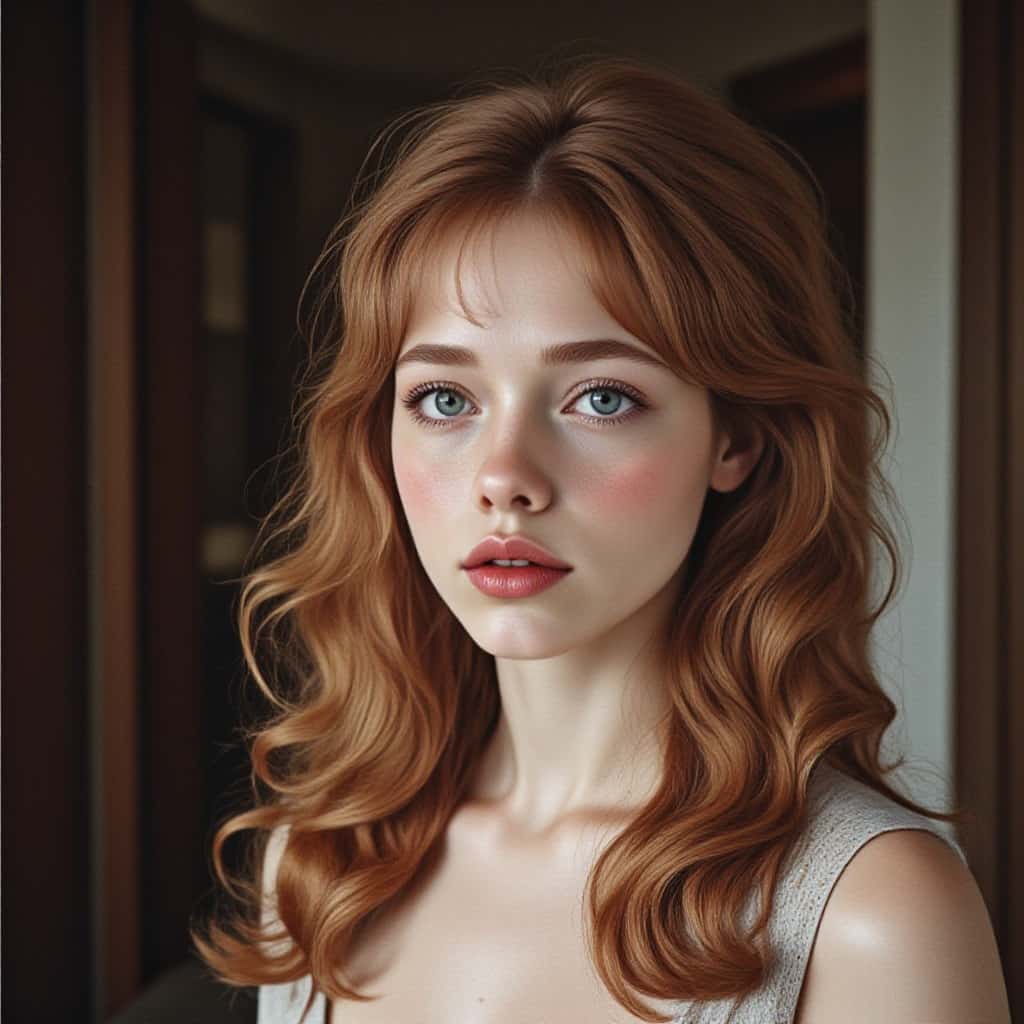
In Edit description, name the cut, length, bangs, texture, and color you want. Add preservation instructions for the face, expression, clothing, pose, lighting, and background. For the example shown, the prompt requests a collarbone-length layered bob, soft curtain bangs, subtle waves, and dimensional warm blonde tones while preserving the original portrait.
Step 3: Generate and review the result
Keep the original aspect ratio, choose the quality setting you need, and select Generate. Inspect the hairline, strand detail, edges around the ears and shoulders, and facial identity. Adjust the prompt and generate another version if needed.

Prompt-controlled hairstyle changes
Describe the exact haircut, fringe, texture, parting, volume, and color instead of choosing from a short preset list.
Preservation instructions for the full portrait
Tell the editor to keep the face, freckles, expression, clothing, accessories, camera angle, lighting, and background consistent while changing the hair.
Cut, texture, and color in one edit
Preview a new silhouette together with waves, curls, highlights, root tone, or another color direction in a single prompt.
Repeatable style comparisons
Reuse one base photo and vary only the hairstyle description to compare bangs, bobs, long layers, short cuts, and color ideas more consistently.
Prepare for a salon consultation
Create visual references for length, layers, bangs, and color before an appointment. Virtual hairstyle technology has been positioned as a way to help salon clients visualize cuts before committing, as described in Perfect Corp.'s hairstyle try-on announcement.
Compare color and cut combinations
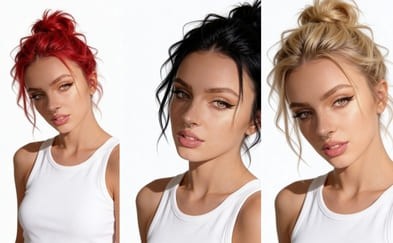
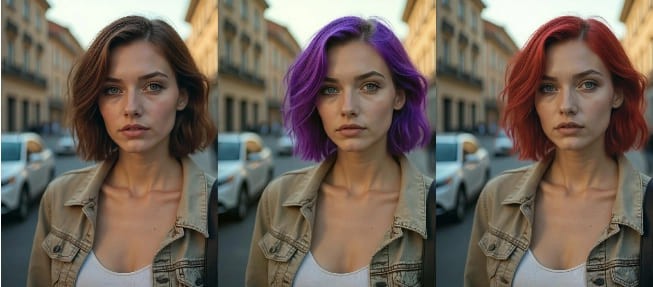
Test a bob in copper, brunette, blonde, or gray before deciding which direction to discuss with a stylist. Google has also introduced mobile AR hair-color try-on, showing how visual previews are becoming part of beauty discovery.
Build a clearer hairstyle moodboard
Turn written ideas into images that are easier to compare and share. L'Oréal Professionnel's Style My Hair experience similarly uses a virtual makeover to help people explore looks on a phone.
Explore looks for portraits and creative content
Preview a hairstyle for a profile photo, character concept, campaign moodboard, or social post while keeping the source portrait recognizable. Clearly label generated or edited imagery when context could otherwise be misleading.
Olivia Carter
I compared curtain bangs and a layered bob on the same selfie before my salon appointment. It made the choice much easier.
Daniel Kim
The prompt kept my freckles and expression while changing only the cut. The result felt surprisingly natural.
Amara Johnson
Trying warm blonde, copper, and brunette versions side by side helped me settle on a color direction.

Lucas Meyer
I used the preview as a reference for my stylist, especially for the fringe length and face-framing layers.

Priya Shah
It's quick to test different hair lengths without taking a new photo every time. Great for moodboards.
Rachel Greenberg
The hairline and soft waves looked realistic after one prompt revision, and my face still looked like me.
Mateo Silva
I compared a pixie cut, bob, and long layers without committing. The side-by-side view was genuinely useful.

Grace Liu
Adding “change only the hair” gave me a clean edit that preserved my outfit, lighting, and background.
Noah Bennett
It turned a vague hairstyle idea into something concrete I could show my stylist and friends.
Low-commitment exploration
Compare dramatic and subtle hairstyle ideas without cutting, coloring, or styling your real hair first.
Natural-language control
Specify detailed combinations of cut, bangs, texture, volume, parting, and color in one instruction.
Consistent comparison workflow
Using the same portrait for each variation makes it easier to focus on differences between hairstyles.
Useful visual communication
Generated previews can help communicate a direction to a stylist, collaborator, or creative team.
Not a guaranteed real-world outcome
A generated image cannot fully predict how a cut will behave with your real density, texture, growth pattern, condition, and styling routine.
Sensitive to source-photo quality
Blur, harsh shadows, cropped hair, hats, hands, or extreme angles can reduce edge quality and consistency.
May require prompt revisions
Large silhouette changes can alter nearby facial or background details, so you may need to strengthen preservation instructions and rerun the edit.
Professional advice still matters
A stylist should evaluate feasibility, maintenance, chemical history, and suitability for your actual hair.
No Credit Card Required
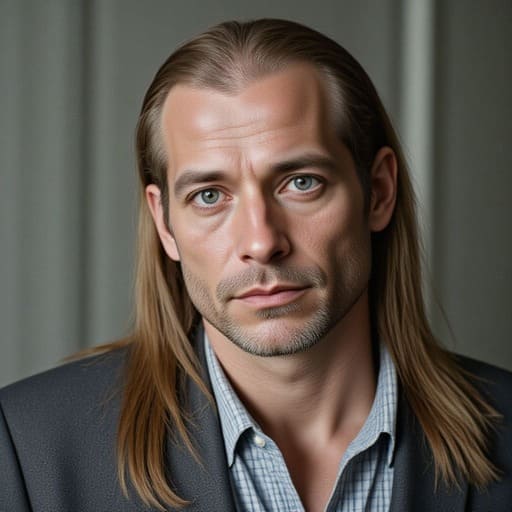
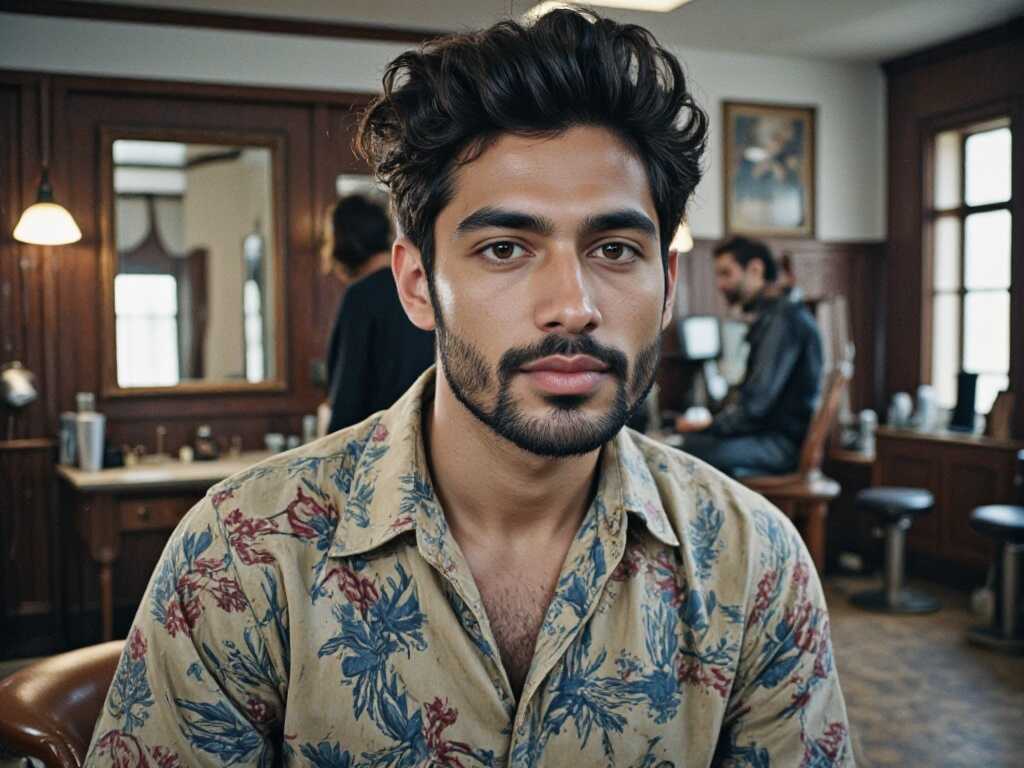


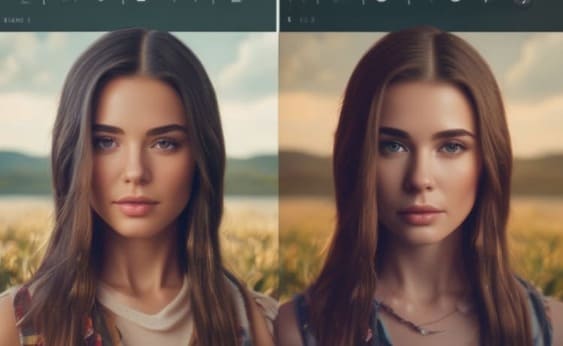
Practical answers about photos, prompts, realistic results, salon planning, and limitations.
Q1: What is an AI hairstyle changer?
An AI hairstyle changer edits a portrait so you can preview a different haircut, length, texture, fringe, or color before changing your real hair.
Q2: How does the AI hairstyle changer work?
Upload a clear portrait, describe the hairstyle you want in the edit box, and generate a new version. The prompt tells the editor what to change and what to preserve.
Q3: Can I try short hairstyles on my photo?
Yes. You can request a pixie cut, bob, lob, shag, wolf cut, crop, or another short hairstyle and specify the exact length you want to preview.
Q4: Can I preview bangs before cutting my hair?
Yes. Describe curtain bangs, blunt bangs, wispy bangs, side-swept bangs, or another fringe style, along with the length and density you prefer.
Q5: Can the tool change hair color and hairstyle together?
Yes. A single prompt can combine a new cut with a color direction such as warm blonde, copper, brunette, black, gray, pastel, highlights, or balayage.
Q6: Will the result keep my face unchanged?
The prompt can explicitly ask the editor to preserve facial identity, expression, skin texture, pose, clothing, and background. Review each result because generative edits can still introduce small changes.
Q7: What kind of photo works best?
Use a sharp, well-lit portrait with one clearly visible person, an unobstructed hairline, and enough space around the head and shoulders. Front-facing or slight three-quarter angles are easiest to evaluate.
Q8: Does the AI hairstyle changer work for men?
Yes. Prompts can describe fades, tapers, textured crops, quiffs, longer layers, buzz cuts, curly styles, beard-compatible looks, and other men's hairstyles.
Q9: Can I try curly, coily, wavy, and straight hair?
Yes. State the desired texture, curl pattern, volume, parting, and finish. You can also ask the editor to preserve your current texture while changing only the shape or length.
Q10: Can I use a hairstyle reference image?
If the editor provides an additional-image option, you can upload a reference and tell the model to use it for hairstyle direction while preserving the identity and composition of your base portrait.
Q11: What should I write in the hairstyle prompt?
Describe the cut, length, bangs, texture, parting, volume, color, and finish. Then list what must stay unchanged, such as face, expression, clothing, lighting, pose, and background.
Q12: How long does a hairstyle edit take?
Generation time varies with service demand, image size, and quality settings. Keep the editor open until the result appears, then inspect the hairline, edges, and facial details.
Q13: Can I compare several hairstyles using one photo?
Yes. Reuse the same base portrait and change only the hairstyle description for each version. This makes side-by-side comparisons more consistent.
Q14: Can an AI hairstyle preview help with a salon consultation?
It can provide a visual discussion aid for length, bangs, layers, and color direction. Bring the preview to a stylist, who can assess whether the look suits your real hair type and maintenance needs.
Q15: Is the preview an exact prediction of a real haircut?
No. It is a generated visualization, not a guarantee. Real results depend on hair density, texture, growth pattern, condition, styling, and the skill of the professional performing the service.
Q16: How do I change only the hair and nothing else?
Use a constraint such as 'change only the hairstyle' and name every element to preserve. If a result alters the face or background, strengthen the preservation instructions and generate another version.
Q17: Can I use the generated image on social media?
You can use your result as a concept or creative post when you have rights to the source photo. Avoid presenting a generated makeover as an unedited or guaranteed real-world result.
Q18: Why did the AI change my face?
Large hairstyle changes can affect pixels near the forehead, ears, jaw, and neck. Start with a clear portrait, ask to preserve exact facial identity, and rerun the edit if those areas drift.
Q19: How can I make the hair look more realistic?
Ask for a believable hairline, individual strand detail, natural roots, soft flyaways, realistic volume, accurate shadows, and clean blending around the forehead, ears, neck, and shoulders.
Q20: What are the limitations of an AI hairstyle changer?
It may struggle with hats, hands over the hair, extreme angles, complex backgrounds, very low-resolution photos, or styles that differ dramatically from the original silhouette. Treat the output as inspiration.


