Verwandle eine Videoidee mit APOB AI in ein mutiges 16:9-Thumbnail-Konzept. Beschreiben Sie das Motiv, die Emotion, die Komposition und den visuellen Aufhänger und erstellen und verfeinern Sie dann in wenigen Minuten kreative, macherfreundliche Visuals.
Schritt 1: Thumbnail-Konzept beschreiben
Öffnen Sie Text-zu-Video und geben Sie einen präzisen Prompt ein, der Videothema, Hauptmotiv, Gesichtsausdruck, Farbpalette, Beleuchtung, Komposition und den gewünschten Freiraum für die Überschrift beschreibt. Stellen Sie das Seitenverhältnis auf 16:9, die Dauer auf 10 Sekunden und die Auflösung auf FHD.
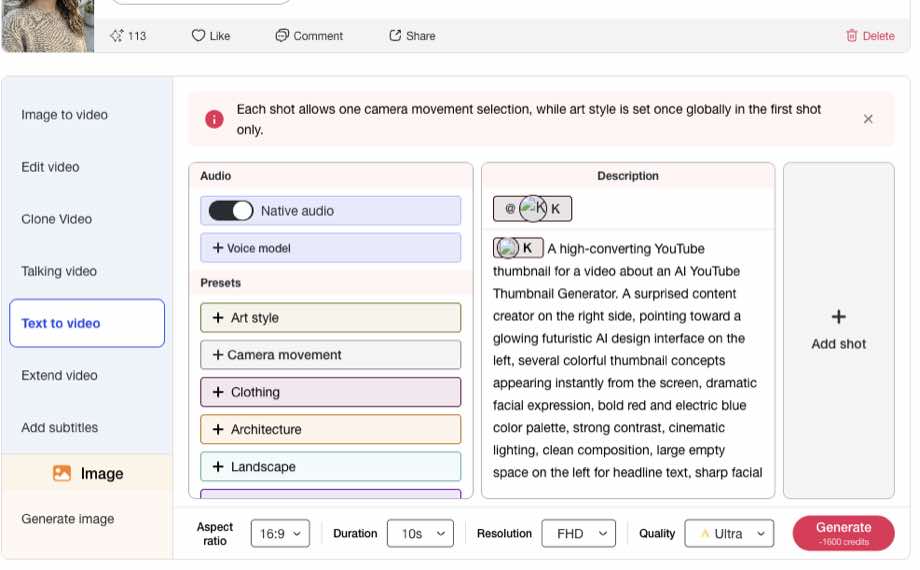

Schritt 2: Wählen Sie Ultra Quality
Öffnen Sie das Qualitätsmenü und wählen Sie Ultra. Dies priorisiert ein klareres visuelles Konzept für detaillierte Gesichter, Beleuchtung und Interface-Elemente, während die 16:9-Komposition in deinem Setup gezeigt bleibt.
Schritt 3: Generieren und wählen Sie den stärksten Frame
Klicken Sie auf Generate und überprüfen Sie das Ergebnis. Wählen Sie den Rahmen mit dem klarsten Motiv, der stärksten Emotion und dem nützlichsten negativen Raum. Wenn das Konzept funktioniert, füge deine genaue Überschrift, dein Logo und das endgültige Branding in einen Design-Editor hinzu, bevor du das fertige Thumbnail auf YouTube hochlädst.

Gehe schnell von der Idee zur visuellen Richtung
Verwandle ein schriftliches Videokonzept in einen visuellen Ausgangspunkt, ohne jedes Hintergrundbild, jede Pose und jede Lichtsetzung von Grund auf neu erstellen zu müssen.
Komponiere für ein 16:9-Thumbnail
Beschreibe, wo das Motiv sitzen soll, in welche Richtung es schauen soll und wo cleanen negativen Raum für eine kurze Überschrift lassen.
Erstelle erkennbare Creator-Visuals
Verwende einen konsistenten Präsentator, KI-Persona, ein Produkt, Farbpalette oder Lichtstil, um ein kohärenteres Erscheinungsbild über einen Kanal hinweg zu schaffen.
Vergleiche unterschiedliche kreative Varianten
Generiere verschiedene Ausdrücke, Kamerawinkel und Farbgestaltungen und verfeinere dann die Richtung, die am besten zum tatsächlichen Video passt.
Thumbnail-Tests für reguläre Uploads
Erstellen Sie mehrere deutlich unterschiedliche visuelle Ansätze für dasselbe Video, fertigen Sie den genauen Text und das Branding an und vergleichen Sie dann die geeigneten Varianten mit YouTube Studio testen und vergleichen. YouTube bewertet Tests anhand der Wiedergabezeitanteile, behandeln Sie die erstellten Konzepte also als Hypothesen statt als garantierte Gewinner.
Gesichtslose Kanäle und konsistentes Creator-Branding
Erstellen Sie Thumbnail-Konzepte rund um einen wiederholbaren KI-Charakter, ein Produkt, Requisiten, eine Umgebung oder ein grafisches Motiv. YouTube empfiehlt eine klare Komposition und konsistentes Branding, während das Video dennoch genau dargestellt wird; siehe die Thumbnail- und Titel-Tipps.
Tutorials, Produktstarts und Produktgeschichten
Visualisieren Sie die Transformation, das Ergebnis, die Reaktion oder das Schlüsselobjekt im Mittelpunkt eines Tutorials oder Launches. Halten Sie das finale Bild relevant für den tatsächlichen Inhalt und befolgen Sie die Anforderungen für benutzerdefinierte Thumbnails von YouTube.
Schnellere visuelle Ideenfindung
Erkunde Posen, Hintergründe, Beleuchtung und Farbbehandlungen, bevor du dich für ein endgültiges Designentscheidest.
Kreativere Variationen
Mehrere Richtungen aus einem Briefing generieren und sie mit einem konsistenten Entscheidungsprozess vergleichen.
Niedrigere Hürde bei der Konzepterstellung
Schöpfer können mit natürlichsprachlichen Beschreibungen beginnen, auch ohne fortgeschrittene Illustrations- oder Compositing-Fähigkeiten.
Text und Logos müssen möglicherweise korrigiertwerden
Generierte Typografie- und Schnittstellendetails können verzerrt werden, daher sollten wichtige Wörter und Markenzeichen manuell hinzugefügt oder überprüft werden.
Leistung ist niemals garantiert
Ein attraktives Bild kann keine Klicks, Wiedergabezeit oder Aufrufe garantieren, und irreführende Bilder können das Vertrauen des Publikums schädigen.
Die abschließende menschliche Überprüfung ist weiterhin unerlässlich
Prüfen Sie Genauigkeit, Rechte, Identitätskonsistenz, Plattformregeln, Crop-Sicherheit und Lesbarkeit vor der Veröffentlichung.
Keine Kreditkarte erforderlich
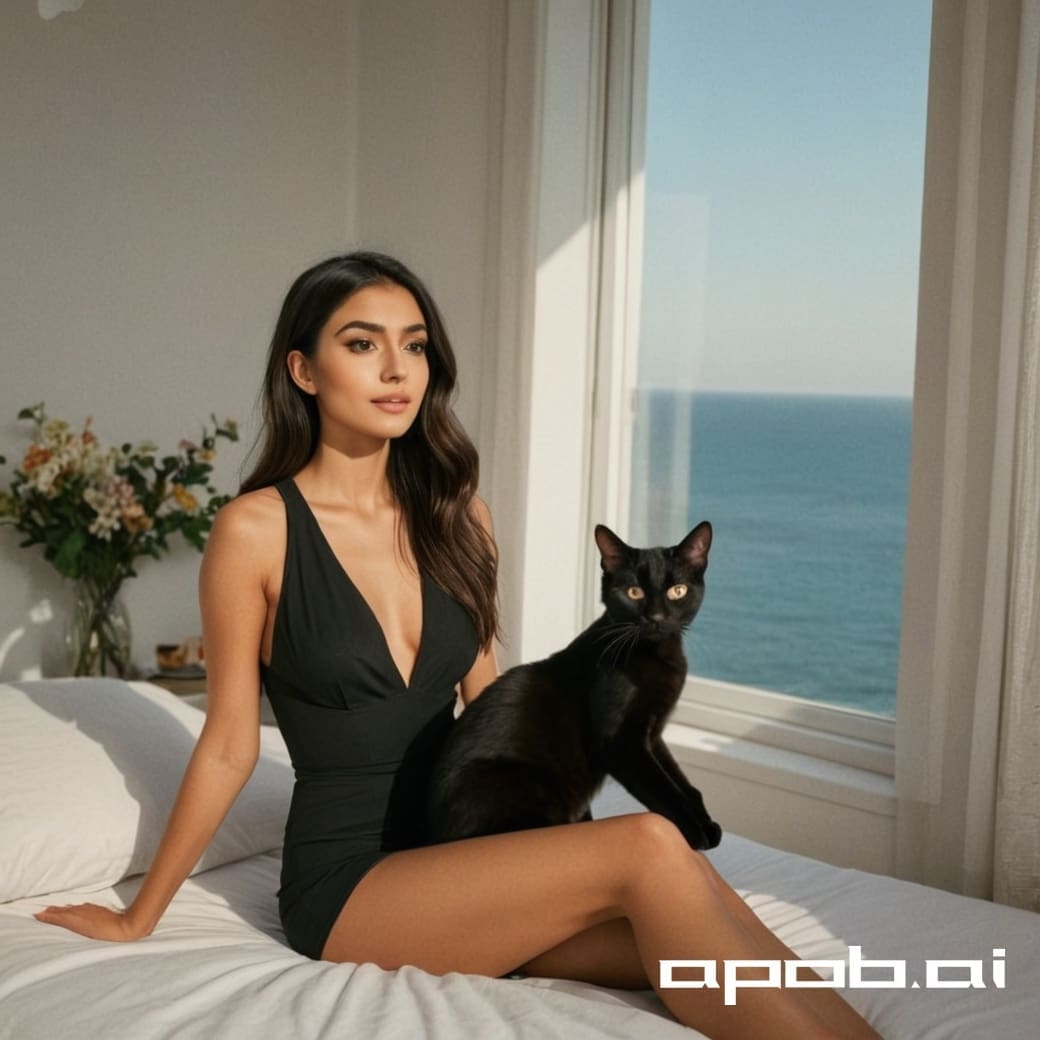
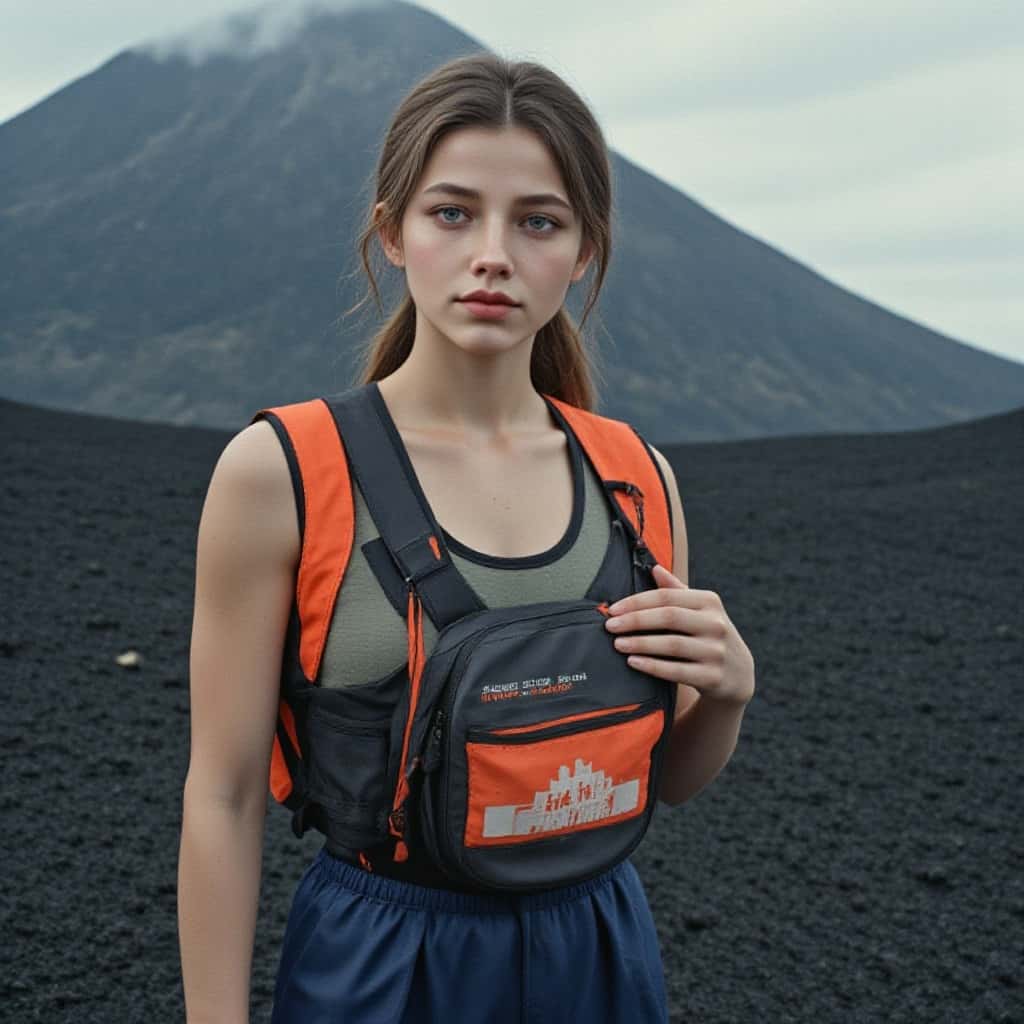
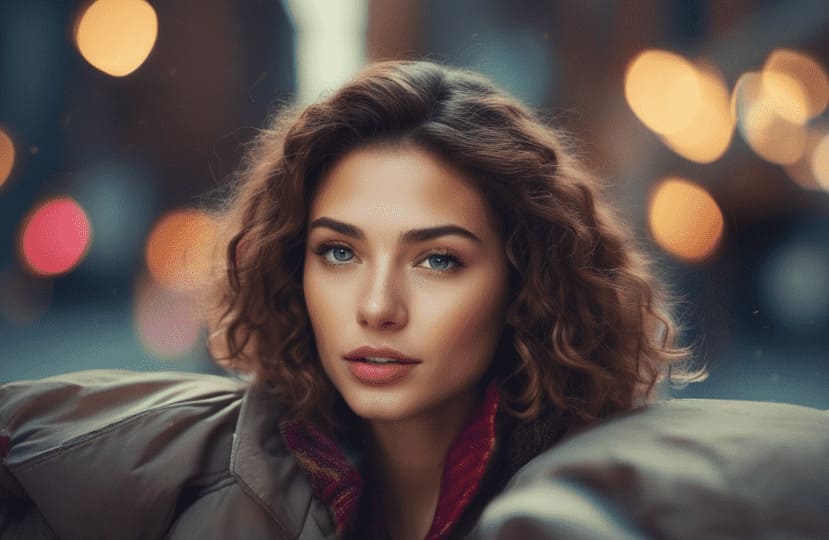
Antworten zu Prompts, 16:9-Setup, Ultra-Qualität, Textgenauigkeit, A/B-Tests, Rechten und dem endgültigen YouTube-Upload.
Q1: Was ist ein KI-YouTube-Miniaturengenerator?
Ein KI-YouTube-Miniaturengenerator verwandelt ein schriftliches Konzept in visuelle Anweisungen für das Coverbild eines Videos. Es kann Ihnen helfen, Motive, Gesichtsausdrücke, Beleuchtung, Farbpaletten und 16:9-Kompositionen zu erkunden, bevor Sie den genauen Text und das Branding fertigstellen.
Q2: Wie erstelle ich ein YouTube-Thumbnail-Konzept mit APOB AI?
Text zum Video öffnen, einen Prompt eingeben, der das Motiv, die Emotion, die Komposition, die Beleuchtung und die Farbpalette beschreibt, wählen Sie 16:9, FHD und Ultra-Qualität und generieren Sie dann. Überprüfen Sie das Ergebnis und wählen Sie den stärksten Rahmen oder die stärkste visuelle Richtung für Ihr endgültiges Vorschaubild aus.
Q3: Bietet APOB AI einen dedizierten Ein-Klick-Thumbnail-Workflow?
Dieser Leitfaden verwendet den aktuellen Text-to-Video-Workflow von APOB AI, um vorschaubildklare visuelle Konzepte zu erstellen. Es behauptet nicht, einen YouTube-Link zu analysieren oder automatisch mit einem Klick ein vollständig gesetztes finales Vorschaubild zu erstellen.
Q4: Welches Seitenverhältnis sollte ich für ein YouTube-Thumbnail verwenden?
Verwenden Sie ein 16:9-Seitenverhältnis für Standard-YouTube-Video-Thumbnails. Halten Sie das Hauptthema groß und lassen Sie absichtlich Platz für eine kurze Überschrift, ein Logo oder ein anderes Kanal-Branding.
Q5: Welche Auflösung sollte ich wählen?
Wählen Sie FHD oder die höchste praktische Auflösung im Workflow. Eine größere, saubere Quelle bietet mehr Flexibilität beim Zuschneiden, Schärfen und Hinzufügen des endgültigen Textes.
Q6: Kann ich Thumbnail-Visuals aus Textprompts erstellen?
Ja. Beschreiben Sie das Videothema, das Hauptmotiv, Gesichtsausdruck oder Handlung, Kamerarahmen, Hintergrund, Beleuchtung, Farben und den Standort eines beliebigen leeren Raums, den Sie für eine Überschrift benötigen.
Q7: Kann ich mein eigenes Gesicht oder eine KI-Persona verwenden?
Du kannst ein geeignetes Referenzbild oder eine konsistente APOB AI-Persona verwenden, bei der der ausgewählte Workflow sie unterstützt. Verwenden Sie Bilder, die Sie besitzen oder deren Nutzung Sie verwenden dürfen, und prüfen Sie die Identitätskonsistenz vor der Veröffentlichung.
Q8: Kann ich mehrere Thumbnail-Varianten generieren?
Ja. Ändere eine kreative Variable nach der anderen, wie zum Beispiel Gesichtsausdruck, Kamerawinkel, Hintergrundfarbe oder visuellen Aufhänger. Das erleichtert den Vergleich von Konzepten, anstatt alles auf einmal zu ändern.
Q9: Wird KI-generierter Text vollkommen genau sein?
Nicht immer. KI-generierte Buchstaben, Logos und Interface-Details können verzerrt oder falsch geschrieben sein. Füge wichtige Überschriften, Zahlen und Markenzeichen in einem finalen Design-Editor hinzu, damit jeder Charakter genau und lesbar ist.
Q10: Kann ich das generierte Thumbnail-Visual kommerziell verwenden?
Die kommerzielle Nutzung hängt von den aktuellen APOB AI-Bedingungen und den Rechten ab, die an jedem Quellbild, Logo, Person, Charakter und Markenobjekt in Ihrem Design verbunden sind. Überprüfen Sie die geltenden Bedingungen und verwenden Sie die Materialien, die Sie veröffentlichen dürfen.
Q11: Garantiert ein KI-Vorschaubild eine höhere Klickrate?
Nein. Ein generiertes Bild kann keine Klicks oder Aufrufe garantieren. Die Leistung hängt vom Thema, Titel, Zielgruppe, Traffic-Quelle, Genauigkeit und der Reaktion der Zuschauer auf das Thumbnail ab.
Q12: Wie schreibe ich einen besseren Vorschau-Prompt?
Beginnen Sie mit dem Videothema und dem Hauptthema, fügen Sie dann Emotion, Pose, Kamerarahmen, Hintergrund, Beleuchtung, Farbpalette, Kontrast und Komposition hinzu. Gib an, wo du Negativraum haben möchtest, und bitte um keinen Text oder keine Logos, wenn du sie später hinzufügen willst.
Q13: Kann ich diesen Workflow für einen gesichtslosen YouTube-Kanal verwenden?
Ja. Verwenden Sie Produkte, Objekte, Umgebungen, Diagramme, Silhouetten oder einen konsistenten KI-Charakter anstelle eines echten On-Camera-Hosts. Halte die visuelle Identität über alle Uploads hinweg konsistent, damit die Zuschauer den Kanal wiedererkennen.
Q14: Für welche Arten von Videos kann ich Thumbnails gestalten?
Der Workflow unterstützt Tutorials, Produktbewertungen, Gaming-Videos, Kommentare, Bildung, Marketing, Listenvideos, Fallstudien und Inhalte ohne Gesichtskanäle. Passen Sie den visuellen Aufhänger dem eigentlichen Motiv des Videos zu.
Q15: Welche Farben eignen sich gut für YouTube-Thumbnails?
Hoher Kontrast kann helfen, dass das Motiv bei kleinen Größen klar bleibt, aber die beste Palette ist die, die zur Stimmung des Videos und zur Identität Ihres Kanals passt. Begrenze konkurrierende Farben und mach den Fokuspunkt deutlich.
Q16: Sollte das Vorschaubild genau mit dem Video übereinstimmen?
Ja. Das Vorschaubild sollte ehrlich den Inhalt widerspiegeln. Vermeiden Sie erfundene Behauptungen, irreführende Bilder oder ein visuelles Versprechen, das das Video nicht einhält.
Q17: Kann ich YouTube-Thumbnails A/B testen?
YouTube Studio unterstützt das Testen von bis zu drei Thumbnail-Variationen bei berechtigten Videos. Generiere unterschiedliche Konzepte, beende sie konsequent und nutze YouTubes eigene Testergebnisse, anstatt davon auszugehen, dass ein Stil immer am besten funktioniert.
Q18: Kann ich Thumbnails für YouTube Shorts erstellen?
YouTube steuert, welche Thumbnail-Optionen für Shorts verfügbar sind, und der Zugriff kann je nach Account und Rollout variieren. Schau dir die aktuellen YouTube Studio-Optionen an, bevor du ein separates Shorts-Cover entwirfst.
Q19: Wie benutze ich die generierte Ausgabe als Vorschaubild?
Generiere das Konzept, speichere oder erfange das stärkste Bild, schneide es bei Bedarf auf 16:9 zu, füge exakten Überschriftentext und Branding in deinen bevorzugten Editor hinzu, exportiere eine unterstützte Bilddatei und lade sie in YouTube Studio hoch.
Q20: Welche Informationen liefern das beste Ergebnis?
Ein fokussierter Prompt funktioniert am besten: ein klares Motiv, eine Emotion oder Handlung, ein definierter Kamerawinkel, ein einfacher Hintergrund, starke Beleuchtung, eine begrenzte Farbpalette und expliziter Negativraum für späteren Text.


