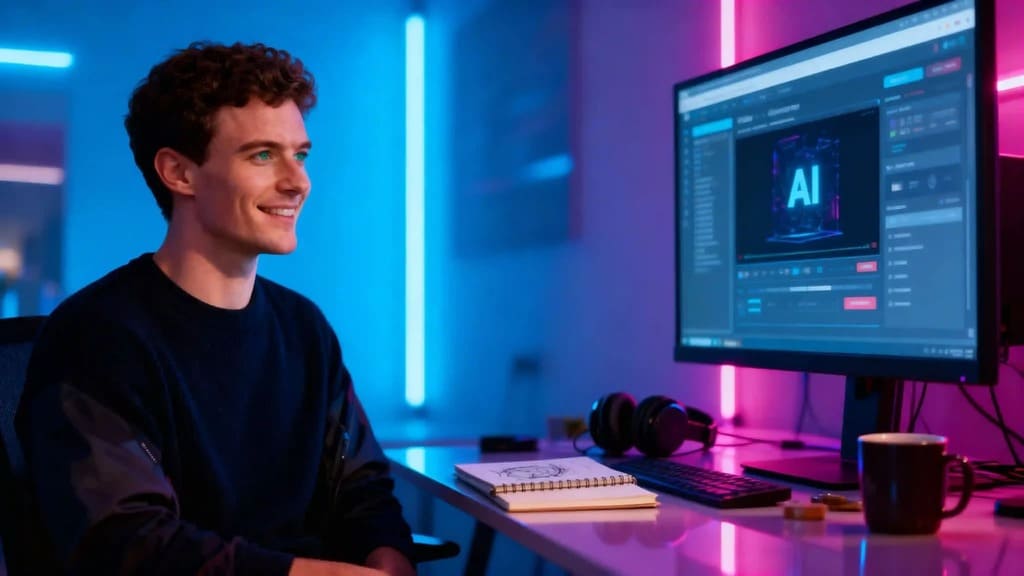
What Is Sora2?
Sora2 is a next-generation AI model by OpenAI for creating short video clips with synchronized audio. It can turn text prompts into realistic motion, or animate images. It also supports Cameos, meaning you can upload a short video or voice sample and insert that person into new videos (with consent).
APOB also offers similar capabilities: you can use text-to-video tools and its Revideo feature to replace characters in existing videos using new images while keeping backgrounds unchanged.
How to Use Sora2 (Step by Step)
Here’s how to use Sora2, with some comparison to APOB to help you see the full picture.
Install & Sign In
Access Sora2 via the iOS Sora app or web using your OpenAI/ChatGPT account.
There may be a waitlist or invite requirement, depending on region.
Create a Video or Animate an Image
Tap “+” or “Create” to start a new project.
You can enter a prompt describing the scene (subject, motion, camera angle, sound) or upload an image to animate.
Sora2 automatically generates matching video + audio.
APOB Note: You can also use its text-to-video tools. With APOB, upload prompt or image, then animate. Good for making 30-second videos, too.
Refine & Remix
If initial results are imperfect, use “Remix” or revise your prompt. Short, clear descriptions work best.
Limit complexity: multiple characters, fast motions can reduce fidelity.
Use Cameos / Revideo (Person Replacement)
In Sora2, Cameo lets you insert “yourself” or someone else: upload a short video + voice sample.
With APOB Revideo, you can take an existing video (e.g. 30 seconds), upload a reference image, and your AI generated person will replace the actor in the video. Background stays the same.
Save, Share or Export
Once happy, save video to your device or share on platform.
Be aware of watermarks or metadata about provenance.
APOB’s Similar Features
Since many want to use How to use Sora2 but also want tools now, APOB offers strong alternatives:
Text to Video: You can type a prompt (2000 characters or so) and get a video generated.
Revideo: Upload a video and a reference image; your AI person replaces the person in that video, background remains intact.
Image Animation + Talking Avatar + Lip-sync features with multiple languages and voices.
These functions make APOB compete closely with Sora2, especially for creators who want rapid, flexible video production.
Sample Prompts to Try
Here are prompts you can use in Sora2 or APOB to test out features. They show how to get good detail and style.
“Peaceful Beach Morning” – Gentle waves, sunrise, soft light, a person walking with flowing dress, natural audio ambience.
“Futuristic City Chase” – Neon lights, wet asphalt, reflections, motion blur, fast camera pans, background score.
“Old Man Reading by Window” – Warm café light, older person sitting, newspaper, sunlight through glass, gentle ambiance.
“Anime Girl in Sakura Park” – Blossoms, petals falling, school uniform, pastel tones, peaceful mood.
“Mountain Adventure Drone Shot” – Snowy peaks, hikers, aerial view, wind sound, dramatic vistas.
You can convert prompts into videos using either Sora2 or APOB. For a Revideo scenario in APOB: upload your video, your reference image, and replace person. Good for scenes like dialogue or motion.
Conclusion
If you’re wondering How to use Sora2, this guide helps you understand both Sora2 and APOB’s tools. Whether you like text-to-video, animated images, voice sync, or swapping people in videos via Revideo, these platforms empower creatives. Try a sample prompt today, start small, and watch your ideas come alive.
FAQs
Q1: Can I use APOB if I don’t have access to Sora2?
A1: Yes. APOB offers text-to-video, Revideo, and talking avatars so you can mimic much of what Sora2 does.
Q2: Is there a cost to generate videos?
A2: APOB has free daily credits to try video generation. Some modes (higher resolution or ultra quality) may cost more.
Q3: What video length and quality are possible?
A3: APOB supports videos up to around 30 seconds depending on mode. Use Ultra or High modes for better quality but more credits. In the future, APOB will also support video generation of up to 5 minutes, giving creators even more flexibility.
Q4: Can I replace a person in my video with someone else’s image?
A4: Yes. With Revideo in APOB, upload the original video and a reference image; the person in the image replaces the one in video, background stays same.

Be the first to like this.

Create AI Videos Without a Sora 2 Invite Code: APOB AI Full Access
The AI video revolution is rapidly transforming content creation, offering unprecedented possibilities for digital artists, marketers, and businesses. Recently, Sora 2 launched its new video generation app, showcasing impressive capabilities. However, its reach is currently extremely limited: access is invite-only, region-restricted (primarily U.S. & Canada), and premium features like longer clips and higher resolution are locked behind a subscription. This leaves many creators frustrated, unable to access cutting-edge AI video technology because they lack a Sora 2 invite code or reside outside the approved regions. If you are tired of waiting for access and want to start creating high-quality AI videos now, there's a powerful and accessible alternative: APOB AI. APOB AI is a full-featured AI video creation platform that removes all these barriers, offering immediate access without invite codes, geographic restrictions, or hidden fees.
In this comprehensive guide, we will explore the functionalities of Sora 2, demonstrate how APOB AI provides the same — and often more — advanced features, and show you exactly how to get started right away to unlock your creative potential.
What is Sora 2?
Sora 2, developed by OpenAI, is described as a next-generation video-and-audio AI model designed to generate realistic and imaginative scenes from text instructions. It boasts physically accurate visuals, realistic motion, synchronized sound effects, and high-quality output, capable of producing videos up to 60 seconds long with multiple characters, specific types of motion, and accurate details of the subject and background [1]. It powers an app where users can create short AI videos based on their prompts. However, as noted by industry experts and users, access is currently limited by region and an invite-only status [2]. For many content creators, the barrier of waiting for a Sora 2 invite code or being outside the eligible region means real-world usage is frustratingly slow, hindering innovation and creative output.
How to Use APOB AI: Your Alternative to Sora 2
Despite the current limitations of Sora 2, APOB AI offers essentially the same core features, often with greater flexibility and accessibility, by removing the gate-keeping barriers. Here’s a step-by-step guide on how to leverage APOB AI for your video creation needs:
Step 1: Create Your AI Model
To begin your AI video journey, first log into the APOB AI website. Once logged in, navigate to the Create Portrait Model section. Here, you have two primary options: you can upload an existing photo to create an AI model based on a real person, or you can utilize the AI Influencer Generator to design a unique, full-featured AI persona from scratch. This flexibility allows you to create diverse characters for your videos, from realistic avatars to stylized digital influencers.
Step 2: Produce Your Video
With your AI model ready, proceed to the Video tab. This is where the magic happens.
Choose Text to Video: Select the "Text to Video" option. In the provided text box, you can enter a detailed prompt describing the pose, movement, scene, or any other component you’d like to see in your video. The more descriptive your prompt, the more accurate the AI generation will be.
(Optional) Select a Preset Template: For faster results or to guide the AI in a specific aesthetic direction, you can select a preset template from categories such as Art style, Clothing, Architecture, Landscape, or Weather. These templates provide a strong starting point for your creative vision.
Choose Video Size: APOB AI offers various aspect ratios to suit different platforms and purposes. You can choose from 9:16 (ideal for vertical platforms like TikTok or Instagram Stories), 16:9 (standard for YouTube and widescreen displays), 3:4, 4:3, or 1:1 (square, suitable for many social media feeds).
Select Generation Mode: APOB AI provides different generation modes to balance speed and quality: Fast, Best, or Ultra. You can generate videos of varying lengths: 3-second, 5-second, or 10-second clips. The choice depends on your project's requirements and available credits.
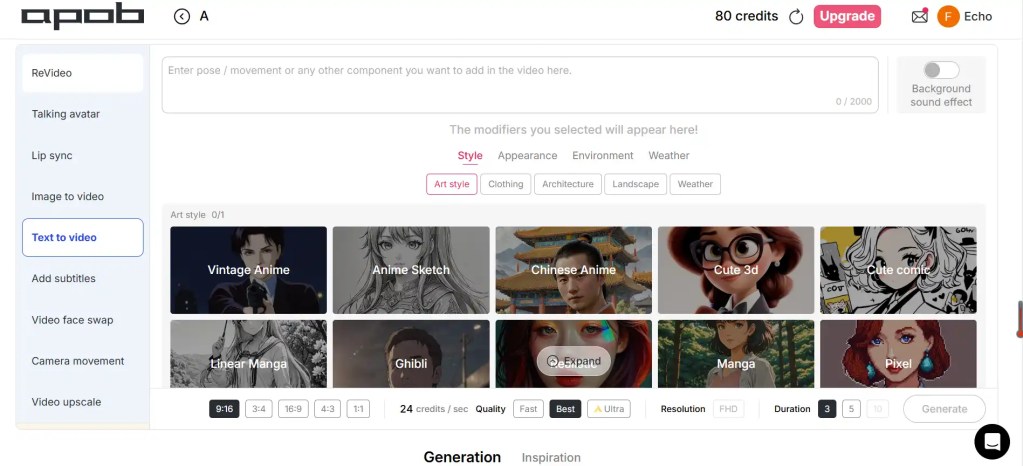
Tip: You don’t need a Sora 2 invite code to start creating. APOB AI generously provides 80 free daily credits. Using the “Best” mode, 80 credits are typically sufficient for generating a ~3-second video. You can accumulate credits for longer or higher-quality video packages. If your goal is to create cinematic-quality videos, we highly recommend exploring the Ultra-S mode within the Image to Video feature for superior results.
Best Practices for Optimal Results with APOB AI
To maximize the potential of APOB AI and create truly outstanding videos, consider these best practices:
Craft Detailed Prompts: Be as specific as possible in your text prompts. Describe characters, actions, settings, lighting, and mood. For example, instead of "a person walking," try "a young woman with red hair, wearing a blue trench coat, walking briskly through a rainy Parisian street at dusk, with soft streetlights reflecting on the wet pavement."
Experiment with Templates: Don't hesitate to try different art styles, clothing, or landscape templates. They can significantly alter the output and inspire new creative directions.
Utilize High-Quality Source Images: If using the Image-to-Video feature, ensure your source images are of high resolution and clear. The quality of your input directly impacts the quality of the AI-generated video.
Understand Generation Modes: Choose your generation mode wisely. "Fast" is great for quick drafts and testing ideas, while "Best" and "Ultra" are ideal for final outputs where quality is paramount.
Leverage Camera Movements: When using Image-to-Video, experiment with different camera movements like Zoom Out, Zoom In, Around Char, and Follow Char to add dynamic flair to your scenes.
Add Sound Effects: Don't underestimate the impact of sound. Enable background sound effects where appropriate to enhance the immersive quality of your videos.
Review and Iterate: AI generation is an iterative process. Generate a video, review it, and then refine your prompts or settings based on the results. Small adjustments can lead to significant improvements.
Explore More Possibilities with APOB AI
APOB AI extends far beyond simple text-to-video generation, offering a comprehensive suite of tools for diverse creative needs:
Image-to-Video: This powerful feature allows you to upload an existing image (or generate one via APOB’s Image tab), then add a prompt to define its motion. You can select various camera movements (Zoom Out, Zoom In, Around Char, Follow Char) to add dynamism. Optionally, enable background sound effects to enhance the atmosphere before hitting generate. After the video is produced, you can further enhance it by adding a talking avatar and lip-sync, choosing from selectable AI voices with options for gender, age, and language.
ReVideo Feature: This innovative tool allows for advanced character replacement. Upload a reference photo and a target video (e.g., under 30 seconds or up to 5 minutes long). The ReVideo feature will then replace the subject of the target video with the subject from your reference photo, all while maintaining the original background, lighting, and camera movements of the video. This is perfect for creating personalized content or swapping characters in existing footage seamlessly.
AI Influencer Generator: Beyond just creating models from photos, APOB AI's Influencer Generator allows you to design unique AI personas with customizable features, expressions, and styles, ready to star in your videos.
Face Swap: Easily swap faces between images or videos, offering fun and creative possibilities for content creation.
Why Choose APOB AI Over Waiting for Sora 2?
The choice is clear for creators who value immediate access, comprehensive features, and creative freedom. APOB AI offers a compelling alternative to the restrictive nature of Sora 2:
No Sora 2 Invite Code Required: APOB AI removes the primary barrier to entry entirely. You can start creating immediately, without waiting for an exclusive invitation.
Global Accessibility: While Sora 2 is often region-restricted, APOB AI works globally, ensuring creators worldwide can access its powerful tools.
Immediate Speed to Creation: Instead of waiting for approval or an invite, you can start making high-quality AI videos the moment you sign up.
Full Toolset and More: APOB AI covers everything Sora 2 offers—text to video, image to video, talking avatars, and face swap—and often provides additional advanced functionalities and customization options.
Cost-Effective and Accessible: With generous daily free credits, APOB AI allows you to experiment and create without any upfront payment, making advanced AI video generation accessible to everyone.
In short, APOB AI delivers everything you would desire from a cutting-edge AI video creation tool like Sora 2, but it is available to you now, without any waiting periods, regional restrictions, or hidden complexities. It empowers you to transform your creative ideas into stunning visual content instantly.
Technical Specifications of APOB AI
APOB AI is engineered to provide a robust and versatile platform for AI video generation:
Supported Formats: The platform supports a wide array of input formats for images (JPG, PNG, WEBP) and videos (MP4, MOV). Output videos are typically rendered in high-quality MP4 format.
File Size & Resolution: APOB AI handles various file sizes, with optimizations for efficient processing. It supports output resolutions suitable for both social media (e.g., 1080p) and professional applications.
Processing Speed: Leveraging advanced cloud infrastructure and optimized AI models, APOB AI offers competitive processing speeds, especially with its "Fast" generation mode, ensuring quick turnaround for your creative projects.
Output Quality: The platform is designed to produce high-fidelity videos with realistic textures, smooth motion, and accurate visual details, especially when utilizing the "Best" and "Ultra" generation modes.
Data Privacy Policy: APOB AI adheres to strict data privacy protocols, ensuring that user-uploaded content and generated media are handled securely and confidentially. User data is protected and not used for training models without explicit consent, aligning with global privacy standards [3].
API Integration: For developers and businesses, APOB AI offers API access, allowing for seamless integration of its powerful AI video generation capabilities into existing applications and workflows.
Key Advantages of Using APOB AI
APOB AI stands out as a superior choice for AI video creation due to several distinct advantages:
Unrestricted Access: No invite codes, no waitlists, no regional blocks. Immediate access for everyone, everywhere.
User-Friendly Interface: Designed for creators of all skill levels, from beginners to seasoned professionals, with intuitive controls and clear workflows.
Comprehensive Feature Set: From text-to-video and image-to-video to talking avatars, face swap, and ReVideo, APOB AI offers a complete suite of tools.
Cost-Effective Creation: Generous daily free credits allow for extensive experimentation and creation without financial commitment.
High-Quality Output: Advanced AI models ensure that the generated videos are visually stunning and professional-grade.
Continuous Innovation: APOB AI is constantly updated with new features and improvements, ensuring users always have access to the latest AI video technology.
Commercial Use Ready: All videos created on APOB AI are cleared for commercial use, enabling creators to monetize their content without restrictions.
User Testimonials
"APOB AI has been a game-changer for my marketing campaigns. I can create professional-looking AI videos in minutes, and the daily free credits are a huge plus!" - Sarah L., Digital Marketer
"As a content creator, I needed a tool that was powerful and accessible. APOB AI delivered on both fronts. The image-to-video feature is incredibly versatile." - Mark T., YouTube Creator
"I was frustrated with waiting for a Sora 2 invite. APOB AI provided an immediate solution with even more features than I expected. Highly recommended!" - Jessica P., AI Artist
Frequently Asked Questions
FAQ
Q1: How to get invite code Sora 2?
Unfortunately, obtaining a Sora 2 invite code often requires being located in the U.S. or Canada and applying for a limited, invite-only launch. Many creators report waiting weeks or even months for access, and some resort to paying for unofficial access, which is not recommended. Because this process is uncertain and region-locked, we strongly recommend starting your AI video creation journey right away with APOB AI, which requires no invite code and is available globally to all users.
Q2: What is a Sora 2 invite code?
A Sora 2 invite code is the exclusive access token or invitation required to join the Sora 2 application. This code grants users the ability to generate videos using OpenAI’s advanced AI model. Without a valid invite code, access to the platform is severely restricted or entirely unavailable, making it a significant barrier for many aspiring AI video creators.
Q3: What inputs does APOB AI's generator support?
APOB AI's versatile generator supports a wide range of inputs to facilitate diverse creative outputs. These include detailed text prompts for text-to-video generation, image uploads for image-to-video conversions, the selection of preset templates for specific artistic styles, various camera movement options to add dynamism, the integration of AI voice avatars for narration, and advanced character-replacement features like ReVideo and face swap. This comprehensive input flexibility ensures that creators have extensive control over their video production.
Q4: Can I use AI videos created on APOB AI for commercial purposes?
Absolutely! APOB AI is designed with commercial use in mind. You can freely use and share all AI videos generated on the platform for commercial purposes without any additional fees or restrictions. This includes posting them on popular social media platforms like TikTok, Instagram, and YouTube, incorporating them into advertising campaigns, utilizing them for marketing initiatives, and integrating them into brand promotions to enhance your digital presence and engagement.
Q5: How does APOB AI ensure the privacy of my uploaded content?
APOB AI prioritizes user privacy and data security. The platform employs robust encryption protocols for all uploaded content and adheres to strict data handling policies. Your uploaded images and videos are processed securely and are not used for training AI models or shared with third parties without your explicit consent. We are committed to maintaining the confidentiality and integrity of your creative assets.
Q6: What are the main differences between APOB AI's free and premium features?
APOB AI offers a generous free tier with 80 daily credits, allowing users to explore core features like text-to-video and image-to-video generation for shorter clips. Premium features, often accessible through accumulating credits or subscription plans, typically include longer video generation times, higher resolution outputs, access to advanced AI models (e.g., Ultra-S mode), priority processing, and an expanded library of templates and voice options. The free credits provide an excellent starting point to experience the platform's capabilities before considering premium upgrades for more intensive projects.
References
[1] OpenAI. (2024). Sora: Creating video from text. Retrieved from https://openai.com/sora
[2] Vincent, J. (2024, February 15). OpenAI's Sora AI video model is here, and it's incredible. The Verge. Retrieved from https://www.theverge.com/2024/2/15/24074987/openai-sora-ai-video-model-text-to-video
[3] APOB AI. (n.d.). Privacy Policy. Retrieved from [Insert actual APOB AI Privacy Policy URL here, if available]
Read More
Sora Prompts: How to Write Perfect Text for AI Video Creation
The rise of AI-video tools has accelerated, and one of the most talked-about platforms is Sora 2. Sora 2 promises cinematic-quality video generation from text and image inputs. But before you dive in, many creators find themselves stuck simply because they don’t have a sora 2 invite code or are located outside supported regions. If that sounds like you, don’t worry—you still have options. One excellent alternative is APOB AI, which offers very similar capabilities but without the invite-only barrier. This guide will walk you through how to write effective Sora prompts, and how to use APOB AI instead to create impressive AI videos right away.
What is Sora 2 AI?
Sora 2 is the latest version of OpenAI’s text-to-video model, designed to convert user instructions, images, or short videos into new cinematic scenes with realistic motion, synchronized audio and enhanced control. However, it’s important to understand the limitations:
Free users of Sora 2 are often restricted to short clips (e.g., 15 seconds) and location-locked to the U.S. and Canada.
Access typically requires a sora 2 invite code, due to invite-only rollout.
Premium features, longer durations and higher quality outputs usually come with subscription pricing.
So while the technology is exciting, the barrier to entry can be real. That’s why exploring alternatives is smart.
APOB AI: A Full-Featured Alternative
If you’re looking to avoid the hassle of a sora 2 invite code and regional restrictions, APOB AI provides a compelling alternative. At its core, APOB allows you to input text or images and generate videos in a similar fashion. Key advantages of using APOB AI:
No invite code required. You can sign up globally.
Daily 80 free credits to start—enough for short video creation.
Flexible modes (Fast / Best / Ultra) and various output sizes (9:16, 16:9, 3:4, 4:3, 1:1).
Both text-to-video and image-to-video workflows supported.
How to Use APOB AI (and apply Sora-style prompts)
Step 1: Create Your AI Model
On in the APOB dashboard: click Create Portrait Model, upload a photo or select the AI Influencer Generator. This sets up your character for video generation.
Step 2: Generate Video via Text-to-Video
Switch to the Video tab and choose “Text to Video.”
Enter pose, movement, or any desired component.
For faster style selection, choose from presets: Art style, Clothing, Architecture, Landscape, Weather.
Select output ratio (9:16, 16:9, 3:4, 4:3, 1:1).
Choose generation mode (Fast / Best / Ultra) and length (3s, 5s, 10s).
Step 3: Image-to-Video (for better results)
Under the Image to video you can upload a still image or use templates. Add motion descriptions, camera movements (Zoom In/Out, Around Char, Follow Char) and optional background sound. For highest fidelity, use the Ultra S mode.
Tips: after video generation, enable talking avatars, lip-sync and voice models. Choose gender, age, language (13 languages supported) and add subtitles.
How to Write Perfect Sora Prompts
Writing an effective Sora prompt (or similar for APOB) is both art and strategy. Here are key tips:
Be specific: describe subject, action, setting, mood.
Include motion instructions: e.g., “character leaps into frame then spins 360°”.
Mention style and camera details: e.g., “cinematic camera dolly, soft backlight, 35mm lens feel”.
Combine image and prompt when possible: e.g., upload a portrait and write “portrait morphs into dance sequence with fluid motion”.
Keep it concise: avoid overly long prompts—AI models handle clear, focused instructions best.
By applying these rules, you’ll be writing prompts that deliver visually rich results—whether you're using Sora 2 (with an invite) or APOB AI (no code needed).
FAQs
Q1: Is Sora free to use?
Free access to Sora 2 exists, but it’s limited: you’ll likely need a sora 2 invite code, clips are short (typically up to 15 seconds), and usage is region-restricted. Paid tiers allow longer videos.
Q2: Can I really skip the sora 2 invite code?
Yes! By choosing APOB AI instead, you avoid the sora 2 invite code roadblock entirely—global access, daily free credits and full features.
Q3: What inputs does Sora or APOB support?
Both support text-to-video, image-to-video, and character/voice substitution workflows. You can upload images, enter text prompts, choose camera movement and voice.
Q4: What video sizes and modes are supported?
On APOB: 9:16, 16:9, 3:4, 4:3, 1:1 aspect ratios; modes include Fast, Best, Ultra, Ultra S. Sora 2 supports similar ratios and lengths but may be limited by plan and region.
Read More
No credit card needed


