Try MiniMax H3-style text-to-video and image-to-video creation with APOB AI. Upload a first-frame image, describe motion, camera, and sound, then generate creator-ready clips without installing local model weights. Free credits, model access, and usage limits may vary.
MiniMax H3 is an open-weight omni-modal AI video generation model designed to work with text, images, video, and audio context. Its documented workflows include text-to-video, first-frame and first-and-last-frame image-to-video, reference-to-video, and native stereo audio generation.
For creators, the practical value is control: you can anchor identity and composition with references, describe actions in time order, direct the camera, and plan dialogue, ambience, or sound effects in the same production brief. APOB AI provides a browser-based alternative for exploring this style of workflow without configuring large local model files.


MiniMax H3 can turn a still portrait, product image, or storyboard frame into a moving shot with coordinated subject action, camera motion, background behavior, lighting, and audio direction. This makes it useful for AI influencer clips, product reveals, social ads, cinematic previsualization, and short narrative scenes.
Start with a clean reference, describe actions in chronological order, and state which facial, clothing, product, and scene details must remain consistent. Actual model availability, duration, resolution, audio controls, and free credits in APOB AI can vary by account and current rollout.
Use a MiniMax H3 alternative when you want a faster browser-based workflow without downloading open weights, configuring ComfyUI nodes, or provisioning a capable local GPU. A hosted tool is often a better fit for quick concept tests, image-to-video experiments, creator content, product ads, and team review.
An alternative also makes sense when your priority is simpler controls, reusable AI personas, connected image and video tools, or an existing credit workflow. APOB AI is independent from MiniMax; free access, model availability, queue limits, duration, resolution, and commercial use depend on the current product configuration and terms.

Step 1: Upload a clear reference image
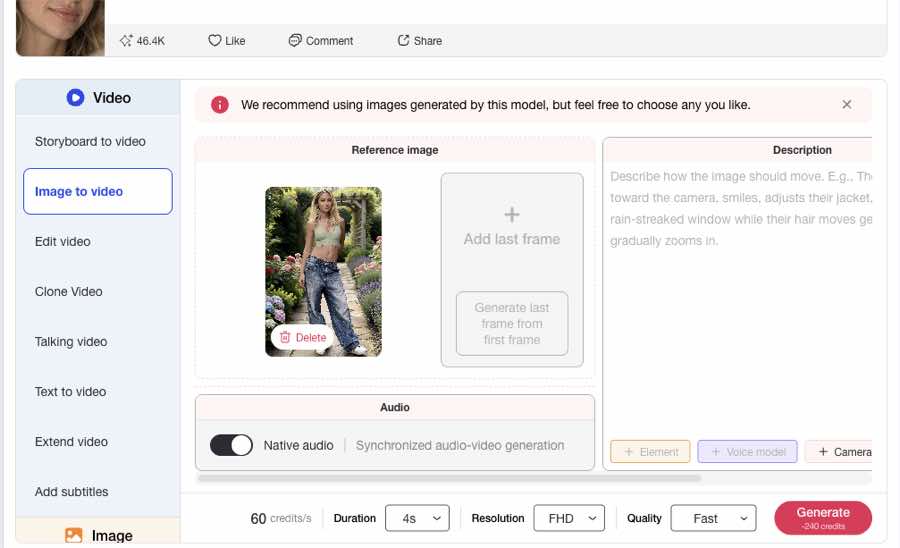
Open Video, choose Image to video, and upload a well-lit first-frame image. A clear full-body subject and an uncluttered background make it easier to preserve the face, outfit, proportions, and scene layout. Add a last frame only when you need a specific ending composition.

Step 2: Describe the action, camera, and scene motion
Write the movement in time order and keep the camera instruction explicit. Mention subject motion, secondary motion, background behavior, lighting, and what must remain consistent.
Prompt example: The woman naturally walks forward toward the camera along a garden stone path, taking smooth and confident steps. Her arms swing gently and naturally, her body moves with realistic motion, and her loose jeans sway subtly with each step. Her hair moves softly in the light breeze. She maintains a relaxed expression and looks toward the camera. The camera smoothly tracks backward at the same speed, keeping her full body in frame. Flowers and leaves gently sway, with subtle background parallax. Warm natural sunlight, cinematic realism, stable composition, realistic anatomy, smooth motion, preserve face, outfit, body proportions, and garden environment.
Step 3: Generate, compare, and refine
Choose the available duration, resolution, and quality settings, then generate the clip. Review face consistency, hand and foot motion, clothing physics, camera tracking, and background stability. If the result drifts, shorten the action, make the camera move more specific, and repeat the identity-preservation instruction.

Multimodal video prompting
MiniMax H3 is documented as a general-purpose omni-modal model that can combine text, images, video, and audio context. APOB AI gives creators a practical online workflow for turning prompts and reference images into short-form video concepts without downloading large local weights.
Text-to-video and image-to-video workflows
Start from a written scene or anchor motion to a first-frame image. Detailed subject, camera, lighting, and continuity instructions help reduce ambiguity and make iterations easier to compare.
Audio-aware creative direction
The H3 model documentation describes native stereo audio generation. When an APOB workflow exposes audio options, creators can plan dialogue, ambience, and sound effects in the same prompt; available controls depend on the selected tool and account.
No local ComfyUI setup required
Open-weight H3 workflows are available for local experimentation, but local installation can require large downloads and capable hardware. APOB AI provides a browser-based alternative for creators who prefer a hosted generation flow.
1. Animate creator portraits and AI influencer scenes
Turn a portrait or full-body reference into a walk cycle, product introduction, fashion clip, or creator-style social post. The official H3 prompt guide recommends treating the first frame as a visual anchor and describing motion over time, which is useful when face, clothing, color, and spatial consistency matter. MiniMax H3 Video Prompt Writing Guide
2. Prototype product ads with camera and sound direction
Describe a product reveal, close-up, camera orbit, material response, ambience, and sound effects in one structured brief. MiniMax introduced H3 as an omni-modal video model, while the official ComfyUI workflow documentation highlights text-to-video, image-to-video, reference-to-video, and native stereo audio support. ComfyUI MiniMax H3 workflows
3. Build reference-driven storyboards and previsualization
Use character, style, motion, camera, video, or audio references to explore a scene before committing to a full production. The documented reference-to-video workflow can assign different roles to each reference, helping teams test continuity, shot direction, and sound design earlier. MiniMax H3 announcement
Open-weight model ecosystem
MiniMax H3 weights and reference workflows are publicly available under the MiniMax H3 Community License, giving technical teams more room to inspect and customize local pipelines.
Flexible generation modes
The documented workflows cover text-to-video, first-frame and first-last-frame image-to-video, and reference-to-video generation.
Native stereo audio support
H3 can plan video and audio together, which is useful for dialogue, ambience, sound effects, and music-aware scene direction.
“Unlimited free” is not an unconditional promise
Free credits, model availability, queue limits, resolution, duration, and commercial access can change by plan, region, and product configuration. Check the current APOB AI interface before starting a large batch.
Hosted and local capabilities may differ
H3 model documentation may describe modes or limits that are not exposed in every hosted interface. APOB AI is an independent creator platform, not the official MiniMax website.
Complex references need careful prompting
Multiple characters, camera changes, audio cues, and reference roles can conflict. Keep instructions structured, assign each reference a clear purpose, and review outputs for identity, anatomy, text, and brand accuracy.
No Credit Card Required
Answers about free access, image-to-video, native audio, references, prompts, resolution, licensing, and commercial use.
What is MiniMax H3?
MiniMax H3 is an open-weight omni-modal video generation model designed to work with text, images, video, and audio context. Its documented workflows include text-to-video, image-to-video, and reference-to-video generation with native stereo audio.
Can I try MiniMax H3 free on APOB AI?
You can use the APOB AI video workflow to test MiniMax H3-style text-to-video and image-to-video creation. Free credits and available models can vary by account, region, plan, and current product configuration.
Is MiniMax H3 unlimited free?
No provider should be assumed to offer unlimited generation without conditions. On APOB AI, generation can depend on credits, duration, resolution, quality mode, queue availability, and plan limits. Check the current interface for the latest allowance.
Is APOB AI the official MiniMax H3 platform?
No. APOB AI is an independent AI creation platform and should not be described as the official MiniMax website, official H3 API, or official MiniMax model provider.
Does MiniMax H3 support text-to-video?
Yes. The documented H3 text-to-video workflow creates video from a written description of the subject, action, environment, camera, lighting, and sound.
Does MiniMax H3 support image-to-video?
Yes. H3 documentation includes image-to-video workflows that use a first frame, and it also describes a first-and-last-frame workflow for more specific start and end compositions.
Can I use both a first frame and a last frame?
The H3 model documentation includes a first-last-frame image-to-video workflow. Whether both fields appear in APOB AI depends on the selected model and current interface.
What is MiniMax H3 reference-to-video?
Reference-to-video uses supporting images, videos, or audio to guide identity, style, motion, camera behavior, voice, or sound. Each reference should have a clearly described role.
Does MiniMax H3 generate native audio?
The official workflow documentation describes native stereo audio generation. Audio controls in APOB AI may vary by the selected tool, model, and account availability.
What resolution, frame rate, and duration does MiniMax H3 support?
Published H3 workflow documentation describes output up to roughly 2K, 24 fps, and about 15 seconds in supported setups. Actual APOB AI options may differ by mode, plan, and current product rollout.
How should I write a MiniMax H3 prompt?
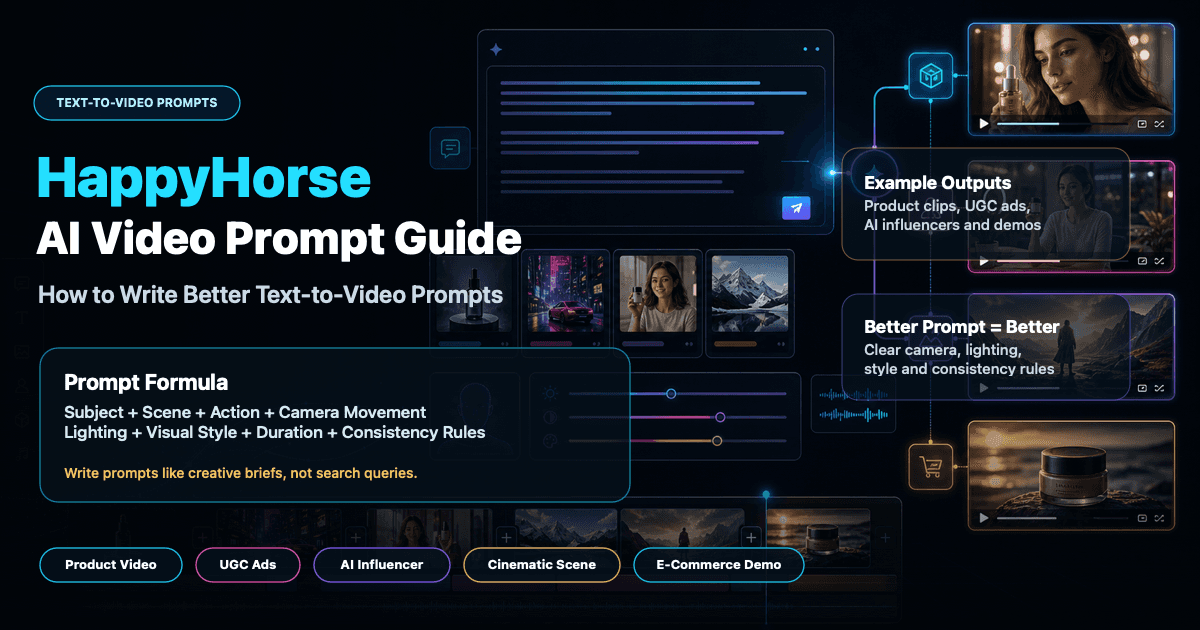
Describe the subject and scene first, then actions in time order, camera movement, lighting, style, sound, and the details that must stay consistent. Keep each instruction concrete and avoid contradictory motion.
How do I preserve a character’s face and outfit?
Use a clear reference image and explicitly ask the model to preserve facial identity, hairstyle, clothing, colors, body proportions, and scene layout. Keep the action and camera move simple during the first test.
How many references can MiniMax H3 use?
The documented reference-to-video workflow describes support for up to nine images, three videos, and three audio references. A hosted interface may expose fewer inputs, so check the available controls in APOB AI.
Is MiniMax H3 open source?
MiniMax describes H3 as an open-weight model. Usage is governed by the MiniMax H3 Community License rather than an assumption that every use is unrestricted.
Can I use MiniMax H3 videos commercially?
Review the current MiniMax H3 Community License, the APOB AI terms, and any rights attached to your references before commercial use. Avoid copyrighted characters, unauthorized logos, deceptive impersonation, and unlicensed media.
Do I need ComfyUI or a powerful GPU?
Local H3 workflows can require large model downloads and capable hardware. APOB AI offers a browser-based alternative, so creators can use a hosted workflow without configuring a local ComfyUI pipeline.
Why does my image-to-video result look unstable?
Instability can come from a low-quality reference, too many simultaneous actions, a conflicting camera instruction, hidden limbs, or an overly busy background. Simplify the motion and state what must remain unchanged.
Should I use a negative prompt?
Start with clear positive instructions and explicit preservation constraints. If the selected APOB model exposes a negative prompt field, use it for specific unwanted artifacts rather than a long generic list.
Which aspect ratio should I choose?
Use 9:16 for TikTok, Reels, and Shorts; 16:9 for landscape ads, YouTube, and website media; and 1:1 for square social placements. Match the reference image to the intended output whenever possible.
How long does MiniMax H3 generation take?
Generation time depends on queue load, duration, resolution, quality mode, reference count, and the selected workflow. Test a short clip first before generating multiple high-quality variants.


