평범한 영상을 시각적인 서명으로 바꿔보세요. 클립을 업로드하고, 30+ 스타일 사전 설정 편집에서 선택하거나, 원하는 비디오 스타일을 설명한 다음, 확대하고 전환을 추가하여 더욱 세련된 마무리를 만드세요.
프리셋을 고르거나 원하는 스타일을 직접 설명하세요
1 단계: 로그인하여 일일 크레딧을 받으세요.
매일 무료 크레딧 80개을(를) 받으려면 APOB에 로그인하세요. 최종 모습을 확정하기 전에 다양한 비디오 필터, 스타일 프롬프트 및 출력 설정을 테스트하는 데 사용하세요.
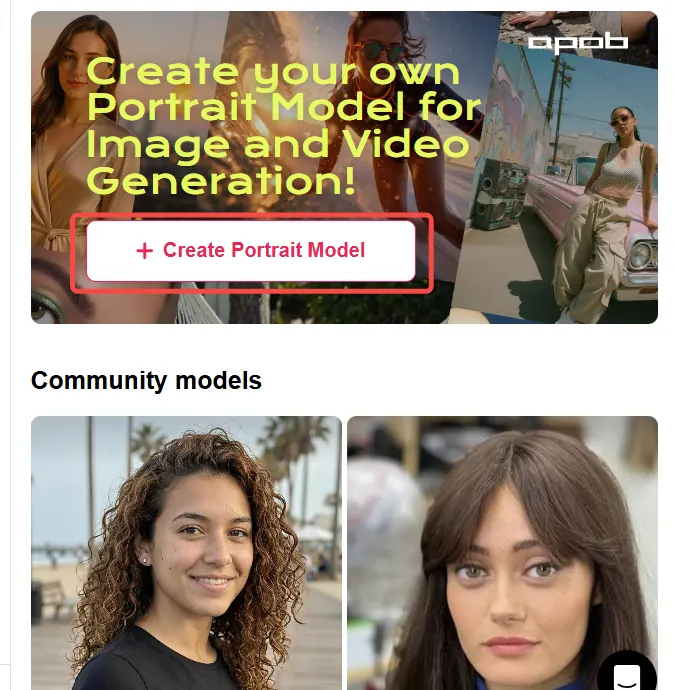
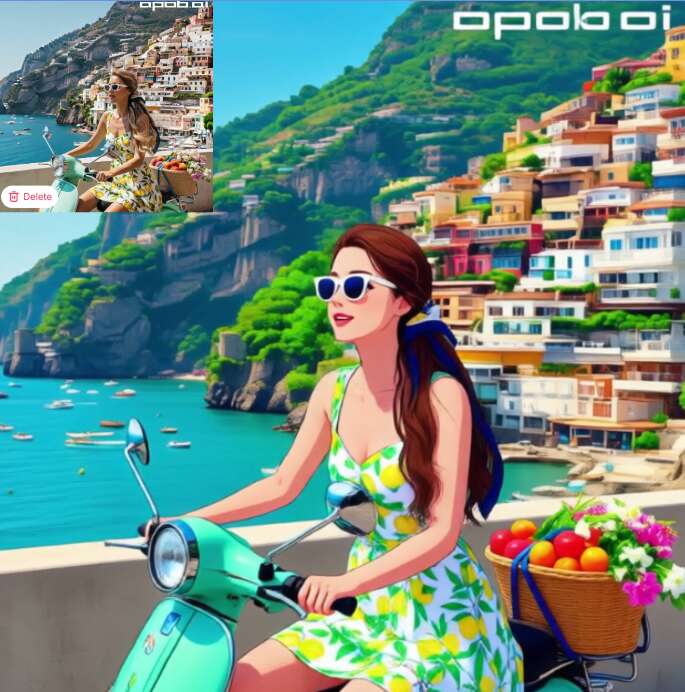
2 단계: AI 모델을 생성하고 작업공간에 들어갑니다.
AI 이미지 및 AI 동영상을 생성하기 위한 APOB의 기본 작업공간에 들어갈 AI 모델을 만듭니다. 이를 통해 클립을 편집하기 전에 일관된 시각적 방향을 구축할 수 있는 한 곳을 제공합니다.
3 단계: 비디오 편집을 열고 스타일 편집을 선택합니다.
페이지 왼쪽에서 비디오 편집을 찾으세요. 캐릭터나 배경을 변경하는 도구와 함께 스타일 편집을 선택하여 비디오 필터를 적용하세요. 동영상을 업로드한 후 Steampunk, 대리석 조각, 일본 애니메이션, 연필 스케치, 픽셀 아트, 수채화 그림, 만화책, 3D 치비, LEGO, Van Gogh 등을 포함한 30 이상의 사전 설정을 찾아보세요.
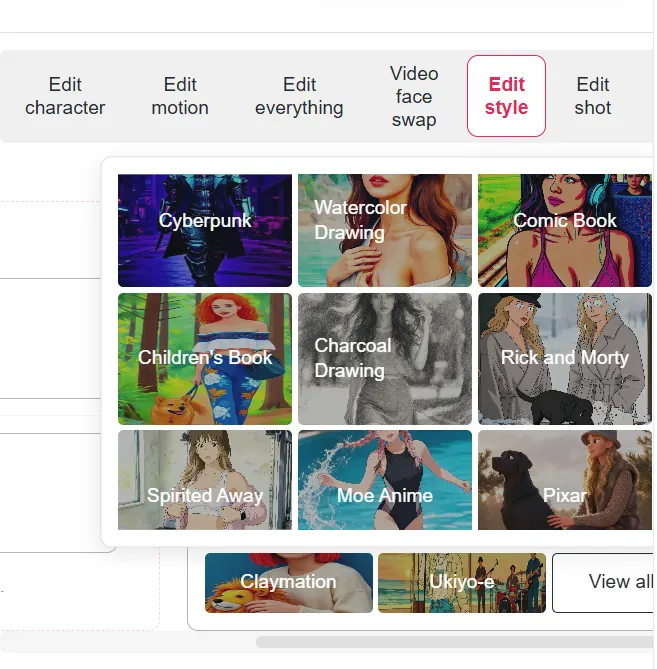

4 단계: 원하는 맞춤 동영상 스타일 설명
특정 룩을 선호하시나요? “원하는 비디오 스타일 설명”을 선택하고 프롬프트를 입력하세요. 영화 수준, 부드러운 수채화 마감, 복고풍 VHS 분위기, 그래픽 소설 처리 또는 영상에 어울리는 기타 방향을 요청할 수 있습니다.
5 단계: 확장, 전환 추가 및 내보내기
비디오 해상도를 크게 향상하려면 업스케일을 사용하십시오. 그런 다음 시각적 효과를 높이기 위해 전환을 추가합니다. APOB의 전환 라이브러리에서 탄력, 페이딩, 확대/축소, 흐림, 글리치, 방사형, 픽셀화 및 기타 옵션을 살펴보세요. 무료로 각 전환을 조정하고, 시퀀스를 미리 보고, 편집 내용이 적절하다고 판단되면 내보냅니다.
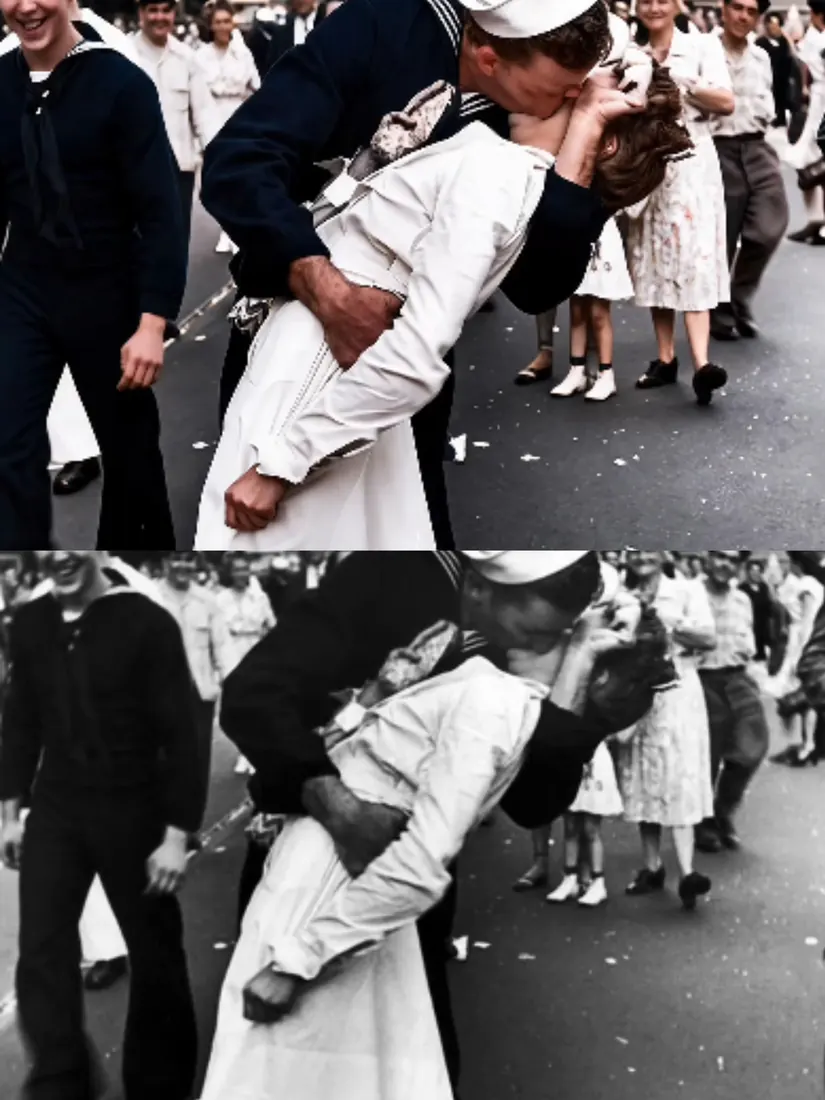
30+ 즉시 사용 가능한 스타일 사전 설정
영화, 애니메이션, 스케치, 조각, 픽셀, 만화, LEGO 및 회화적 룩을 다루는 대규모 편집 스타일 라이브러리로 빠르게 시작하세요. 사전 설정을 선택하고 처음부터 효과를 만들지 않고도 새로운 방향을 미리 볼 수 있습니다.
사용자 정의 프롬프트로 비디오에 필터 추가
사전 설정된 필터는 시작점일 뿐입니다. 영상, 분위기, 캐릭터 또는 캠페인에 맞는 룩을 탐색하기 위해 원하는 비디오 스타일을 쉬운 언어로 설명하세요.
완성된 모습을 고급화하세요
소스 클립에 더 선명하고 해상도가 높은 마감이 필요한 경우 AI 비디오 필터를 업스케일과 페어링하세요. 이렇게 하면 더 큰 화면과 소셜 피드에서 최종 스타일을 더 명확하게 읽을 수 있습니다.
모든 클립을 더욱 의도적으로 느껴지도록 만드세요.
일관된 시각적 처리는 단절된 영상을 인식 가능한 시리즈로 바꾸는 데 도움이 될 수 있습니다. 제품 클립, 크리에이터 게시물, 짧은 형식의 캠페인 전반에 걸쳐 미리 설정된 제품군이나 프롬프트 방향을 재사용하세요.
더 많은 시각적 효과를 위해 전환을 추가하세요.
효과와 사전 설정 필터를 사용하여 지루한 영상에 생기를 불어넣으세요. 여기서 멈추지 마세요. APOB의 전환 라이브러리는 탄력, 페이딩, 확대/축소, 흐림, 글리칭, 방사형, 픽셀화 및 기타 전환을 통해 매력을 더하며 각 전환을 무료로 조정할 수 있습니다.
일일 무료 크레딧으로 아이디어 테스트
매일 로그인 후 무료 크레딧 80개을(를) 신청한 후 사전 설정과 프롬프트를 비교한 후 동영상에 가장 적합한 방향을 선택하세요.
짧은 형식의 소셜 콘텐츠
동일한 클립에 여러 가지 플랫폼 친화적인 아이덴티티를 부여하세요. 즉, 후크에 대한 펀치감 있는 만화 스타일, 여행 이야기에 대한 부드러운 수채화 스타일, 음악 편집에 대한 글리치 처리 등이 있습니다. 필터가 아이디어를 숨기는 대신 지원하도록 처음 몇 초 동안 시각적 변화를 명확하게 유지하세요.
제품 및 전자상거래 동영상
모든 컨셉을 다시 촬영하지 않고도 시즌 캠페인, 제품 출시, 카탈로그 변형을 위한 제품 영상의 스타일을 변경할 수 있습니다. 컬렉션에 대해 하나의 일관된 필터 제품군을 사용해 본 다음 전환을 사용하여 제품 세부 정보를 더 탄탄한 스토리로 연결하세요.
제작자 및 UGC 스타일 편집
가벼운 터치 AI 비디오 필터를 사용하여 제작자 클립을 더욱 독특하게 만드는 동시에 성능을 읽기 쉽게 유지합니다. "따뜻한 핸드헬드 필름 질감, 자연스러운 피부 톤, 미묘한 결"과 같은 프롬프트는 메시지를 압도하지 않으면서 개성을 더할 수 있습니다.
튜토리얼 및 설명자
다양한 시각적 스타일을 사용하여 장을 분리하고, 주요 단계를 강조하거나, 추상적인 수업을 더 쉽게 따라갈 수 있도록 만드세요. 필터가 이해를 지원할 수 있도록 동일한 핵심 인물이나 주제를 표시하세요.
음악, 분위기, 시각적 실험
실제 퍼포먼스나 여행 영상을 스타일화된 컨셉 테스트로 바꿔보세요. 전체 제작에 투자하기 전에 프롬프트 기반 필터를 흐림, 확대/축소, 결함, 방사형 또는 픽셀화 전환과 결합하여 시각적 정체성을 탐색하세요.
소규모 기업 캠페인 변형
제품 출시, 판촉 및 소셜 테스트를 위해 하나의 소스 클립에서 여러 가지 시각적 방향을 만듭니다. 원본 메시지와 CTA를 유지하면서 캠페인 주제를 분리하려면 필터를 사용하세요.
FranzyMa
APOB AI 영상 필터 활용으로 최종 편집 전에 첫 시안을 준비합니다. 결과물을 보며 시각적 방향을 빠르게 판단할 수 있습니다.

Javi Galué
APOB AI 영상 필터 사용 시 한 방향을 너무 일찍 확정하지 않고 여러 아이디어를 비교할 수 있습니다. 납품 전에는 세부 요소를 다시 확인합니다.

Thomasbssh
고객 미팅에서는 APOB AI 영상 필터로 만든 명확한 초안 덕분에 더 구체적인 피드백을 받을 수 있습니다.

eloijft
깨끗한 참고 자료와 구체적인 지시를 사용할 때 APOB AI 영상 필터에서 가장 일관된 결과를 얻었습니다.
malik.makhlouff
여러 방향을 탐색해야 할 때 APOB AI 영상 필터 사용 시 프로젝트를 처음부터 다시 만들지 않고도 빠르게 테스트할 수 있습니다.
Cankatko
APOB AI 영상 필터 활용 결과는 제작의 출발점으로 유용합니다. 이후 평소 편집 도구에서 속도, 색상, 문구와 작은 오류를 마무리합니다.
Hasan Toor
일정이 촉박한 짧은 콘텐츠 제작에서는 APOB AI 영상 필터 덕분에 검토용 초안을 훨씬 빠르게 준비할 수 있습니다.
Deep Genius AI
APOB AI 영상 필터의 조절 기능을 활용하면 평범한 결과에 머무르지 않고 원래 기획에 맞는 방향을 유지할 수 있습니다.
hurricane
APOB AI 영상 필터에서 팀 검토용 버전을 먼저 만든 뒤, 마지막 단계에서는 제작 품질을 다듬는 데 집중합니다.

AI Mentors
캠페인 작업에서는 APOB AI 영상 필터로 창작 방향을 먼저 시험한 후 최종 버전에 시간을 투자합니다.

PHRsharp
원본 자료가 선명할수록 APOB AI 영상 필터의 결과도 좋아져 수작업 수정이 크게 줄어듭니다.

TuTecnoMundo
APOB AI 영상 필터에서 지시의 일부만 바꾸고 이전 결과와 바로 비교할 수 있어 실험 과정을 관리하기 쉽습니다.
Gamaliel_tankeu
APOB AI 영상 필터 활용으로 추상적인 아이디어를 팀이 구체적으로 검토하고 논의할 수 있는 시각 자료로 바꿀 수 있습니다.

mahmoudnawras0 محمود نورس
납품 전 얼굴, 문구, 가장자리와 움직임을 다시 확인하지만, APOB AI 영상 필터 덕분에 초기 작업의 상당 부분을 줄일 수 있습니다.

YORD
APOB AI 영상 필터 활용 방식은 고객 작업 흐름에도 잘 맞습니다. 첫 시안을 만들고 대안을 비교한 뒤 가장 좋은 결과를 편집 도구에서 마무리합니다.

Gana Con Valor
기존 자료에 새로운 표현이 필요할 때 APOB AI 영상 필터 사용 시 처음부터 다시 만들지 않고도 분위기를 바꿀 수 있습니다.
Tulsi Soni
반복 제작이 필요한 콘텐츠에서는 APOB AI 영상 필터로 일괄 작업하면서도 시각적 방향을 일관되게 유지할 수 있습니다.
David_eficaz
APOB AI 영상 필터의 가장 큰 장점은 빠른 반복입니다. 아쉬운 방향은 일찍 제외하고 좋은 결과를 다듬는 데 시간을 더 쓸 수 있습니다.
프롬프트 기반 스타일은 고정 색상 사전 설정만 사용하는 것보다 더 많은 제어 기능을 제공합니다.
30+ 스타일 편집 사전 설정을 사용하면 뚜렷한 시각적 방향을 빠르게 테스트할 수 있습니다.
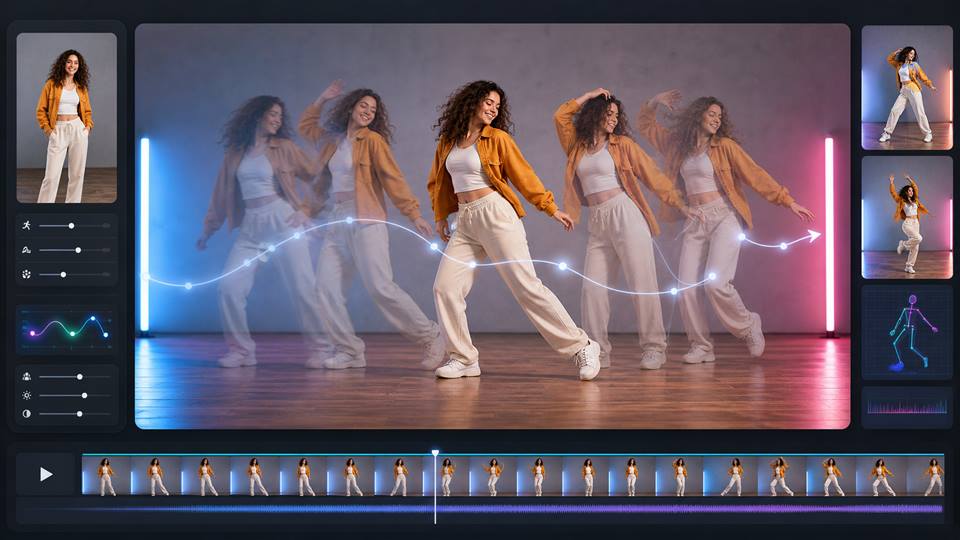
필터가 적용된 후 전환은 동작과 리듬을 추가합니다.
무료 크레딧 80개은(는) 로그인 후 매일 이용 가능합니다.
AI 스타일 변경으로 미세한 세부 사항이 변경될 수 있으므로 얼굴, 텍스트, 로고 및 제품 형상을 검토하세요.
매우 구체적인 프롬프트는 소스 영상과 일치시키기 위해 몇 번의 반복이 필요할 수 있습니다.
업스케일은 해상도를 향상시키지만 저품질 소스에서 손실된 모든 디테일을 복구할 수는 없습니다.
신용카드가 필요하지 않습니다

기능, 가격, 일일 크레딧, 개인정보 보호, 상업적 이용에 대한 답변을 확인하세요.
비디오 필터란 무엇인가요?
비디오 필터는 영상의 색감, 질감, 대비, 분위기, 아트 스타일 같은 시각적 표현을 바꿔 주는 기능입니다. APOB는 여기에 AI 워크플로를 더해, 프리셋을 고르거나 원하는 스타일을 직접 글로 설명해 적용할 수 있습니다.
AI 비디오 필터란 무엇인가요?
AI 비디오 필터는 생성형 모델이나 컴퓨터 비전 모델을 활용해 단순한 색 보정을 넘어 영상을 새로운 스타일로 재해석합니다. 클립 속 움직임과 피사체에 맞춰 표현을 조정하면서도 일관된 룩을 유지할 수 있습니다.
APOB에서 영상에 필터를 적용하려면 어떻게 하나요?
로그인해서 무료 크레딧 80개를 받고, AI 모델을 만들어 메인 워크스페이스에 들어간 뒤, 왼쪽의 동영상 편집를 열어 스타일 편집을 선택하세요. 영상을 업로드하고 프리셋을 고르거나 원하는 스타일을 직접 프롬프트로 작성하면 됩니다.
APOB에는 비디오 필터 프리셋이 있나요?
네. APOB의 스타일 편집 도구에는 스팀펑크, 대리석 조각, 일본 애니메이션, 연필 스케치, 픽셀 아트, 수채화, 코믹북, 3D 치비, LEGO, 반 고흐 등 30가지가 넘는 프리셋이 준비되어 있습니다.
프롬프트로 나만의 비디오 필터를 만들 수 있나요?
네. 스타일 편집에서 “원하는 영상 스타일을 설명해 주세요” 옵션을 선택하고 원하는 룩을 평소 쓰는 말로 적으면 됩니다. 색감, 질감, 시대감, 표현 매체, 조명, 분위기를 하나씩 또는 조합해서 설명할 수 있습니다.
시네마틱 비디오 필터도 사용할 수 있나요?
네. 커스텀 프롬프트에 원하는 무드, 조명, 컬러 팔레트, 렌즈 느낌, 질감을 구체적으로 적어 보세요. 예를 들어 “따뜻한 하이라이트와 차가운 그림자의 시네마틱 톤, 은은한 필름 그레인, 자연스러운 피부톤”처럼 쓸 수 있습니다.
필터로 애니메이션 스타일 영상을 만들 수 있나요?
네. 일본 애니메이션은 스타일 편집 프리셋 스타일 중 하나입니다. 룩을 더 세밀하게 제어하고 싶다면 커스텀 프롬프트에 애니메이션풍 표현을 직접 설명하는 방법도 있습니다.
영상을 코믹북 스타일로 바꿀 수 있나요?
네. 코믹북도 제공되는 프리셋 스타일 중 하나입니다. 필터를 적용한 뒤에는 얼굴, 손, 간판·문구 같은 디테일을 확인해 결과물이 의도한 용도에 잘 맞는지 점검하세요.
APOB의 업스케일은 어떤 기능인가요?
업스케일은 영상 해상도를 크게 높여 주는 기능입니다. 스타일을 적용한 결과물을 SNS 게시물, 프레젠테이션, 큰 화면 재생에서 더 선명하게 보여주고 싶을 때 유용합니다.
업스케일은 비디오 필터 적용 전과 후 중 언제 하는 게 좋나요?
대부분의 워크플로에서는 스타일을 먼저 적용한 뒤 마음에 드는 결과물에 업스케일을 사용하는 것이 좋습니다. 원본이 유난히 작거나 흐릿하다면 두 순서를 모두 시도해 보고 피사체와 디테일이 가장 잘 살아 있는 버전을 선택하세요.
비디오 필터를 적용한 뒤 트랜지션을 추가할 수 있나요?
네. APOB의 트랜지션 라이브러리에는 바운스, 페이드, 줌, 블러, 글리치, 방사형, 픽셀화 등 다양한 트랜지션이 있습니다. 내보내기 전에 각 트랜지션을 무료로 조정할 수 있습니다.
APOB 비디오 필터는 무료로 써 볼 수 있나요?
로그인하면 매일 무료 크레딧 80개를 받아 비디오 필터, 커스텀 프롬프트, 관련 도구를 사용해 볼 수 있습니다. 처리할 수 있는 분량은 선택한 워크플로의 크레딧 비용에 따라 달라집니다.
비디오 필터를 쓰기 전에 AI 모델을 먼저 만들어야 하나요?
이 페이지에서 안내하는 APOB 워크플로는 AI 모델을 만들어 AI 이미지·영상 생성용 메인 워크스페이스에 들어가는 것에서 시작합니다. 들어간 뒤에는 동영상 편집에서 스타일 편집과 업스케일을 사용할 수 있습니다.
어떤 영상 형식을 업로드할 수 있나요?
현재 APOB 워크스페이스가 지원하는 일반적인 영상 형식을 업로드하면 됩니다. 파일이 거부된다면 널리 지원되는 코덱의 표준 MP4로 내보낸 뒤 변환된 클립을 다시 업로드해 보세요.
좋은 커스텀 영상 스타일 프롬프트는 어떻게 쓰나요?
피사체, 표현 매체, 무드, 컬러 팔레트, 조명, 질감, 그리고 효과의 강도를 함께 적어 주세요. “은은한 수채화 느낌, 얼굴 특징 유지, 부드러운 자연광”처럼 구체적인 지시가 “멋지게 해줘” 같은 표현보다 결과를 판단하기 훨씬 쉽습니다.
비디오 필터로 배경이나 인물도 바꿀 수 있나요?
APOB의 동영상 편집 영역에는 영상 속 인물이나 배경을 바꾸는 여러 AI 도구가 있습니다. 필터와 가장 직접적으로 연결된 기능은 스타일 편집이고, 다른 도구들은 더 폭넓은 장면 변경을 도와줍니다.
AI 비디오 필터를 적용한 뒤에는 무엇을 확인해야 하나요?
피사체의 얼굴·손, 인물의 동일성, 텍스트, 로고, 제품 형태, 움직임의 자연스러움, 효과의 강도를 확인하세요. 어색한 부분이 보이면 더 가벼운 프롬프트, 다른 프리셋, 또는 더 짧은 원본 클립으로 다시 시도해 보세요.
APOB 비디오 필터를 TikTok, Reels, Shorts에 활용할 수 있나요?
네. 스타일이 입혀진 클립은 숏폼 콘텐츠에 잘 어울립니다. 시선을 붙잡는 확실한 비주얼 훅을 정하고, 핵심 피사체가 또렷하게 보이도록 유지한 다음, 게시할 플랫폼과 지면에 맞는 형식으로 내보내세요.
하나의 비디오 필터를 여러 클립에 적용할 수 있나요?
네. 같은 프리셋이나 정성 들여 쓴 프롬프트를 재사용하면 시리즈 전체에 일관된 비주얼 아이덴티티를 만들 수 있습니다. 결과물을 더 균일하게 만들려면 원본 영상과 피사체 구도도 어느 정도 일관되게 유지하세요.
제품 영상에 가장 잘 어울리는 비디오 필터는 무엇인가요?
모든 제품에 통하는 단 하나의 정답 필터는 없습니다. 깔끔한 시네마틱, 부드러운 에디토리얼, 코믹, 회화풍처럼 브랜드에 어울리는 스타일에서 시작하되, 텍스트와 제품의 형태, 핵심 장점이 한눈에 들어오도록 유지하세요.


