
Introduction
In the world of photo editing and AI image editing, text outlining is a powerful technique that can take your designs to the next level. Whether you're creating eye-catching social media graphics, professional logos, or enhancing AI-generated images, knowing how to outline text in Photoshop is a valuable skill. In this article, we'll guide you through the process of text outlining, helping you elevate your AI image editing skills and create stunning visuals that captivate your audience.
Edit Your Photo within seconds
What is Text Outlining in Photoshop?
Text outlining is a technique in Photoshop that involves adding a border or stroke around your text, creating a distinct and visually appealing effect. By outlining your text, you can make it stand out from the background, increase readability, and add depth to your designs. Text outlining is particularly useful when working with AI image editors, as it can help integrate text seamlessly into AI-generated visuals.
Preparing Your Photoshop Workspace
Before diving into the text outlining process, it's essential to set up your Photoshop workspace properly. Start by creating a new document or opening an existing photo you want to edit. Create a new layer for your text, ensuring that it's separate from the background layer. This will give you more flexibility and control over your text outlining.
When choosing a font for your text, consider the overall style and mood of your design. Select a font size that is appropriate for your composition and ensures readability. Remember, the goal is to make your text stand out while maintaining harmony with the rest of the image.
Step-by-Step Guide to Outlining Text in Photoshop
Now that your workspace is set up, let's walk through the step-by-step process of outlining text in Photoshop.
Create a text layer: Use the Type Tool (T) to create a new text layer. Type your desired text and position it where you want it on your image.
Add a stroke layer style: With your text layer selected, click on the "fx" icon at the bottom of the Layers panel and choose "Stroke." This will open the Layer Style dialog box.
Adjust the stroke settings: In the Layer Style dialog box, you can customize the appearance of your text outline. Adjust the size of the stroke to control the thickness of the outline. You can also choose the color of the stroke, the position (inside, outside, or center), and the blend mode to achieve different effects.
Experiment and refine: Don't be afraid to experiment with different stroke settings to find the perfect outline for your text. You can preview the changes in real-time to see how they impact your design.
Advanced Text Outlining Techniques
Once you've mastered the basic text outlining technique, you can explore more advanced options to take your designs to the next level.
Multiple outlines: Create multiple stroke layers with different sizes and colors to achieve a layered outline effect. This can add depth and dimension to your text.
Colorful outlines: Experiment with different stroke colors and opacities to create unique and eye-catching outlines. You can even use gradients or patterns for a more creative touch.
Combining effects: Combine text outlining with other Photoshop effects, such as drop shadows, inner glow, or bevel and emboss, to create more complex and visually interesting designs.
Text Outlining Best Practices
To ensure that your text outlining enhances your designs, keep these best practices in mind:
Choose the right font and color combination: Select a font that complements your design and ensures readability. Consider the color contrast between your text and the background to maintain legibility.
Maintain balance: Avoid making your text outlines too thick or overwhelming. Strike a balance between the outline and other design elements to create a cohesive composition.
Consistency is key: If you're using text outlining in multiple places within your design, maintain consistency in terms of stroke size, color, and style to create a professional and polished look.
Applying Text Outlining in AI Image Editing
Text outlining is particularly useful when working with AI image editors like APoB AI. By outlining text in Photoshop, you can seamlessly integrate text elements into your AI-generated visuals, creating stunning and cohesive designs.
When using text outlining in AI image editing, consider the following tips:
Match the style: Choose text outlining settings that match the overall style and aesthetic of your AI-generated image. This will help create a seamless and harmonious composition.
Experiment with placement: Play around with the positioning of your outlined text within the AI-generated image. Find the perfect balance and placement that complements the visual elements and enhances the overall impact of your design.
Iterate and refine: Don't settle for the first text outlining attempt. Iterate and refine your design, making adjustments to the stroke settings, colors, and placement until you achieve the desired effect.
Troubleshooting Common Text Outlining Issues
While text outlining in Photoshop is relatively straightforward, you may encounter some common issues along the way. Here are a few tips to help you troubleshoot:
Jagged or pixelated outlines: If your text outlines appear jagged or pixelated, increase the document resolution or use the "Anti-aliased" option when creating your text layer. This will help create smoother and cleaner outlines.
Adjusting outline thickness: If your text outline is too thick or thin, simply adjust the stroke size in the Layer Style dialog box. Experiment with different values until you find the perfect thickness for your design.
Editing text with outlines: If you need to edit your text after applying the outline, double-click on the text layer to enter editing mode. Make your changes and then reapply the stroke layer style if necessary.
Conclusion
Outlining text in Photoshop is a powerful technique that can elevate your AI image editing skills and help you create stunning visuals. By following the step-by-step guide and exploring advanced techniques, you can add depth, dimension, and visual interest to your text elements. Remember to keep best practices in mind, experiment with different settings, and have fun unleashing your creativity.
As you continue your journey in AI image editing, don't forget to check out APoB AI, an innovative AI-portrait producer that can help you create incredible AI-generated portraits. With APoB AI and your newfound text outlining skills, you'll be well on your way to creating captivating and professional-looking designs.
FAQs
Q1: Can I outline text in other image editing software besides Photoshop?
A1: Yes, most image editing software, such as GIMP, Inkscape, and Illustrator, have text outlining capabilities. However, the specific steps and tools may vary depending on the software.
Q2: How do I choose the right font for text outlining?
A2: When choosing a font for text outlining, consider the overall style and mood of your design. Select a font that is legible, complements the aesthetic of your image, and aligns with your brand or message.
Q3: Can I apply text outlining to non-text elements in my photos?
A3: While text outlining is primarily used for text elements, you can apply similar techniques to other elements in your photos, such as shapes or objects. Use the Pen Tool or selection tools to create paths or selections around the desired elements and then apply stroke layer styles.
Q4: What are some creative ways to use text outlining in my designs?
Experiment with different stroke colors, thicknesses, and styles to create unique and eye-catching text outlines. Combine text outlining with other Photoshop effects, such as gradients, patterns, or textures, to add visual interest and depth to your designs. Play with the positioning and layering of outlined text to create dynamic compositions.
TRY APOB AI
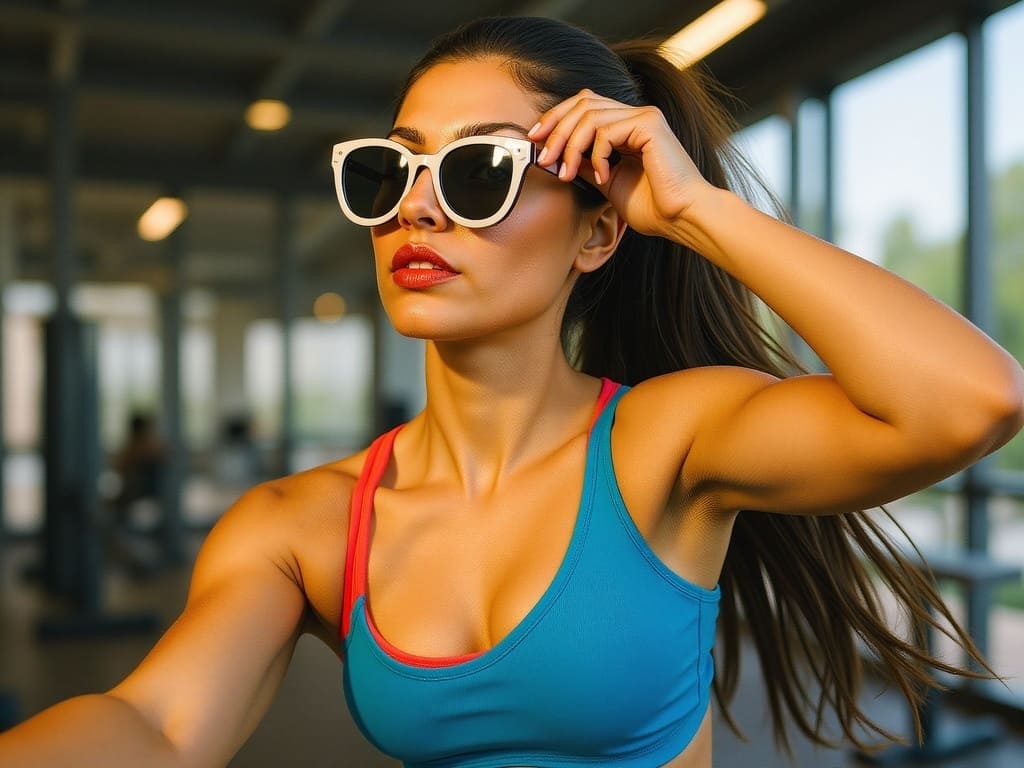
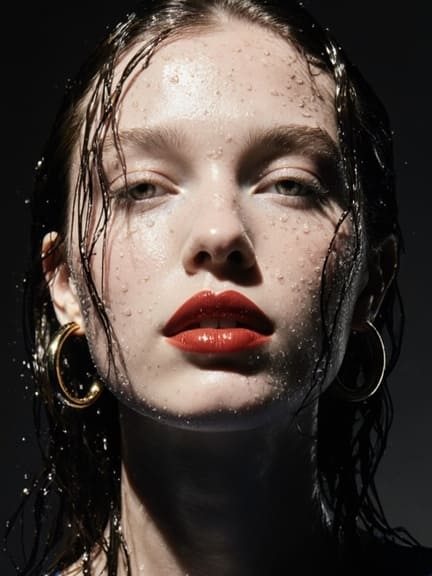
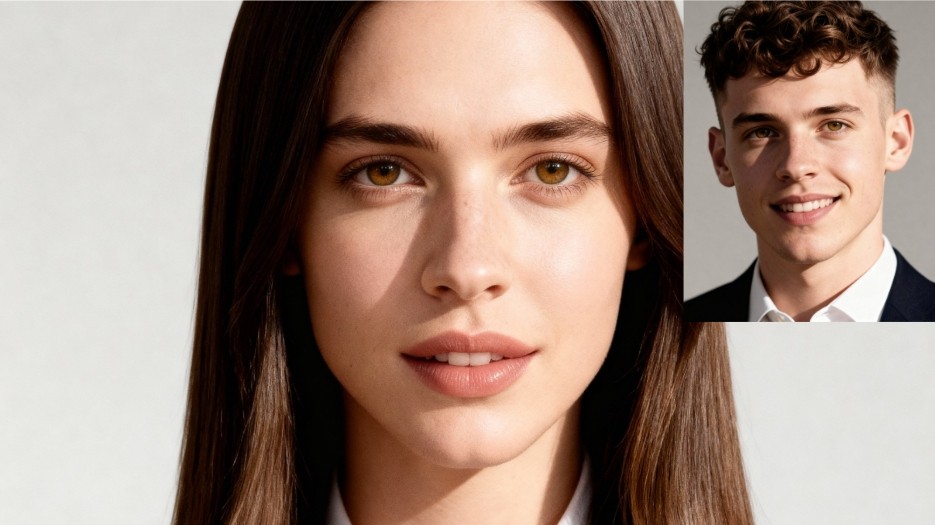
If you're looking to enhance your AI-generated visuals and take your designs to the next level, consider using APOB AI, an AI-powered portrait generator. While APOB AI does not have the capability to outline text directly, it creates stunning, realistic portraits based on your input and preferences. These high-quality portraits can serve as the perfect base for your text outlining projects in Photoshop. By combining the power of APOB AI's portrait generation with your Photoshop text outlining skills, you can create truly unique and captivating designs that blend AI-generated visuals with custom text elements, elevating your overall creative output.

Be the first to like this.


No credit card needed


