
Original synthetic smile photo
Synthetic source portrait uploaded from a local file. Keep this photo beside the result to judge tooth color, shape, lips, and skin.
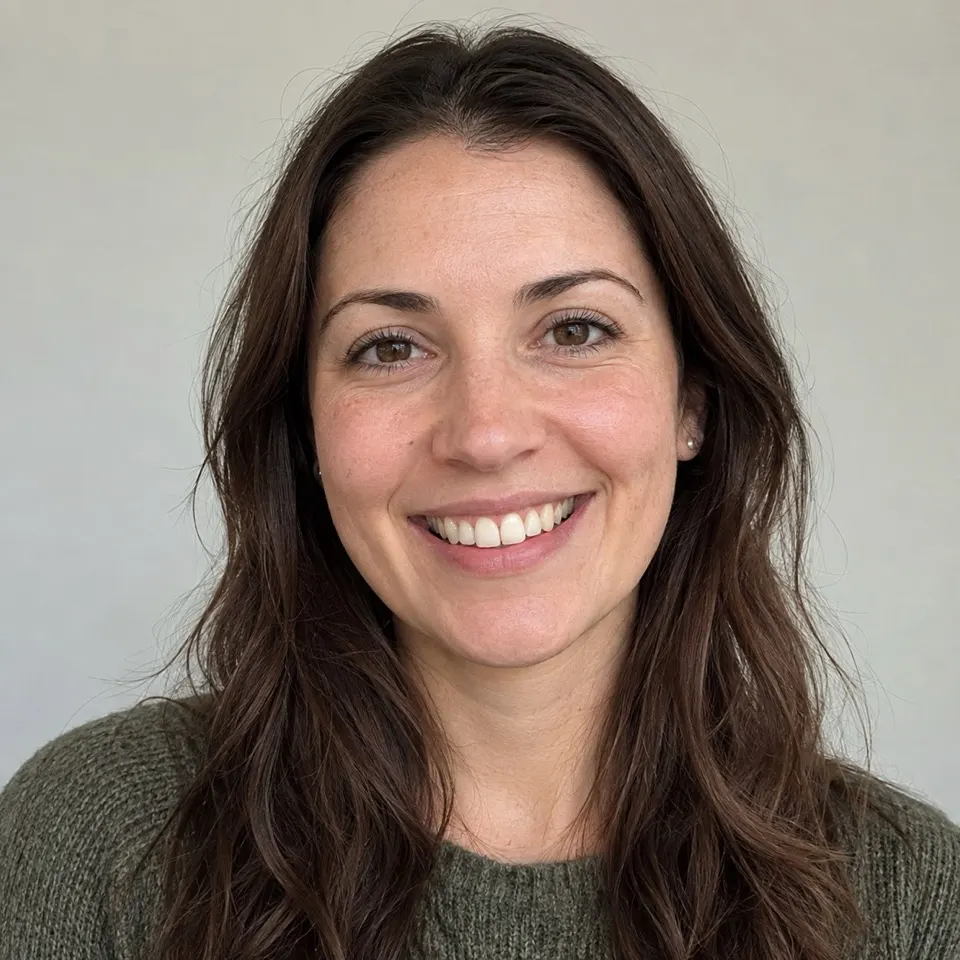
Upload an existing smile as the Base image, request a subtle shade change, then compare the generated still with the original. This is a static AI redraw: tooth contours can change. Nano currently includes 80 daily credits, and its downloads are watermarked.
Whiten teeth in a photo while checking that the smile still looks like yours. Sign up for a free APOB account to access Nano's 80 daily credits. Open Edit image → Chat to edit for this AI teeth-whitening example; it edits the supplied photo rather than changing your actual teeth.
Click Add in Source image and select a well-lit smile photo with visible teeth and clear lip edges. Keep an unedited copy to compare tooth shade, enamel shadows, spacing, gums, and expression after the whitening edit.
The example asks for a brighter tooth shade without changing the overall lighting. Its prompt is: “Whiten the visible teeth while keeping skin tone and lighting natural.”
For a restrained result, also ask to keep enamel shading, tooth shape, spaces between teeth, gums, lips, and the rest of the face. Avoid “perfect teeth,” which can invite changes beyond whitening.
Review the quality and credit quote before selecting Generate. Keep original refers to the aspect-ratio setting; it does not lock tooth shape or facial details.
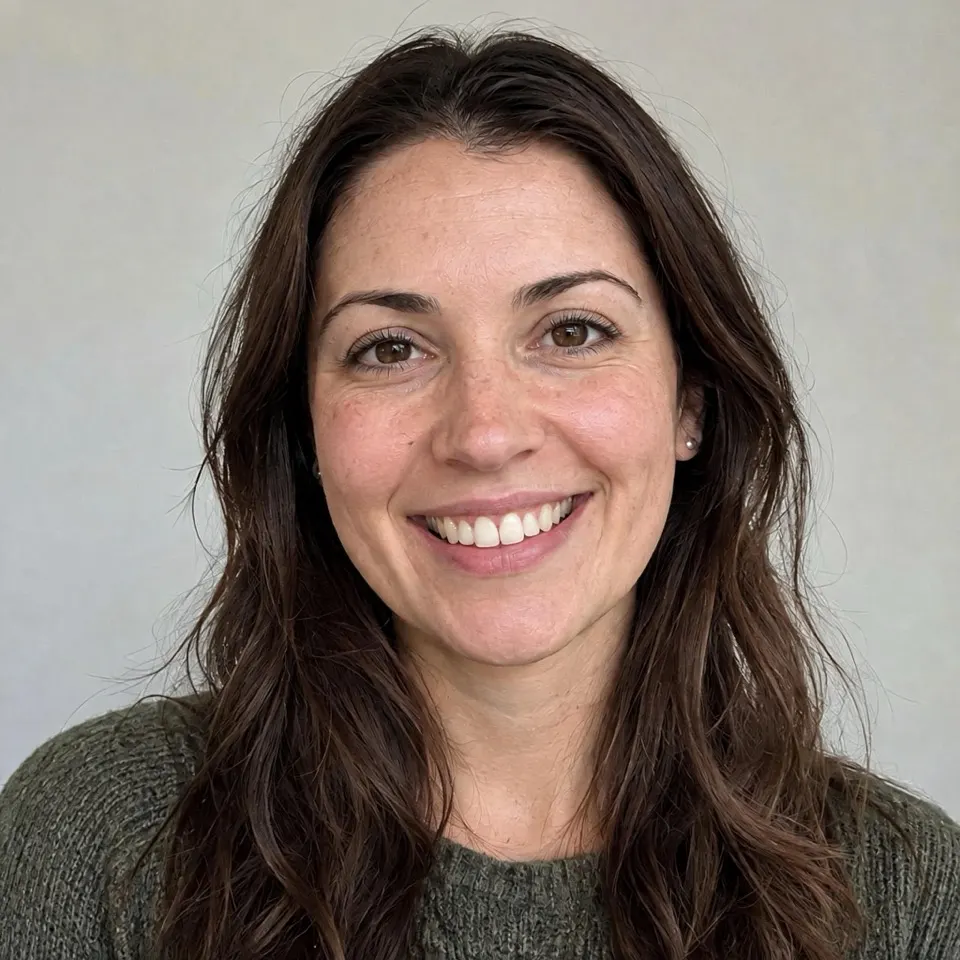
The example shows a brighter tooth shade in a before-and-after smile comparison. Check for a natural color, retained enamel shading, consistent tooth edges and spacing, and unchanged lips and gums. Compare the whole face and reject a version that reshapes the smile.
Download the teeth-whitening version with a believable shade and a smile that still represents the subject.
Synthetic source portrait uploaded from a local file. Keep this photo beside the result to judge tooth color, shape, lips, and skin.
AI edit with whiter teeth
The yellow cast is reduced, but several tooth contours and other facial details were redrawn. Reject the result if the altered smile no longer matches the subject.
People searching for a teeth whitening photo editor or white teeth filter often want to improve one existing smile without brightening the whole image. APOB's Chat to edit takes that photo as the Base image and creates a new still from a specific description. It does not run as a live camera filter, and the output needs a close comparison with the source.
A specific edit request. You can ask for a restrained shade change and name the facial details that matter, useful when a global brightening filter would also lighten skin or a wall. This is prompt-based image regeneration, so inspect the output rather than assuming the instruction was followed exactly.
An existing image stays in the workflow. The Base image and saved Details view make source-to-result comparison practical. This matters when a portrait is already approved for composition and the only proposed change is a yellow cast in the smile.
A clear price before committing. The button shows the current credit cost. “Free Credits to Try” refers to Nano's daily allowance; it does not mean an unlimited free teeth-whitening editor or a clean free download.
Creator-ready handoff. Download the selected still for a profile, thumbnail, lookbook, or approved campaign asset. Retain the original and disclose edits where a viewer could mistake the photo for an unaltered result.
Indoor lamps can give a smile a yellow cast while the rest of the portrait looks good. A creator can request a modest shade lift, keep the warm scene, and check whether the mouth still looks like their own before updating a profile picture. This is a color correction goal, not a request to make new teeth.
Suppose a brand has permission to use a creator's existing smiling headshot in a TikTok ad thumbnail. The editor can test a lighter tooth shade, then send the original and candidate side by side for the creator's approval. IAB's 2025 report projected US creator ad spend of $37 billion in 2025 and $44 billion in 2026; that signals a large creator-asset workflow, not proof that whitening improves ad performance.
An event photographer may have a well-timed laugh in a group of otherwise approved shots, but the warm venue light makes the teeth look unusually yellow. Test only that frame, then compare tooth edges and the person's expression with the original before delivery. Ask the subject before publishing an identifiable edited portrait.
A model's smile may sit near a white garment or product. A blanket exposure increase could wash out both. A teeth-specific prompt can request a subtle change while explicitly protecting garment color, product labels, and skin tone. It still requires human review, especially where the campaign implies a real product result.
Prompt: “Make the visible teeth a little less yellow while keeping natural enamel shading. Preserve my expression, lip shape, freckles, warm café light, and crop. Do not add, straighten, or enlarge teeth.”
Review target: A slightly brighter smile that still belongs in the warm scene; compare tooth boundaries.
Prompt: “Reduce the yellow cast on the visible teeth by a small amount. Keep natural shadows between teeth and the same facial identity, tooth count, smile width, skin texture, hair, jacket, and background.”
Review target: A restrained candidate for client approval; reject if spacing or face changes.
Prompt: “Gently brighten only the visible teeth in this approved creator portrait. Keep the creator's facial identity, product label, clothing color, lighting, and framing. No new teeth or cosmetic reshaping.”
Review target: A thumbnail candidate; verify label accuracy and obtain creator approval.
Prompt: “Correct the yellow lighting cast on the visible teeth without making them pure white. Retain each person's recognizable smile, lip edges, venue lighting, and scene.”
Review target: A cautious single-frame edit; use separate checks for each identifiable person.
These are request examples, not guaranteed controls. If exact tooth-by-tooth color correction or unchanged geometry is essential, use a manual retouching workflow and review at 100%.
Pro — No tooth selection step. A plain-language edit request can be faster to try than tracing every tooth with a brush, especially for a single social portrait.
Pro — Original and prompt remain reviewable. The Base image and Details record help explain which photo and description produced the candidate still.
Pro — Credit cost is visible. Read the quote next to Generate before spending credits, and compare the output before another attempt.
Con — Tooth geometry can drift. Our test removed some yellow but changed several tooth contours. The prompt and Keep original setting did not guarantee preservation.
Con — No per-tooth brush or strength slider. Chat to edit redraws a still image from a description. If you need surgical color selection, choose a manual editor.
Con — Free plan limits apply. Nano currently provides 80 daily credits, while each edit has a displayed cost; Nano downloads carry a watermark. Plan terms can change, so read the live quote and plan screen.
Consent and likeness: Edit your own image or get the subject's permission, especially for a brand, client, or group photo. An authorized source photo does not automatically authorize every edited use.
Commercial use and copyright: Confirm the source photographer's rights, the subject's model release, brand approvals, and the destination platform's terms before publishing. Keep the original, prompt, and final file in the project record.
Disclosure: Label a materially retouched portrait when the context could cause people to believe it is an untouched image. Follow the destination platform's current synthetic/altered-media and ad policies.
Dental claims: Do not use an AI-whitened image as a treatment forecast or as a “before/after” proof that a toothpaste, whitening kit, or dental procedure produced the pictured result. The FTC's health-products guidance explains that imagery can convey efficacy claims that require support.
Privacy: A portrait is personal data. Upload only what you have permission to process; review APOB's current account, privacy, public/private, and deletion settings before using client or sensitive images. Nano does not include private content under the current plan guide.
Practical answers about uploads, credits, accuracy, downloads, and use.
Nano currently refills 80 free credits per day. Generating an edit spends credits; our dated Ultra 4K test quoted 50. Check the current quote before Generate. Nano downloads carry a watermark. Plan guide
It is a prompt-based teeth-whitening photo edit that produces a new still image. It is not a real-time camera or AR filter.
Open Image → Edit image → Chat to edit, add the selfie as Base image, describe a subtle shade lift, generate, then compare the result with the original.
Yes. The Edit Image guide lists Upload image for a local file and Select content for media already in APOB. The tools are also available on mobile through the Choose a tool sheet. Edit Image guide
No exact region isolation is guaranteed. Chat to edit regenerates the still; inspect lips, skin, eyes, hair, and background as well as tooth shade.
It may not. Our local-upload test visibly reduced yellow but changed some tooth contours. Keep the original for comparison and reject a result that changes your smile too much.
The tested Chat to edit workflow uses a text description. It does not expose a tooth-by-tooth whitening brush or strength slider.
It is the selected aspect-ratio option. It is not a promise that the teeth, face, or pixels will remain identical.
Choose a clear, well-lit photo with visible teeth and enough resolution to examine the edges. Start from the original file rather than a compressed screenshot when possible.
You can try, but identify whose teeth to change and review every face afterward. Small or partly hidden smiles are harder to evaluate, and you need permission from identifiable people before public use.
Those are possible destinations after you check the output, image rights, likeness consent, watermark status, and each platform's current rules. A generated still does not automatically meet every placement's specifications.
Only if you have the necessary source and likeness rights and the image does not mislead viewers. Never imply the visual change proves a dental product or procedure worked. See the FTC guidance.
APOB says Nano downloads always carry a watermark, even when a Nano-created file is downloaded after a later upgrade. See the download guide.
Yes. After generation finishes, open the completed result and choose More actions → Download, then inspect the saved file. The content detail guide describes the download action.
Do not assume that all uploads and creations are private by default. Review the account's visibility controls, plan terms, and APOB privacy policy before processing a client or sensitive portrait; the current plan guide lists private content as a paid feature.
No. It is a cosmetic photo redraw and cannot predict clinical results. Ask a licensed dental professional about treatment decisions.
Upload a smile, check the live credit quote, and review the generated still. Nano files are watermarked.

