Step 1: Log in and claim your daily credits
Log in to APOB to claim 80 free credits every day. Use them to test different video filters, style prompts, and output settings before committing to a final look.
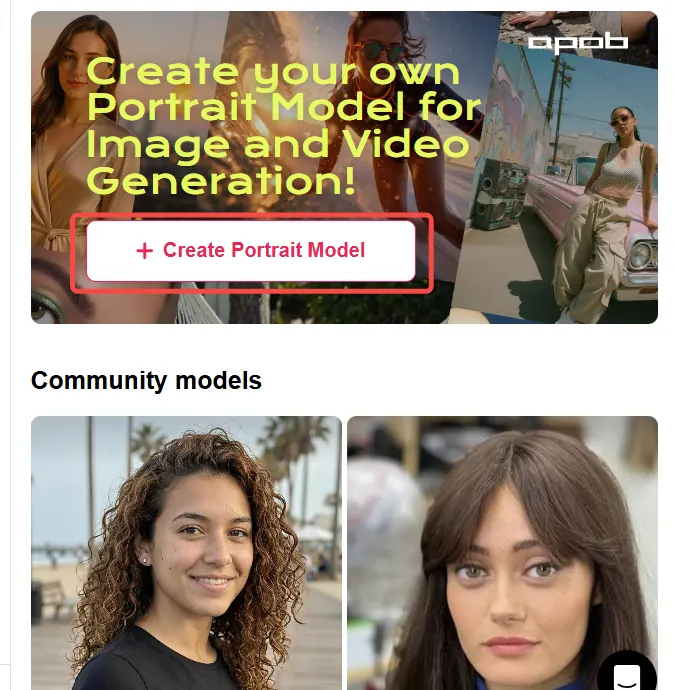
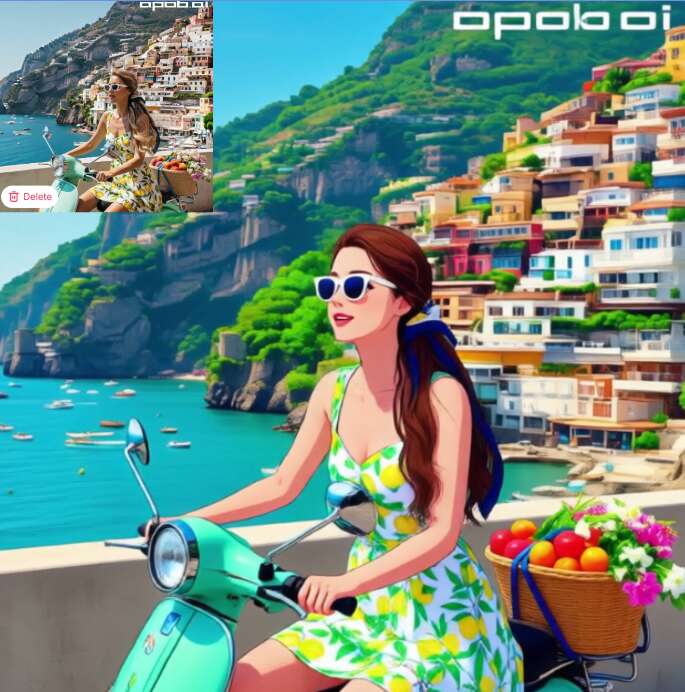
Step 2: Create an AI model and enter the workspace
Create an AI model to enter APOB’s main workspace for generating AI images and AI videos. This gives you one place to build a consistent visual direction before editing your clip.
Step 3: Open Edit Video and choose Edit Style
Find Edit Video on the left side of the page. Alongside tools for changing characters or backgrounds, choose Edit Style to apply a video filter. After uploading your video, browse more than 30 presets, including Steampunk, Marble Sculpture, Japanese Anime, Pencil Sketch, Pixel Art, Watercolor Drawing, Comic Book, 3D Chibi, LEGO, Van Gogh and more.
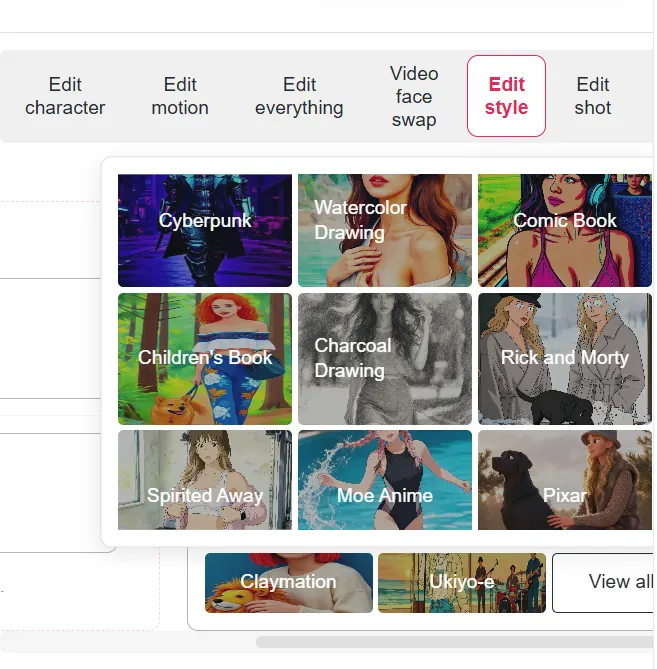

Step 4: Describe the custom video style you want
Prefer a specific look? Select “Describe the video style you want” and type a prompt. You can ask for a cinematic grade, a soft watercolor finish, a retro VHS mood, a graphic-novel treatment, or any other direction that matches your footage.
Step 5: Upscale, add transitions, and export
Use Upscale to significantly improve the video’s resolution. Then add transitions for more visual impact: explore bouncy, fading, zooming, blurring, glitching, radial, pixelated, and other options in APOB’s transitions library. Adjust each transition for free, preview the sequence, and export when the edit feels right.
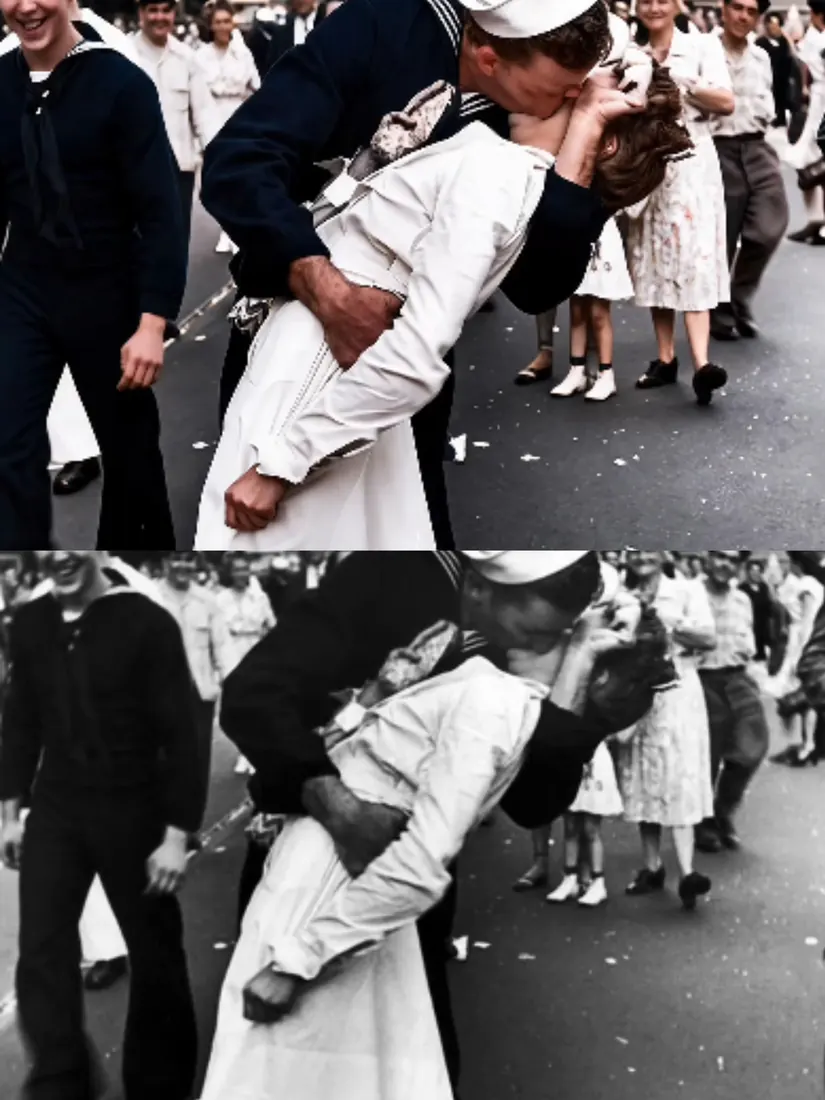
30+ ready-to-use style presets
Start quickly with a large Edit Style library covering cinematic, anime, sketch, sculpture, pixel, comic, LEGO, and painterly looks. Pick a preset and preview a new direction without building the effect from scratch.
Add a filter to video with a custom prompt
Preset filters are only the starting point. Describe the video style you want in plain language to explore a look tailored to your footage, mood, character, or campaign.
Upscale the finished look
Pair your AI video filter with Upscale when the source clip needs a sharper, higher-resolution finish. This helps the final style read more clearly on larger screens and social feeds.
Short-form social content
Give the same clip several platform-friendly identities: a punchy comic look for a hook, a soft watercolor style for a travel story, or a glitch treatment for a music edit. Keep the visual change clear in the first seconds so the filter supports the idea instead of hiding it.
Product and ecommerce videos
Restyle product footage for seasonal campaigns, product launches, and catalog variations without reshooting every concept. Try one consistent filter family for a collection, then use transitions to connect product details into a tighter story.
Creator and UGC-style edits
Use a light-touch AI video filter to make creator clips feel more distinctive while keeping the performance readable. A prompt such as “warm handheld film texture, natural skin tones, subtle grain” can add character without overpowering the message.
Tutorials and explainers
Use different visual styles to separate chapters, highlight a key step, or make an abstract lesson easier to follow. Keep the same core character or subject visible so the filter supports comprehension.
Music, mood, and visual experiments
Turn raw performance or travel footage into stylized concept tests. Combine a prompt-driven filter with blur, zoom, glitch, radial, or pixelated transitions to explore a visual identity before investing in a full production.
Small-business campaign variations
Create several visual directions from one source clip for product launches, promotions, and social tests. Use the filter to separate campaign themes while preserving the original message and CTA.
No Credit Card Required



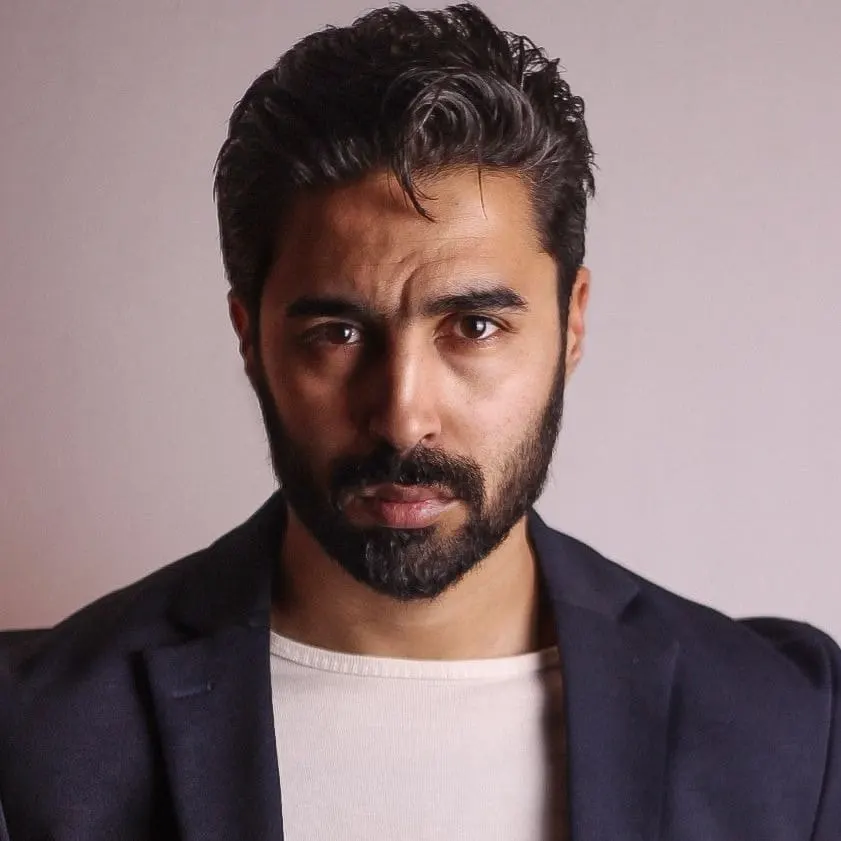


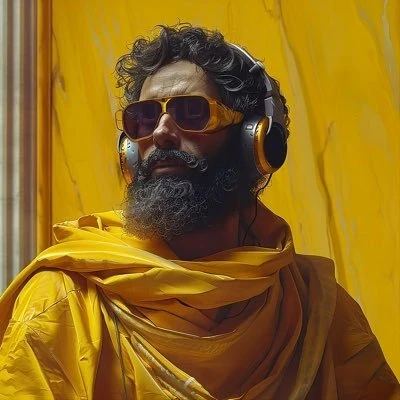
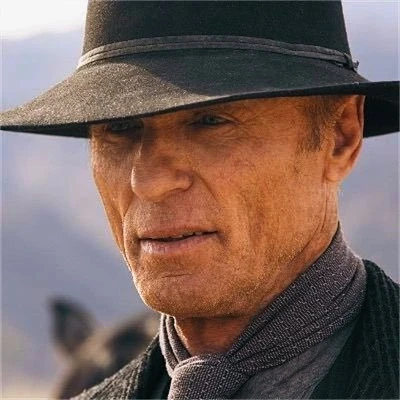








Prompt-based styling gives more control than a fixed color preset alone.
30+ Edit Style presets make it fast to test distinct visual directions.
Transitions add motion and rhythm after the filter is applied.
80 free credits are available daily after logging in.
AI restyling can change fine details, so review faces, text, logos, and product geometry.
Highly specific prompts may need a few iterations to match the source footage.
Upscale improves resolution but cannot recover every detail lost in a low-quality source.
What is a video filter?
A video filter changes the visual treatment of footage, such as its color, texture, contrast, mood, or artistic style. APOB adds an AI workflow so you can choose a preset or describe a custom style.
What is an AI video filter?
An AI video filter uses generative or computer-vision models to restyle video beyond simple color adjustments. It can apply a recognizable look while adapting the treatment to the motion and subjects in the clip.
How do I add a filter to a video with APOB?
Log in to claim 80 free credits, create an AI model to enter the main workspace, open Edit Video on the left, choose Edit Style, upload your video, and select a preset or write a custom style prompt.
Does APOB have video filter presets?
Yes. APOB’s Edit Style tool includes more than 30 presets, including Steampunk, Marble Sculpture, Japanese Anime, Pencil Sketch, Pixel Art, Watercolor Drawing, Comic Book, 3D Chibi, LEGO, Van Gogh, and more.
Can I create a custom video filter with a prompt?
Yes. In Edit Style, choose “Describe the video style you want” and explain the look in plain language. You can describe color, texture, era, medium, lighting, atmosphere, or a combination of these.
Can I use a cinematic video filter?
Yes. Try describing the intended mood, lighting, color palette, lens character, and texture in the custom prompt. For example: “cinematic warm highlights, cool shadows, subtle film grain, natural skin tones.”
Can I make an anime video with a filter?
Yes. Japanese Anime is one of the Edit Style preset directions. You can also describe an anime-inspired visual treatment in a custom prompt when you want to guide the look more specifically.
Can I turn a video into a comic-book style?
Yes. Comic Book is one of the available preset directions. After applying the filter, review faces, hands, signs, and other details to make sure the output fits your intended use.
What does Upscale do in APOB?
Upscale is designed to significantly improve the resolution of a video. It is useful after styling when you want the filtered result to look clearer in a social post, presentation, or larger playback window.
Should I upscale before or after applying a video filter?
For most workflows, apply the style first and then use Upscale on the selected result. If your source is especially small or blurry, test both orders and keep the version that preserves the subject and details best.
Can I add transitions after applying a video filter?
Yes. APOB’s transitions library includes bouncy, fading, zooming, blurring, glitching, radial, pixelated, and other transitions. You can adjust each transition for free before exporting.
Are APOB video filters free to try?
You can log in to claim 80 free credits every day and use them to try video filters, custom prompts, and related tools. The amount of processing you can complete depends on the credit cost of the chosen workflow.
Do I need to create an AI model before using the video filter?
The APOB workflow described for this page starts by creating an AI model to enter the main workspace for AI image and video generation. Once inside, use Edit Video to access Edit Style and Upscale.
What video formats can I upload?
Upload a common video format supported by the current APOB workspace. If a file is rejected, try exporting a standard MP4 with a widely supported codec and then upload the converted clip.
How do I write a good custom video-style prompt?
Mention the subject, visual medium, mood, color palette, lighting, texture, and how strong you want the effect to be. Specific instructions such as “subtle watercolor wash, preserve facial identity, soft daylight” are easier to evaluate than “make it cool.”
Can a video filter change the background or character?
APOB’s Edit Video area includes several AI tools for changing video characters or backgrounds. Edit Style is the feature most directly related to filters, while other tools can support broader scene changes.
What should I check after an AI video filter is applied?
Review subject identity, hands, faces, text, logos, product shape, motion continuity, and the strength of the effect. If anything looks distracting, try a lighter prompt, a different preset, or a shorter source clip.
Can I use APOB video filters for TikTok, Reels, or Shorts?
Yes. Stylized clips can be useful for short-form social content. Choose a clear visual hook, keep key subjects readable, and export a format that matches the platform and placement where you plan to publish.
Can I use one video filter across multiple clips?
Yes. Reusing the same preset or a carefully written prompt can create a more consistent visual identity across a series. Keep the source footage and subject framing reasonably consistent for a more uniform result.
What is the best video filter for a product video?
There is no single best filter for every product. Start with a style that supports the brand—clean cinematic, soft editorial, comic, or painterly—then keep text, product geometry, and the core benefit easy to see.


