Turn a checked script into a presenter-led news clip with a fictional or consented avatar, narration, lip sync, and editable captions.
Step 1: Open a Model and Choose Talking Video
Problem: The creation workspace contains several video modes, so a first-time user may not know where a presenter-led bulletin begins.
From the APOB home page, open a portrait model you own or are authorized to use. In the left workstation menu, select Talking video, then keep Talking Avatar selected when your starting asset is a still image. Use Lip sync instead when you already have a video and want its mouth movements to follow new audio.
Real example: A community publisher opens its fictional presenter model, “Mira Wallpaper,” and chooses Talking video for a 19-second event bulletin. Other available workstation modes in the tested interface included Image to video, Edit video, Text to video, Extend video, and Add subtitles.
How APOB helps: The modes are grouped in one model workspace, making it possible to reuse the same presenter across anchor, supporting-motion, revision, and caption tasks.


Step 2: Select or Upload the Reference Image
Problem: Lip animation is less convincing when the face is small, poorly lit, turned away, or partly covered.
Under Reference image, choose Select content to use an image already in your Generation library, or upload an authorized image from your device. The official Talking Avatar guide recommends a clear, well-lit, front-facing face with the mouth closed or relaxed. In the tested selector, Generation and Community tabs were visible; confirm that you have the necessary rights before reusing any community asset.
Real example: The test selected a vertical, front-facing portrait of an adult fictional presenter holding a phone. That framing left usable space above and below the face for captions and disclosure text.
How APOB helps: Selecting existing content avoids a separate upload, while the delete control lets you replace the image before generation.
Step 3: Choose a Voice and Prepare the Spoken Script
Problem: A grammatically correct script can still fail when dates, proper names, acronyms, or numbers sound unclear.
In the audio area, use Create audio to generate narration or Select audio to reuse or upload a prepared track. Open the Voice model selector and filter the available voices where useful. The tested interface offered filters for gender, age, and language plus an Only mine option. Choose a voice you have permission to use, then paste the approved spoken script.
The Generate Audio guide documents a 2,000-character script field, voice and emotion controls, generated-audio history, and a visible estimate before generation. Read the entire script aloud once before generating; write dates and abbreviations in the form that should be spoken.
Real example: The test chose the English voice “Ester” and used this fictional script: “Presented by an AI-generated host. Northstar Community Library will hold a public design workshop this Saturday at ten in the morning. Registration is required on the library website, and places are limited. The publishing team checked these details with the organizer on August nineteenth, twenty twenty-six. Confirm availability on the official event page.”
How APOB helps: The voice selector and on-page script field keep the narration attached to the avatar task, while the counter makes it easy to see whether the copy fits the current limit.


Step 4: Review the Inputs, Settings, and Estimate
Problem: Generating before checking the script and settings can waste credits and leave an error embedded in the lip-synced video.
Confirm the reference image, voice model, complete script, estimated duration, resolution, and quality shown in the bottom bar. The test displayed a 358/2,000 character count, an estimated 19-second duration, a current resolution setting, a quality setting, and the total credit estimate on Generate. Treat these as live account values rather than permanent product promises: available options and estimates can vary by plan, mode, and product update.
Run a pre-generation fact check:
Match each sentence to a primary source or approved internal record.
Recheck names, dates, times, quantities, locations, and quoted language.
Remove claims that have not been confirmed.
Add a visible or spoken disclosure when a realistic AI presenter is used.
Keep a “checked at” timestamp for developing information.
Real example: Before generating the library announcement, the script identifies the synthetic host, names the organizer as the source, states the check date, and asks viewers to verify current availability.
How APOB helps: Duration, quality, and the current estimate remain visible before commitment, so a user can shorten or correct the script first.
Step 5: Generate, Open, and Inspect the Talking Avatar
Problem: A successful render is not the same as an approved report. Lip timing, pronunciation, framing, audio, and factual text still need review.
Select Generate and follow the progress card in Generation. When the output is ready, open the content detail view and play it with sound. APOB's content detail guide notes that browsers may start video muted; use the sound control to hear the narration. Check the result at normal speed and once more with special attention to names, figures, and the first and last words of each sentence.
Real example: The test rendered the 19-second fictional announcement from the selected portrait and generated voice. The editorial check asks: Is “August nineteenth, twenty twenty-six” clear? Does the host pause naturally after the disclosure? Is the face stable while the phone remains in frame?
How APOB helps: Finished media can be opened from the Generation feed. Content detail actions can hand a video into other workflows or download it once the file is ready.


Step 6: Add and Correct Subtitles Before Publishing
Problem: Auto-extracted captions can mishear names, numbers, and source terms. A visually polished caption can still repeat a factual error.
Open Add subtitles from the creation menu, then select the generated video from your personal content or upload a video. In the Captions tab, extract the spoken words, compare every line with the approved script, and correct the text and timing. The official Add Subtitles guide documents a 100-character limit per caption line, add/merge/delete controls, exact start and end timing, non-overlapping adjacent lines, style presets, and a live preview. It recommends short videos and documents a current 10-minute hard input limit on desktop.
Use the final edit to add source context that narration alone cannot carry: a concise source label, an “information checked at” time, and an “AI-generated presenter” disclosure. Source cards, lower thirds, licensed evidence, and music may still require a final editor outside the subtitle tool.
Real example: The community bulletin uses short caption lines, corrects the organization name manually, and reserves the closing line for “Details may change — check the official event page.”
How APOB helps: Caption text, timing, position, typography, background, outline, and supported animations can be previewed before the captioned output is generated.
Final Newsroom Release Check
Before posting, verify that every spoken and on-screen claim still matches the source record; all face, voice, footage, screenshot, chart, logo, and music rights are documented; generated illustrations are not presented as evidence; platform AI labels are enabled where required; and a correction route is available in the description or channel profile. High-stakes health, finance, law, elections, conflict, crime, disaster, and public-safety material needs a qualified human reviewer.
Expert Prompts for an AI News Video Generator
The following prompts use fictional facts and original characters. Each is ready to paste into the relevant writing, portrait, or motion workflow.
User and purpose | Copy-ready prompt | Expected output |
|---|---|---|
Local publisher — source-bound script |
| A concise, attributable script without invented details |
Tech creator — vertical presenter |
| A reusable vertical anchor portrait |
Business editor — horizontal presenter |
| A widescreen presenter with chart space |
Science creator — illustrative B-roll |
| Neutral supporting motion that is not represented as evidence |
Short-form editor — restrained motion |
| Presenter motion that keeps attention on the words |
Correction editor — replacement narration |
| A correction-ready narration track for Talking Avatar or Lip Sync |
Social editor — caption plan |
| Caption copy with attribution and correction context |
Multilingual publisher — localization brief |
| A reviewable localization draft for a fluent editor |
A Repeatable Presenter Without a New Shoot
A disclosed virtual presenter can introduce recurring tech updates, community bulletins, release notes, or research summaries. The practical benefit is production continuity; the host should never be framed as an eyewitness or copied from a real broadcaster.
Script-First Control
The approved script remains the core input. That makes it possible to map spoken claims back to a source ledger, compare the captions with the narration, and identify exactly which segment needs correction.
Different Workflows for Still Images and Existing Video
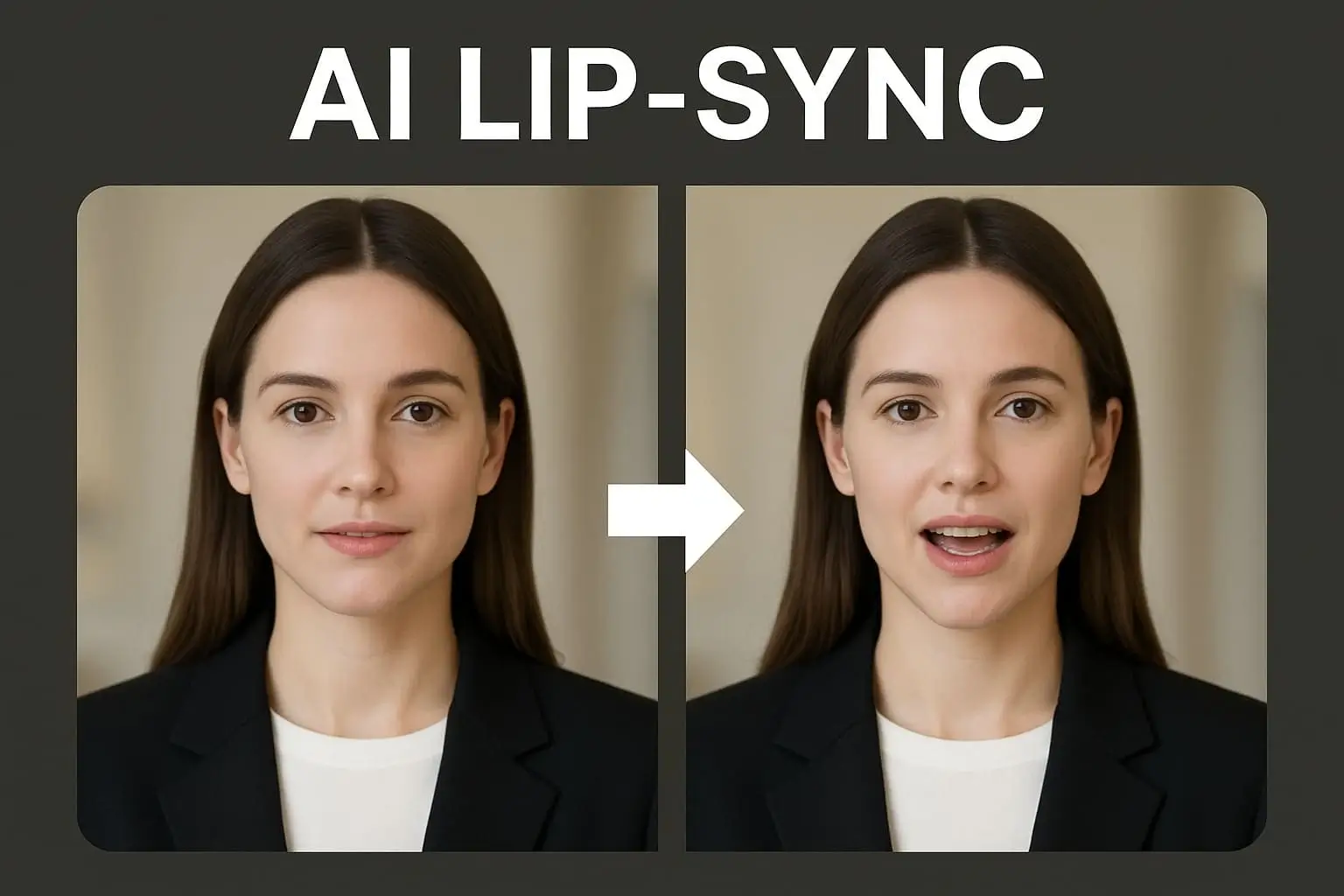
Talking Avatar is designed for one face image plus audio. Lip Sync is designed for an existing video plus replacement audio. The Lip Sync guide documents current inputs from 1 second to 15 minutes and recommends at least four seconds of source video for the best result; Talking Avatar currently accepts audio from 1 second to 3 minutes.
Connected Voice, Motion, and Caption Tools
The same workspace exposes generated audio, talking video, image animation, editing, and subtitles. This is useful when an anchor segment needs a clearly illustrative cutaway or when one corrected sentence must be regenerated.
Visible Pre-Generation Controls
The tested workflow showed duration, resolution, quality, and the live credit estimate before generation. This reduces guesswork without promising one permanent price or configuration across every account.
A Realistic Trial Expectation
Users searching for a free AI news video generator usually want to test the output before committing. APOB's current download and watermark rules say Free (Nano) downloads carry a watermark. Paid-account watermark removal is not retroactive for media generated while free.
This section provides general information, not legal advice. Laws and platform policies vary and change.
Consent and Likeness
Do not imitate a journalist, celebrity, employee, customer, or private person without explicit, verifiable permission covering the intended face, voice, and commercial use. APOB's Terms of Service prohibit unauthorized use of a person's identity and deceptive impersonation. The U.S. Copyright Office also documents harms from unauthorized digital replicas in its Digital Replicas report.
False Affiliation and Viewer Expectations
Give a fictional presenter an original face, name, voice, studio, and lower-third design. Do not copy a network's branding or suggest that a synthetic host witnessed an event, represents an authority, or interviewed a source when none of those things occurred.
Commercial Use and Copyright
Commercial distribution depends on current APOB terms, your account, destination-platform rules, and rights in every script, image, voice, music track, logo, chart, screenshot, and video clip. Public availability is not a license. Human-authored selection and editing may affect copyrightability; a prompt alone does not guarantee protected authorship (U.S. Copyright Office copyrightability report).
Synthetic-Media Disclosure
YouTube, TikTok, and Meta maintain disclosure or labeling policies for realistic altered or generated media. Recheck the destination platform when publishing. A visible “AI-generated presenter” label is clearer than relying on metadata alone.
Accuracy, Corrections, and High-Stakes Topics
Do not fabricate quotations, eyewitness footage, election information, medical advice, financial outcomes, or emergency instructions. Distinguish reporting, opinion, satire, reconstruction, and illustration. Keep a source and correction log, and use a qualified second reviewer for health, finance, law, elections, conflict, crime, disasters, or public safety.
Privacy and Content Visibility
Do not upload confidential files, private recordings, personal images, or unreleased business information without authorization. Review APOB's Privacy Policy and the current content visibility controls. The Help Center says sharing private content requires making it public and that some privacy controls depend on plan.
Tech and AI Product Updates
An independent creator can turn a dated release note into a 30–60 second vertical update with attributed screenshots and a link to the primary documentation. Pew Research Center found that 21% of U.S. adults—and 37% of adults ages 18–29—regularly get news from social-media news influencers, showing why visible sourcing matters in creator-led formats (Pew Research Center).
Scenario: A creator summarizes an open-source model release, separates documented features from hands-on impressions, and puts the repository and official release note in the description.
Time-Sensitive Service Updates
An AI breaking news video generator can shorten production only after a human has checked the information. Show when it was verified, name the source, and avoid synthetic eyewitness scenes.
Scenario: A transit publisher reports a service interruption from the operator's live notice, adds “Checked 14:20 UTC,” and replaces the caption when the restoration estimate changes.
Local and Community Bulletins
Schools, libraries, nonprofits, and neighborhood publishers can create schedule, meeting, and event updates without a studio.
Scenario: A community channel makes English and Spanish versions of a public-meeting summary, links the official agenda, and uses a fictional host rather than imitating a city employee.
Newsletter and Podcast Repurposing
A publisher can adapt existing reporting into an AI news video while keeping the original article, transcript, and methodology as the source packet.
Scenario: A climate newsletter turns a 900-word policy analysis into a 50-second anchor segment, an attributed chart, and a link to the full methodology.
Company and Product News
Communications teams can use an AI news anchor video generator for release notes, event recaps, and internal updates. The video should identify the company as the source rather than imitate an independent newsroom. Wyzowl's 2026 research reports that 91% of businesses use video as a marketing tool (Wyzowl).
Scenario: A SaaS team explains three release-note changes using approved interface recordings and no invented customer reaction.
Faceless News and Commentary Channels
A creator can use a disclosed fictional presenter while keeping reporting and opinion visibly separate. YouTube reports that Shorts now averages more than 200 billion daily views, demonstrating the scale of short-form distribution rather than guaranteeing performance for any channel (YouTube for Press).
Scenario: A science channel summarizes a new paper, names the journal and institution, labels preliminary findings, and links the study.
Reusable original presenter — A consistent fictional or consented host can connect a series without requiring a new camera session for every update.
Claim-level script control — Editors decide exactly what is spoken and can map each factual sentence to a source record.
Flexible starting assets — Talking Avatar accepts a still portrait, while Lip Sync accepts existing footage and new audio.
Reviewable production stages — The portrait, voice, script, duration, output, and subtitles can be checked as separate decisions.
Efficient corrections — A changed fact or pronunciation can be handled by replacing the affected narration and presenter segment.
No automatic fact-checking — APOB produces from the supplied inputs; it does not prove that a claim is true, complete, or current.
Final assembly may still be needed — Source cards, licensed evidence, charts, music, lower thirds, and some platform packaging may require another editor.
Input quality affects output — Poor face lighting, rushed copy, unclear pronunciation, or weak source video can reduce clarity and realism.
Disclosure is a separate publishing responsibility — Realistic synthetic faces, voices, or scenes may need visible labels and platform disclosure settings.
Plan and watermark limits apply — The live interface should be checked for current credit estimates and download conditions before production.
Keine Kreditkarte erforderlich




Answers about workflow, limits, rights, privacy, disclosure, quality, and publishing.
What is an AI news video generator?
An AI news report video generator turns approved scripts and media inputs into production assets such as narration, a virtual presenter, lip-synced footage, supporting motion, and subtitles. It reduces editing and filming work but does not replace reporting, fact-checking, rights clearance, disclosure, or corrections.
Where do I find the AI news video workflow in APOB?
Open an authorized portrait model, choose Talking video in the creation menu, and select Talking Avatar for a still-image presenter. Use Lip sync when the starting point is existing video footage.
Can I reuse an image already generated in APOB?
Yes. Under Reference image, choose Select content and pick from your Generation library. The tested selector also displayed Community content; verify rights and consent before reusing someone else's asset.
Can I upload my own presenter image?
The official Talking Avatar guide says users can select existing content or upload an image. A clear, well-lit, front-facing face with a relaxed mouth generally gives the tool a cleaner reference.
What is the difference between Create audio and Select audio?
Create audio turns a written script into narration with a chosen voice model. Select audio lets you reuse or upload an audio track. Review the current interface because labels and available voice controls can change.
How long can the script be?
APOB's current Generate Audio guide documents a limit of 2,000 characters and shows a character counter plus an estimated spoken duration. Shorter bulletins are easier to verify, caption, and correct.
How do Talking Avatar and Lip Sync differ?
Talking Avatar starts from one still face image plus audio. Lip Sync starts from an existing video plus new audio. Use the first for a new presenter segment and the second for a corrected, dubbed, or localized take.
How long can a Talking Avatar or Lip Sync input be?
The current Help Center documents 1 second to 3 minutes of audio for Talking Avatar. Lip Sync currently accepts source video and audio from 1 second to 15 minutes and recommends source video of at least four seconds for the best result.
Can APOB research or fact-check a news story?
No. Check primary sources and obtain independent confirmation where appropriate before opening the generation workflow. A human editor should approve both the script and the final video.
Can APOB turn a news URL directly into a verified report?
Do not treat a URL or automatic summary as verified reporting. Extract the claims, check them against the original source, record when they were checked, approve the spoken script, and then use APOB for production.
Is there a free AI news video generator option?
APOB currently has a Free (Nano) account, but credits and feature access can change. Check the live interface before generating. The Help Center says downloads from a Free (Nano) account currently carry a watermark.
Can upgrading remove a watermark from an older video?
The current content-detail guide says no. Watermark removal is not retroactive; media generated while an account was free retains the watermark even after an upgrade.
Can I use an APOB AI news video commercially?
Commercial use depends on current APOB terms, account conditions, platform policies, and your rights in every input and output. Confirm the rights to the script, face, voice, music, branding, screenshots, charts, and footage.
Can I use a real journalist, executive, or celebrity as the presenter?
Only with explicit, verifiable permission and the necessary likeness, voice, and commercial-use rights. An original fictional host is the safer default.
Can I add and correct subtitles?
Yes. The Add Subtitles tool can extract speech, edit individual caption lines and timing, merge or delete lines, apply styles, and preview the result. Compare every line with the approved script before the final generation.
Can I create vertical and horizontal news videos?
Prepare the reference image and supporting assets for the target frame. Use 9:16 for Shorts, Reels, or TikTok and 16:9 for standard YouTube or web video. Actual aspect-ratio and resolution options depend on the APOB mode, account, and source media.
Can the same presenter speak different languages?
You can create or upload another language track and generate a new Talking Avatar or Lip Sync version. Use a fluent reviewer to check names, local terminology, numbers, disclosure, and caption timing.
Can AI-generated footage represent a real event?
Use generated material only as clearly labeled illustration when lawful. Never present a synthetic scene as documentary evidence or imply that the presenter witnessed it. Apply extra caution to disasters, conflict, crime, protests, elections, and public figures.
Are my scripts, images, audio, and videos private?
Check APOB's current privacy policy and content visibility settings before upload. Do not process confidential or personal material unless the service and workflow have been approved for that information.
Can I monetize a channel made with an AI news reporter video generator?
Monetization depends on originality, rights, disclosure, reused-content rules, misinformation policies, and advertiser safety. A synthetic presenter does not make copied reporting, footage, or narration original.


