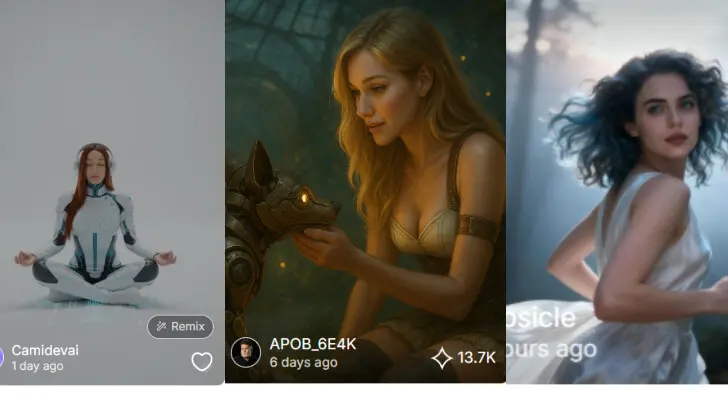
Creating high-quality AI videos has never been easier. With APOB AI Image to Video, you can transform images into fully dynamic videos, complete with cinematic camera movements, background effects, and multiple shots. Whether you’re a content creator, marketer, or hobbyist, APOB provides intuitive tools that rival other platforms like Luma AI, offering unmatched creative control and flexibility. Experience APOB AI video creation—turn images and prompts into cinematic AI videos faster, smoother, and with total creative control.Create Stunning Luma AI Video with APOB: Better Than Luma AI Image to Video.
How APOB Compares with Luma AI Video
1.Detailed Prompt Control and Cinematic Camera Movements
APOB AI Image to Video allows users to input detailed prompts of up to 2000 characters, describing precise actions, gestures, and scene elements. You can also choose multiple camera movements such as Zoom In, Zoom Out, Around Character, and Follow Character, and add background sound effects. This level of customization provides a more cinematic and immersive video experience compared to Luma AI.
2.Smooth Transitions with First and Last Frames
Unlike Luma AI, APOB lets you provide first and last frames to ensure smooth, coherent motion throughout your video. This feature is particularly useful for action sequences, dance videos, or storytelling, making the transitions appear natural and fluid.
3.Multi-Shot Editing and Creative Freedom
APOB supports adding multiple shots, extending the video without losing continuity. While Luma AI focuses on automated image-to-video conversion, APOB gives complete creative freedom, allowing users to tweak both visual and audio elements for a fully personalized result.
How to Use APOB AI Image to Video
1: Generate or Upload an Image
Start by creating a high-quality image in the Image tab on APOB. You can generate pictures of any style or subject using the AI tools, or upload your own photo. These images will serve as the base for your AI video.
2: Input a Prompt
In the Image to Video section, enter a prompt (up to 2000 characters) describing the actions, gestures, or scene details you want to appear in the video. The more specific your prompt, the more accurately the AI will generate your video.
3: Select Camera Movements and Add Effects
Choose from multiple camera movements such as Zoom In, Zoom Out, Around Character, Follow Character, and optionally add background sound effects. This enhances the cinematic feel of your video.
4 (Optional): Use Chat to Edit and Create Last Frames
If you want smoother motion, you can use Chat to Edit to generate a last frame or make adjustments to the original image. Uploading first and last frames ensures smooth, coherent transitions in your video.
5: Add Additional Shots for Continuous Scenes
For longer or multi-scene videos, use the Add Shot feature. Input a new prompt for each segment to seamlessly extend your video, maintaining continuity across all shots.
6: Generate Your AI Video
Once all settings and prompts are ready, click Generate to create your AI video. Review the result and make adjustments as needed to achieve your desired effect.
Why APOB AI Image to Video Excels
1.Full Control Over Video Creation
APOB allows creators to customize every aspect of the video. From the AI-generated human model to precise camera movement and sound, you can create highly tailored videos. This level of control ensures your AI video aligns perfectly with your creative vision.
2.Smooth, Coherent Motion
By providing first and last frames, APOB ensures seamless transitions. This feature helps maintain natural, fluid movements, which is particularly useful for dance sequences, action shots, or storytelling videos. Luma AI lacks this granular control.
3.Multiple Styles and Formats
APOB supports a wide range of video styles, including realistic, surreal, and anime-inspired visuals. You can generate vertical or horizontal videos, choose aspect ratios like 9:16 or 16:9, and select durations ranging from 3 to 10 seconds, making it versatile for social media, marketing, or personal projects.
4.Faster Iteration and Flexibility
APOB allows daily free usage in fast and best modes. You can accumulate 80 points per day to create longer videos or upgrade for ultra HD quality. This combination of free access and optional premium modes offers both speed and quality, often surpassing what Luma AI provides.
5.Integrated Editing Tools
After generating your video, APOB provides tools to edit frames, adjust movements, add shots, and include voice or subtitles. Luma AI’s process is more rigid, limiting creators who want to refine their videos or integrate complex narratives.
Conclusion
APOB AI Image to Video stands out as a powerful, flexible platform for generating professional-quality AI videos. From precise prompt control and cinematic camera movements to seamless transitions and multi-shot editing, APOB gives creators the freedom to craft personalized, engaging content. With daily free usage, multiple modes, and tools like Text to Video and ReVideo, APOB not only matches but often surpasses the capabilities of Luma AI, making it the ideal choice for AI video generation, social media content, and creative storytelling.
FAQ
Q1:Where can I use APOB?
Click the “Try for Free” button below to start using APOB on desktop, tablet, or mobile.
Q2: Can I use APOB for free?
Yes, APOB has fast and best modes available daily for free. Accumulate 80 points per day to access longer videos or higher-quality modes, or upgrade for unlimited access.
Q3: Can I publish AI videos on TikTok?
Absolutely! Use AI influencers or videos for TikTok content or marketing campaigns. Many creators already earn using APOB AI video.
Q4: Can I generate videos entirely from prompts, besides using image to video?
Yes, you can. APOB supports Text to Video, allowing you to create videos directly from prompts without relying on images.
Q5: Is there a faster way to generate AI videos?
Yes! If you already have a video, you can use the ReVideo feature in the left-side Video tab. Upload your Original Video (please use a video less than 30 seconds; APOB will support up to 5 minutes in the future) and a Reference Image (an AI model image generated via AI Influencer Generator will be used if no reference image is provided). Click Generate, and the Reference Image will replace the person in the original video while keeping the movements and background unchanged. This ReVideo tool is perfect for creating AI dance videos or action/fight scenes.

Be the first to like this.

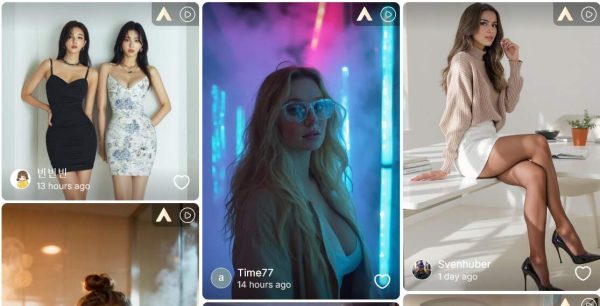
APOB: A Top Alternative to Luma Dream Machine AI Video Generator
If you have been looking for powerful tools to create high-quality AI videos, you have probably heard of the luma dream machine ai video generator. It is well-known for turning text and images into cinematic video sequences. But what many creators don’t realize is that APOB AI can achieve everything the luma system does—and in many cases, produce even better results with more flexibility, more styles, and more generous free features.
Today’s article will show you why APOB AI is the strongest choice for creators who want a tool comparable to the luma dream machine ai video generator, how its workflow makes production easier, and how you can start generating impressive AI videos for free. Whether you create content for TikTok, ads, education, animation, or storytelling, APOB offers quality that matches the luma ai dream machine video generation process while providing more options for everyday users.
Why APOB AI Rivals (and Even Surpasses) Luma Dream Machine
The luma dream machine ai video generator is built for realistic physics, smooth camera movement, and cinematic transitions. APOB AI delivers the same capabilities by offering three creative pipelines:
Text to Video Simply describe the scene, and APOB will automatically generate a detailed, dynamic video. This makes APOB a strong competitor to the luma ai dream machine video generation system.
Image to Video Upload a static image and instantly animate it—ideal for product shots, portraits, illustrations, and concept art.
Camera Movement Video Simulate pan, zoom, orbit, or dolly motions, just like what creators expect from the luma dream machine ai video generator.
What makes APOB truly outstanding is its four-generation modes: Fast, Best, Ultra, and Ultra S. The first two modes—Fast and Best—are completely free every day, meaning you can produce high-quality videos without paying. If you want to create longer videos or use Ultra modes, APOB rewards you with 80 free points daily, which can be saved up and used later. You can also upgrade your plan anytime.
This flexible cost system makes APOB far more accessible compared to many tools built around the luma ai dream machine video generation concept.
How to Generate AI Videos in APOB (Step-by-Step)
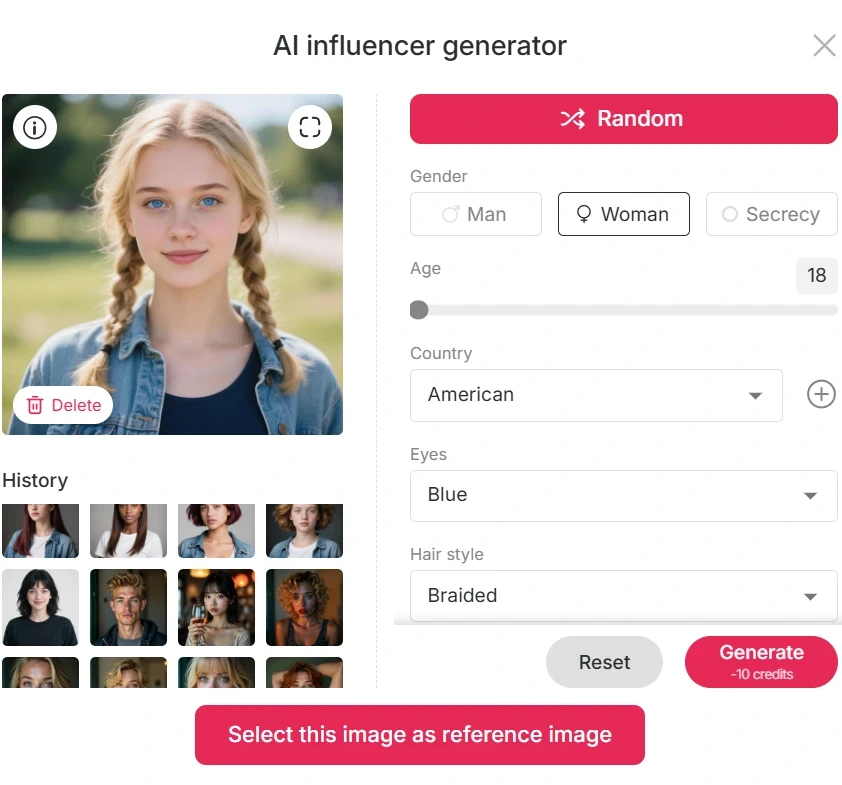
1/4 Create your AI model
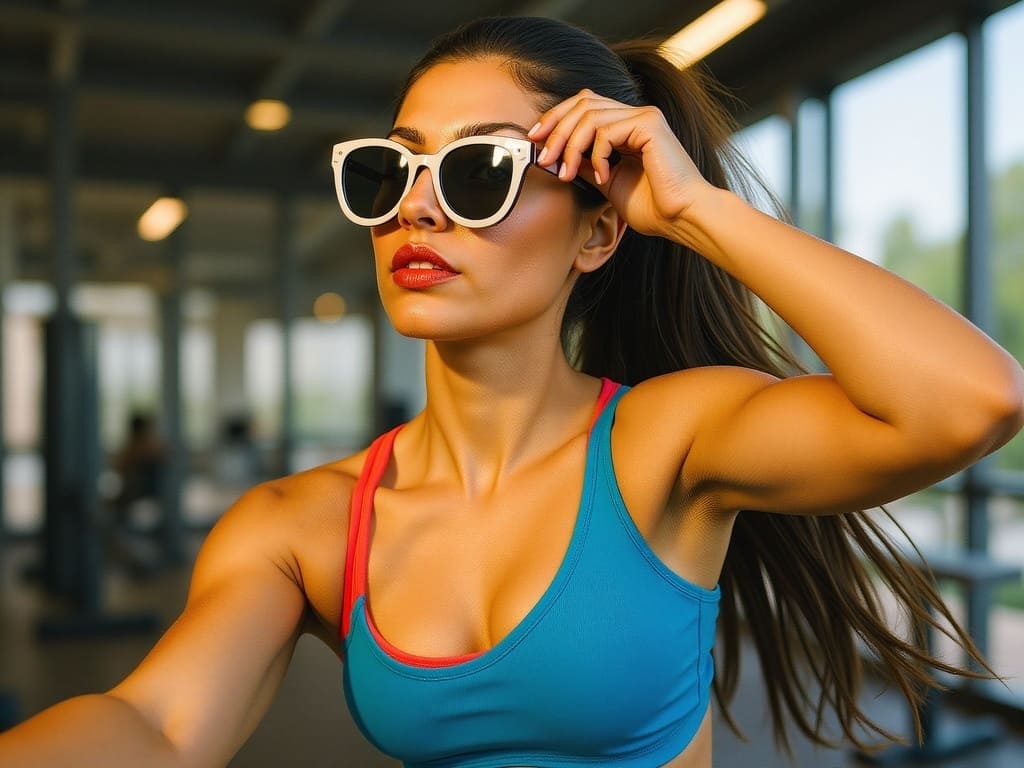
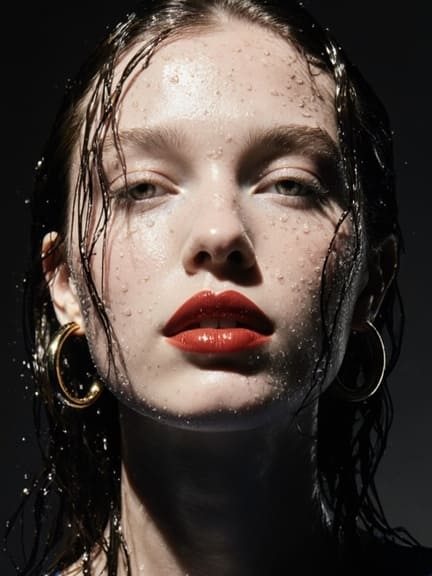
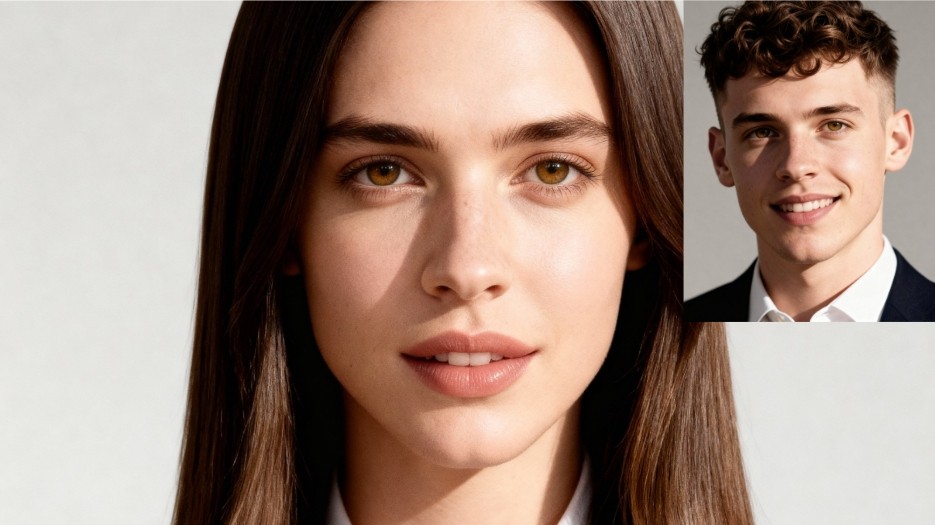
Click create portrait model, and use AI influencer generator to create an AI girl or an AI boy with your wishes.
2/4 Choose Your Creation Mode
Select Text to Video or Image to Video based on your project. Enter Your Prompt or Upload an Image
Keep it simple or detailed—APOB handles both.
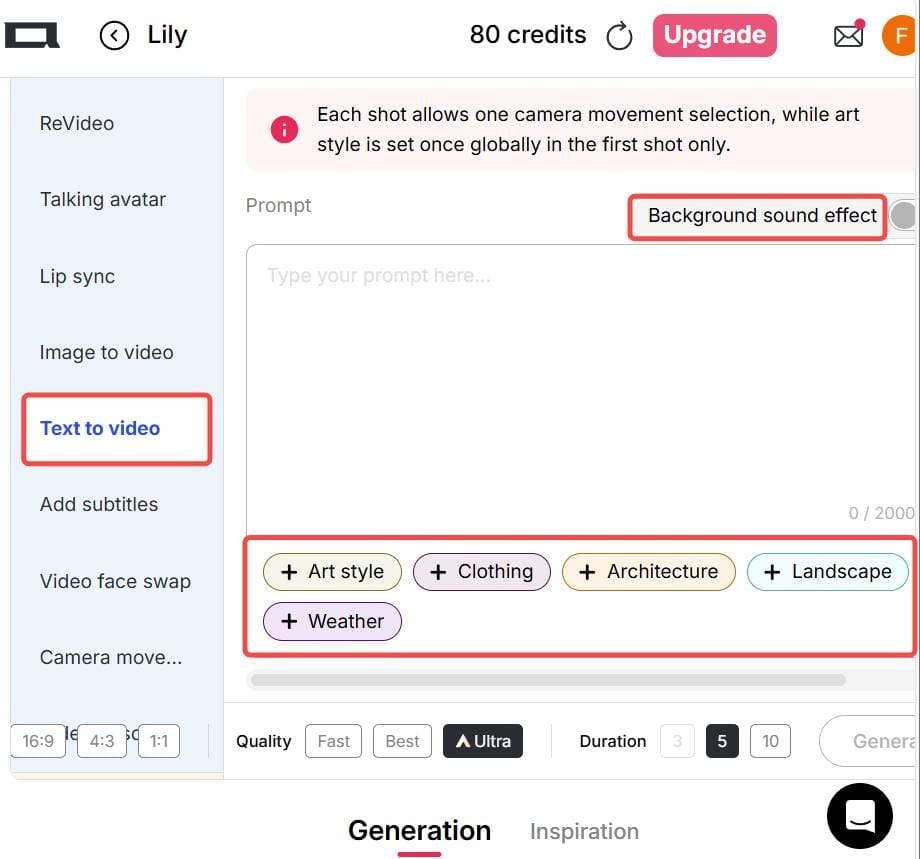
3/4 Select a Generation Mode
Fast / Best → Free
Ultra / Ultra S → Use points or upgrade for maximum quality


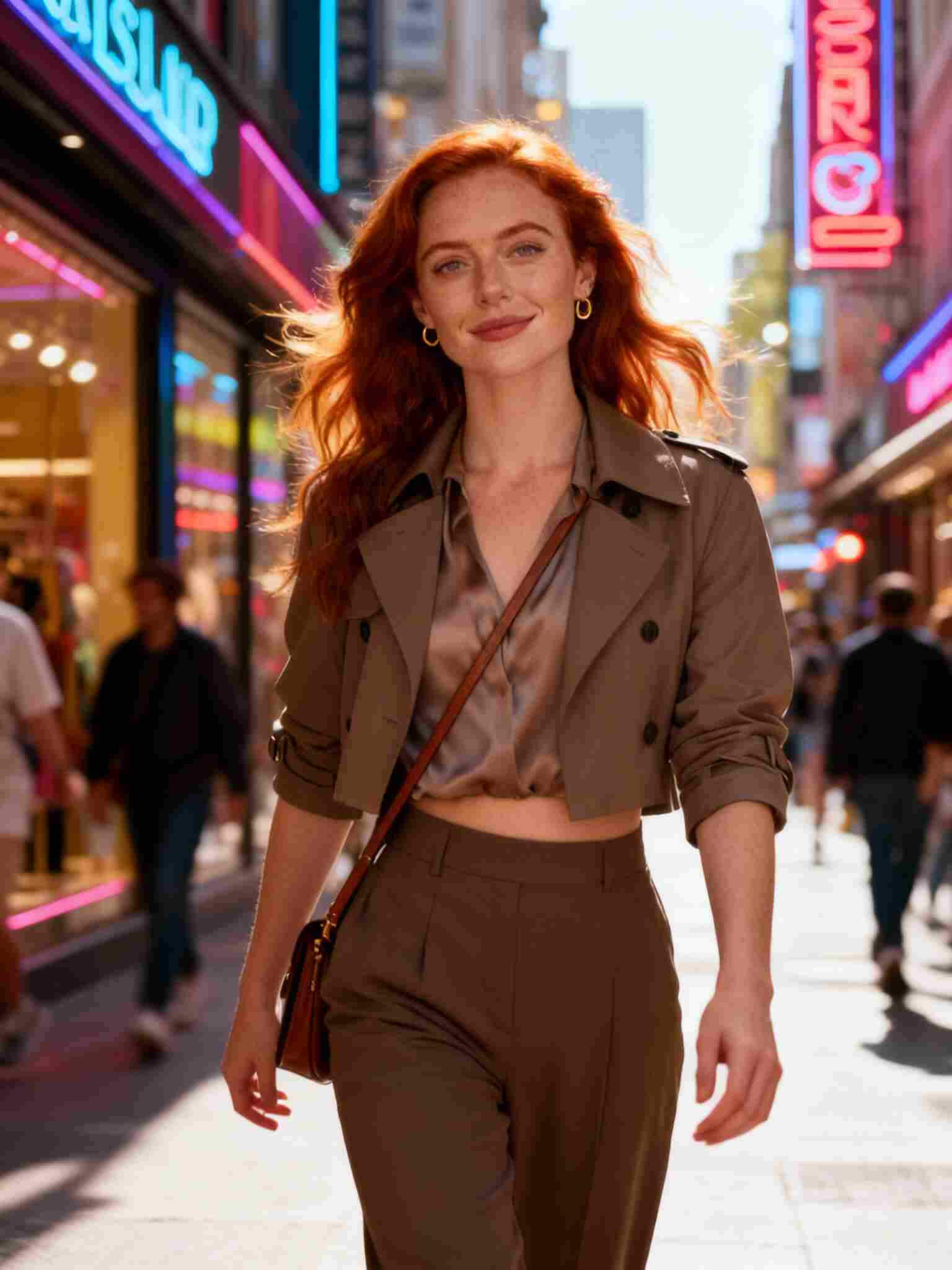
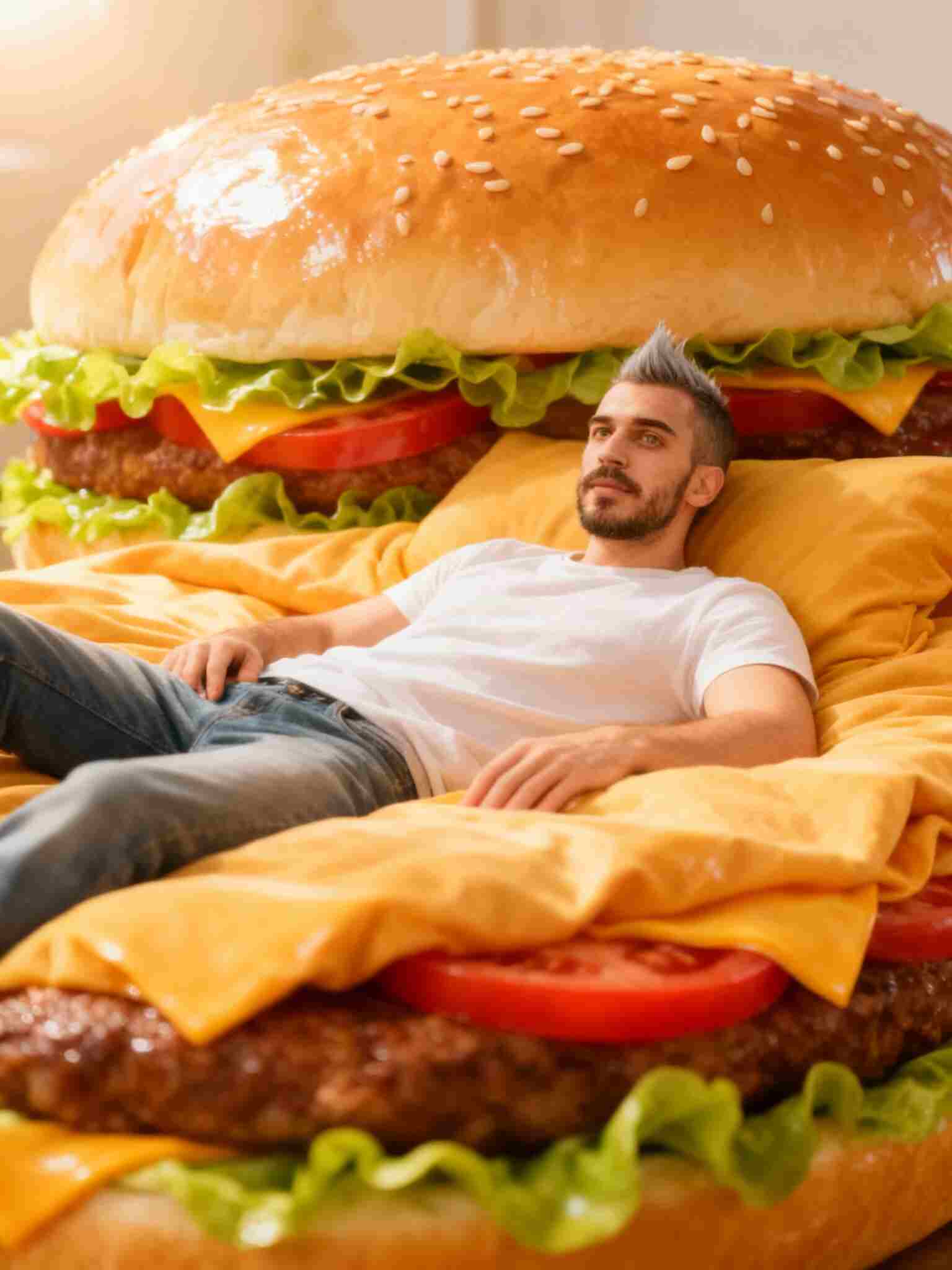
4/4 Generate and Download
Your final video will be ready within seconds.
With its flexible system and powerful engine, APOB gives you the same creative possibilities as a luma dream machine ai video generator, while offering more control and lower barriers for everyday users.
How APOB AI Recreates the Magic of Luma Dream Machine
Creators love the fluidity and dream-like motion of videos generated by the luma dream machine ai video generator. APOB achieves a similar level of visual coherence thanks to its global rendering model, which understands physics, lighting, movement, and style consistency.
Here are a few examples of what APOB can generate:
1.Cinematic Movements
APOB can simulate extremely smooth transitions, tracking shots, and parallax effects. This is one of the signature qualities of the luma ai dream machine video generation workflow, now fully available in APOB.
2.Multiple Art Styles
From hyper-realistic visuals to stylized anime, APOB allows creators to choose video styles to accelerate the creative process. This helps reduce the need for long prompts while helping artists achieve consistent looks.
3.Long-Form AI Video Creation
Unlike many AI tools that restrict duration, APOB allows you to accumulate points so you can generate longer videos over time. For creators who need sequences beyond a few seconds—something that is often limited in the luma dream machine ai video generator—APOB provides a practical solution.
APOB Features That Creators Love
Because APOB is developed specifically for creators who want flexibility and affordability, it includes features that you may not commonly get in the luma ai dream machine video generation environment:
Fast Daily Free Quota Use “Fast” and “Best” modes every day at no cost.
80 Daily Points Save them to extend video length freely.
Text-Guided Styles Choose from styles such as Cute 3D, Cute Comic, Pixel, Vintage Anime, Manga, Linear Manga, Anime Sketch, and more.
Instant Sharing Download or post your video directly to TikTok, Instagram Reels, YouTube Shorts, or any platform for monetization.
Simple Interface Even beginners can create complex shots in seconds.
Whether you want advanced physics like the luma dream machine ai video generator or artistic animation like the luma ai dream machine video generation tool, APOB achieves both with a modern UI designed for speed and creativity.
FAQs
Q1: Where can I use APOB?
Click the “Try for free” button below to enter APOB instantly—no installation required.
Q2: Can I use the generated AI video to make money?
Yes. You can post APOB videos on TikTok, Instagram, YouTube, or use them for ads, commercial projects, and client work.
Q3: What is the difference between luma ai dream machine video generation and APOB AI video generation?
Both create high-quality AI videos from text or images.
However, APOB offers Free daily Fast and Best generation and lower cost and easier access. This makes APOB a more flexible alternative to the luma dream machine ai video generator.
Q4: Can Text to Video create anime videos?
Absolutely. Choose a style such as Cute 3D, Cute Comic, Vintage Anime, Pixel, Manga, Linear Manga, or Anime Sketch—or simply type your desired anime style in the prompt.
Read More
No credit card needed


