Step 1: Log in and claim your daily credits
Log in to APOB to claim 80 free credits every day. Use them to test different video filters, style prompts, and output settings before committing to a final look.
Step 2: Create an AI model and enter the workspace
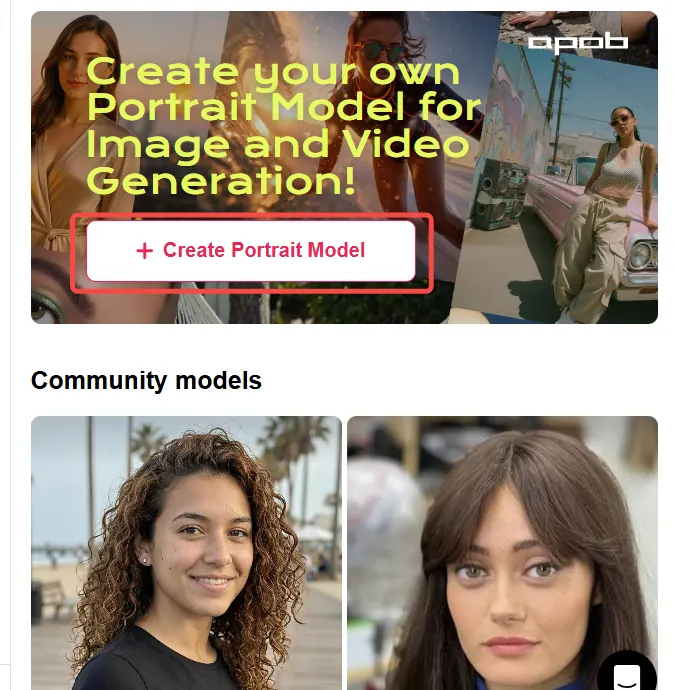
Create an AI model to enter APOB’s main workspace for generating AI images and AI videos. This gives you one place to build a consistent visual direction before editing your clip.
Step 3: Open Edit Video and choose Edit Style
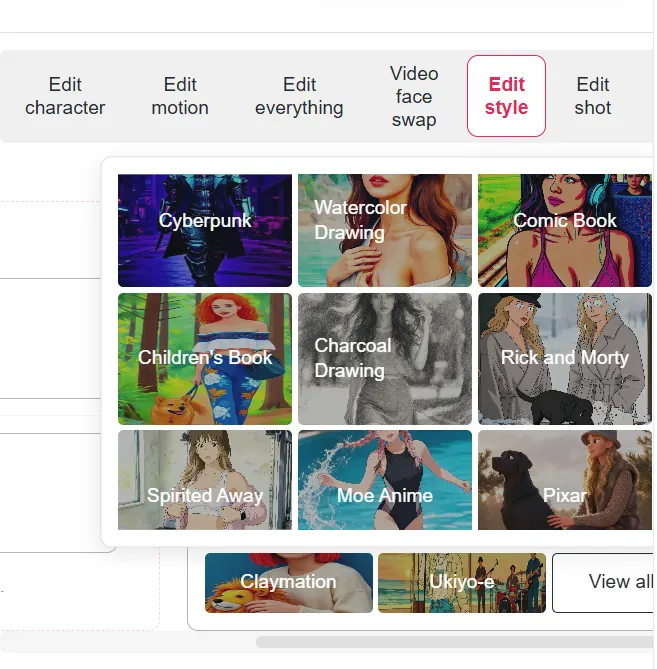
Find Edit Video on the left side of the page. Alongside tools for changing characters or backgrounds, choose Edit Style to apply a video filter. After uploading your video, browse more than 30 presets, including Steampunk, Marble Sculpture, Japanese Anime, Pencil Sketch, Pixel Art, Watercolor Drawing, Comic Book, 3D Chibi, LEGO, Van Gogh and more.

Step 4: Describe the custom video style you want
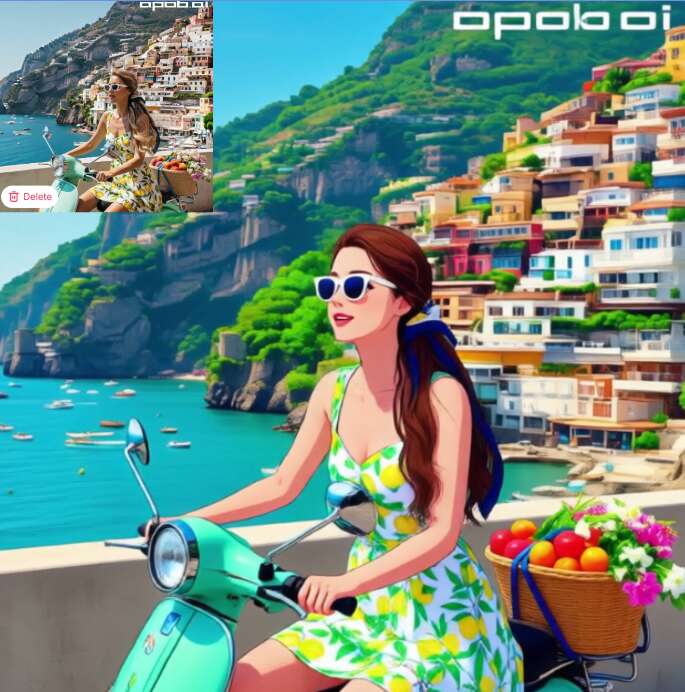
Prefer a specific look? Select “Describe the video style you want” and type a prompt. You can ask for a cinematic grade, a soft watercolor finish, a retro VHS mood, a graphic-novel treatment, or any other direction that matches your footage.
Step 5: Upscale, add transitions, and export
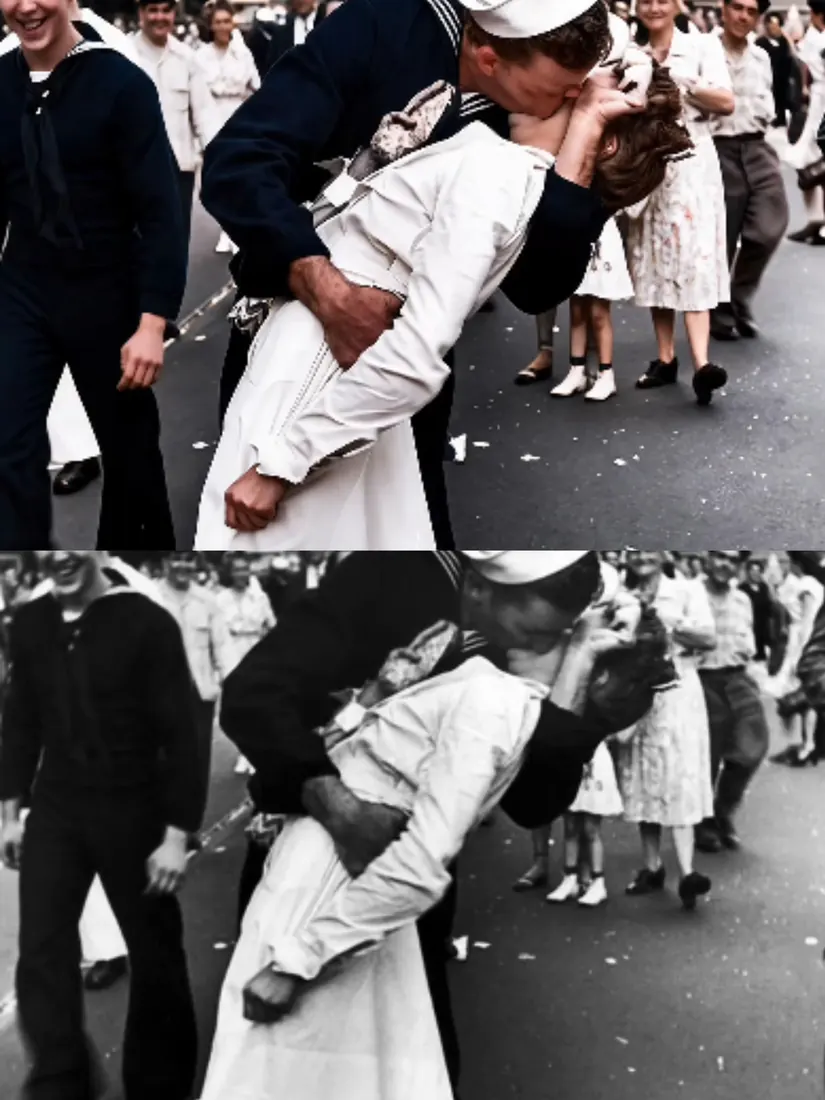
Use Upscale to significantly improve the video’s resolution. Then add transitions for more visual impact: explore bouncy, fading, zooming, blurring, glitching, radial, pixelated, and other options in APOB’s transitions library. Adjust each transition for free, preview the sequence, and export when the edit feels right.
30+ ready-to-use style presets
Start quickly with a large Edit Style library covering cinematic, anime, sketch, sculpture, pixel, comic, LEGO, and painterly looks. Pick a preset and preview a new direction without building the effect from scratch.
Add a filter to video with a custom prompt
Preset filters are only the starting point. Describe the video style you want in plain language to explore a look tailored to your footage, mood, character, or campaign.
Upscale the finished look
Pair your AI video filter with Upscale when the source clip needs a sharper, higher-resolution finish. This helps the final style read more clearly on larger screens and social feeds.
Short-form social content
Give the same clip several platform-friendly identities: a punchy comic look for a hook, a soft watercolor style for a travel story, or a glitch treatment for a music edit. Keep the visual change clear in the first seconds so the filter supports the idea instead of hiding it.
Product and ecommerce videos
Restyle product footage for seasonal campaigns, product launches, and catalog variations without reshooting every concept. Try one consistent filter family for a collection, then use transitions to connect product details into a tighter story.
Creator and UGC-style edits
Use a light-touch AI video filter to make creator clips feel more distinctive while keeping the performance readable. A prompt such as “warm handheld film texture, natural skin tones, subtle grain” can add character without overpowering the message.
Tutorials and explainers
Use different visual styles to separate chapters, highlight a key step, or make an abstract lesson easier to follow. Keep the same core character or subject visible so the filter supports comprehension.
Music, mood, and visual experiments
Turn raw performance or travel footage into stylized concept tests. Combine a prompt-driven filter with blur, zoom, glitch, radial, or pixelated transitions to explore a visual identity before investing in a full production.
Small-business campaign variations
Create several visual directions from one source clip for product launches, promotions, and social tests. Use the filter to separate campaign themes while preserving the original message and CTA.
クレジットカードは不要です
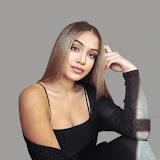



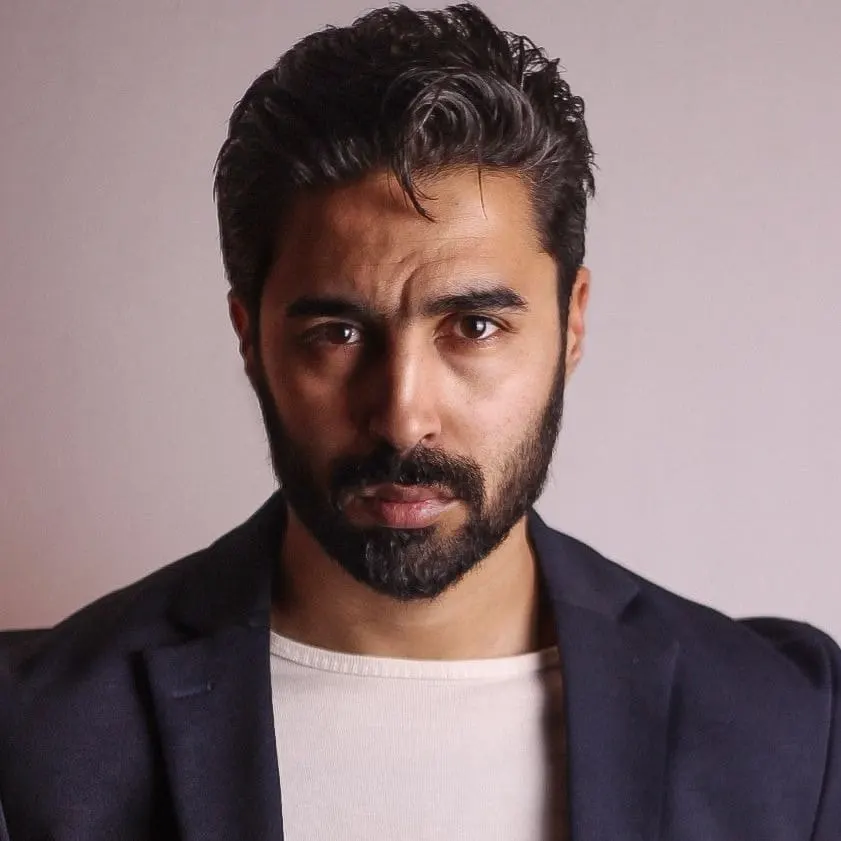
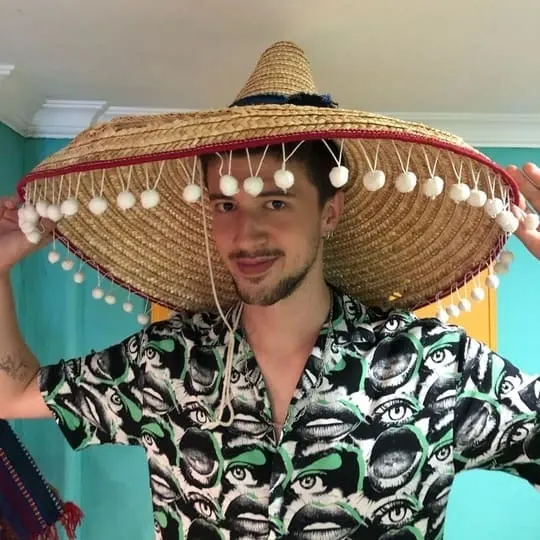

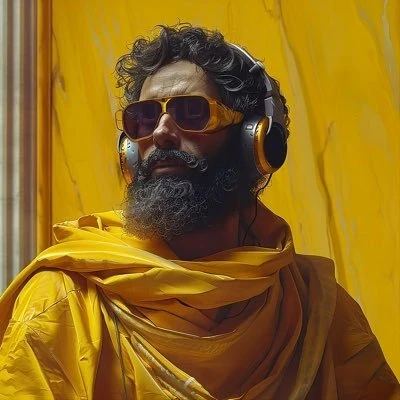
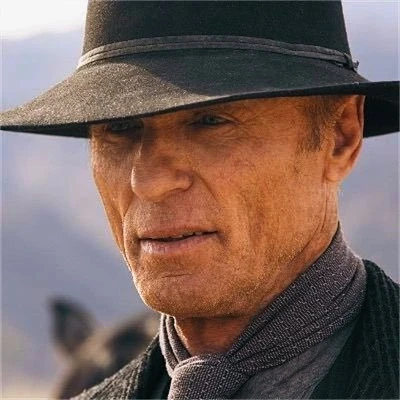







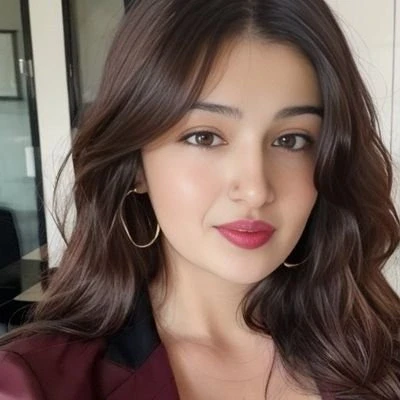
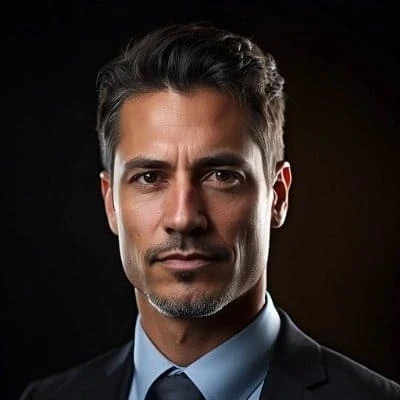
Prompt-based styling gives more control than a fixed color preset alone.
30+ Edit Style presets make it fast to test distinct visual directions.
Transitions add motion and rhythm after the filter is applied.
80 free credits are available daily after logging in.
AI restyling can change fine details, so review faces, text, logos, and product geometry.
Highly specific prompts may need a few iterations to match the source footage.
Upscale improves resolution but cannot recover every detail lost in a low-quality source.
動画フィルターとは何ですか?
動画フィルターとは、色味、質感、コントラスト、ムード、アートスタイルなど、映像の見た目を変化させる加工のことです。APOBはここにAIワークフローを組み合わせており、プリセットを選ぶことも、好みのスタイルを言葉で指定することもできます。
AI動画フィルターとは何ですか?
AI動画フィルターは、生成AIやコンピュータービジョンのモデルを使い、単純な色調整を超えて動画のスタイルを作り変える技術です。クリップ内の動きや被写体に合わせて処理を調整しながら、印象的なルックを適用できます。
APOBで動画にフィルターをかけるにはどうすればいいですか?
ログインして80の無料クレジットを受け取り、AIモデルを作成してメインワークスペースに入ります。左側のEdit Videoを開いてEdit Styleを選び、動画をアップロードしたら、プリセットを選択するか、カスタムスタイルのプロンプトを入力してください。
APOBには動画フィルターのプリセットがありますか?
あります。APOBのEdit Styleには、スチームパンク、大理石彫刻、日本アニメ、鉛筆スケッチ、ピクセルアート、水彩画、コミックブック、3Dちびキャラ、LEGO、ゴッホ風など、30種類以上のプリセットが用意されています。
プロンプトでカスタム動画フィルターを作れますか?
作れます。Edit Styleで「Describe the video style you want(作りたい動画スタイルを説明)」を選び、イメージする見た目を普段の言葉で説明してください。色、質感、時代感、画材、ライティング、雰囲気などを自由に組み合わせて指定できます。
シネマティックな動画フィルターは使えますか?
使えます。カスタムプロンプトで、狙いたいムード、ライティング、カラーパレット、レンズの質感、テクスチャを描写してみてください。例:「シネマティックな暖色のハイライト、寒色のシャドウ、繊細なフィルムグレイン、自然な肌のトーン」。
フィルターでアニメ風の動画を作れますか?
作れます。日本アニメはEdit Styleのプリセットのひとつです。ルックをより細かくコントロールしたい場合は、カスタムプロンプトでアニメ調の表現を指定することもできます。
動画をコミック風のスタイルに変換できますか?
できます。コミックブックは利用できるプリセットのひとつです。フィルター適用後は、顔、手、看板などのディテールを確認し、想定している用途に合っているかチェックしてください。
APOBのUpscaleはどんな機能ですか?
Upscaleは、動画の解像度を大幅に向上させるための機能です。スタイル適用後、SNS投稿やプレゼンテーション、大きな画面での再生に向けて、フィルター済みの映像をよりクリアに見せたいときに役立ちます。
アップスケールはフィルター適用の前と後、どちらがいいですか?
多くのワークフローでは、先にスタイルを適用し、選んだ結果に対してUpscaleを使うのがおすすめです。元動画が特に小さい、またはぼやけている場合は、両方の順番を試して、被写体とディテールが最もよく保たれるバージョンを採用してください。
フィルター適用後にトランジションを追加できますか?
できます。APOBのトランジションライブラリには、バウンス、フェード、ズーム、ブラー、グリッチ、放射状、ピクセル化など多彩なトランジションが揃っています。書き出し前に、各トランジションを無料で調整できます。
APOBの動画フィルターは無料で試せますか?
ログインすると毎日80の無料クレジットを受け取れ、動画フィルター、カスタムプロンプト、関連ツールのお試しに使えます。処理できる量は、選んだワークフローのクレジットコストによって変わります。
動画フィルターを使う前にAIモデルの作成が必要ですか?
このページで紹介しているAPOBのワークフローでは、まずAIモデルを作成して、AI画像・動画生成のメインワークスペースに入ります。ワークスペースに入ったら、Edit VideoからEdit StyleとUpscaleにアクセスしてください。
アップロードできる動画形式は何ですか?
現在のAPOBワークスペースが対応している一般的な動画形式をアップロードしてください。ファイルが受け付けられない場合は、広くサポートされているコーデックで標準的なMP4に書き出し、変換後のクリップをアップロードしてみてください。
良いカスタム動画スタイルのプロンプトを書くコツは?
被写体、表現メディア、ムード、カラーパレット、ライティング、質感、効果の強さを具体的に書きましょう。「控えめな水彩の淡いタッチ、顔の同一性を維持、柔らかな日中の光」のような具体的な指示のほうが、「いい感じにして」よりも結果を評価しやすくなります。
動画フィルターで背景やキャラクターを変えられますか?
APOBのEdit Videoには、動画のキャラクターや背景を変更するためのAIツールが複数用意されています。フィルターに最も直結するのはEdit Styleで、より大きなシーンの変更には他のツールが役立ちます。
AI動画フィルターを適用した後は何を確認すべきですか?
被写体の同一性、手、顔、文字、ロゴ、商品の形状、動きの連続性、効果の強さを確認しましょう。気になる部分があれば、より控えめなプロンプト、別のプリセット、または短めの素材クリップを試してみてください。
APOBの動画フィルターはTikTok、Reels、Shortsに使えますか?
使えます。スタイライズしたクリップはショート動画コンテンツと相性が良好です。目を引くビジュアルフックを選び、主要な被写体の視認性を保ち、公開するプラットフォームと掲載面に合ったフォーマットで書き出しましょう。
ひとつの動画フィルターを複数のクリップに使えますか?
使えます。同じプリセットや練り込んだプロンプトを使い回すことで、シリーズ全体により一貫したビジュアルアイデンティティを作れます。仕上がりを揃えるには、素材の撮り方や被写体のフレーミングをある程度統一しておきましょう。
商品動画に最適な動画フィルターはどれですか?
すべての商品に共通するベストなフィルターはありません。クリーンなシネマティック、ソフトなエディトリアル、コミック、絵画調など、ブランドに合うスタイルから始めて、テキスト、商品の形状、核となるベネフィットが見やすい状態を保ちましょう。


